How to Install 1Password on Mac — Sign In Without Typing Your Secret Key, Then Add Your iPhone with a QR Code
Published November 1, 2026
Official documentation reviewed November 1, 2026 (some steps not tested)
By Wada Digital Lab
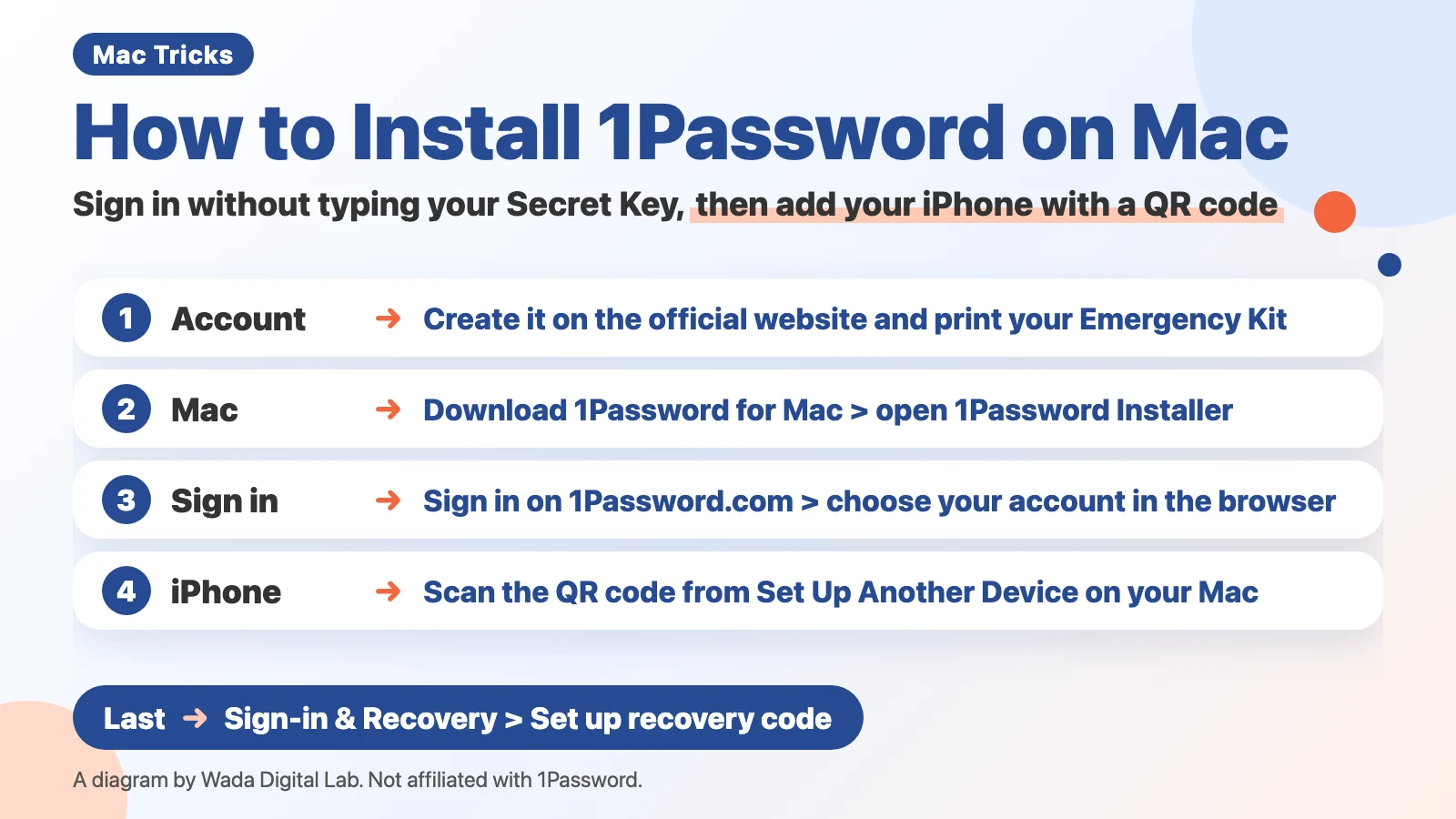
To install 1Password on a Mac, create your account on the official 1Password website first, then install the Mac app. When the app opens, click Sign in on 1Password.com and choose your account in your browser. You add your account to the app without ever typing your Secret Key (a long code that only you have and that protects your data) by hand. To add your iPhone, scan the QR code that appears when you choose Set Up Another Device on your Mac. Finally, set up a recovery code so you can get back into your account if you ever can’t sign in. This article walks through each step with the screens from the Mac we recorded on.
Key points
- Create your account on the official 1Password website. Enter the verification code from your email, then choose your account password.
- Your Emergency Kit (the PDF with your Secret Key) usually goes to your Downloads folder. Print it the same day and keep it with your important documents.
- Install the Mac app from the downloads page on the official website. In the app, click Sign in on 1Password.com. Your browser connects to the app, so you don’t need to type your Secret Key (since 1Password 8.12.34).
- On your iPhone, choose Scan QR Code in the 1Password app and scan the QR code from Set Up Another Device in 1Password on your Mac.
- Last, open Manage Accounts, select Sign-in & Recovery, and click Set up recovery code. After you save your recovery code, click Next and follow the onscreen steps to finish. Wait at least one hour before you use it.
The diagram below sums up the order for getting started with 1Password on a Mac.
This article was written by Wada Digital Lab, which is not affiliated with 1Password (AgileBits Inc.) or Apple. It is not a paid promotion. 1Password is a paid app; check the official 1Password website for pricing.
What does installing 1Password on a Mac involve? Create an account, install the app, and connect it from your browser
Installing 1Password on a Mac means creating a 1Password account, installing the Mac app, and adding your account to that app. Installing the app alone isn’t enough. You can start saving passwords once your account is in the app.
There are five steps, in this order:
- Create your account on the official website.
- Save and print your Emergency Kit.
- Install the app on your Mac.
- Click Sign in on 1Password.com in the app and connect it from your browser.
- Add your iPhone and set up a recovery code.
How to use 1Password once it’s installed (unlocking with Touch ID and signing in from Safari’s suggestions) is covered in How to Use 1Password on Mac — Set Up AutoFill and Touch ID, Then Sign In from Safari. This article covers the steps before that.
Create your account: pick a plan on the official website, then enter the verification code and your account password
First, open the official 1Password website (1password.com) and pick a plan on the pricing page. Choose Individual if it’s just for you, or Families if you’ll share it with your family. The official pricing page says the Families plan includes 5 users.
- Enter your name and email address.
- Enter the verification code from your email.
- Choose your account password.
1Password’s support page lists the same order: confirm your email, choose your account password, then prepare your Emergency Kit. Your account password is the one important password that unlocks 1Password. Make it a new password that you don’t use on any other website.
We did not record the account creation screens. For the recording, we used a recording account we had set up earlier.
Save and print your Emergency Kit: the “1Password Emergency Kit” PDF in your Downloads folder
When you create your account, 1Password asks you to save your Emergency Kit. Your Emergency Kit is a PDF with the details you need to get into your 1Password account. According to 1Password’s support page, it includes your sign-in address, your email address, and your Secret Key (a long code that only you have and that protects your data), plus a place to write your account password. It also has a Setup Code, a QR code that makes it easier to sign in on mobile devices.
The PDF usually goes into your Downloads folder. The same support page says that if you don’t remember saving it, you can look in your Downloads folder for a PDF named “1Password Emergency Kit.” It suggests printing a copy and keeping it in a safe deposit box or with your passport or birth certificate. It also suggests saving it to your personal cloud storage or giving a copy to someone you trust.
In the steps below, you won’t type your Secret Key by hand. Even so, don’t throw your Emergency Kit away. Print it and put it away the same day.
Install it on your Mac: Download 1Password for Mac, then open 1Password Installer
Next, install the Mac app.
- On the downloads page of the official 1Password website, choose macOS.
- Click Download 1Password for Mac.
- When the download finishes, unzip the downloaded file in your Downloads folder, then open 1Password Installer.
- When the installation finishes, the 1Password app opens.
On the Mac we recorded on, the button on the English downloads page was Download 1Password for Mac. The page says you need macOS 12 or a newer version of macOS. 1Password was already installed on that Mac, so we only moved the pointer over the button; we did not record the download or the installation. The name 1Password Installer comes from 1Password’s support page on checking that a download is authentic, which also says to unzip the installer you downloaded.
When we looked at AgileBits’ apps on the Japanese App Store (October 30, 2026), the Mac apps listed were 1Password for Safari and the older 1Password 7. We didn’t find the current Mac app there. Install the Mac app from the downloads page on the official website.
Sign in without typing your Secret Key: click Sign in on 1Password.com in the app, then choose your account in your browser
This is where getting started gets easy. The browser you used to create your account already has your Secret Key. Because the app connects to that browser, you don’t need to type your Secret Key. According to 1Password’s release notes, this works from 1Password for Mac 8.12.34 (August 25, 2026): you can add your account to the app on 1Password.com without re-entering your password or Secret Key.
- On the app’s Sign In screen, click Sign in on 1Password.com.
- When your browser opens, choose your account.
- On the Connect your account page, click Connect your account to desktop app.
- If Safari asks whether to allow the page to open 1Password, click Allow.
- When the app shows Connect account to this app?, click Connect account.
- If the browser shows Confirm account on 1Password for Mac, click Confirm account.
- When the app shows This app is now linked, click Done.
Below is the 1Password Sign In screen on the Mac we recorded on.
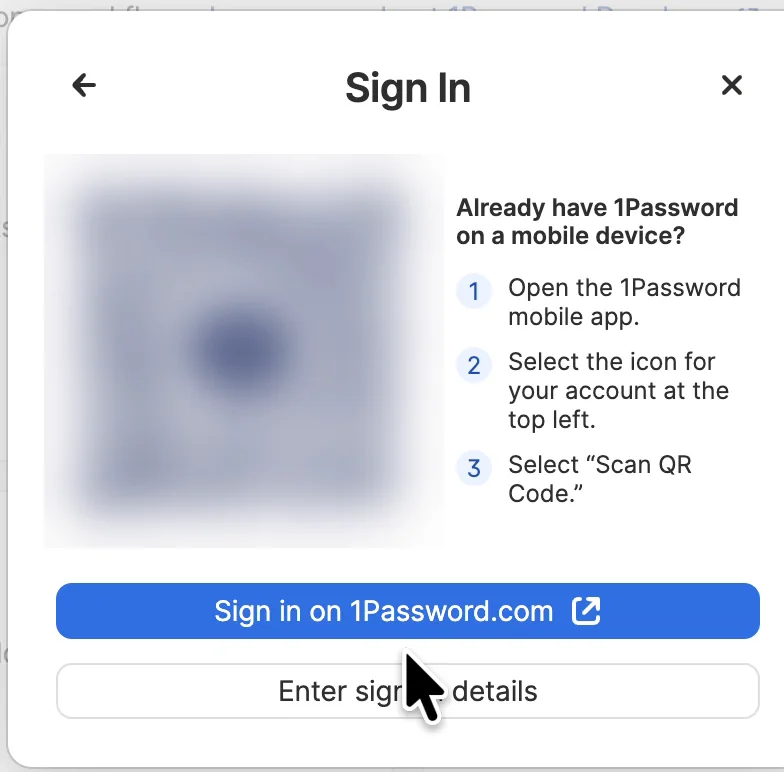
On the Mac we recorded on, the recording account went into the app in this order, and we never typed the Secret Key. Because the 1Password.com sign-in in Safari had expired, the account password was entered once in Safari. In the English recording, the browser also showed Confirm account on 1Password for Mac before the app said This app is now linked. In the Japanese recording, that step didn’t appear.
Another account was already in the app on that Mac, so we reached the Sign In screen through Sign In to Another Account in the Accounts menu. We didn’t record which screen appears first in a newly installed app. If your account doesn’t appear in your browser, you can choose Enter sign-in details and type your email address, Secret Key, and account password from your Emergency Kit (we didn’t try this).
Use it in Safari and Chrome: turn on macOS AutoFill for Safari, add the extension for Chrome
For Safari, you don’t need an extension (a small add-on for your browser). In 1Password’s settings, select Autofill and turn on macOS AutoFill so it shows Active. Your 1Password logins then appear in Safari’s usual password suggestions. According to 1Password’s support page, saving and filling with 1Password for Mac requires macOS Sonoma 14 or later. The same page says to make sure User names and passwords is turned on in Safari’s AutoFill settings. The steps and screens are in How to Use 1Password on Mac.
If you also want to fill in credit cards and addresses in Safari, install 1Password for Safari from the App Store. 1Password’s support page also says that login suggestions appear in Safari’s default menu, and that the browser extension continues to fill credit cards, addresses, and other items. In the recording, we only opened the 1Password for Safari page in the App Store; we didn’t record installing it.
If you use Chrome, add the extension. On the Mac we recorded on, it went like this:
- In the Chrome Web Store, search for 1Password and open 1Password – Password Manager.
- Click Add to Chrome, then click Add extension when Chrome asks.
- When the Welcome page opens, the extension has been added.
Add your iPhone with a QR code: Set Up Another Device on your Mac, then Scan QR Code on your iPhone
To use 1Password on your iPhone too, install the 1Password app from the App Store. You don’t need to type your Secret Key here, either.
- In 1Password on your Mac, click your account name at the top left and choose Set Up Another Device… A QR code appears.
- Open 1Password on your iPhone and select Sign in.
- Select Scan QR Code and scan the QR code on your Mac’s screen.
- If you see a confirmation code or a prompt, follow the onscreen steps.
Below is the screen on the Mac we recorded on, after choosing Set Up Another Device…
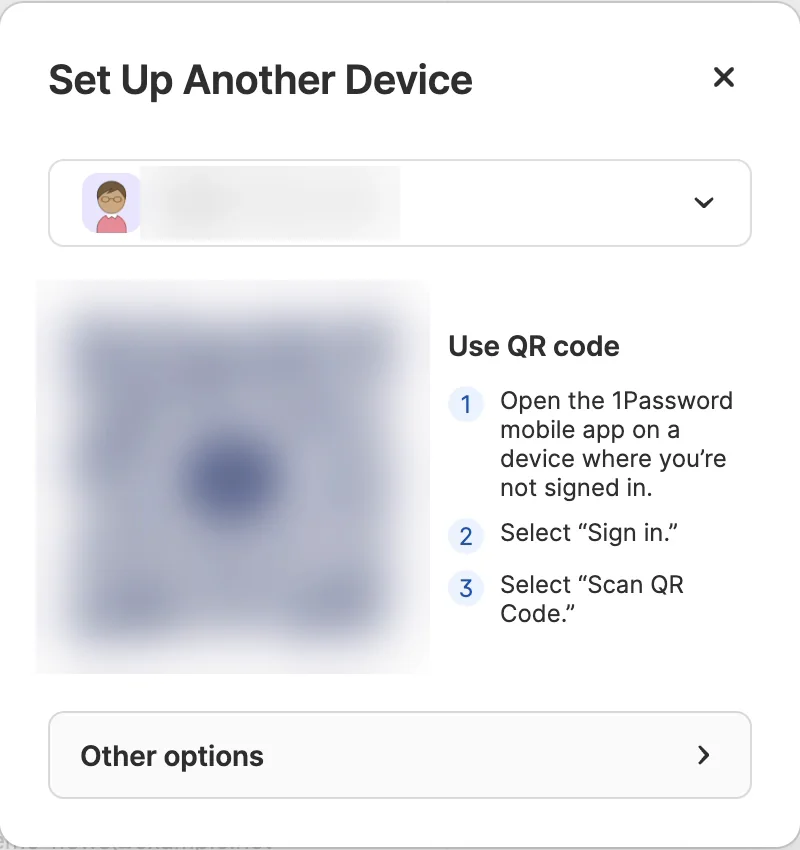
This QR code works like a key to your account. 1Password’s support page also says you can set up the mobile app by scanning a QR code from any device that’s already signed in. Don’t show it to anyone or send a photo of it.
There was no iPhone with the Mac we recorded on, so we didn’t record the iPhone screens. Steps 2 and 3 above follow the order listed under Use QR code on the Mac’s screen. Step 4 comes from 1Password’s support page on how QR codes work, which says you enter a confirmation code or accept a prompt. If you can’t sign in on your iPhone, choose Set Up Another Device… on your Mac again to show a new QR code and scan it again.
It also works the other way. If 1Password is already on your iPhone, the Sign In screen on your Mac (shown above) has its own QR code that you can scan with 1Password on your iPhone to add your account to the Mac. The Sign In screen lists those three steps (we didn’t try this).
Set up a recovery code: Manage Accounts > Sign-in & Recovery > Set up recovery code
Last, prepare for the unexpected. At Wada Digital Lab, we started using 1Password a few years ago, and we honestly can’t quite remember where we saved the Emergency Kit. We still aren’t sure where to keep it. That’s what recovery codes are for in 1Password now.
According to 1Password’s support page, a recovery code lets you get back into your account if you can’t sign in with your account password and Secret Key. When you use it, you verify that it’s you through the email address on your account. You then get a new Secret Key and create a new account password, and all your data is still there. Recovery codes are only for individual and family accounts.
- In 1Password on your Mac, click your account name at the top left and choose Manage Accounts…
- Choose your account, then select Sign-in & Recovery.
- Under Recovery options, click Set up recovery code.
- Follow the onscreen instructions to create your recovery code and save it.
Below is Sign-in & Recovery in Manage Account on the Mac we recorded on.
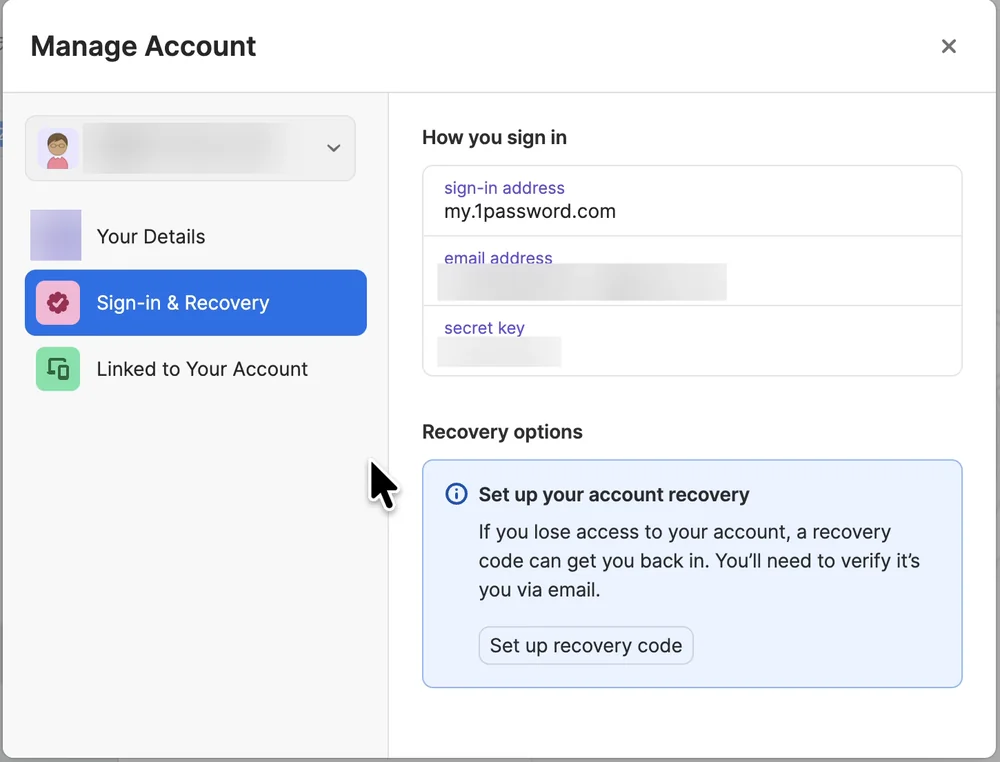
In the English recording, we only moved the pointer over Set up recovery code. Creating a new recovery code changes the account’s security settings (and a new code replaces any earlier one), so the English recording stopped there. In our Japanese recording, we went further. After checking the box to confirm the important information and generating the code, the Save button saved a plain text file to the Downloads folder, named “1Password recovery code” in Japanese. The screen said you would be asked to enter the code again on the next screen. We didn’t click Next, so we didn’t see the rest of the setup. Print the saved file or move it somewhere you won’t lose it.
The support page says not to use your recovery code right after you create it; wait at least one hour. If you try a recovery right after a recent sign-in, the code can’t be used for 24 hours. Once you’ve created it, you can put it away without testing it.
Getting started with 1Password at a glance
| What you want to do | Where | What to click |
|---|---|---|
| Create your account | The pricing page on the official 1Password website | Pick a plan → verification code → account password |
| Keep your Emergency Kit | Your Downloads folder | Print “1Password Emergency Kit” |
| Install it on your Mac | The downloads page on the official website | Download 1Password for Mac → 1Password Installer |
| Add your account to the app | The app’s Sign In screen | Sign in on 1Password.com → choose your account in your browser |
| Use it in Safari | Autofill in 1Password’s settings | Make macOS AutoFill show Active (macOS Sonoma 14 or later) |
| Use it in Chrome | Chrome Web Store | Add to Chrome → Add extension |
| Add your iPhone | Your account name on the Mac → the iPhone app | Set Up Another Device… → Scan QR Code |
| Prepare for the unexpected | Sign-in & Recovery in Manage Accounts | Set up recovery code → save it → Next |
If 1Password won’t install: check your macOS version and the downloads page
If 1Password won’t install, first check your Mac’s macOS version. 1Password’s downloads page says you need macOS 12 or a newer version of macOS. Choose Apple menu > About This Mac to see your macOS version.
If you can’t find it in the App Store, install it from the downloads page on the official website, as described above. 1Password for Safari in the App Store is a separate app for filling in cards and addresses in Safari.
Frequently asked questions
Does 1Password cost money?
1Password is a paid app. Check the official 1Password website for pricing. This article is not a paid promotion.
Where do I type my Secret Key?
With the steps in this article, you don’t. The browser you used to create your account already has your Secret Key, so connecting with Sign in on 1Password.com adds your account to the app. Still, print your Emergency Kit and keep it safe. 1Password’s support page says your Secret Key is not a backup code for a forgotten password.
Do I need both the app and an extension?
In Safari, the app is enough. On macOS Sonoma 14 or later, make macOS AutoFill show Active, and your logins appear in Safari’s suggestions. Add an extension if you also want to fill in cards and addresses in Safari, or if you use Chrome.
Which plan is for a family?
Families. The official 1Password pricing page says it includes 5 users.
Should I test my recovery code after I create it?
No need. 1Password’s support page says to wait at least one hour after you create it before you use it. Your recovery code stays valid even after you use it.
What we tested on, and our sources
- The Mac we recorded on: MacBook Air (M2) with 1Password for Mac, using a recording user account and a 1Password account holding only dummy items. In recordings made on October 31 and November 1, 2026 (English and Japanese), we looked at the downloads page (Download 1Password for Mac, not clicked), signing in from Sign in on 1Password.com through choosing the account in Safari until the app was linked, adding the Chrome extension from the Chrome Web Store, the QR code in Set Up Another Device…, and Sign-in & Recovery with the Set up recovery code button. Generating and saving a recovery code was done only in the Japanese recording.
- The notes for this recording don’t include the macOS or 1Password version numbers. Another recording made on the same Mac the day before (October 30, 2026) shows macOS 27.2. When the video script was written on October 30, 2026, the latest 1Password for Mac was 8.12.42.
What we have not tried on screen: creating an account; saving and printing the Emergency Kit; downloading and installing the app (1Password was already on the Mac we recorded on); the first screen in a newly installed app; the iPhone screens and scanning the QR code; installing 1Password for Safari; clicking Next after saving a recovery code, and using a recovery code. These follow 1Password’s support pages and official website.
1Password Support and official website:
- Get started with 1Password
- Get to know your Emergency Kit
- Find your Secret Key or Setup Code
- About the security of signing in to 1Password with a QR code
- Generate and use recovery codes
- Use 1Password to sign in to apps and websites on your Mac
- How to verify the authenticity of the 1Password app
- Download 1Password for Mac
- 1Password for Mac release notes
- 1Password pricing
1Password is a trademark of AgileBits Inc. Mac, macOS, Safari, iPhone, and App Store are trademarks of Apple Inc. Chrome is a trademark of Google LLC. Wada Digital Lab is not affiliated with these companies.