How to Use 1Password on Mac — Set Up AutoFill and Touch ID, Then Sign In from Safari
Published October 29, 2026
Official documentation reviewed October 29, 2026 (some steps not tested)
By Wada Digital Lab
The most important setting for using 1Password on a Mac is macOS AutoFill. In 1Password’s settings, select Autofill and make sure “macOS AutoFill” shows Active. Your 1Password logins then appear in Safari’s usual password suggestions, and placing your finger on Touch ID fills in your login, so you only need to click the site’s sign-in button. On a new website, choose 1Password below the password field, then New Item, and 1Password creates a strong password for you. Enter your username and click Save to keep it in 1Password. This article walks through it on macOS 27, from creating your account to signing in.
There is also a video that goes through the same steps on a Mac screen: “1Password for Mac: AutoFill and Touch ID Basics” (YouTube, 6 min 15 sec).
Key points
- 1Password is a password manager that saves your passwords and fills them in. If you only use a Mac, the built-in Passwords app (macOS Sequoia 15 or later) is enough.
- First, create a 1Password account and sign in to the Mac app. Print your Emergency Kit (the PDF with your Secret Key) and keep it with your important documents.
- In 1Password’s settings, select Security and turn on Unlock using Touch ID, so you can open 1Password with your fingerprint.
- The key step: in 1Password’s settings, select Autofill and make sure “macOS AutoFill” shows Active. You need macOS Sonoma 14 or later.
- On a new website, choose 1Password below the field, then New Item, enter your username, and click Save. Next time, pick the suggestion below the field, use Touch ID to fill it in, and click the site’s sign-in button.
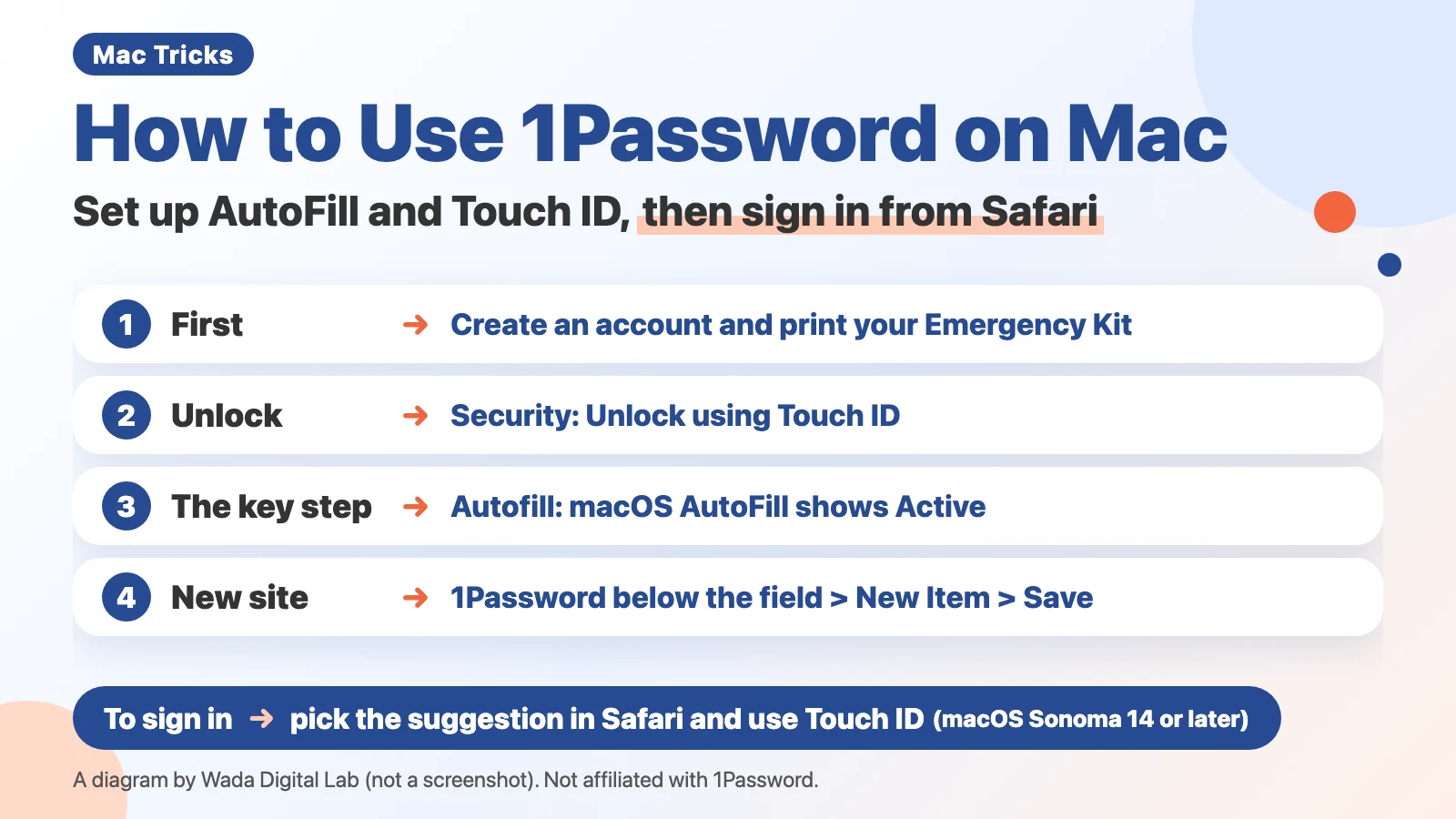
The diagram below sums up how to start using 1Password on a Mac (not a screenshot).
This article was written by Wada Digital Lab, which is not affiliated with 1Password (AgileBits Inc.) or Apple. It is not a paid promotion. 1Password is a paid app; check the official 1Password website for pricing.
What is 1Password? A password manager that saves and fills your passwords — and when the Passwords app is enough
1Password is a password manager: it saves your passwords and fills them in on sign-in pages for you, so you don’t have to remember them.
On macOS Sequoia 15 or later, your Mac already comes with the Passwords app. If you only use a Mac, the Passwords app is enough, and it shares the same passwords with your iPhone and iPad through iCloud.
At Wada Digital Lab, we use 1Password because the same app also works on a Windows PC, and the same passwords show up on an iPhone and iPad. You can also keep these in one place:
- Notes and file attachments
- Two-factor authentication codes (the numbers you enter along with your password when you sign in) and passkeys (a way to sign in without typing a password)
- Bank and credit card PINs
- Driver’s license and passport numbers
We open 1Password about five times a day. Before 1Password, we reused passwords that only changed the first letter to make them easy to remember.
Getting started: create an account, print your Emergency Kit, and keep it with your important documents
First, create an account on the official 1Password website, install the Mac app, and sign in. While you create your account, 1Password asks you to save a PDF called the Emergency Kit.
The Emergency Kit is a PDF with the details you need to get into your 1Password account. 1Password’s support page says it contains your sign-in address, your email address, and your Secret Key (a unique code that protects your data), plus a place to write your account password. If you can’t sign in, you use it to get back into your account. If you turn on two-factor authentication for your 1Password account, the same page also says to write down the 16-character secret next to the QR code.
The same page suggests printing a copy to keep in a safe deposit box or with your passport or birth certificate, and writing your 1Password account password on at least one printed copy.
To be honest, we started 1Password a few years ago and don’t clearly remember where we put our Emergency Kit. We still aren’t sure where it’s best to keep it. So if you’re just starting, print it on the day you create your account and decide where it goes. To save another copy, sign in on 1Password.com, select your name in the top right, choose Manage Account, then select Save Emergency Kit (these steps are from 1Password’s support page; we did not try this screen).
Unlock with Touch ID: turn on “Unlock using Touch ID” in Security
Next, set up 1Password so you can unlock it with Touch ID. You need a Mac or a Magic Keyboard with Touch ID (whether a Magic Keyboard works depends on your Mac model and macOS version).
- Open and unlock 1Password.
- Select your account at the top of the sidebar, then select Settings.
- Select Security, then turn on Unlock using Touch ID.
- Lock 1Password once, then unlock it with your account password. After that, you can unlock it with your fingerprint.
Touch ID doesn’t replace your account password completely. 1Password’s support page says you’ll sometimes need to enter it: when the time set in Security has passed, when Touch ID isn’t available (for example, when your Mac’s built-in display is closed), or when you add or delete a fingerprint. On the Mac we used for the Japanese recording, that time was set to 30 days. Don’t forget your account password.
When you step away from your Mac, press Shift-Command-L to lock 1Password right away. In our Japanese recording, 1Password locked, and we unlocked it again with Touch ID.
Turn on macOS AutoFill: make sure “macOS AutoFill” shows Active
This is the most important setting. Once 1Password is part of your Mac’s AutoFill, your 1Password logins appear in Safari’s usual password suggestions — no browser extension (a small add-on for your browser) needed in Safari.
- In 1Password’s settings, select Autofill in the sidebar.
- Select Set up macOS AutoFill, then Turn On (the button names on 1Password’s support page).
- If you see Active next to “macOS AutoFill”, it’s set up.
You need macOS Sonoma 14 or later. If you don’t see Autofill in the sidebar, 1Password’s support page says to lock and unlock 1Password.
The screenshot below shows the Autofill screen after it’s set up.
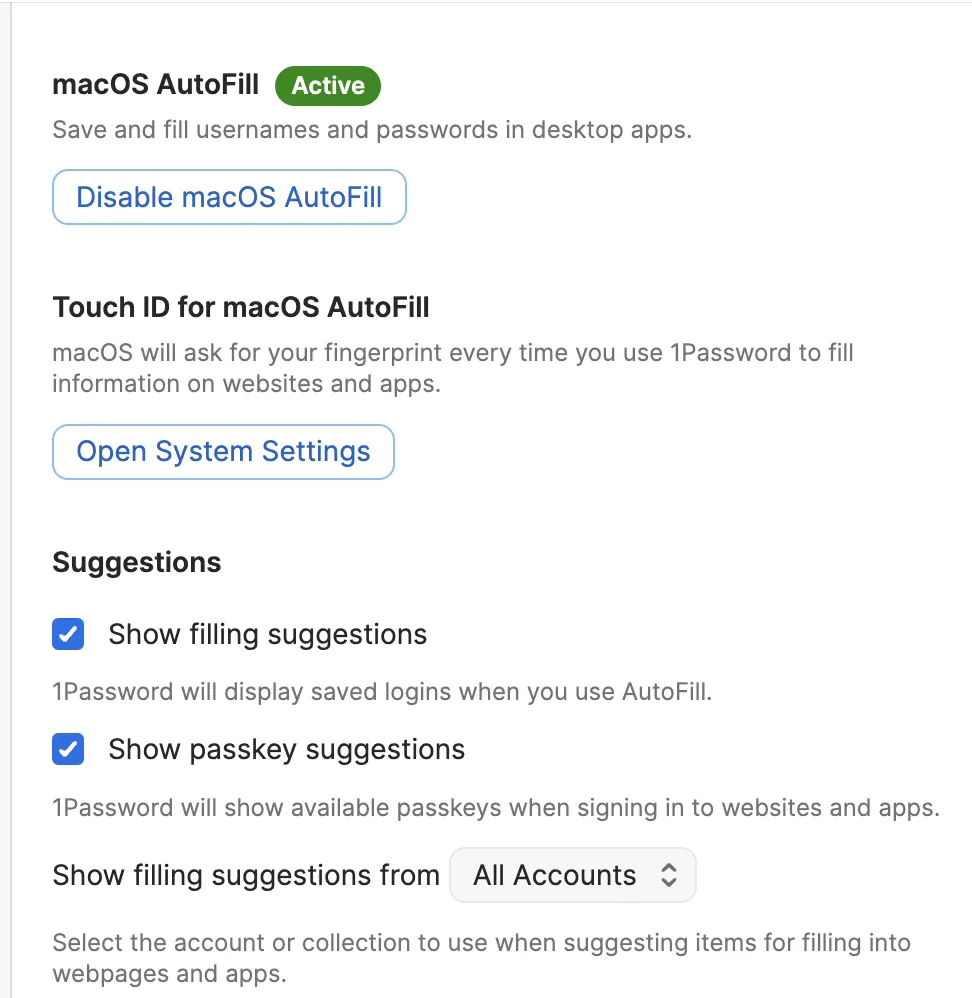
On the Mac we recorded, macOS AutoFill was already Active, so we did not see the Set up macOS AutoFill button ourselves.
Check “AutoFill from” in System Settings, too
Next, check the setting on the Mac side. Choose Apple menu > System Settings, select General, then open AutoFill & Passwords. Under “AutoFill from”, make sure 1Password is turned on.
The screenshot below shows AutoFill & Passwords on the Mac we recorded.
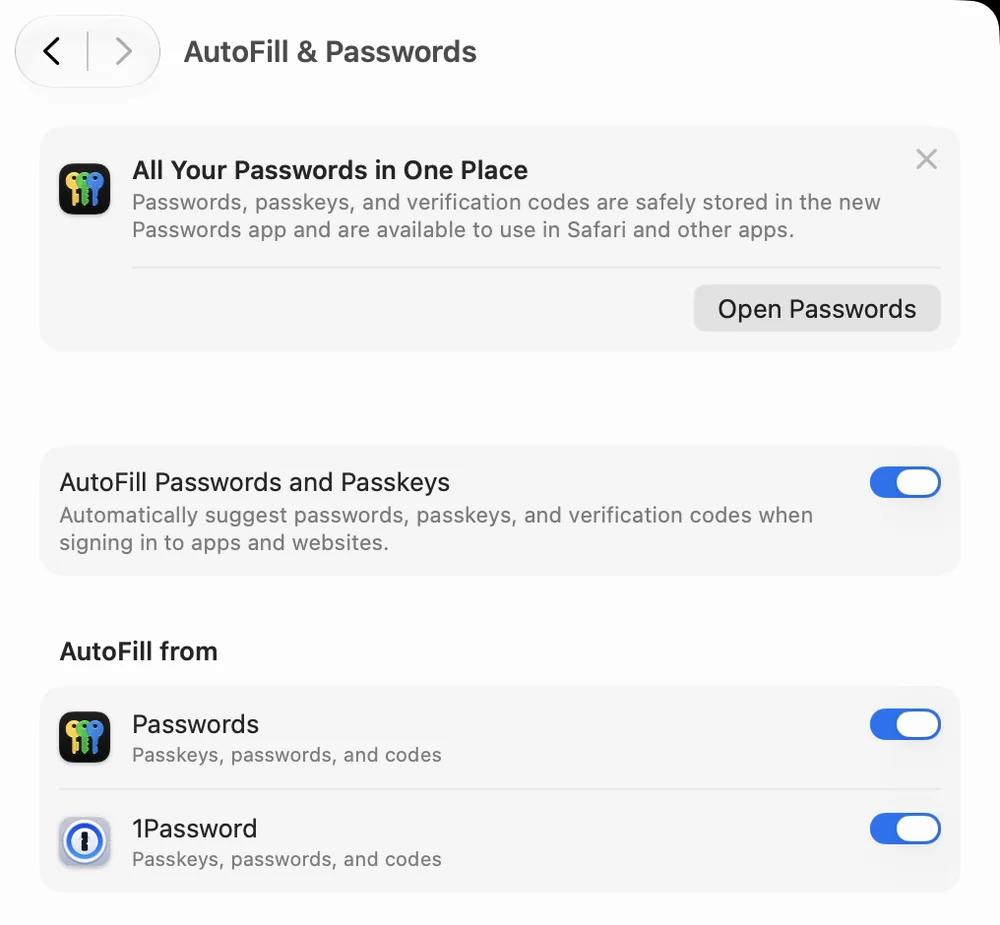
If you don’t want the Passwords app to save passwords too, turn off Passwords here. 1Password’s support page gives the same steps, so that passwords and passkeys don’t end up in the built-in Passwords app instead of 1Password.
If both save your passwords, you won’t know which one is up to date. On our own Mac, Safari and Chrome still had old passwords. We find it easier to keep accurate, current passwords in 1Password. Keeping your passwords in one place is the simplest way.
Finally, check Safari, too. Choose Safari > Settings, select AutoFill, and make sure User names and passwords is turned on.
Create and save a new password: 1Password below the field > New Item > Save
When you sign up on a new website, let 1Password create the password. In 1Password, each saved entry, such as the username and password for one website, is called an item.
- On the sign-up page, select the password field.
- Select 1Password below the field. If you don’t see it, select the key icon at the end of the field.
- Select New Item. A new 1Password window opens with a password already created.
- To get a different password, select Create a New Password.
- Enter your username and click Save.
The screenshot below shows the new item window in 1Password after we selected New Item.
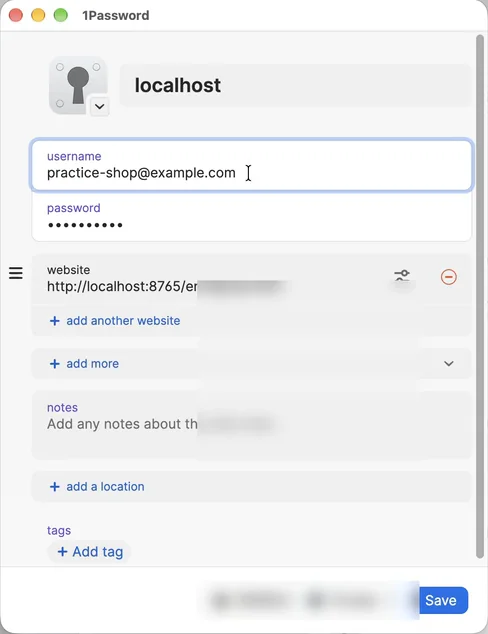
1Password’s support page says to select Create a New Password, adjust the settings, and then select Use. In our Japanese recording (macOS 27.0.1 and 1Password 8.12.42), after we clicked Save in the new item window, the new password was not filled into the sign-up page’s password field. The login was saved in 1Password. If that happens, open the item in the 1Password app, copy the password, and paste it into the sign-up page to finish signing up (we did not try this in our recordings). On the login page, it filled from the suggestions as described in the next section.
For accounts you already have, choose New Item > Login in 1Password, enter your current username and password, and save it. Saving it doesn’t change the password the website uses. To stop reusing a password, change it in that website’s settings and let 1Password create the new one. Because you don’t have to come up with passwords yourself, you can stop reusing passwords that only change the first letter.
Sign in from the suggestions: pick your login below the field, then use Touch ID
The next time you sign in, select the username or password field. Pick your login from the suggestions below the field, then place your finger on Touch ID to fill it in.
The screenshot below shows the practice website after we selected the email address field.
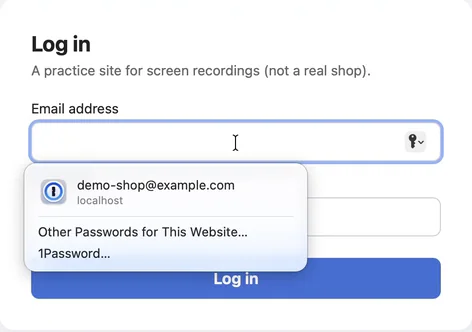
When you pick a suggestion, a Touch ID prompt appears. On the Mac we recorded, it said “Touch ID to AutoFill your login information.” After we placed a finger on Touch ID, the email address and password were filled in, and clicking Log in signed us in. The screenshot below shows that Touch ID prompt.
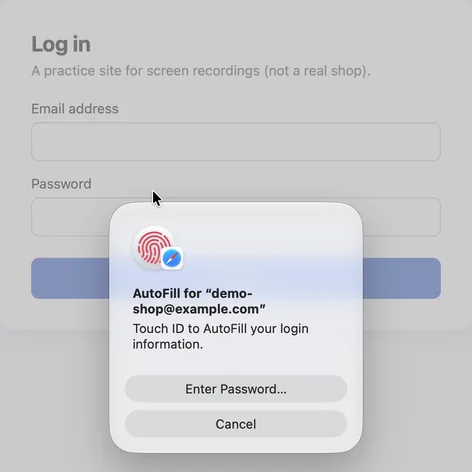
If you don’t want to approve with Touch ID every time, 1Password’s support page explains how: in 1Password’s settings, select Autofill, then under “Touch ID for macOS AutoFill”, select Open System Settings > Open macOS Touch ID Settings and turn off Use Touch ID for autofilling passwords (we did not try this setting; we read the name from the on-screen text data built into macOS 27).
In Chrome or Firefox, install the 1Password browser extension to save and fill the same way.
Move your old passwords: one site at a time, or all at once with File > Import
You don’t have to move all your passwords at once. We move them one site at a time, as we use each site.
To move them all at once, first export your passwords to a file from Safari or Chrome. Then open that file with File > Import in 1Password.
For Safari, 1Password’s support page gives these steps:
- Before you export, temporarily turn off any backup software you use, so the unencrypted file isn’t backed up.
- Open the .zip file you exported from Safari to extract its contents. Inside is a CSV file (a plain text file format for moving data).
- In 1Password, choose File > Import, select Safari, then add the CSV file from the folder you exported.
- Choose the vault (a place in 1Password that holds a group of items) to import into, then select Import.
1Password’s support page says only passwords are imported this way. Credit cards, addresses, passkeys, and other information aren’t, so add those by hand.
On the Mac we recorded in English (Safari 27), the way to export from Safari was File > Export Browsing Data to File. The Export Browsing Data window that opens has a Passwords switch. In our recordings, we only opened these windows; we did not export or import anything.
The exported file contains your passwords in plain text. 1Password’s support page also says to delete the unencrypted file after you import it, then turn your backup software back on. Delete it as soon as you’re done.
Search, favorites, and locking: the search field, Add to Favorites, and Shift-Command-L
You can find saved items with the search field at the top of the 1Password app. Type the name of a website, and it shows up right away.
If one website has two passwords, edit the item, select Add More, and choose Password to add another password field. We keep two or even three passwords in the same item.
Add the items you use most to your favorites so you can open them quickly: select the item, then select the ellipsis in the item’s details > Add to Favorites (the steps on 1Password’s support page). When you step away, press Shift-Command-L to lock 1Password.
1Password on Mac at a glance
| What you want | Where | What to choose |
|---|---|---|
| Unlock with your fingerprint | 1Password settings > Security | Turn on Unlock using Touch ID |
| Show logins in Safari’s suggestions | 1Password settings > Autofill | Make sure macOS AutoFill shows Active |
| Stop saving to the Passwords app | System Settings > General > AutoFill & Passwords | Turn off Passwords under AutoFill from |
| Create and save a new password | The password field on a sign-up page | 1Password > New Item > Save |
| Sign in | The fields on a login page | The suggestion below the field, then Touch ID, then the sign-in button |
| Move passwords all at once | The File menu in 1Password | Import |
| Keep two passwords in one item | Editing the item | Add More > Password |
| Lock right away | Keyboard | Shift-Command-L |
If suggestions don’t appear: check that “macOS AutoFill” shows Active
If 1Password suggestions don’t appear below the fields on a login page, open Autofill in 1Password’s settings first, and check that “macOS AutoFill” shows Active. 1Password’s support page gives the same advice.
If you see “Failed to connect to 1Password.app”, the same page says to make sure 1Password can run in the background (while it isn’t on screen): in System Settings > General > Login Items & Extensions, check that 1Password is turned on. The 1Password page calls that section App Background Activity, but the on-screen text data built into macOS 27 on our Mac (which we read without opening the screen) says Background App Activity.
For the places to check when the built-in Passwords app doesn’t show suggestions, see Password AutoFill not working on your Mac — five places to check. For creating and deleting passkeys with the Passwords app, see Passkeys on Mac.
Frequently asked questions
Can I use 1Password and the Passwords app at the same time?
Yes, both can stay on. In our recording, both were on under “AutoFill from”. But if both save your passwords, it’s easy to lose track of which one is current. To use only 1Password, turn off Passwords under “AutoFill from”.
What is the Emergency Kit, and where should I keep it?
It’s a PDF with the details you need to get into your 1Password account: your sign-in address, email address, and Secret Key. 1Password’s support page suggests printing it, keeping it with important documents such as your passport, and writing your account password on a printed copy.
With Touch ID, do I still need my account password?
Yes. You’ll be asked for it when the set time has passed or when you add or delete a fingerprint, for example. On the Mac used for the Japanese recording, that time was set to 30 days.
Does 1Password cost money?
1Password is a paid app. Check the official 1Password website for pricing. This article is not a paid promotion.
Does it work in Chrome?
Yes. In Chrome or Firefox, install the 1Password browser extension. The macOS AutoFill setting in this article is what puts your logins in Safari’s usual suggestions.
Watch it on video
Misaki and Naoki walk through everything from creating your account to locking 1Password, on a real Mac screen. Quick Access and passkeys will be covered in another video.

What we tested on, and our sources
- The Mac we recorded on: MacBook Air (M2), macOS 27.0.1, Safari 27.0.1, and 1Password for Mac 8.12.42, with a recording user account and a 1Password account holding only dummy items. In recordings made on October 25–27, 2026 (in English and in Japanese), we looked at 1Password’s Security and Autofill settings (macOS AutoFill showing Active), AutoFill & Passwords in System Settings, and Safari’s AutoFill settings. On a practice website, we went from New Item to Save, signed in from a suggestion with Touch ID, and locked 1Password with Shift-Command-L and unlocked it with Touch ID (in the Japanese recording).
- The Mac we wrote this article on: macOS 27. We read the names Use Touch ID for autofilling passwords and Background App Activity from the on-screen text data built into macOS, without opening those screens.
What we have not tried on screen: creating a 1Password account and printing the Emergency Kit; turning on Unlock using Touch ID and macOS AutoFill (both were already on); turning off Passwords under “AutoFill from”; exporting and importing files; the browser extensions; and turning off Touch ID for each fill. These follow the steps on 1Password’s support pages.
1Password Support:
- Use 1Password to sign in to apps and websites on your Mac
- Use Touch ID to unlock 1Password on your Mac
- Get to know your Emergency Kit
- Get to know 1Password for Mac
- Move your iCloud Passwords from Safari to 1Password
1Password is a trademark of AgileBits Inc. Mac, macOS, Safari, and Touch ID are trademarks of Apple Inc. Wada Digital Lab is not affiliated with AgileBits Inc. or Apple Inc.