Mac Screenshot Shortcuts — Free Printable PDF
This page in Japanese: 日本語
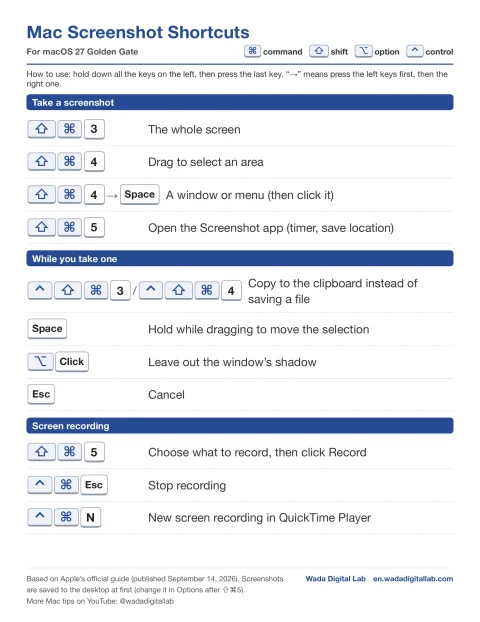
The Mac keys for screenshots and screen recording. For the whole screen, press Shift + Command + 3. To select an area, press Shift + Command + 4. The same list comes as a printable PDF.
 Printable sheet (free PDF)
Screenshot and screen recording shortcuts (11)
Hold down all the keys on the left, then press the last key. “then” means press the keys on the left first, then the next key.
Take a screenshot
While you take one
| Keys | What it does |
|---|---|
| Control + Shift + Command + 3 or Control + Shift + Command + 4 | Copy to the clipboard instead of saving a file More |
| Space | Hold while dragging to move the selection |
| Option + click | Leave out the window’s shadow |
| Esc | Cancel |
Screen recording
Screenshots are saved to the desktop at first. To change where they go, press Shift + Command + 5 and click Options in the toolbar.
Where the keys are
Where Command, Option and the other keys are on a Mac keyboard.(On a phone, swipe the diagram sideways.)
- Command: On both sides of the space bar.
- Option: Next to Command, on both sides.
- Control: Bottom row, second key from the left.
- Shift: At both ends of the Z row.
- Space: The long key in the middle of the bottom row.
- Esc: The top-left corner.
Print it (free PDF)
The same list as a printable PDF. Free, no sign-up. The PDF opens when you click. When you print, set the scale to 100% (Actual Size).
Full sheet, US Letter (11 shortcuts)
Pin it next to your desk and learn as you go.
Download the full sheet (127KB)Mouse pad card, 4 × 6 in (10 shortcuts)
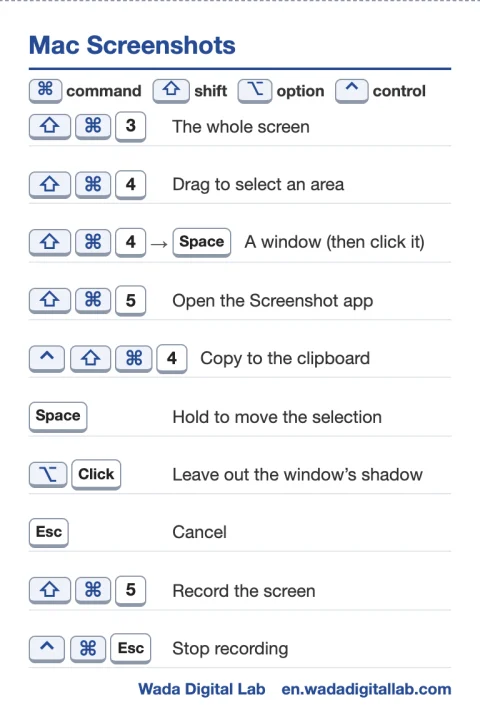
Print it on Letter paper and cut along the dotted line.
Download the card (80KB)Take screenshots with your voice

A screenshot app for the Mac that you drive with your voice
KoeShot (for Mac)One-time purchase
Taking a screenshot. Quietly tedious, isn’t it? With KoeShot you press Option + S, say “Take a screenshot of Safari,” and the shot is taken. ¥3,980, paid once.
Works in English and Japanese, following your Mac’s language. You can try it free for 14 days before you buy. No license key needed. System requirements: a Mac with Apple silicon (M1 or later) / macOS 26 or later. Intel-based Macs and macOS 15 (Sequoia) or earlier are not supported. macOS running inside a virtual machine (Parallels Desktop, UTM and the like) is not supported.
Learn more about KoeShotSlip the card into a photo insert mouse pad
The card is 4 × 6 in, the same size as a standard photo print. Most photo insert mouse pads (also called photo frame mouse pads) hold a 4 × 6 in photo, so the card fits right in. It’s the same size as our Mac Keyboard Shortcuts card, so you can swap them.
- Print the card PDF on Letter paper at 100% (Actual Size).
- Cut along the dotted line.
- Slide it under the clear cover of your mouse pad.
Sources
All shortcuts come from Apple’s official guides, “Take a screenshot on Mac” (published September 14, 2026) and “How to record the screen on Mac” (published September 14, 2026).
More screenshot help
- How to Screenshot on a Mac — 4 Keyboard Shortcuts and Where Your Screenshots Go
- Mac screenshot not working
- How to paste a screenshot on a Mac
- Scrolling Screenshot on Mac — Save a Full Page as One Image
- How to record audio with a Mac screen recording
- Mac Keyboard Shortcuts (36 everyday shortcuts, and what to do if your Mac freezes)
Feel free to print and hand out copies for free at schools, classes and offices. Please don’t sell it, put it in paid materials, edit it, or post the PDF itself on other websites.