Good for
- Long meetings and video calls where you start to feel sleepy in the afternoon
- Lectures, trainings, and seminars where a few minutes suddenly go missing
- Noticing you are getting sleepy from your wrist, without looking at a screen
How it works at a glance
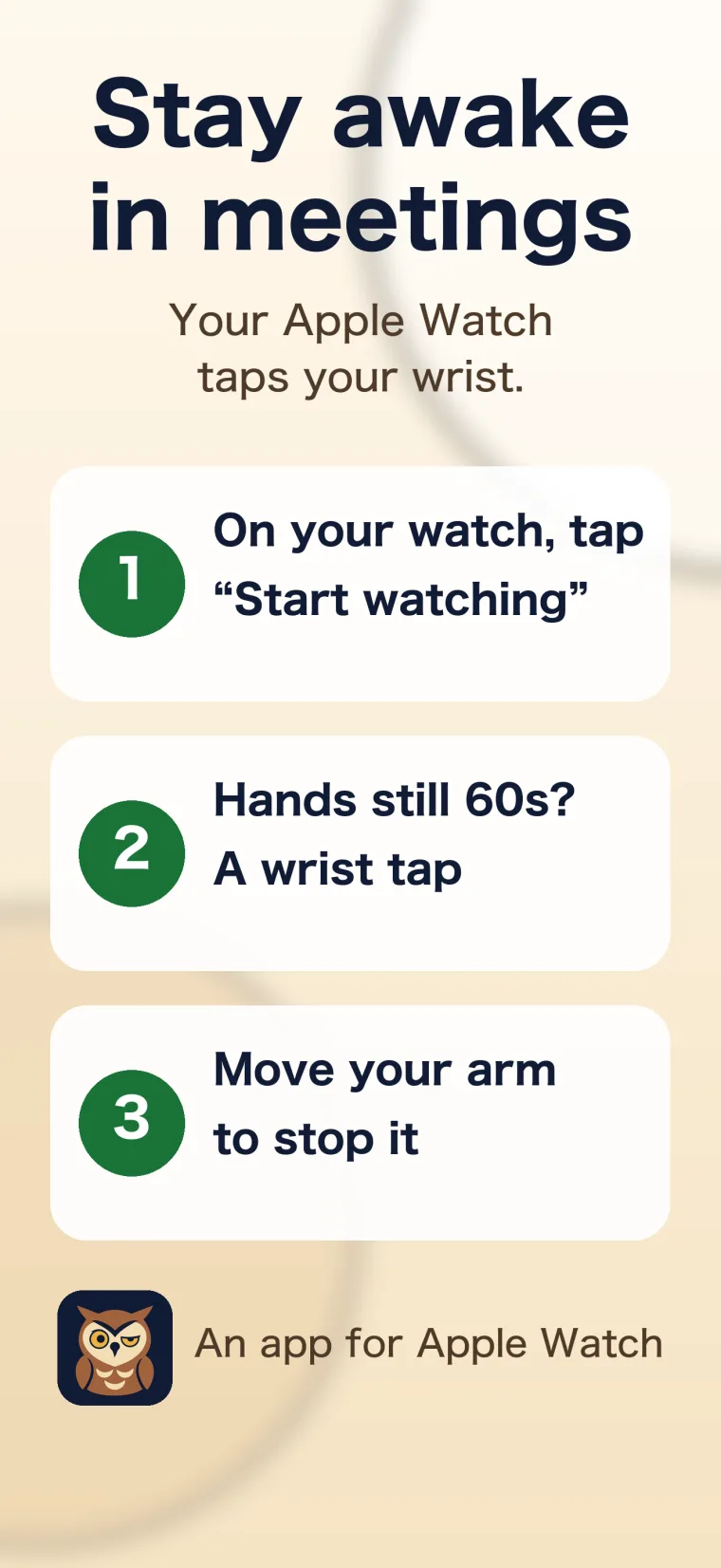
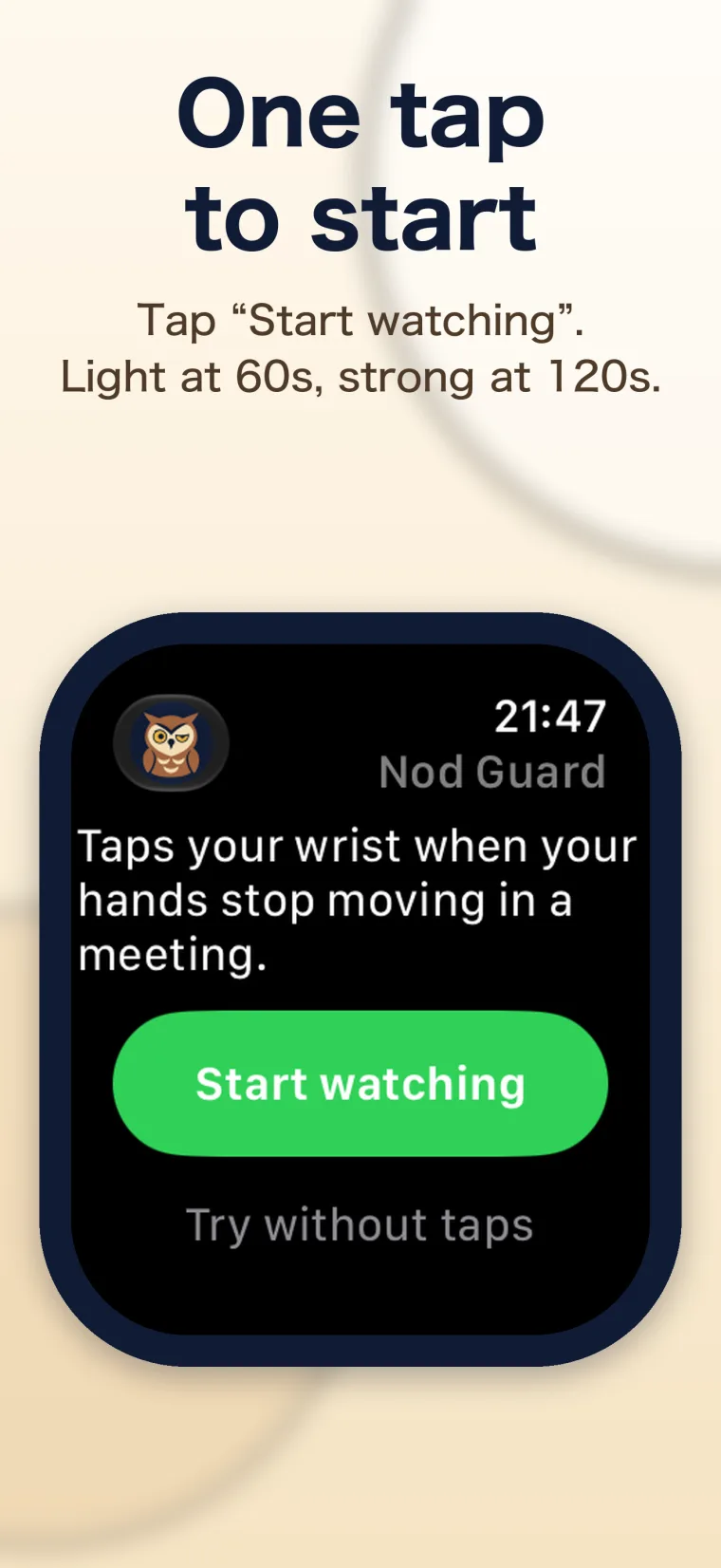
1. Before the meeting, tap “Start watching”
Open Nod Guard on your watch and tap “Start watching”. Then just go to your meeting as usual. When your hands stop moving, your watch taps your wrist.
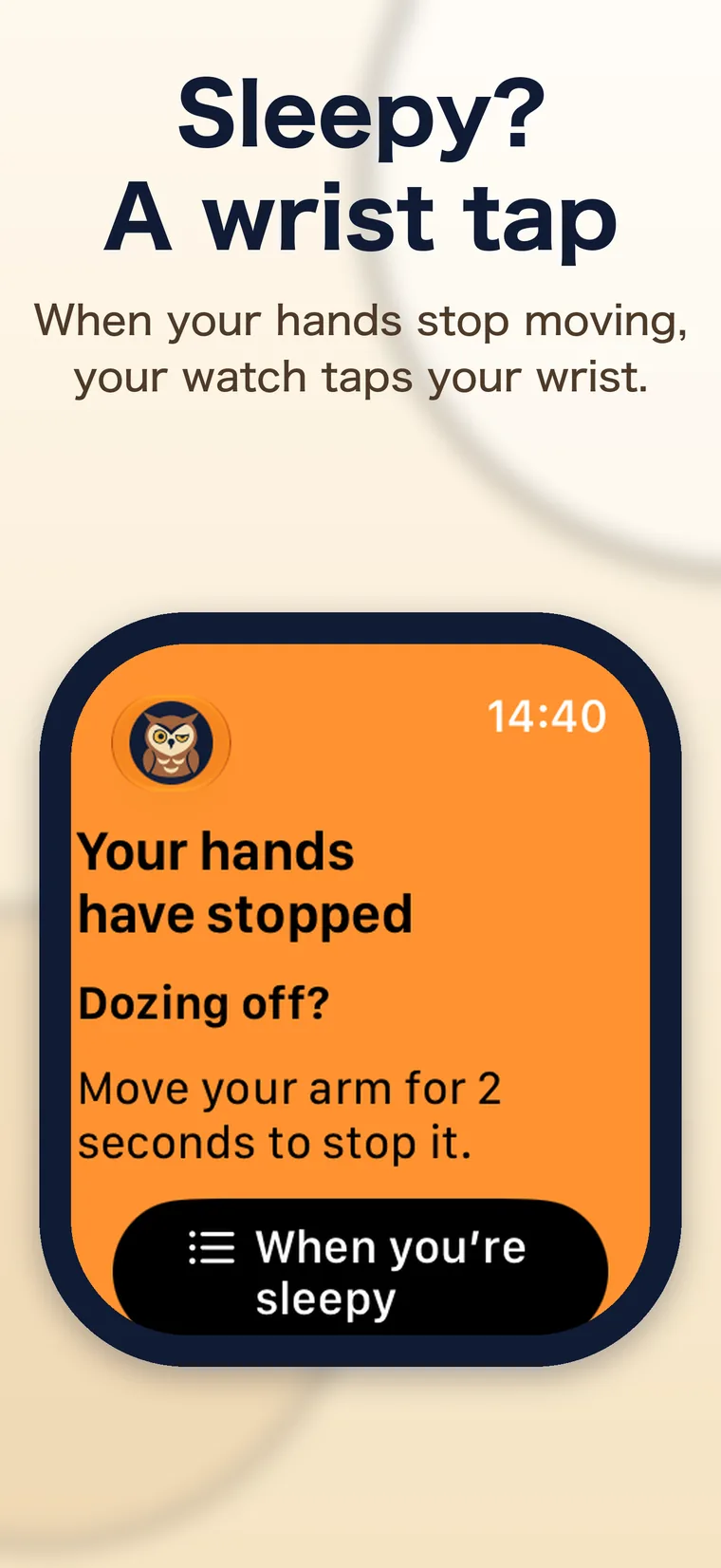
2. The longer your hands stay still, the stronger the tap
- Still for 60 seconds: one light tap
- 90 seconds: two taps
- 120 seconds: three strong taps
Move your arm for 2 seconds to stop it. You don’t need to look at the screen or press a button. Turning your wrist a little under the desk is enough. The watch’s own taps don’t count as arm movement, so a tap can’t stop itself.
3. When you finish, see how often it tapped you
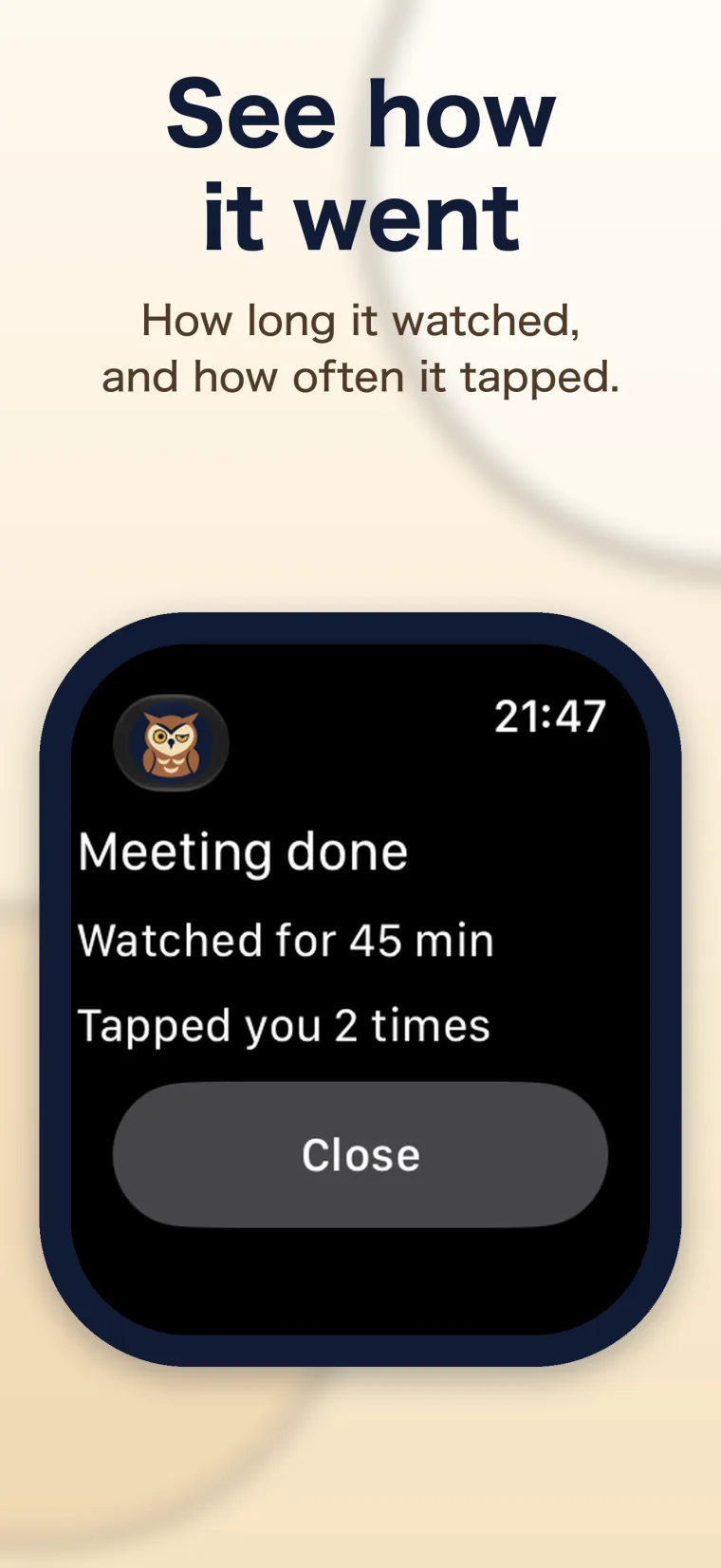
Tap “Stop watching”, and your watch shows how long it watched and how many times it tapped you.
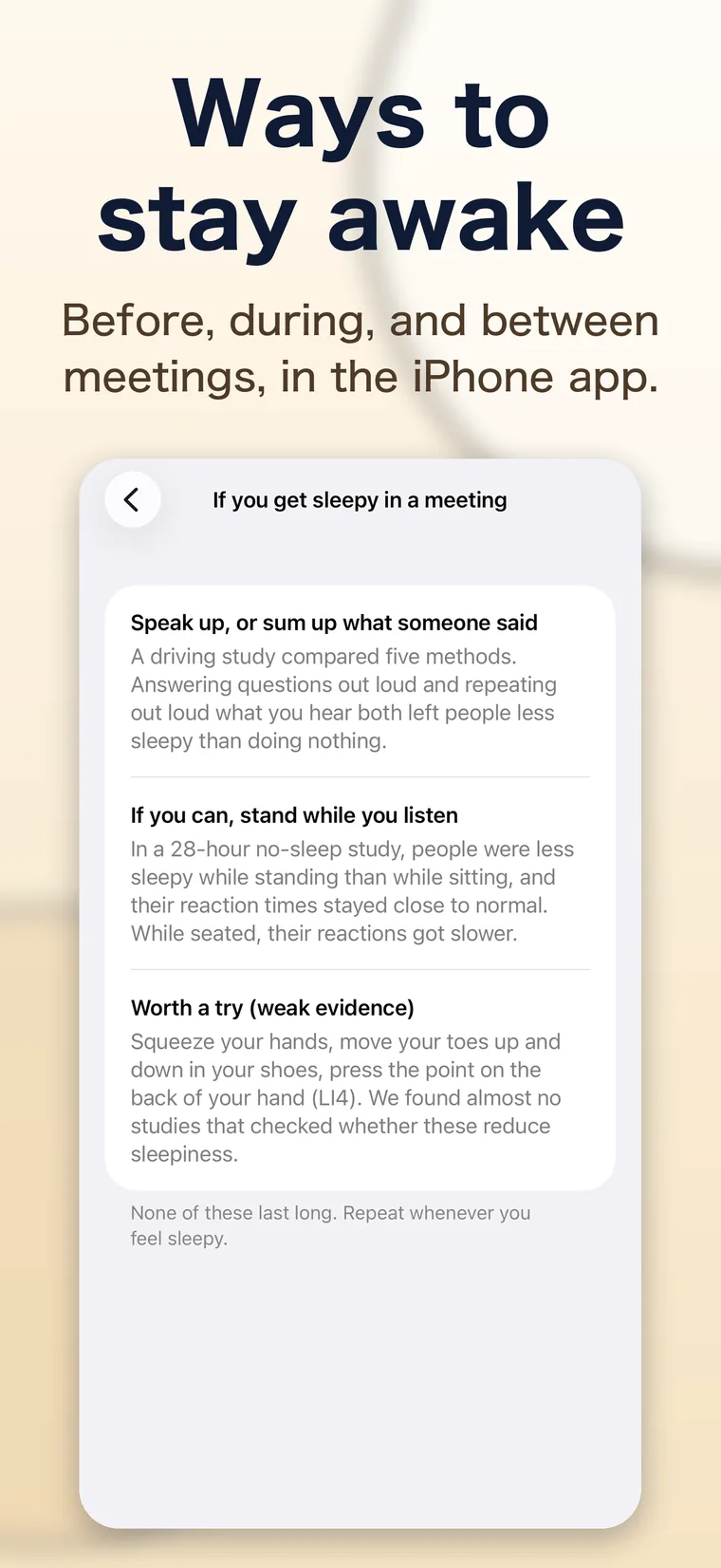
4. Ways to stay awake are built in
The iPhone app shows what you can do before a meeting, during it, and on a break. When your watch taps you, the “When you’re sleepy” button shows what you can do right now.
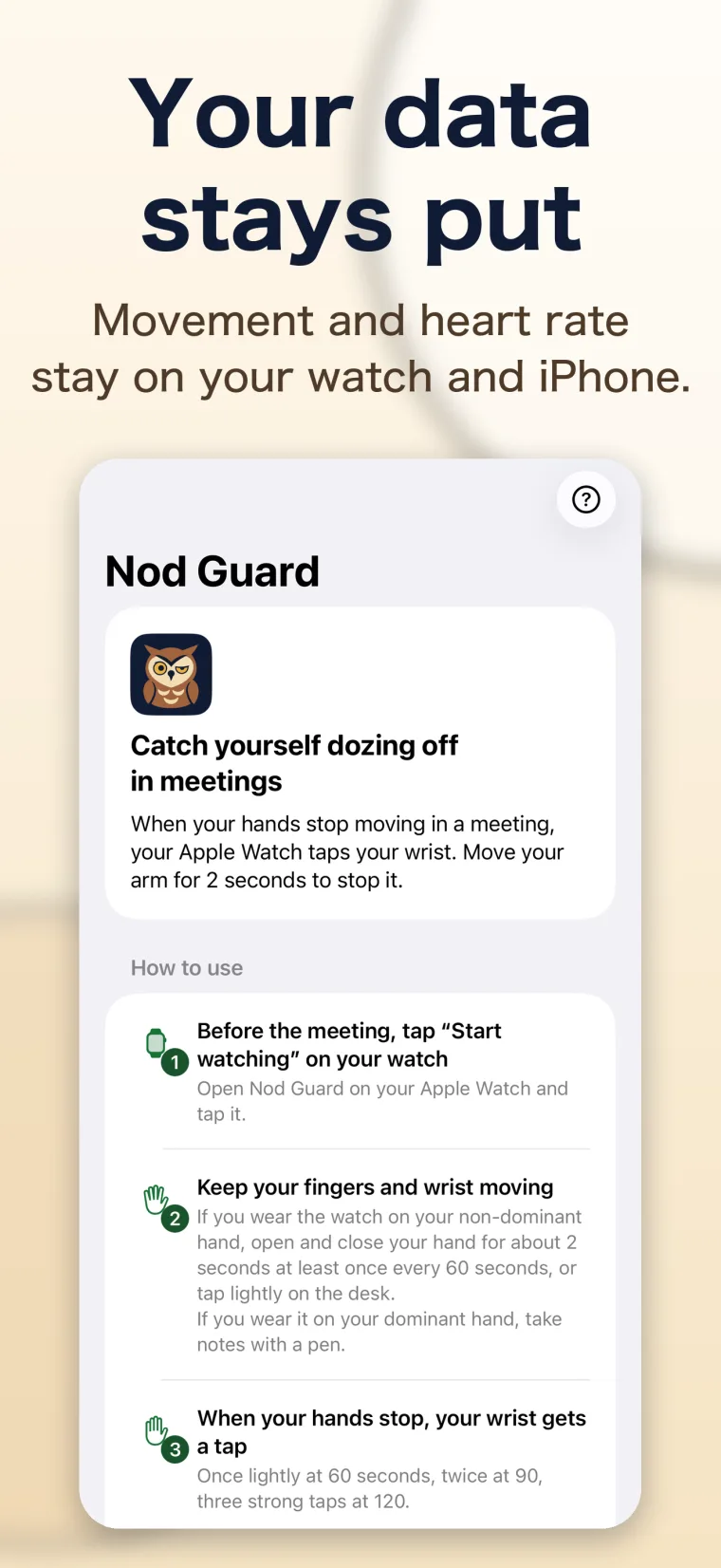
5. Your data stays on your watch and iPhone
Hand movement and heart rate are used only on your watch and iPhone, and never sent anywhere. Heart rate is read only to check that the watch is on your wrist before it taps. There is no account.
Why “when your hands stop” and not “when you fall asleep”?
At first, we built a version that tried to tell from the watch’s movement and heart rate whether you were asleep. But when the developer recorded naps and time spent sitting for several weeks to check it, it could not tell quietly awake from dozing off. If an app says “it taps you when you fall asleep” without being able to tell, it will sometimes stay silent just when you need it.
So we turned it around. Instead of guessing sleepiness, the rule is “while your hands are moving, you are awake,” and it taps you when your hands stop. Your hands really did stop, even if you were awake, so the tap is never false. The trade-off: it taps you even when you are awake and your hands are still. You can check how often that happens first with “Try without taps”.
How to use it (3 steps)
- Start before the meeting. Open Nod Guard on your Apple Watch and tap “Start watching”.
- Tap “Open” every 30 minutes. Each round lasts 30 minutes. A check-in alarm taps you for the last 5 minutes. Tap “Open” to continue for another 30 minutes.
- Stop when you are done. When the meeting ends, tap “Stop watching”.
“Try without taps” runs the same check without tapping you, and counts how many times it would have tapped you. You can see first how often it would tap you in your own meetings.
Nod Guard at a glance
- What it does
- When your hands stop moving in a meeting or lecture, your Apple Watch taps your wrist. One light tap at 60 seconds, two at 90 seconds, three strong taps at 120 seconds. Move your arm for 2 seconds to stop it.
- Requirements
- Apple Watch with watchOS 10.0 or later and iPhone with iOS 17.0 or later. It does not work on earlier versions of iOS or watchOS. You need an Apple Watch. It is not available for Android.
- Price
- Free to download, and every feature is free. There are no in-app purchases.
- Length of one round
- 30 minutes. A check-in alarm taps you for the last 5 minutes; tap “Open” to continue for another 30 minutes.
- Where your data goes
- Only on your own Apple Watch and iPhone. We do not keep it. The app does not connect to our servers.
- Account
- None. There is no sign-in.
- Languages
- English and Japanese. The app follows your device language. In Japanese, it is called Neochiban.
- Who provides it
- Wada Digital Lab develops the app and this page. The App Store (Apple) handles distribution.
Before you download (who it is not for)
- Requires Apple Watch with watchOS 10.0 or later and iPhone with iOS 17.0 or later. It does not work on earlier versions of iOS or watchOS. You can check your watch in the Watch app on your iPhone → General → About.
- It tells you when your hands stop moving. It taps you even when you are awake, if your hands are still. If you often just listen without taking notes, it will tap you often. Try “Try without taps” first.
- It does not treat sleepiness.
- Do not use it while driving.
Free to download. There are no in-app purchases. The App Store (Apple) handles distribution. We do not hand it out on this site. When you install it on your iPhone, it usually installs on your paired Apple Watch, too (if it doesn’t, see “Questions” below).
Questions
- Nod Guard doesn’t show up on my Apple Watch.
- Open the Watch app on your iPhone. On the “My Watch” tab, scroll down to “Available Apps”. If Nod Guard is there, tap “Install”.
- What happens after 30 minutes?
- Each round lasts 30 minutes. A check-in alarm taps you for the last 5 minutes. Tap “Open” to continue for another 30 minutes. If you don’t, it stops there.
- It tapped me while I was awake.
- Nod Guard tells you when your hands stop moving. It taps you even if you are just listening with your hands still. Move your arm for 2 seconds to stop it. We suggest trying “Try without taps” first to see how often it would tap you in your own meetings.
- I didn’t allow heart rate.
- It still works. In that case, it taps you without checking that the watch is on your wrist. To allow it later, go to Settings on your iPhone → Health → Data Access & Devices → Nod Guard.
- Is it really free?
- Yes. Downloading and every feature are free, and there are no in-app purchases. We made it free so that more people get to know Wada Digital Lab’s other apps.
- Does Nod Guard send my data anywhere?
- No. The app does not connect to our servers, and there is no account. See the Nod Guard Privacy Policy.
Contact
To report a problem or ask a question, use “Send Feedback” in Nod Guard on your iPhone. An email draft opens, so you can check it before sending.
If the app won’t open, email support@wadadigitallab.com. Please include your Apple Watch model (for example, “Apple Watch Series 10”) and your watchOS version. You may write in English or Japanese.