Mac Keyboard Shortcuts — Free Printable PDF
This page in Japanese: 日本語
Everyday Mac keyboard shortcuts you can search by what you want to do. Every shortcut comes from Apple’s official list and is checked for macOS 27. The same list comes as a printable PDF.
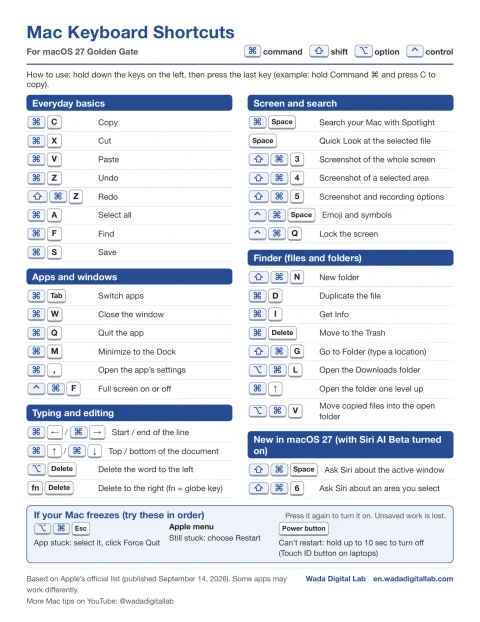 Printable sheet (free PDF)
e.g. screenshot / force quit / folder / Option
Everyday shortcuts (36)
Hold down the keys on the left, then press the last key. “+” means hold the keys together. For example, Command + C means hold Command and press C to copy.
Everyday basics
| Keys | What it does |
|---|---|
| Command + C | Copy |
| Command + X | Cut More |
| Command + V | Paste |
| Command + Z | Undo |
| Shift + Command + Z | Redo |
| Command + A | Select all |
| Command + F | Find |
| Command + S | Save |
Apps and windows
| Keys | What it does |
|---|---|
| Command + Tab | Switch apps |
| Command + W | Close the window |
| Command + Q | Quit the app |
| Command + M | Minimize to the Dock |
| Command + , | Open the app’s settings |
| Control + Command + F | Full screen on or off |
Typing and editing
Screen and search
| Keys | What it does |
|---|---|
| Command + Space | Search your Mac with Spotlight |
| Space | Quick Look at the selected file |
| Shift + Command + 3 | Screenshot of the whole screen More |
| Shift + Command + 4 | Screenshot of a selected area More |
| Shift + Command + 5 | Screenshot and recording options More |
| Control + Command + Space | Emoji and symbols |
| Control + Command + Q | Lock the screen More |
Finder (files and folders)
| Keys | What it does |
|---|---|
| Shift + Command + N | New folder More |
| Command + D | Duplicate the file More |
| Command + I | Get Info More |
| Command + Delete | Move to the Trash More |
| Shift + Command + G | Go to Folder (type a location) More |
| Option + Command + L | Open the Downloads folder More |
| Command + ↑ | Open the folder one level up More |
| Option + Command + V | Move copied files into the open folder More |
New in macOS 27 (with Siri AI Beta turned on)
| Keys | What it does |
|---|---|
| Shift + Command + Space | Ask Siri about the active window |
| Shift + Command + 6 | Ask Siri about an area you select |
If your Mac freezes
When your Mac freezes, you can’t use it to look up the fix. Try these in order. The printed sheet and card show the same steps.
| Keys | What it does |
|---|---|
| Option + Command + Esc | App stuck: select it, click Force Quit More |
| Apple menu | Still stuck: choose Restart |
| Power button | Can’t restart: hold up to 10 sec to turn off (Touch ID button on laptops) |
Turning your Mac off this way loses any unsaved work. Press the power button again to turn it back on. These steps come from Apple’s “How to force an app to quit on Mac” (published December 8, 2025).
Shortcuts by topic
Each topic has its own page and printable PDF.
Screenshots and screen recordingShow all 11
| Keys | What it does |
|---|---|
| Shift + Command + 3 | The whole screen More |
| Shift + Command + 4 | Drag to select an area More |
| Shift + Command + 4, then Space | A window or menu (then click it) More |
| Shift + Command + 5 | Open the Screenshot app (timer, save location) More |
| Control + Shift + Command + 3 or Control + Shift + Command + 4 | Copy to the clipboard instead of saving a file More |
| Space | Hold while dragging to move the selection More |
| Option + click | Leave out the window’s shadow |
| Esc | Cancel More |
| Shift + Command + 5 | Choose what to record, then click Record More |
| Control + Command + Esc | Stop recording More |
| Control + Command + N | New screen recording in QuickTime Player More |
Open the Screenshots and screen recording page (with a printable PDF)
Finder (files and folders)Show all 21
| Keys | What it does |
|---|---|
| Command + N | Open a new Finder window More |
| Shift + Command + D | Open the Desktop folder More |
| Option + Command + L | Open the Downloads folder More |
| Shift + Command + O | Open the Documents folder More |
| Shift + Command + H | Open your home folder More |
| Shift + Command + I | Open iCloud Drive More |
| Shift + Command + G | Go to Folder (type a location) More |
| Command + ↑ | Open the folder one level up More |
| Command + [ or Command + ] | Back / forward to the previous or next folder More |
| Shift + Command + N | Make a new folder More |
| Command + D | Duplicate the file More |
| Command + Delete | Move to the Trash More |
| Shift + Command + Delete | Empty the Trash More |
| Option + Command + V | Move copied files into the open folder (instead of cut) More |
| Control + Command + A | Make an alias More |
| Option + drag | Copy the item you drag More |
| Space | Quick Look at the selected file More |
| Command + I | Get Info (size, kind, date created) More |
| Command + F | Search in Finder More |
| Command + 1 to 4 | Change the view (1 icons, 2 list, 3 columns, 4 gallery) More |
| Option + Command + P | Show the path bar (see which folder you’re in) More |
Open the Finder (files and folders) page (with a printable PDF)
Text editingShow all 23
| Keys | What it does |
|---|---|
| Command + ← or Command + → | Beginning / end of the line More |
| Command + ↑ or Command + ↓ | Beginning / end of the document More |
| Option + ← or Option + → | Previous / next word More |
| fn + ↑ or fn + ↓ | Page up / page down More |
| Shift + Arrow keys | One character (or line) at a time More |
| Shift + Option + ← or Shift + Option + → | One word at a time More |
| Shift + Command + ← or Shift + Command + → | To the start / end of the line More |
| Shift + Command + ↑ or Shift + Command + ↓ | To the start / end of the document More |
| Command + A | Select all More |
| Option + Delete | Delete the word to the left More |
| fn + Delete | Delete the character to the right (fn is the Globe key) More |
| Option + Shift + Command + V | Paste and match style (no fonts or colors) More |
| Command + Z or Shift + Command + Z | Undo / redo More |
| Command + B | Bold the selected text More |
| Command + I | Italicize the selected text More |
| Command + U | Underline the selected text More |
| Command + K | Add a web link More |
| Control + A | Beginning of the line or paragraph More |
| Control + E | End of the line or paragraph More |
| Control + K | Cut to the end of the paragraph More |
| Control + Y | Paste the text you cut More |
| Control + Command + Space or fn + E | Emoji and symbols (Character Viewer) More |
| Microphone key | Start / stop dictation (the microphone key) More |
Where the keys are
Where Command, Option and the other keys are on a Mac keyboard.(On a phone, swipe the diagram sideways.)
- Command: On both sides of the space bar.
- Option: Next to Command, on both sides.
- Control: Bottom row, second key from the left.
- Shift: At both ends of the Z row.
- Fn (Globe): The bottom-left corner.
- Space: The long key in the middle of the bottom row.
- Esc: The top-left corner.
- Tab: To the left of Q.
- Delete: The right end of the number row.
- Arrows: The four keys at the bottom right.
Print it (free PDF)
The same list as a printable PDF. Free, no sign-up. The PDF opens when you click. When you print, set the scale to 100% (Actual Size).
Full sheet, US Letter (36 shortcuts)
Pin it next to your desk and learn as you go.
Download the full sheet (180KB)Mouse pad card, 4 × 6 in (12 shortcuts, plus the freeze steps)
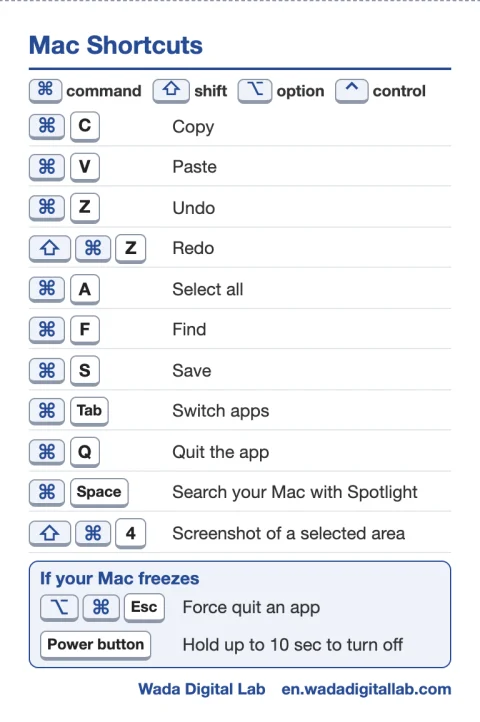
Print it on Letter paper and cut along the dotted line.
Download the card (78KB)Slip the card into a photo insert mouse pad
The card is 4 × 6 in, the same size as a standard photo print. Most photo insert mouse pads (also called photo frame mouse pads) hold a 4 × 6 in photo, so the card fits right in.
- Print the card PDF on Letter paper at 100% (Actual Size).
- Cut along the dotted line.
- Slide it under the clear cover of your mouse pad.
Good to know
Some apps use the same keys for something else. The two macOS 27 shortcuts (Shift + Command + Space and Shift + Command + 6) work only when Siri AI (Beta) is turned on. Fn is the key with the globe.
All shortcuts come from Apple’s official list, “Mac keyboard shortcuts” (published September 14, 2026).
More Mac help
- Mac Troubleshooting Dictionary (look up the problem, find the fix)
- Blog (step-by-step Mac guides)
- Free browser tools
Feel free to print and hand out copies for free at schools, classes and offices. Please don’t sell it, put it in paid materials, edit it, or post the PDF itself on other websites.