How to Redact a PDF on a Mac — A Black Box Over the Text Isn’t Enough. Use Redact in Preview
Published October 31, 2026
Steps checked October 17, 2026 (MacBook Air (M4), macOS Golden Gate 27.0.1)
By Wada Digital Lab
To redact a PDF on a Mac, use the Redact tool in Preview. Drawing a black rectangle over the text is not enough: the text is still inside the file. Apple describes Redact as a tool that selects text to remove it from view, and says the redaction becomes permanent once you close the document. A scanned PDF with no text inside has nothing to select, so there is one thing to check before you redact it.
Key points
- Redact a PDF with the Redact tool in Preview. Covering text with a shape leaves the text underneath.
- At Wada Digital Lab, we drew a black box over a made-up name and email address, saved the PDF, and read the text back out of it. Both came out unchanged.
- Redaction becomes permanent when you close the document (Apple’s description). Duplicate the original PDF before you redact.
- Apple says Redact selects text. We haven’t tested what happens on a scanned PDF that has no text inside.
- On the English screen of our recording Mac, the toolbar button is called Redact, and the first time you use it a notice says “Redacted content is permanently removed.”
The diagram below compares covering text with a black box and using Redact (not a screenshot).
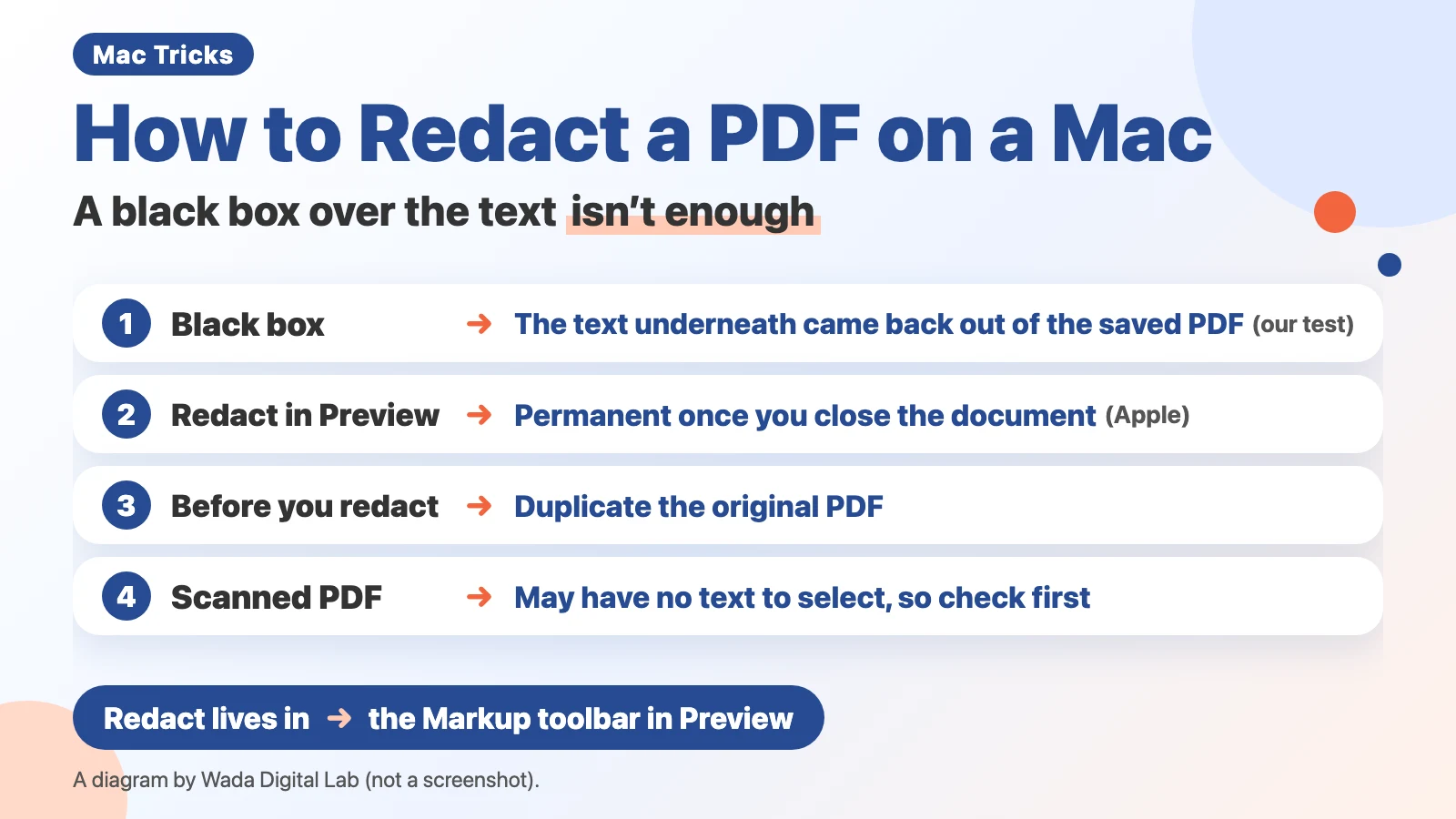
A black box over the text doesn’t remove the text
It is natural to assume that a black rectangle over a name or an address hides it. But a shape you draw on a PDF is an annotation. Where the box lives is a separate layer on top of the text. Apple’s own page lists Shapes among the tools for annotating a PDF. The text stays inside the PDF.
At Wada Digital Lab, we made a PDF with a made-up name and email address, drew a black rectangle annotation over them, and saved it. When we read the text out of the saved PDF, both lines came back exactly as written (October 17, 2026, on a MacBook Air (M4) with macOS Golden Gate 27.0.1; we made and read the PDF with a small test program that uses PDFKit, the part of macOS that handles PDFs, and haven’t tried copying from the Preview screen). Anyone you send the PDF to can copy the text out, too.
How to redact a PDF with Redact in Preview
Redact is a tool in Preview that removes text from view. On the English screen of our recording Mac, the first use shows a notice: “Redacted content is permanently removed. Any content marked for redaction will be permanently deleted when the document is closed.” Apple’s Preview User Guide calls the tool Redaction Selection and describes it this way: “Select text to remove it from view. You can change the redaction as you edit, but once you close the document, the redaction becomes permanent.” There are 5 steps.
- In the Finder, select the PDF and press Command-D to duplicate it (so the original stays untouched)
- Open the copy in Preview
- Click the Show Markup Toolbar button, then click the Redact button in the toolbar (Apple’s page calls it Redaction Selection)
- Drag across the text you want gone (the selection turns black with an X pattern)
- Save, then close the document (Apple says the redaction becomes permanent once you close the document; we didn’t watch the moment the text disappears)
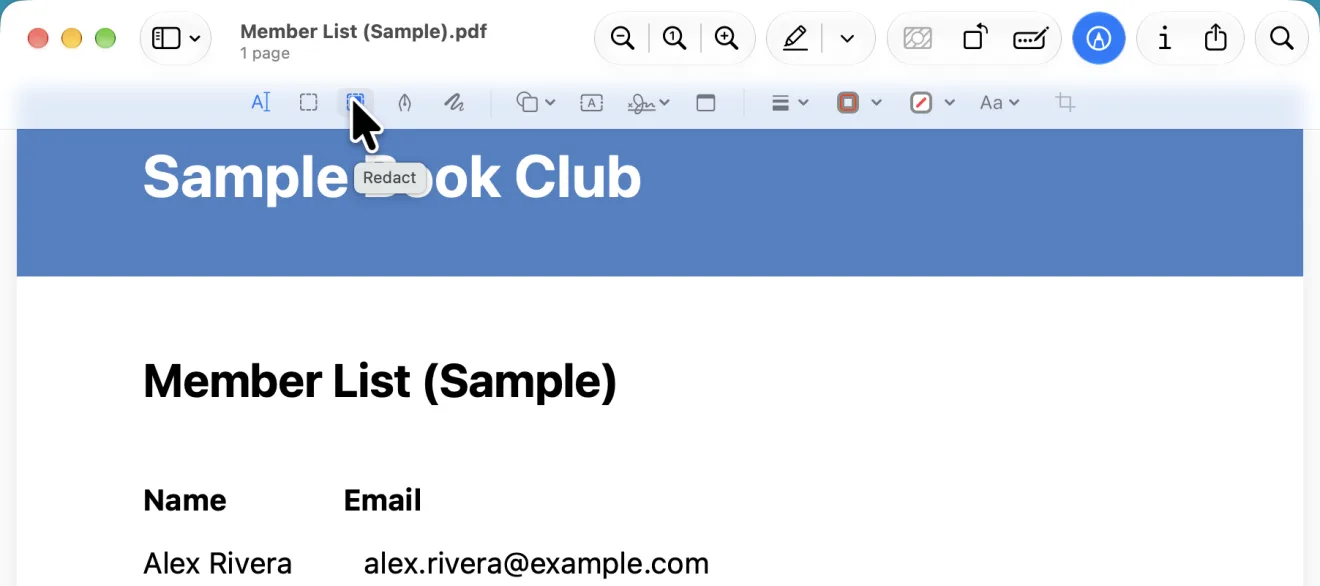
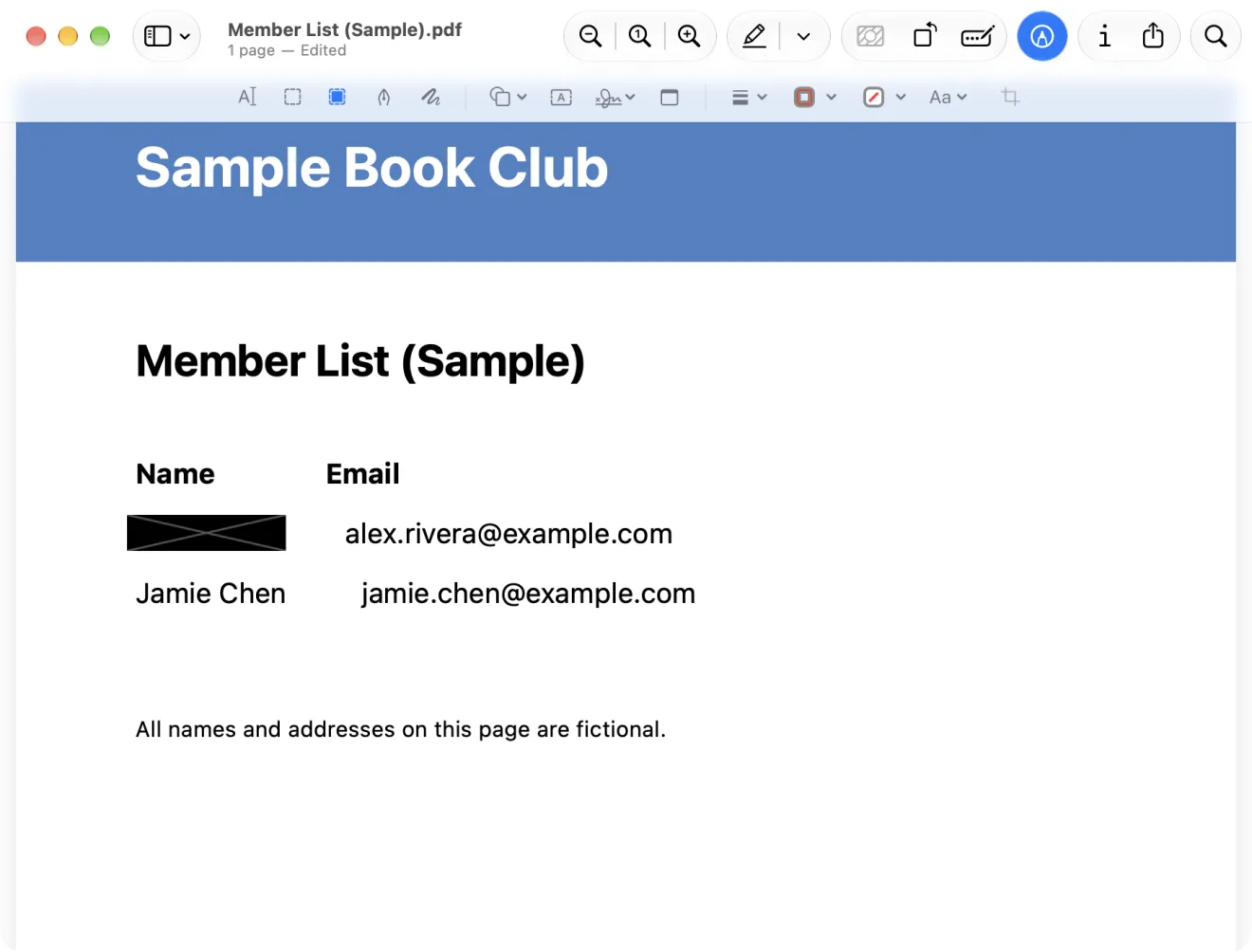
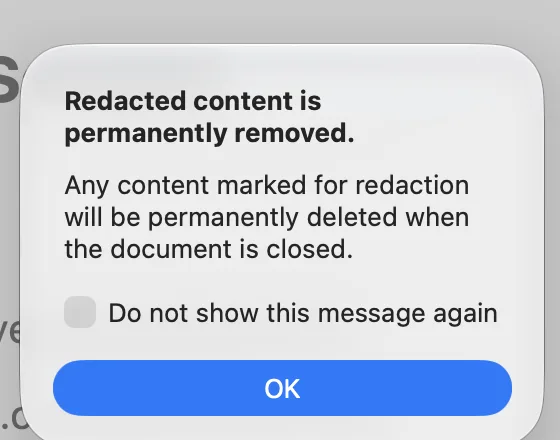
After you close the document, check that the redacted text can no longer be copied. Apple adds one more caution: “If the PDF has a table of contents, entries in it that link to redacted text aren’t removed.” If your PDF has a table of contents, read that too.
A scanned PDF may have no text to select (check before you redact)
A PDF made by a scanner is like a photo of the paper, and it may contain no text at all (see Can't copy text from a scanned PDF). Apple describes Redact as a tool that selects text. We haven’t tested what it does on a PDF with no selectable text.
When the scanner has run text recognition, the PDF holds the picture of the page and, behind it, the recognized text (invisible text). In that case, the picture of the page has to be blacked out, and the text behind it has to be deleted, both. We haven’t tested this on a scanned PDF. After redacting, check that the text in that area can’t be copied.
At Wada Digital Lab, we sometimes redact scanned papers before handing them to someone. Finding every name and address on each page and blacking them out one by one is slow work.
What each method leaves behind
With a black box, the text underneath stayed (our test). With Redaction Selection, what you select is the text to remove from view, and once you close the document, the redaction becomes permanent (Apple’s description). The diagram below puts the two side by side.
A black box over the text
Where the box lives An annotation on top of the text (a separate layer)
The text underneath
Stayed (our test)
Instead
Redaction Selection
What you select The text to remove from view
Once you close the document
The redaction becomes permanent (Apple’s description)
| Method | What it looks like | The text underneath |
|---|---|---|
| A black rectangle annotation | Black | Stays (Wada Digital Lab placed a black rectangle annotation with a PDFKit test program and read the text back out. Not tried on the Preview screen) |
| Redaction Selection in Preview | Black | Permanently removed from view once you close the document (Apple’s description). Table of contents entries aren’t removed |
Frequently asked questions
Can a redacted PDF be restored later?
Apple says the redaction becomes permanent once you close the document. In case you ever need the original, duplicate the PDF before you redact.
What if a whole page shouldn’t be shared?
If you don’t need to hand over that page at all, don’t redact it. Make a new PDF with only the pages you want to share. On our browser page Split PDF, you enter the page numbers you want to keep and get a separate PDF.
How do I hide a name in a screenshot or other image?
For an image (PNG or JPEG), click the Show Markup Toolbar button in Preview, place a rectangle with Shapes, and set its fill color to black. Apple says that annotations added to an image can’t be edited, moved, or removed once you save, so duplicate the image first. We haven’t tested whether the original pixels survive under the shape after saving. Our browser page Blur Screenshots pixelates the area you choose and saves a new PNG or JPG. For other ways to hide information in a screenshot, see How to hide info in a Mac screenshot.
What we tested, and Apple’s pages
The black box test was done on this Mac.
- Model: MacBook Air (M4)
- macOS: macOS Golden Gate 27.0.1
- Checked on: October 17, 2026 (a PDF with a made-up name was created and read with a small test program)
On October 31, 2026, in a user account made for screenshots on a MacBook Air (M2) with macOS 27.2 (English screen), we opened a made-up member list in Preview, clicked Redact in the Markup toolbar, and dragged across a name until it showed the X pattern. The three pictures in this article come from that session. The first-use notice appeared then. We didn’t save or close the document, so we didn’t watch the text disappear on screen, and we haven’t tried Redact on a scanned PDF (those steps come from Apple’s description).
Before writing, we searched Google for “how to redact a pdf on mac” and read the top results (October 31, 2026). Apart from Apple’s page and a thread in Apple’s community, they were pages from companies that sell PDF apps. None of them showed what a black box leaves behind.
Apple’s description of Redact comes from these pages. We checked the quotes against the English pages on October 31, 2026.