How to Make a PDF Smaller on a Mac — Too Big to Email? Compress It in Preview
Published October 28, 2026
Official documentation reviewed October 28, 2026 (some steps not tested)
By Wada Digital Lab
When a PDF is too big to email, it’s usually because the photos or scanned pages inside it are large. On a Mac, you can compress the PDF in Preview: choose File > Export and set Quartz Filter to Reduce File Size. If there’s a set limit such as “2 MB or less,” you can pick that size on our free browser page Compress PDF.
Key points
- A PDF usually gets big because of the photos or scanned images inside it. A text-only PDF is small to begin with and barely gets smaller.
- In Preview on a Mac, choose File > Export, set Quartz Filter to Reduce File Size, then save.
- In macOS 27, Reduce File Size shrinks the images inside to a longest side of 2400 pixels. When we ran the same filter from a program, a 9.9 MB PDF with 3 photo pages came to 2.3 MB (macOS 27.0.1).
- When the size is set, such as “2 MB or less,” choose that size in Compress PDF in your browser. The same PDF came to 464 KB with Automatic. If it doesn’t fit, the page tells you, so check the size before you save.
- If it’s still too big, keep only the pages you need with Split PDF. To send a PDF without making it smaller, use Mail Drop in Mail on your Mac, which sends it through iCloud.
The diagram below sums up the ways to make a PDF smaller to email it (not a screenshot).
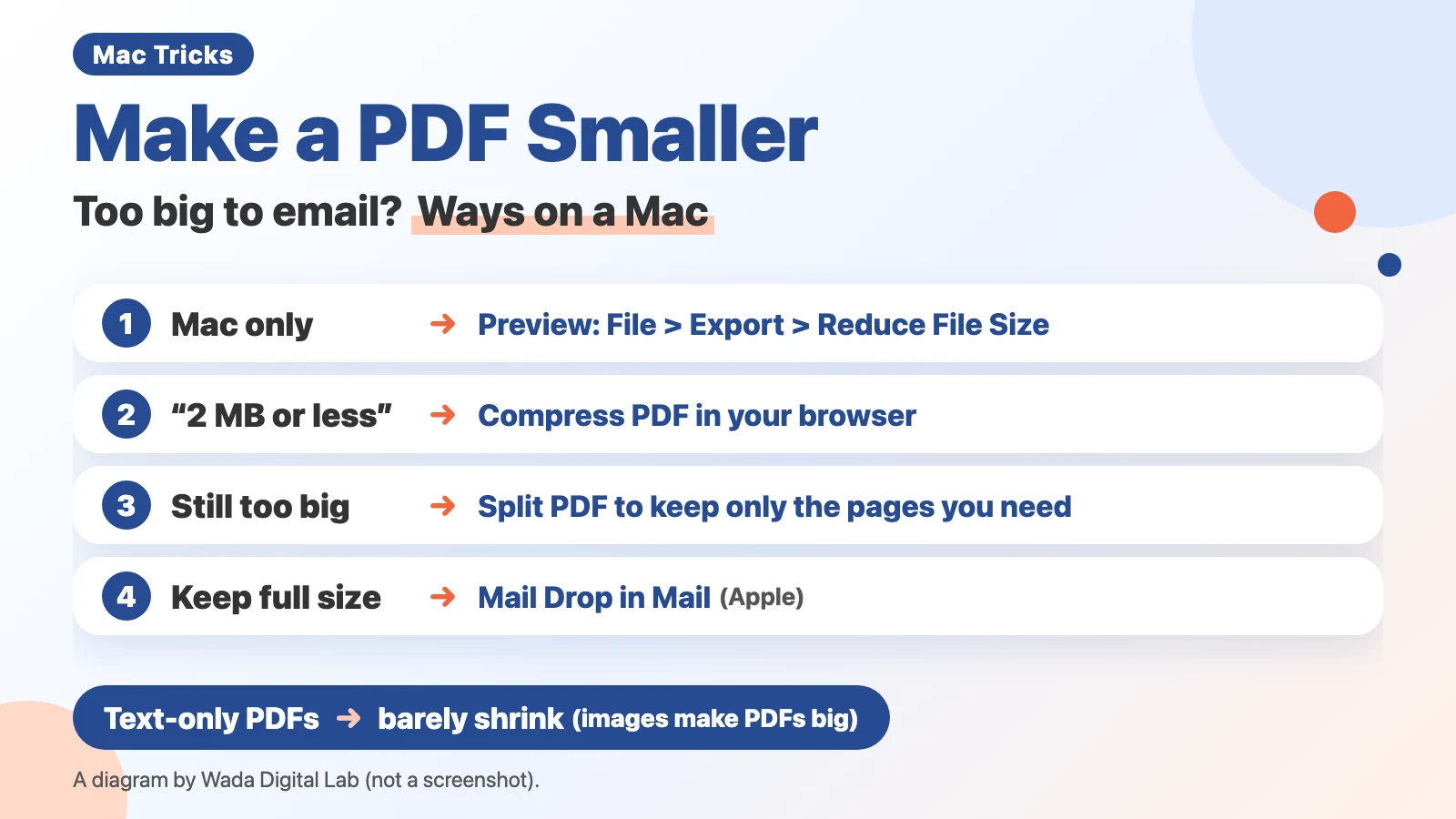
Ways to make a PDF smaller on a Mac, by what you want to do
Making a PDF smaller means reducing the pixel dimensions of the photos and scanned images inside it, or lowering their JPG quality, so the file size (the number shown in MB or KB) goes down. Text and lines can stay as they are.
| What you want | How | Where |
|---|---|---|
| Make a PDF smaller with just your Mac | File > Export, then set Quartz Filter to Reduce File Size | Preview on a Mac |
| Fit a PDF under a set size such as “2 MB or less” | Choose “2 MB or less” or another size under Size limit, then add the PDF (you’re told if it doesn’t fit) | Your browser (our Compress PDF) |
| Leave out pages you don’t need | Extract only the pages you need | Your browser (our Split PDF) |
| Send a PDF at full size | Send it with Mail Drop | Mail on a Mac |
Why a PDF gets so big
A PDF holds text and lines, plus images such as photos. Text and lines don’t add much size, even when there’s a lot of them. Images do. A scanned page is one big image, so a color scan gets heavy fast. A document with many photos is the same.
We’ve had PDFs too big to email many times. Color scans and PDFs we downloaded were sometimes surprisingly heavy. In PDFs with many photos, the photos had been added at their full original size, which made the files large. We made them smaller with Adobe Acrobat and left the compression settings to Acrobat.
A text-only PDF is small to begin with, so it barely gets smaller. When we ran Reduce File Size (below) on a text-only PDF of 68,378 bytes, it came to 68,371 bytes.
With just your Mac: Reduce File Size in Preview
You can export a smaller copy of a PDF from Preview on your Mac. Here are the steps from Apple’s page “Reduce the size of a PDF in Preview on Mac,” one action per line. There are 6 steps in all.
- Open the PDF in Preview.
- Choose File > Export.
- Choose Reduce File Size from the Quartz Filter pop-up menu.
- Click Save.
- If you’re asked whether to replace the existing file and want to keep the original PDF, click Cancel.
- If you clicked Cancel, enter a different name in the Export As field, then click Save.
Apple’s page says, “When compressed, the PDF may be of lower quality than the original.” We found the names Quartz Filter and Reduce File Size in the screen-text files inside macOS on our Mac (macOS 27.0.1). We did not open the export window to see them.
We could also read what Reduce File Size does in a settings file inside macOS on the same Mac. It shrinks any image inside the PDF whose longest side is over 2400 pixels down to 2400 pixels, and saves it again as a JPG at a quality of 0.7 (1 is the highest). 2400 pixels is the same length as Light on our Compress PDF page (checked on macOS 27.0.1; other versions may differ).
We made a PDF with 3 photos, one per page (9.9 MB, 9,882,414 bytes), and ran Reduce File Size on it. It came to 2.3 MB (2,302,258 bytes). Inside, a 4096 × 2160 pixel photo, for example, became 2400 × 1265 pixels. Note that we ran the same filter from a program, not from the Preview window.
According to Apple, the Export window also has 3 checkboxes. The one Apple says reduces file size is Optimize images for screen: “Optimize images for screen viewing to reduce file size.” For Save images as JPEG, Apple says: “Convert images to JPEG format, which uses image compression.” For Create Linearized PDF: “Optimize the PDF for fast loading and viewing in web browsers.” We haven’t tried these checkboxes.
Fit under “2 MB or less”: Compress PDF in your browser
When a form or other place says “2 MB or less,” our Compress PDF page, which runs in your browser, is a quick way to get there. Before you add the PDF, choose “1 MB or less,” “2 MB or less,” “5 MB or less” or “10 MB or less” under Size limit. You can add up to 200 PDFs at a time and use “Save all as ZIP” to save them as one file. You don’t need to sign up.
We added the same 3-photo PDF (9.9 MB) to the page. Here are the results:
- Automatic: “9.4 MB → 464 KB” (the saved file was 475,537 bytes)
- Light (keeps image quality): “9.4 MB → 1.1 MB” (1,186,225 bytes)
- Strong (fine for reading on screen): “9.4 MB → 231 KB” (236,755 bytes)
- Size limit set to 2 MB or less: 1.1 MB, the same as Light
The quoted numbers are what the page showed on screen. The screen counts 1 MB as 1,048,576 bytes, so the numbers look slightly smaller (the original 9,882,414-byte PDF showed as “9.4 MB”). The size limits such as “2 MB or less” count 1 MB as 1,000,000 bytes. The page shrinks only the images inside the PDF and saves them again as JPGs. The longest side goes down to 2400 pixels with Light, 1600 with Automatic and 1200 with Strong. Text, lines, bookmarks and links stay as they are. If you could search the text in the original PDF, you still can after compressing.
When you choose a size limit, the page tries Light first and works down until the PDF fits. If it still doesn’t fit, the page tells you so and gives you the smallest PDF it could make. If the PDF doesn’t get smaller at all, it says “It didn’t get smaller” and suggests using your original file. Your original PDF stays as it is.
Still too big: split the pages or use Mail Drop
If shrinking the images isn’t enough, send fewer pages. Our Split PDF page can extract only the pages you need.
When you don’t want to make a PDF smaller, such as one for printing, you can send it with Mail Drop in Mail on your Mac. Apple’s page says, “You can use Mail Drop to send files that exceed the maximum size allowed by your email account provider.” It sends large attachments through iCloud, and you must be signed in to your Apple Account. The PDF’s size doesn’t change. For more, see the Mail Drop section of how to reduce photo size on a Mac. We have never sent files with Mail Drop.
Summary: Reduce File Size on your Mac, Compress PDF for a set limit, Split PDF if it’s still too big
To make it smaller with just your Mac, use Reduce File Size from Export in Preview. Images go down to a longest side of 2400 pixels. You can make it smaller on your Mac alone, without installing an app.
With a limit like “2 MB or less” on a form, choose that size in Compress PDF in your browser. It makes the PDF smaller until it fits the size you chose. You can add up to 200 PDFs at a time. Before you send, check the size shown on the page and the attachment size limit on the receiving side.
If it’s still too big, use Split PDF to keep only the pages you need. You can send only the pages you need. To keep it at full size, send it with Mail Drop.
The diagram below sums up these steps.
With just your Mac
Use Reduce File Size from Export in Preview Images go down to a longest side of 2400 pixels
You can make it smaller on your Mac alone
With a limit
With a limit like “2 MB or less”
Choose that size in Compress PDF in your browser You can add up to 200 PDFs at a time
It makes the PDF smaller until it fits the size you chose
Still too big
If it’s still too big
Use Split PDF to keep only the pages you need To keep it at full size, send it with Mail Drop
You can send only the pages you need
Frequently asked questions
Will the text become harder to read?
In a PDF made from a word processor or similar app, where text is stored as text, the text isn’t an image, so it doesn’t change. In a PDF made from photos or scans, the text you see is part of the image. Our Compress PDF page also leaves text and lines as they are. Strong compression can make small text in an image harder to read. In our case, photo quality sometimes dropped after compressing, but the text rarely became hard to read. Before you send, open the smaller PDF once to check it.
Why doesn’t my PDF get smaller, or even get bigger?
It has no images that can be shrunk, or its images are already small. A text-only PDF barely changes. When a PDF doesn’t get smaller, our Compress PDF page doesn’t hand you the rebuilt file; it tells you it didn’t get smaller.
I want to put photos into one PDF and send it.
Our Merge PDF Files page also takes JPG and PNG photos and combines them into one PDF. Make the photos smaller first, and the PDF will be smaller too. For ways to make photos smaller, see how to reduce photo size on a Mac. When photos were easier to handle as one PDF, we turned them into a PDF before sending.
Can I compress a PDF that has a password?
Our Compress PDF page can’t open it and tells you so. Remove the password or restrictions first. A PDF with a digital signature will lose the signature, because the page rewrites its contents.
My PDF got bigger after I ran OCR (text recognition) on it.
Depending on how text recognition is done, the PDF’s pages may be rebuilt, which can change the file size and the paper size. To check, see the PDF’s paper size changed after OCR.
What we tested on, and Apple’s pages
We wrote the steps in this article from Apple’s pages (read on October 28, 2026). We checked our browser page Compress PDF and the macOS Reduce File Size filter on this Mac:
- Model: MacBook Air (M4)
- macOS: macOS 27.0.1
- Date checked: October 28, 2026
Our sample PDF was made from 3 wallpaper photos that come with macOS, one per page (9,882,414 bytes). The Compress PDF results are the byte sizes of the saved files. For Reduce File Size, we ran the same filter inside macOS (Reduce File Size.qfilter) from a program. We did not try the Preview export window, the 3 checkboxes, a scanned PDF or Mail Drop on screen. The names Quartz Filter and Reduce File Size come from the screen-text files inside macOS on the same Mac and Apple’s US English page; we did not open the window to see them.
The steps come from these pages: