How to Reduce Photo Size on a Mac — Too Big to Email? Use Image Size in Mail
Published October 27, 2026
Official documentation reviewed October 27, 2026 (some steps not tested)
By Wada Digital Lab
When a photo won’t send by email, it’s usually because its file size is over the limit for email attachments. On a Mac, you can reduce the photo size before you send it. A quick way is to add the photo to a message in Mail, then change Image Size to Medium or Large. To save smaller copies of your photos, export them from Photos or Preview. If there’s a set limit such as “2 MB or less,” you can fit your photos under it with our free browser page Compress Images.
Key points
- Email has a limit on how big a message can be. Apple also says the limit is set by your email account provider.
- In Mail on a Mac, after you add a photo, choose Small, Medium or Large from Image Size on the right side of the message header to send it smaller.
- To save smaller copies, choose File > Export in Photos and pick a Size. In Preview, choose Tools > Adjust Size.
- When the size is set, such as “2 MB or less,” choose that size in Compress Images in your browser.
- Zipping photos barely makes them smaller. In our test, a 3.2 MB photo got only about 2% smaller.
- If a photo is still too big, Mail Drop in Mail lets you send it through iCloud.
The diagram below sums up the ways to make photos smaller to email them (not a screenshot).
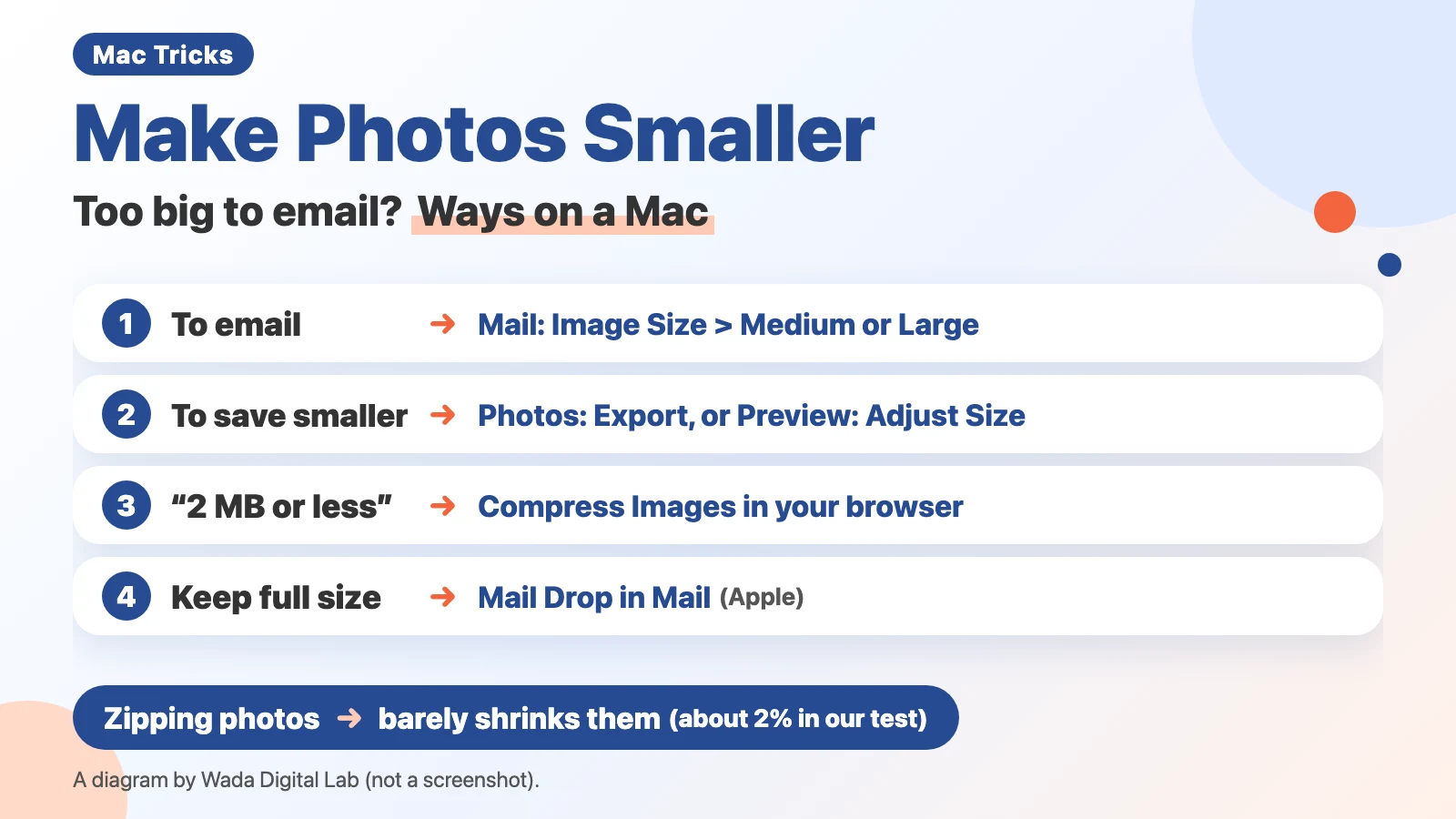
What to use for each task
| What you want | How | Where |
|---|---|---|
| Send a photo smaller, right from the message | Choose Small, Medium or Large from Image Size | Mail on a Mac |
| Save smaller copies of photos | File > Export, then choose Size and JPEG Quality | Photos on a Mac |
| Make one photo smaller while watching the file size | Tools > Adjust Size, select “Resample image,” then enter a smaller number | Preview on a Mac |
| Fit photos under a set size such as “2 MB or less” | Add the photos and choose “2 MB or less” or another size | Your browser (our Compress Images) |
| Set the dimensions, such as a longest side of 1600 pixels | Choose how to set the size, then enter the number | Your browser (our Resize Images) |
| Send photos at full size | Send them with Mail Drop | Mail on a Mac |
Why a photo is too large to email
There’s a limit to how big an email can be. The limit is set by the email company you use. Apple’s page “Send attachments in Mail on Mac” also talks about “the maximum size allowed by your email account provider.” The limit differs from company to company, and the person receiving the email may have a limit too.
A photo from a recent iPhone is often several megabytes on its own. Attach a few, and you go over the limit fast. Mail on a Mac usually adds photos at their original size. Apple’s page says:
“By default, Mail inserts images at their actual size.”
We’ve had photos fail to send by email many times. The rules were different each time. Some said “3 MB or less” or “10 MB or less,” and some limited the number of files, such as “up to 3 attachments.” When we used a web service to make the photos smaller, it took us more than 5 minutes each time.
Make photos smaller before sending: Image Size in Mail
If you send photos with Mail on a Mac, you can make them smaller inside the message. Apple’s page says that if different sizes are available, “you can choose one from the pop-up menu located on the right side of the message header.” Here are the steps, one action per line. There are 4 steps in all.
- In Mail on your Mac, start a new message.
- Drag the photos into the message (or add them with the attachment button in the toolbar).
- Open the Image Size menu on the right side of the message header (the area with the To and Subject fields).
- Choose Small, Medium or Large (to keep the original, choose Actual Size).
According to Apple, you can use this menu when different sizes are available. If you can’t choose a size, make the photos smaller with Photos or Preview as shown below, then add them to the message.
On our Mac (macOS 27.0.1), the screen-text files inside macOS list the menu as “Image Size:” with 4 choices: Small, Medium, Large and Actual Size. The same files also show the sizes 320 × 240 for Small, 640 × 480 for Medium and 1280 × 960 for Large. We did not open the menu on screen to see them.
Even Large has a longest side of only about 1280 pixels. That’s enough to look at on a computer screen. For photos someone will print large, exporting them as in the next section works better.
Save smaller copies: Export in Photos
If your photos are in Photos on your Mac, you can export smaller copies. Here are the steps from Apple’s page “Export photos, videos, slideshows, and memories on Mac,” one action per line. There are 6 steps in all.
- In Photos on your Mac, select the photos you want to send (you can select as many as you like).
- Choose File > Export > Export [number] Photos.
- Choose JPEG from the Photo Kind pop-up menu.
- Click the button beside the Photo Kind pop-up menu to show more options.
- Choose a Size and a JPEG Quality.
- Click Export, choose where to save the files, then click Export.
Apple’s page says, “JPEG creates small files suitable for use with websites and other photo apps.” In the screen-text files on our Mac, Size had Small, Medium, Large, Full Size and Custom, and JPEG Quality had Low (smallest size), Medium, High and Maximum. We did not open the export window to see them. Apple’s page describes the JPEG Quality menu this way: “Choose a resolution (the number of pixels in the exported image).” Going by the name “Low (smallest size),” though, it seems to set the quality and file size. You choose the dimensions with Size.
Make one photo smaller while watching the size: Adjust Size in Preview
In Preview, you can make a photo smaller while you watch the new file size. Here are the steps from the “Reduce an image’s file size” part of Apple’s page “Crop, resize, or rotate an image in Preview on Mac,” one action per line. There are 4 steps in all.
- Open the photo in Preview.
- Choose Tools > Adjust Size.
- Select “Resample image.”
- Enter a smaller value in the Resolution field.
Apple’s page says, “The new size is shown at the bottom.” Watch that number and lower the value until the photo fits under the limit. Making the width and height smaller also makes the file smaller; keep “Resample image” selected when you do. According to Apple, if you deselect it before changing the width or height, you make the image’s dimensions smaller “without losing any detail” instead.
To keep the original, first make a copy with File > Duplicate and work on the copy. To make several photos smaller at once, follow the tip on Apple’s page: open the photos in the same window, select them in the sidebar, then choose Tools > Adjust Size.
You can also change many photos at once in the Finder. Select the photos, Control-click, then choose Quick Actions > More > Convert Image, and pick Small, Medium or Large for Image Size (we read these names in the screen-text files inside macOS on our Mac; we haven’t tried it on screen). We cover this in our article on what to do when you can’t open HEIC photos.
Fit under “2 MB or less”: Compress Images in your browser
When a form or other place says “2 MB or less,” our Compress Images page, which runs in your browser, is a quick way to get there. Before you add the photos, choose “1 MB or less,” “2 MB or less” or another size under “How small.” You can add any number of photos and use “Save all as ZIP” to save them as one file. You don’t need to sign up.
We added a landscape photo that comes with macOS (JPG, 4096 × 2160, 3.2 MB) to the page. Here are the results:
- Automatic: 830 KB (still 4096 × 2160)
- 1 MB or less: 951 KB (still 4096 × 2160)
- Automatic with a longest side of 1600 pixels: 194 KB (1600 × 844)
“1 MB or less” came out larger than Automatic because the page picks the best quality that still fits under the limit. If the photo doesn’t fit, it also shrinks the width and height little by little. If it still doesn’t fit, the page tells you so and gives you the smallest photo it could make. Check the size shown on the page before you save. To set the dimensions, such as a longest side of 1600 pixels, use our Resize Images page. With a longest side of 1600 pixels, the same photo came to 295 KB. It’s bigger than the 194 KB above because Resize Images keeps the JPG quality higher than Automatic in Compress Images does.
Neither Compress Images nor Resize Images writes the date and time taken or the place taken (location information) into the smaller photo (we didn’t test this with a photo that has location information). Your original photo stays as it is.
Zipping photos barely makes them smaller
Some people think zipping a photo makes it smaller. We zipped the same 3.2 MB photo (3,398,183 bytes), and the ZIP file was 3,326,915 bytes. That’s only about 2% smaller. JPG photos are already compressed. To make photos smaller, make the photos themselves smaller with one of the ways above. Use ZIP when you want to hand over many photos as one file.
Some people don’t like getting ZIP files, though. You can’t see what’s inside until you open one, so they may worry about viruses. We’ve sent photos as a ZIP when there was a rule like “up to 3 attachments,” but we’ve tried to avoid it when we can.
To send photos at full size: Mail Drop in Mail
When you don’t want to make photos smaller, such as photos for printing, you can send them with Mail Drop in Mail on your Mac. Apple’s page says:
“You can use Mail Drop to send files that exceed the maximum size allowed by your email account provider. Mail Drop uploads large attachments to iCloud, where they’re encrypted and stored for up to 30 days.”
According to Apple, when you send from an iCloud email account, Mail uses Mail Drop automatically. When you send from another email account provider, Mail asks whether to use Mail Drop. You must be signed in to your Apple Account. We have never sent photos with Mail Drop.
Putting it together
To email photos, choose Medium or Large from Image Size in Mail. To save smaller copies, use Export in Photos or Adjust Size in Preview. If there’s a limit like “2 MB or less,” choose that size in Compress Images in your browser. With each way, the photos get smaller. Before you send, also check the total size of the photos and any rule on the number of attachments.
In Mail, to keep the original, choose Actual Size. In Photos or Preview, to keep the original, make a copy first. With a limit like “2 MB or less” on a form, use Compress Images; you can add any number of photos.
The diagram below sums up these steps.
To email photos
Choose Medium or Large from Image Size in Mail To keep the original, choose Actual Size
The photos get smaller
To save
To save smaller copies
Use Export in Photos or Adjust Size in Preview To keep the original, make a copy first
The photos get smaller
With a limit
With a limit like “2 MB or less”
Choose that size in Compress Images in your browser You can add any number of photos
The photos get smaller
Frequently asked questions
How small should I make my photos?
If the person or the form has a rule, follow it. If not, our rule of thumb is a longest side of 1600 pixels and 1 MB or less per photo. That’s big enough to look at on a computer or phone screen. Don’t shrink photos too much if they’ll be printed large.
Photos taken with our iPhone’s usual settings were large, so we lowered the photo quality in the iPhone’s settings and now take everyday photos that way. That also makes it easier to fit under a form’s size limit.
Will making a photo smaller lower the quality?
A little. Smaller dimensions mean less fine detail. Lowering the JPG quality can blur the edges between colors. For photos viewed on a screen, the rule of thumb above barely changes how they look. It’s safest to keep your original photos. We once sent a smaller copy of a photo that hadn’t come out well and ended up having to take the photo again. Before you send, open the smaller photo once and check that you can still see what matters.
Will the other person see where the photo was taken (location)?
Photos can include the date, time and place they were taken. Our Compress Images and Resize Images pages don’t write these into the smaller photo. The screen-text files for the export window in Photos on a Mac also include a Location Information option. We haven’t tested what turning it on or off changes.
What about iPhone photos (HEIC)?
If the other person can’t open HEIC, convert the photos to JPG before you send them. When you add HEIC photos to our Compress Images page with the output format left on JPG, it converts them to JPG while making them smaller. For more on HEIC, see Can’t open HEIC photos? Convert iPhone photos to JPG.
My screenshot is too big to send.
A Mac usually saves screenshots as PNG files. A screenshot of a long page in one image gets especially large. Choose JPG in our Compress Images page to make it smaller. For how to take screenshots, see how to take a screenshot on a Mac.
What we tested on, and Apple’s pages
We wrote the steps in this article from Apple’s pages (read on October 27, 2026). We checked our browser pages Compress Images and Resize Images on this Mac:
- Model: MacBook Air (M4)
- macOS: macOS 27.0.1
- Date checked: October 27, 2026
For the two pages and the ZIP test, we used a landscape photo that comes with macOS (a wallpaper JPG, 4096 × 2160, 3,398,183 bytes). The results are the sizes the pages showed on screen. We did not try Image Size in Mail, Export in Photos, Adjust Size in Preview, Convert Image in the Finder or Mail Drop on screen. The names Image Size, Size and JPEG Quality come from the screen-text files inside macOS on the same Mac (Photo Kind, Size and JPEG Quality also appear on Apple’s US English page; the choices inside Size and JPEG Quality come only from the British and other English files for Photos); we did not open the menus or windows to see them.
The steps come from these pages: