Can’t Open HEIC Photos? How to Convert iPhone Photos to JPG — Convert Many at Once on a Mac
Published October 27, 2026
Official documentation reviewed October 27, 2026 (some steps not tested)
By Wada Digital Lab
If someone can’t open your iPhone photos, it’s because the photos are saved as HEIC (HEIF) files. Some older computers and apps, and many upload forms on websites, can’t read this format. If the other side can’t read them, convert the photos to JPG (also written JPEG; it’s the same format) before you send them. On a Mac, select the photos in the Finder, Control-click, and choose Quick Actions > More > Convert Image to turn any number of them into JPGs at once. On a computer that isn’t a Mac, you can use our free browser page HEIC to JPG Converter.
Key points
- Your iPhone usually saves photos as HEIC (HEIF). Apple says it offers better compression than JPEG while keeping the same visual quality.
- A photo won’t open when the other person’s computer, app or web form doesn’t support HEIC.
- To convert many photos at once on a Mac, select them in the Finder, Control-click, and choose Quick Actions > More > Convert Image.
- To convert one photo and choose the quality, open it in Preview and choose File > Export, then JPEG.
- To take new photos as JPG from the start, go to Settings > Camera > Formats on your iPhone and choose Most Compatible.
- On supported Mac models with macOS Tahoe 26 or later, if Capture Format for screenshots is set to HDR, your Mac’s screenshots are saved as HEIF too (Apple).
The diagram below sums up the ways to turn HEIC photos into JPGs (not a screenshot).
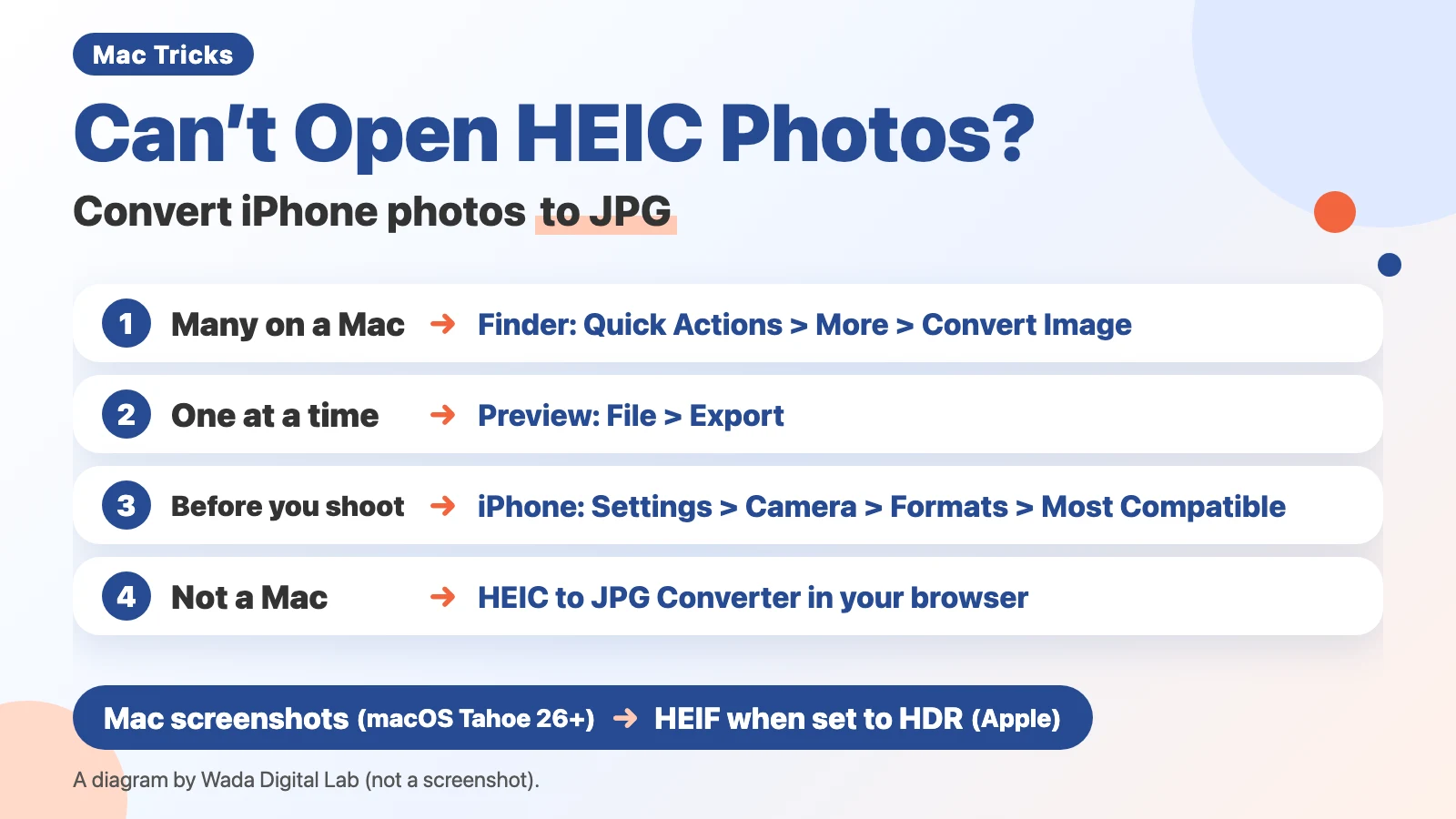
What to use for each task
| What you want | How | Where |
|---|---|---|
| Convert many photos to JPG at once | Select the photos, then Quick Actions > More > Convert Image | Finder on a Mac |
| Convert one photo and choose the quality | File > Export, then set Format to JPEG | Preview on a Mac |
| Take new photos as JPG | Settings > Camera > Formats > Most Compatible | iPhone |
| Convert on a computer that isn’t a Mac | Drop the photos on the page and save | Your browser (our HEIC to JPG Converter) |
| Stop Mac screenshots from being .heic (macOS Tahoe 26 or later) | Set Capture Format to something other than HDR | Screenshots on a Mac |
Why HEIC photos won’t open
HEIC is a file in the HEIF (High Efficiency Image File Format) photo format. The file name ends in “.heic”. Apple’s support article on HEIF and HEVC media says:
“HEIF and HEVC offer better compression than JPEG and H.264, so they use less storage space on your devices and iCloud Photos, while preserving the same visual quality.”
HEVC and H.264 are names of video formats; for photos, the comparison is between HEIF and JPEG. HEIF is a small, efficient format, but the other side can’t always read it. People usually run into trouble in these cases:
- The computer or app of the person you sent the photo to doesn’t support HEIC
- A web form for an application or an upload only accepts JPG or PNG
- The app you want to put the photo in (a document or spreadsheet app, for example) can’t read HEIC
We have sent iPhone photos and been told “I can’t open them” more than once, especially in the early days after the iPhone switched to this format. Even now, many upload forms won’t take HEIC photos, and we convert them to JPG every time.
Convert many photos at once on a Mac: Convert Image in the Finder
When you have many photos, the Finder is a fast way to do it. Apple’s Mac User Guide (Perform quick actions in the Finder on Mac) says: “Click More, choose Convert Image, then choose a format and a size. For example, you can convert an .heic photo from your iPhone to a .jpeg or .png image.” Here are the steps, one action per line. There are 4 steps.
- In the Finder, select the photos you want to convert (you can select as many as you like)
- Control-click the photos you selected
- Choose Quick Actions > More > Convert Image
- Choose JPEG for Format, then convert
Besides Format, the Convert Image window has Image Size (Small, Medium, Large, Original) and Preserve Metadata. Metadata is the information stored with a photo, such as when and where it was taken. We haven’t tried what stays in the file with this setting on or off. We read these names in the screen-text files inside macOS on our Mac; we did not open the window to see them.
Convert one photo and choose the quality: Preview
For a single photo, or when you want to choose the quality, use Preview. Here are the steps from Apple’s Preview User Guide (Convert image file types using Preview on Mac), one action per line. There are 4 steps.
- Open the photo in Preview
- Choose File > Export
- Choose JPEG from the Format pop-up menu (you can also set the quality)
- Type a name, choose where to save it, then click Save
Apple’s tip says that to convert more than one image at a time, you open the files in one window, select them in the sidebar, and then follow the same steps.
Take new photos as JPG: Most Compatible on your iPhone
If HEIC keeps causing trouble, you can have your iPhone take photos as JPG from the start. Apple says to open Settings, tap Camera, and then:
“Tap Formats, then tap Most Compatible.”
Apple says this setting appears only on iPhones that can capture in HEIF or HEVC. Apple adds: “All new photos and videos will now use JPEG or H.264 format.” To switch back, choose High Efficiency. Keep in mind that, per Apple, a JPG is larger than a HEIC file at about the same visual quality. Photos you have already taken stay in HEIC.
We haven’t changed this setting. We use a Mac, an iPad and an iPhone together, so HEIC rarely gets in our way. The only real trouble is when a form won’t accept it. Since moving to HEIC, we also feel our devices’ storage fills up more slowly than before (we haven’t measured it).
When you transfer photos to a computer: Keep Originals on your iPhone
When you connect your iPhone to a Mac or a PC with a cable and import photos, they might be converted to JPG. Apple says:
“If you don't want it to be converted, open Settings, tap Apps, tap Photos, then scroll down and tap Keep Originals.”
Older articles may say this setting is under Settings > Photos. In Apple’s current instructions, it’s Settings > Apps > Photos.
When you share with AirDrop, Messages or email, Apple says that if the receiving device doesn’t support the newer formats, the photo might automatically be shared as JPEG or another more compatible format. Apple says “might,” so if the other person still can’t open it, convert it to JPG and send it again.
Convert on a computer that isn’t a Mac: HEIC to JPG Converter in your browser
On a Windows PC or another computer where the Mac features aren’t available, use our browser page HEIC to JPG Converter. Drop your photos on the page and save them as JPGs. You can add many photos at once and save them together in one ZIP file. No sign-up is needed.
We put a HEIC image that comes with macOS (4096 × 2160) into this page, and it was converted to JPG. The page writes only the picture itself to the JPG, so it doesn’t write the date and time or the place (location) where the photo was taken (we haven’t tested this with a photo that has location data).
If you use Windows together with an iPhone, you may run into this every time you get photos. The settings on the receiving side differ by computer and app. JPG opens on more computers and apps than HEIC, so converting on the sending side saves the other person from changing their settings.
When Mac screenshots are saved as HEIC
It isn’t only iPhone photos: your Mac’s screenshots can be .heic files too. Apple says: “On supported Mac computers with macOS Tahoe 26 or later, if the Capture Format setting in the Screenshot app is set to HDR, screenshots are captured in HEIF format…” (the part we left out is about screen recordings). How to get back to the usual .png is in the FAQ of our article How to take a screenshot on a Mac.
The whole flow
On a Mac, convert many photos to JPG at once with Convert Image in the Finder. For one photo, use Export in Preview. On an iPhone, choose Most Compatible before you take photos, and new photos become JPG. Photos you have already taken don’t change. Otherwise, on a computer that isn’t a Mac, convert with the HEIC to JPG Converter in your browser. You can add many photos at once. Whichever way you choose, you get JPGs.
The diagram below sums up this flow.
On a Mac
Convert many photos to JPG at once with Convert Image in the Finder For one photo, use Export in Preview
You get JPGs
Before you take photos
On an iPhone
Choose Most Compatible, and new photos become JPG Photos you have already taken don’t change
You get JPGs
Otherwise
On a computer that isn’t a Mac
Convert with the HEIC to JPG Converter in your browser You can add many photos at once
You get JPGs
Frequently asked questions
Will converting to JPG lower the quality?
JPG lowers the quality a little to make the file smaller. When you export from Preview, you can set the JPEG quality. For photos you show to others, keeping the quality high is the safe choice.
Will the file get bigger when I convert to JPG?
Apple says HEIF offers better compression than JPEG, so at about the same quality, the same photo is usually larger as a JPG. Apple also calls HEIF and HEVC “the space-saving HEIF and HEVC formats.” If your Mac is running out of storage, see how to reduce System Data on a Mac.
My JPG is too big to upload to a form.
When there’s a size limit such as “2 MB or less,” our Compress Images page can convert to JPG and make the file smaller at the same time. In the Finder’s Convert Image, setting Image Size to Small or Medium also makes the photo smaller (we haven’t tried it).
I want to put HEIC photos into one PDF.
Convert them to JPG first, then combine them into one PDF with our Merge PDF Files page.
I can’t see “.heic” at the end of the file name.
Your Mac usually hides the “.heic” or “.jpg” part of a name. In the Finder, choose Finder > Settings, click Advanced, then select “Show all filename extensions.”
What we tested on, and Apple’s pages
We wrote the steps in this article from Apple’s pages (read on October 27, 2026). We checked the conversion with our browser page on this Mac:
- Model: MacBook Air (M4)
- macOS: macOS 27.0.1
- Date checked: October 27, 2026
We put a HEIC image that comes with macOS (4096 × 2160) into the page. It isn’t a photo, so we did not compare file sizes before and after. We did not try Convert Image in the Finder, Export in Preview, Most Compatible or Keep Originals on the iPhone, or anything on a Windows PC on screen. The names in the Convert Image window (Format, Image Size, Preserve Metadata) come from the screen-text files inside macOS on the same Mac; we did not open the window to see them.
The steps come from these pages: