How to Combine PDFs on a Mac — Merge Files and Delete Pages in Preview, No Extra App Needed
Published October 31, 2026
Official documentation reviewed October 31, 2026 (some steps not tested)
By Wada Digital Lab
To combine PDFs on a Mac, use Preview, the app that comes with every Mac. You don’t need to install anything. Open the PDFs in Preview, show the page thumbnails (the small pictures of each page) in the sidebar, and drag the thumbnails from one PDF into the sidebar of the other. To delete a page you don’t need, select its thumbnail and press the Delete key. One thing to know first: Preview saves your changes automatically. If you want to keep the original PDF, make a copy with File > Duplicate before you start.
Key points
- Preview saves changes to a PDF automatically. To keep the original, choose File > Duplicate to make a copy before you combine anything.
- To combine PDFs, choose View > Thumbnails to show the sidebar, then drag thumbnails into the sidebar of the other PDF. To add a whole PDF, drag its icon from the Finder into the sidebar.
- If dragging is awkward, Edit > Insert > Page from File also brings in pages from another PDF.
- To delete a page, select its thumbnail and press the Delete key (Edit > Delete does the same). Any notes on that page are deleted too.
- To merge many files into one PDF at once, select them in the Finder and choose Quick Actions > Create PDF. The pages come out in the order you selected the files.
- In our test with two PDFs we made (3 A4 pages and 2 US Letter pages), combining them with the PDF part of macOS (PDFKit) gave a 5-page PDF, and each page kept its original size. Combining didn’t make the page sizes match (we didn’t test this on the Preview screen).
The diagram below shows the order of work when you combine PDFs in Preview (not a screenshot).
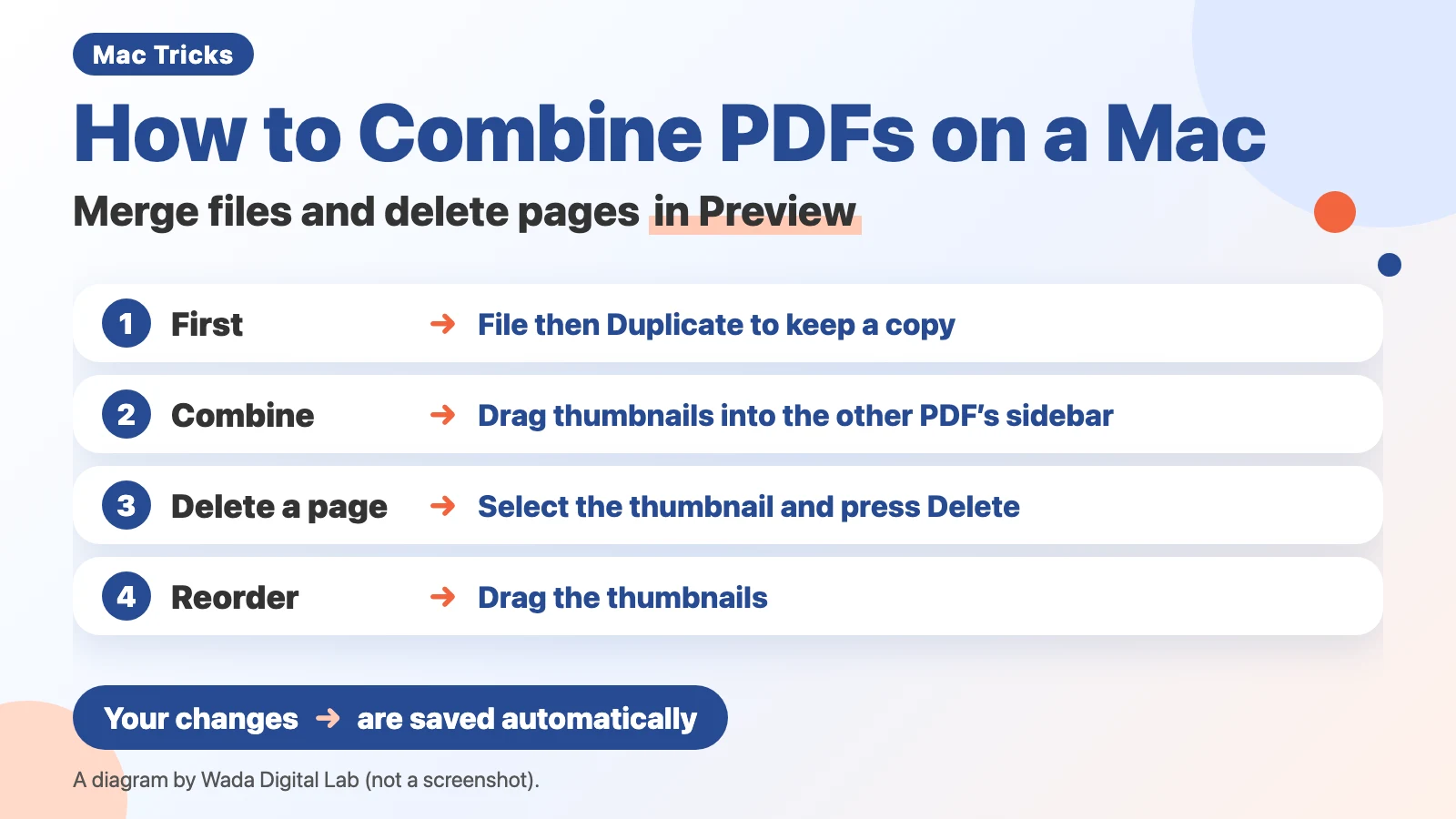
What to do in Preview for each task
Combining PDFs, deleting pages, and reordering pages all happen in the Preview sidebar. The sidebar appears when you choose View > Thumbnails.
| What you want to do | What to do in Preview | Apple’s page |
|---|---|---|
| Merge two PDFs into one | Drag thumbnails into the sidebar of the other PDF | Combine PDFs |
| Add a whole PDF | Drag the PDF’s icon from the Finder into the sidebar | Combine PDFs |
| Insert chosen pages | Edit > Insert > Page from File | Add, delete, or move PDF pages |
| Delete a page | Select the thumbnail and press the Delete key | Add, delete, or move PDF pages |
| Change the order | Drag the thumbnails | Add, delete, or move PDF pages |
| Fix a sideways page | Select the page and click the rotate button in the toolbar | Crop or rotate a PDF |
| Undo a mistake | File > Revert To | Revert changes to PDFs and images |
Before you combine anything, make a copy
Preview saves changes to a PDF automatically. Apple’s page “Combine PDFs in Preview on Mac” carries this warning:
“Changes you make to a Preview document are saved automatically. If you want to keep the original PDFs (in addition to the new combined one), choose File > Duplicate to create a copy of each PDF before combining them.”
In other words, even if you never click a Save button, the pages you add or delete stay in that PDF. When the PDF came from someone else, or is a scan you can’t easily redo, make a copy first.
How to combine PDFs in Preview
We split Apple’s steps into one action per line. There are 5 steps.
- Open every PDF you want to combine in Preview
- In each open PDF, choose View > Thumbnails (a sidebar appears on the left)
- Drag the thumbnails of the pages you want to add into the sidebar of the other PDF
- Drag the thumbnails to put the pages in the order you want
- Check the number and order of pages in the sidebar
If double-clicking a PDF opens some app other than Preview, see How to Change the Default PDF Viewer on a Mac to make Preview the app that opens it.
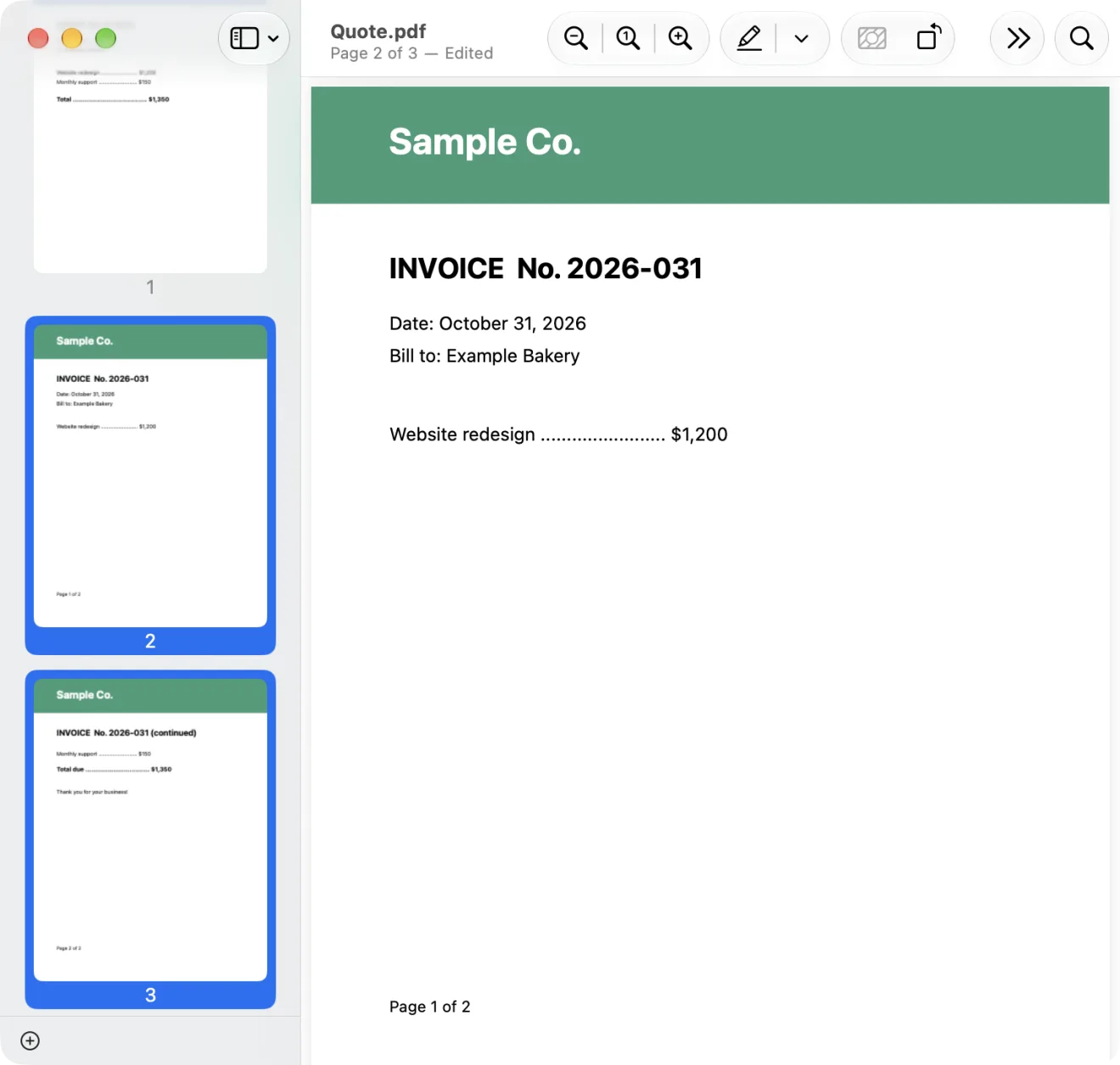
When the pages you want aren’t next to each other, hold down the Command key and click each thumbnail to select them one by one. You can drop pages at the end of a document or between two pages.
If you want to add a whole PDF, there is a shorter way. Apple’s tip reads: “To add an entire PDF to another PDF, drag the PDF icon from the Finder to the sidebar of an open document.”
Insert pages without dragging: Page from File
If dragging on a trackpad is awkward, you can insert pages from the menu bar instead. Select the page that should come before the new pages, then choose Edit > Insert > Page from File. Apple says the new page is inserted after the current page. Blank Page in the same menu inserts an empty page.
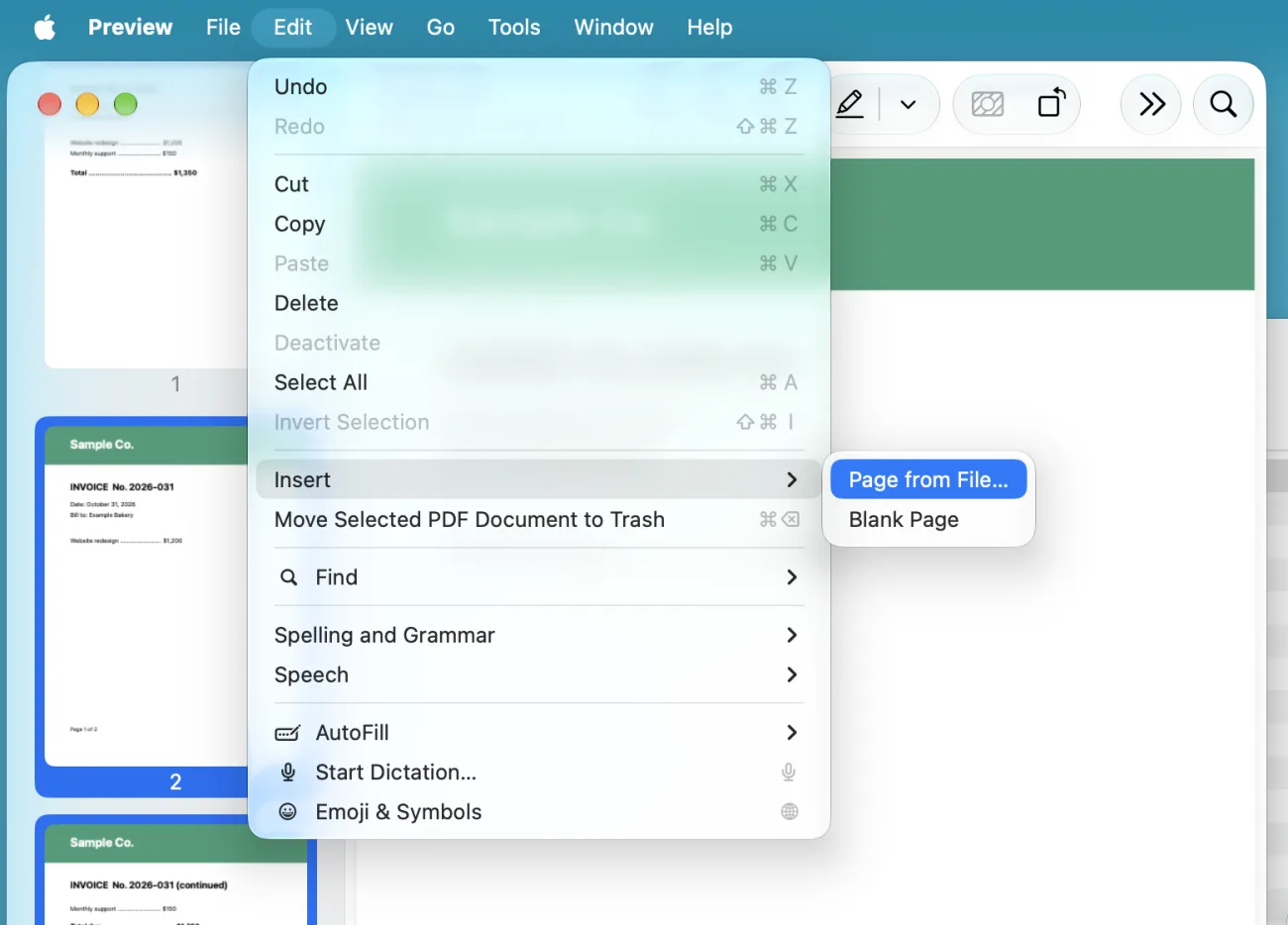
Delete the pages you don’t need
Deleting pages also happens in the sidebar. There are 3 steps.
- Choose View > Thumbnails (or View > Contact Sheet, which also shows small pictures of the pages)
- Select the thumbnail of the page to delete (hold down the Command key and click to select several)
- Press the Delete key (or choose Edit > Delete)
Apple warns: “When you delete a page from a PDF, all the annotations on the page are removed as well.” Any notes or lines you drew on that page disappear with it.
Apple also says you can create a new PDF by dragging thumbnails from the sidebar to the desktop. That is handy when you want to hand someone just one page (we didn’t test it).
Fix a page that is sideways
When scanned pages don’t all face the same way, rotate them. On Apple’s page “Crop or rotate a PDF in Preview on Mac,” clicking the rotate button turns the page to the left. To turn it to the right, hold down the Option key while you click. To rotate several pages at once, select them in the sidebar first, then click. The rotate button is the one in the toolbar at the top of the window with an arrow curving to the left (we read the button’s name in the text files inside macOS, not on an open window).
Our test: combining didn’t make the page sizes match
We wanted to know what happens when you combine PDFs of different sizes. On our Mac (a MacBook Air (M4) with macOS 27.0.1), we made two test PDFs: one with 3 A4 pages, and one with 2 US Letter pages. Then we combined them with a small program that uses PDFKit, the part of macOS that handles PDFs.
- The combined PDF: 5 pages. The 3 A4 pages came first, then the 2 Letter pages
- Page sizes: the A4 pages stayed 595×842 points, and the Letter pages stayed 612×792 points (a point is the unit PDFs use for length: 1 point is 1/72 of an inch; the numbers are width × height)
- After deleting page 2: 4 pages
The pages kept their original sizes after combining. If you combine scans of paper in different sizes, you get a PDF whose pages are different sizes. One caution: this test was done with PDFKit, not on the Preview screen. We didn’t test whether Preview gives the same result.
Where we combine PDFs and delete pages: scanned papers, and blank pages
At Wada Digital Lab, we often combine two or more PDFs that came out of a ScanSnap scanner. Papers of different sizes that couldn’t go into one PDF at scanning time get combined later. That is exactly the situation in the test above, where pages of different sizes lined up, each at its own size.
The pages we delete are usually blank ones. Our scanner reads both sides automatically, and when the back of a sheet has nothing printed on it but something still shows through, that page stays in the PDF. Sometimes we also delete a page we are fairly sure we won’t need.
When we forget to scan one sheet, adding it afterward is more work than it looks. We delete that PDF and scan the whole thing again, because that is faster.
What we actually use for combining and deleting pages is Adobe Acrobat. At first we couldn’t work out the controls, but it became easy with practice. We use Preview for reading PDFs. It opens fast, and we rely on it for a quick look. Still, as this article shows, you can combine and delete pages in Preview without another app. For the pictures in this article we dragged pages from one PDF into another on the Preview screen. We haven’t tried deleting a page on the Preview screen.
Many files into one PDF: Create PDF in the Finder
When you have a lot of files, you can merge them from the Finder without opening Preview. We split Apple’s page “Combine files into a PDF on Mac” into one action per line. There are 3 steps.
- In the Finder, select the files you want to combine
- Control-click the selected files
- Choose Quick Actions > Create PDF
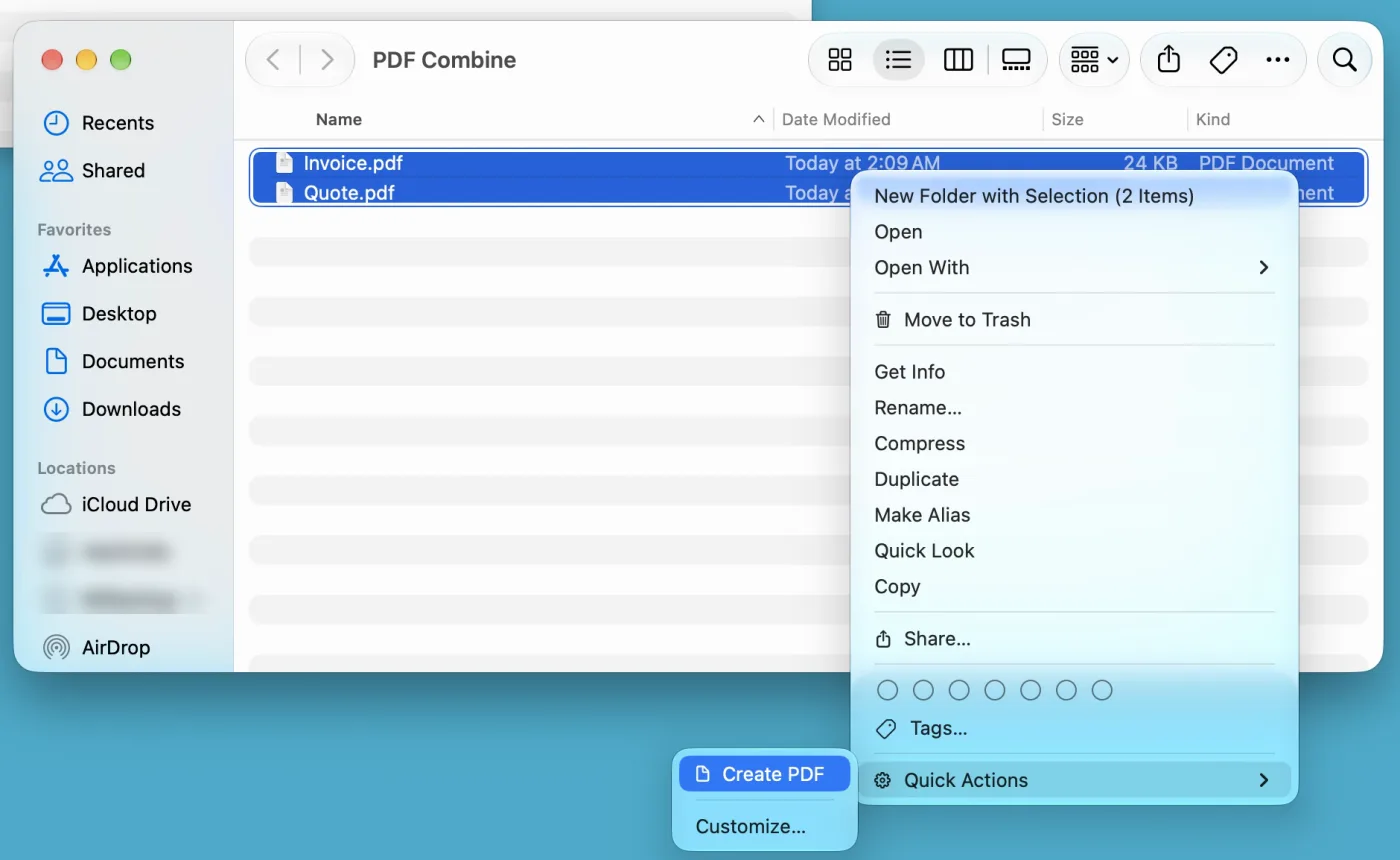
Apple notes: “The files appear in the PDF in the same order that you select them.” To control the page order, select the files in that order. The new PDF gets a name similar to the first file you selected.
The order of work: duplicate, combine, then delete and reorder
First, make a copy with Duplicate. Your changes are saved automatically. The original PDF stays as it was. Next, combine the PDFs: drag thumbnails into the other PDF’s sidebar. To add a whole PDF, drag its icon from the Finder. In our PDFKit test, the pages kept their original sizes. Last, delete pages and reorder. Delete the pages you don’t need with the Delete key. Drag the thumbnails to reorder them. You end up with one combined PDF.
The diagram below sums up this order.
First
Make a copy with Duplicate Your changes are saved automatically
The original PDF stays as it was
Next
Combine
Drag thumbnails into the other PDF’s sidebar To add a whole PDF, drag its icon from the Finder
In our PDFKit test, the pages kept their original sizes
Last
Delete pages and reorder
Delete the pages you don’t need with the Delete key Drag the thumbnails to reorder them
You end up with one combined PDF
Frequently asked questions
I made a mistake after combining. Can I go back?
Apple’s page “Revert changes to PDFs and images in Preview on Mac” describes File > Revert To, which takes the file back to an earlier saved state. Choose Browse All Versions to compare earlier versions and click Restore. A copy made with Duplicate before you start avoids the problem altogether.
The combined PDF is too big.
On Apple’s page “Reduce the size of a PDF in Preview on Mac,” you choose File > Export, then choose Reduce File Size from the Quartz Filter menu. Apple notes that compressing can lower the quality of the PDF, so check that the text is still readable afterward (we haven’t tested this ourselves). Our browser page Compress PDF shrinks only the images inside the PDF, so the text and the paper size stay as they are. For how the two methods compared on the same PDF, see How to Make a PDF Smaller on a Mac.
I combined scanned PDFs, and now I can’t copy or search the text.
A scanned PDF is sometimes just a picture of the paper, with no text inside it. Combining doesn’t add any text. For why that happens and how to fix it, see Can't copy text from a scanned PDF.
I want to hide something before I hand the PDF over.
Drawing a black box over the text isn’t enough, because the text stays inside the file. How to use Redact in Preview is in How to Redact a PDF on a Mac.
Can I combine PDFs without Preview?
On our browser page Merge PDF Files, you can put PDFs and images (JPG, PNG) in any order and combine them into one PDF. To take out only certain pages, use Split PDF and enter the page numbers you want to keep.
What we checked, and Apple’s pages
We wrote the steps in this article from Apple’s pages (read on October 22, 2026, and read again in English on October 31, 2026). The combining test and the page sizes were checked on the Mac below with two PDFs we made ourselves.
- Model: MacBook Air (M4)
- macOS: macOS 27.0.1
- Checked on: October 22, 2026
The test PDFs were combined, and a page was deleted, with a small program that uses PDFKit, the PDF part of macOS. On October 29, 2026, in a separate user account made for screenshots on a MacBook Air (M2) with macOS 27.2 (Japanese screen), we dragged pages from one PDF into another in the Preview sidebar, and opened the Edit > Insert > Page from File menu and the Finder’s Quick Actions > Create PDF menu. On October 31, 2026, we did the same three things on the English screen of the same Mac and took the three pictures in this article. For Page from File and Create PDF, we only opened the menus and didn’t look at the result. Deleting with the Delete key, rotating, Duplicate, Revert To, and Reduce File Size were not tried on screen. We saw Insert, Page from File, and Blank Page on screen. The other names in the Preview menus (Thumbnails, Contact Sheet, Delete, Duplicate, Export, and Revert To) and the name of the rotate button in the toolbar were read from the text files inside macOS on the same Mac, not by opening those menus.
Before writing, we searched Google for “how to combine pdf on mac” and read the top results (October 31, 2026). Apart from Apple’s own pages, the top results came from companies that sell PDF apps or cloud storage, and most of them lead to their own product. This article sticks to what Preview and the Finder, which come with every Mac, can do.
The steps come from these pages.
- Combine PDFs in Preview on Mac (Preview User Guide)
- Add, delete, or move PDF pages in Preview on Mac (Preview User Guide)
- View PDFs and images in Preview on Mac (Preview User Guide)
- Crop or rotate a PDF in Preview on Mac (Preview User Guide)
- Revert changes to PDFs and images in Preview on Mac (Preview User Guide)
- Reduce the size of a PDF in Preview on Mac (Preview User Guide)
- Combine files into a PDF on Mac (Mac User Guide)