How to Change the Default PDF Viewer on a Mac — Open With and Change All in Get Info
Published October 31, 2026
Official documentation reviewed October 31, 2026 (some steps not tested)
By Wada Digital Lab
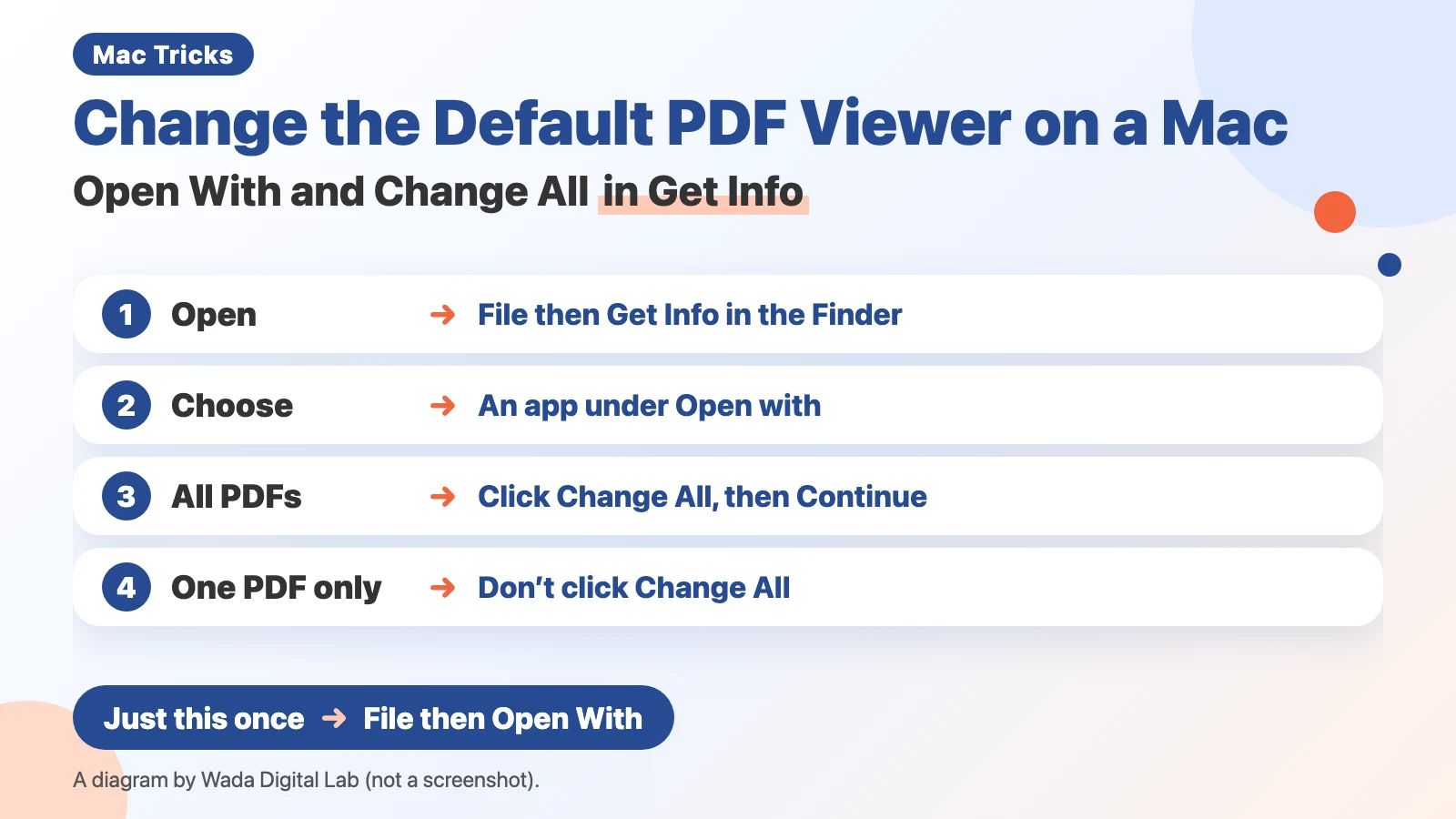
To change the default PDF viewer on a Mac, select a PDF in the Finder, choose File > Get Info, pick an app under Open with, click Change All, and click Continue in the confirmation. If you only want that one PDF to open in a different app, do the same but don’t click Change All.
You double-click a PDF and the wrong app opens. It used to be Preview, and now some other app comes up. When that happens, Get Info usually shows that the app that always opens PDFs has changed. Setting it again puts it back.
Key points
- To change all PDFs at once: select a PDF in the Finder, choose File > Get Info, choose an app under Open with, click Change All, then click Continue in the confirmation.
- To change only that one PDF: choose the app, but don’t click Change All.
- To open a PDF in another app just this once: choose File > Open With in the Finder and pick the app. The default app doesn’t change.
- In the list of apps, the one marked (default) is the app that always opens PDFs. Change All stays gray while the app you chose is the same as the current one.
- The pictures were taken on our recording Mac with macOS 27.2. We closed the confirmation with Cancel and didn’t change the default app for PDFs.
The diagram below sums up how to change the app that opens PDFs (not a screenshot).
First, see which app opens PDFs right now
Open with is the section of the Get Info window that decides which app opens the file when you double-click it. Look at it first. If you skip this, you won’t be able to tell whether the fix worked.
- In the Finder, select a PDF
- Choose File > Get Info (or Control-click the file and choose Get Info)
- In the window that opens, look at Open with
The name shown there is the app that opens when you double-click. Remember that name. You will come back here to check whether it changed.
The app that always opens a file type is usually called the default app. In the list on a Mac, it has (default) after its name.
The button you press last decides how much changes
The steps that follow are the same up to step 3. They differ only in what you press at the end.
Without Change All, what changes is only the one PDF you selected. Other PDFs keep opening in the old app. With Change All, every PDF changes: the ones you already have, and the PDFs you create later, open in the new app.
PDFs keep piling up, so changing them all at once is less work than changing them one at a time. Changing one PDF makes sense when there is one particular document you want in a different app.
The diagram below shows how far the change reaches, depending on whether you click Change All at the end (not a screenshot).
Without Change All
What changes Only the one PDF you selected
Other PDFs
Keep opening in the old app
Press at the end
With Change All
What changes Every PDF
PDFs you create later
Open in the new app
Open a PDF in another app just this once: File > Open With
If you only want to open this PDF in a different app this one time, there is no need to change the default app. The shortest way is to Control-click the file and pick an app from Open With. Apple describes it in those words:
“Control-click the file, choose Open With, then choose an app.” On the same page, Apple lists three other ways too, such as dragging the file onto an app’s icon in the Dock.
The same list is under File > Open With in the menu bar.
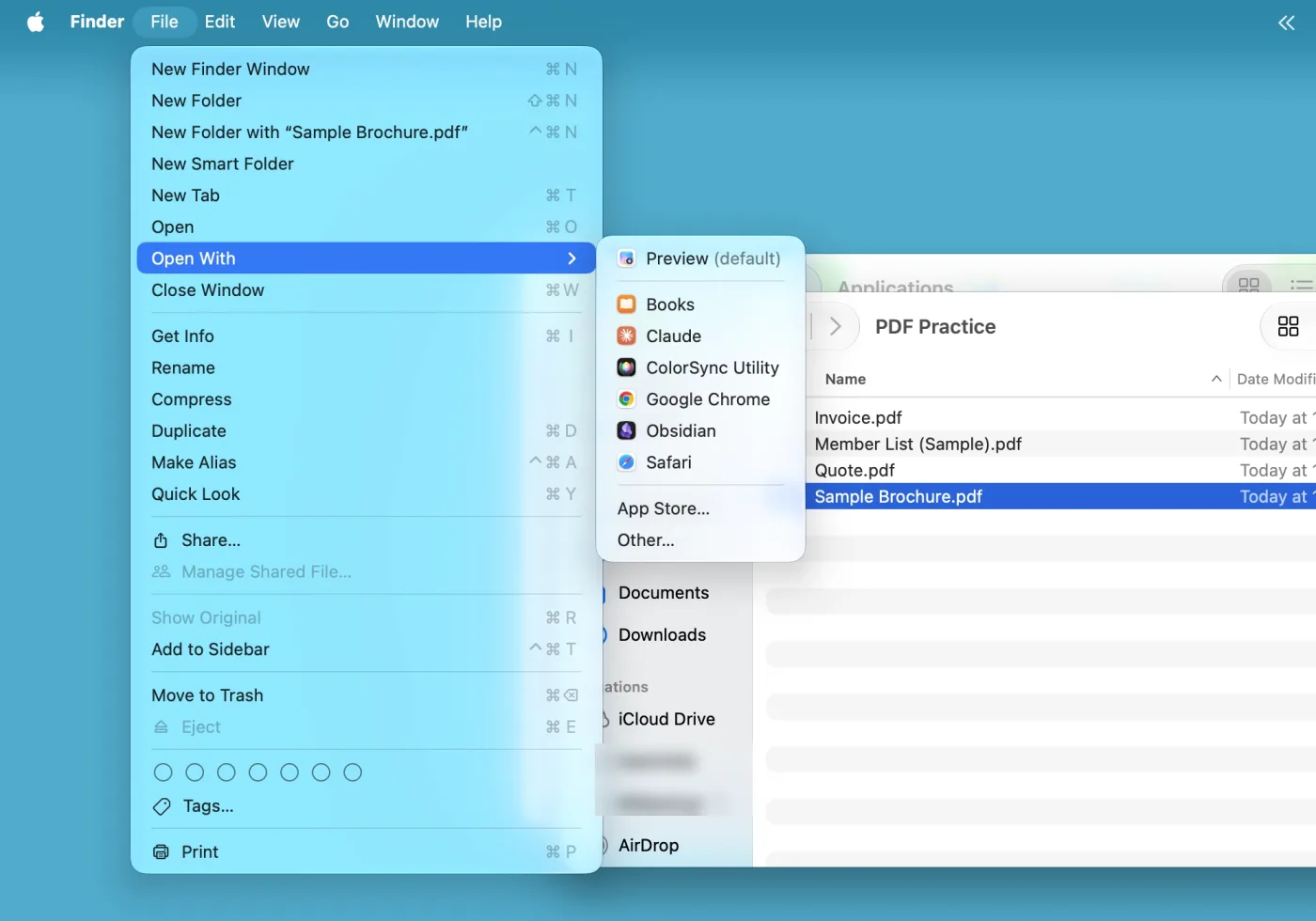
With this method, the next PDF you open comes up in the usual app. It is a one-time choice.
Change one PDF only: choose the app, and don’t click Change All
- In the Finder, select that PDF
- Choose File > Get Info
- Click the arrows under Open with (if the Open with section is folded up, click the small arrow next to its name first)
- Choose an app from the list. Don’t click Change All
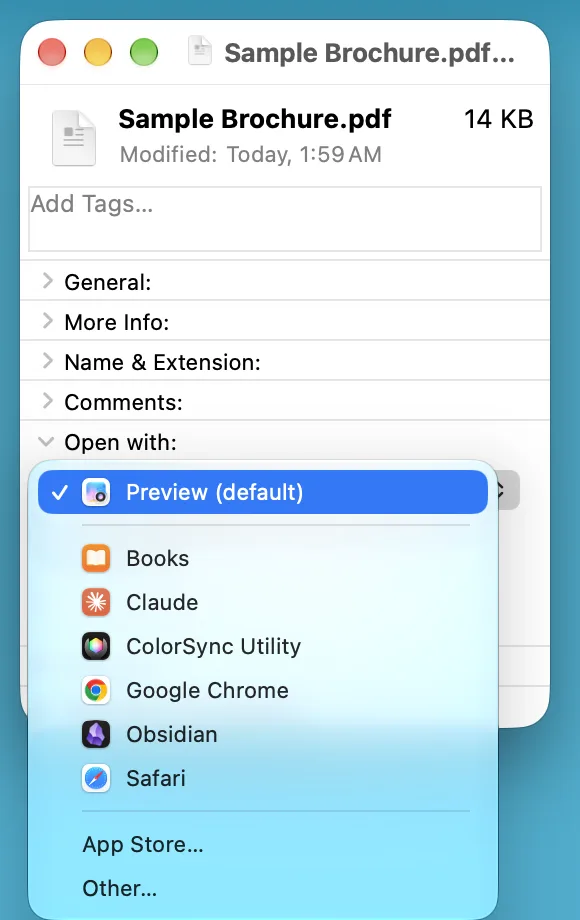
Apple says it plainly: “Don’t click Change All if you only want the specific file you selected to open with that app.”
That changes the app for this one PDF only. Every other PDF keeps opening in the app it used before.
For a file you can’t write to (on an external drive, or in a shared folder), the one-file choice may not be available. The Finder then asks whether to change all documents of that kind instead. If you meant to change only one file, click Cancel there. If you continue, every PDF changes. (We read this message in the Finder’s text files in Japanese, and haven’t seen it on screen.)
Change all PDFs at once: click Change All, then Continue
The steps are the same up to step 3. Only the end is different.
- In the Finder, select any PDF
- Choose File > Get Info
- Click the arrows under Open with (if the section is folded up, click the small arrow next to its name first)
- Choose an app from the list, then click Change All
- A confirmation appears. Click Continue (it says the change will apply to all documents with the extension “.pdf”)
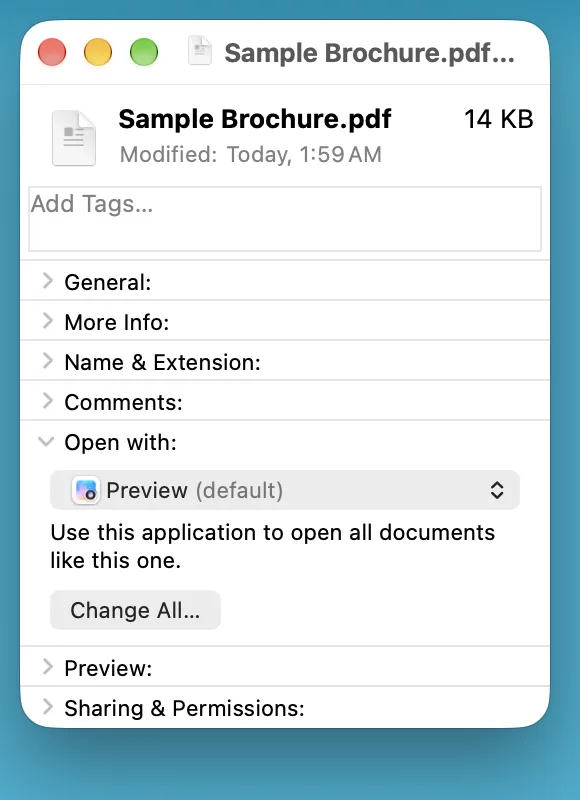
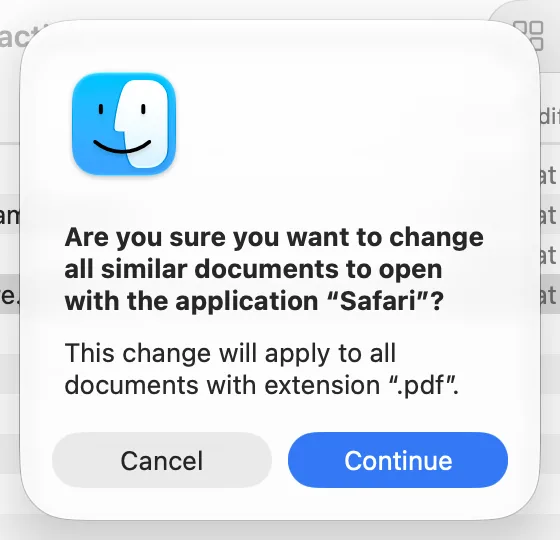
The setting changes only after step 5. If you close the window or click Cancel, the default app for PDFs doesn’t change. The one PDF you selected in Get Info does open with the app you chose from then on; Apple’s note says not to click Change All if that one file is all you want to change.
To see whether it worked, double-click a different PDF and see which app opens. In the list under the arrows in Get Info, the app that always opens PDFs has (default) after its name (on our recording Mac it was Preview (default)). To go back, follow the same steps and choose the old app again.
You changed it, but the old app keeps opening
Check these two things first.
1. You didn’t get as far as the confirmation
If you didn’t click Continue in the confirmation after Change All, the setting didn’t change. Closing the window has the same effect. In that case, only the one PDF you had selected changed. Double-click another PDF and the old app opens.
2. That one PDF has its own setting
If other PDFs open correctly but one keeps opening in the old app, that PDF has a setting of its own. Select it, open Get Info, and choose the app you want under Open with.
The three ways side by side
The table below lists the three ways to change the app that opens a PDF, where you choose, and how far the change reaches.
| What you want | Where to choose | What changes |
|---|---|---|
| Open in another app just this once | File > Open With | Nothing (this one time only) |
| Always open this one PDF in another app | Choose the app under Open with in Get Info (don’t click Change All) | The one PDF you selected |
| Change all PDFs at once | Choose the app, click Change All, then Continue | Every PDF (including ones you create later) |
Frequently asked questions
Change All is gray and can’t be clicked.
On our recording Mac, Change All couldn’t be clicked while the app already in use (Preview (default)) was selected. Once we chose a different app in the list, the button became active.
An app I installed, such as Adobe Acrobat, took over PDFs.
Whatever app it changed to, the fix is the same. Follow “Change all PDFs at once” above and choose the app you want, such as Preview.
The app I want isn’t in the list.
Click Other… at the bottom of the list to choose from the Applications folder.
If text can’t be selected because the PDF has no text, changing the app won’t fix it
One more thing worth knowing. If the reason you wanted another app was that you can’t select the text in this particular PDF, the app may not be the cause.
A PDF made from scanned paper may contain no text. What you see is a picture of the page, not text. Changing the app doesn’t add any. Spotlight (the Mac’s search, which can also find a file by the words inside it) may not find the file by its words, either. On a recent Mac, Preview may still let you select words on such a page through Live Text, which reads the picture on the spot; the file itself still has no text.
For a PDF with no text, Preview can add it: choose File > Export and select Embed Text. How to tell, and how to fix it, is in Can't copy text from a scanned PDF. For combining PDFs in Preview, see How to Combine PDFs on a Mac.
What we checked, and Apple’s page
The pictures in this article were taken on the Mac below. We selected a made-up PDF (Sample Brochure.pdf) and opened the Open with list in Get Info, the confirmation after Change All, and the File > Open With list. We closed the confirmation with Cancel and didn’t change the default app, so we haven’t watched what happens after Continue.
- Model: MacBook Air (M2)
- macOS: macOS 27.2 (English screen)
- Pictures taken on: October 31, 2026 (in a separate user account made for screenshots)
The same screens were photographed on the Japanese screen of the same Mac on October 30, 2026, which is where we saw Change All stay gray while the current app was selected. The apps that appear in the list depend on what is installed on your Mac. The message for files you can’t write to was read from the Finder’s text files in Japanese on September 7, 2026, not on screen.
The first four steps come from this page of the Mac User Guide. The confirmation in step 5 is what we saw on our own Mac; Apple’s page doesn’t describe it. We checked the quotes against the English page on October 31, 2026.