How to Review a Video Before You Publish — Watch It Three Times and Give Notes with Timestamps
Published November 12, 2026 (updated November 15, 2026)
Official documentation reviewed November 12, 2026 (some steps not tested)
By Wada Digital Lab
To review a video before you publish it, watch the same video three times, each time for a different purpose. First, watch it straight through without pausing. Second, pause as you go and check the text and the voice. Third, watch it on a phone. When you find something to fix, write down the minute and second, where on the screen it is, and what it should look like after the fix. We also share the 115 notes that went into 42 of our own videos, sorted by type.
Key points
- Reviewing a video (sometimes called video proofreading) means watching it before you publish or deliver it, checking the text, voice, picture, and pacing for mistakes, and telling the person who makes it what to fix.
- Watch it three times: (1) straight through without pausing, (2) pausing to check the text and the voice, (3) on a phone. Parts that move too fast or are hard to follow are easy to miss unless you watch without pausing.
- In 115 notes on 42 of our videos, on-screen text and captions came first with 27 notes, followed by unnatural pictures or characters (22), pacing (18), and voice and pronunciation (16).
- Each note needs three things: the minute and second, where on the screen, and what it should look like after the fix. A note that only says “This looks wrong. Please fix it.” can’t be fixed.
- Loudness and how fast captions go by can’t be judged by eye. They have numeric targets, and you measure them with software. None of our 115 notes was about loudness, yet when we measured, some of our videos were quieter than YouTube’s target.
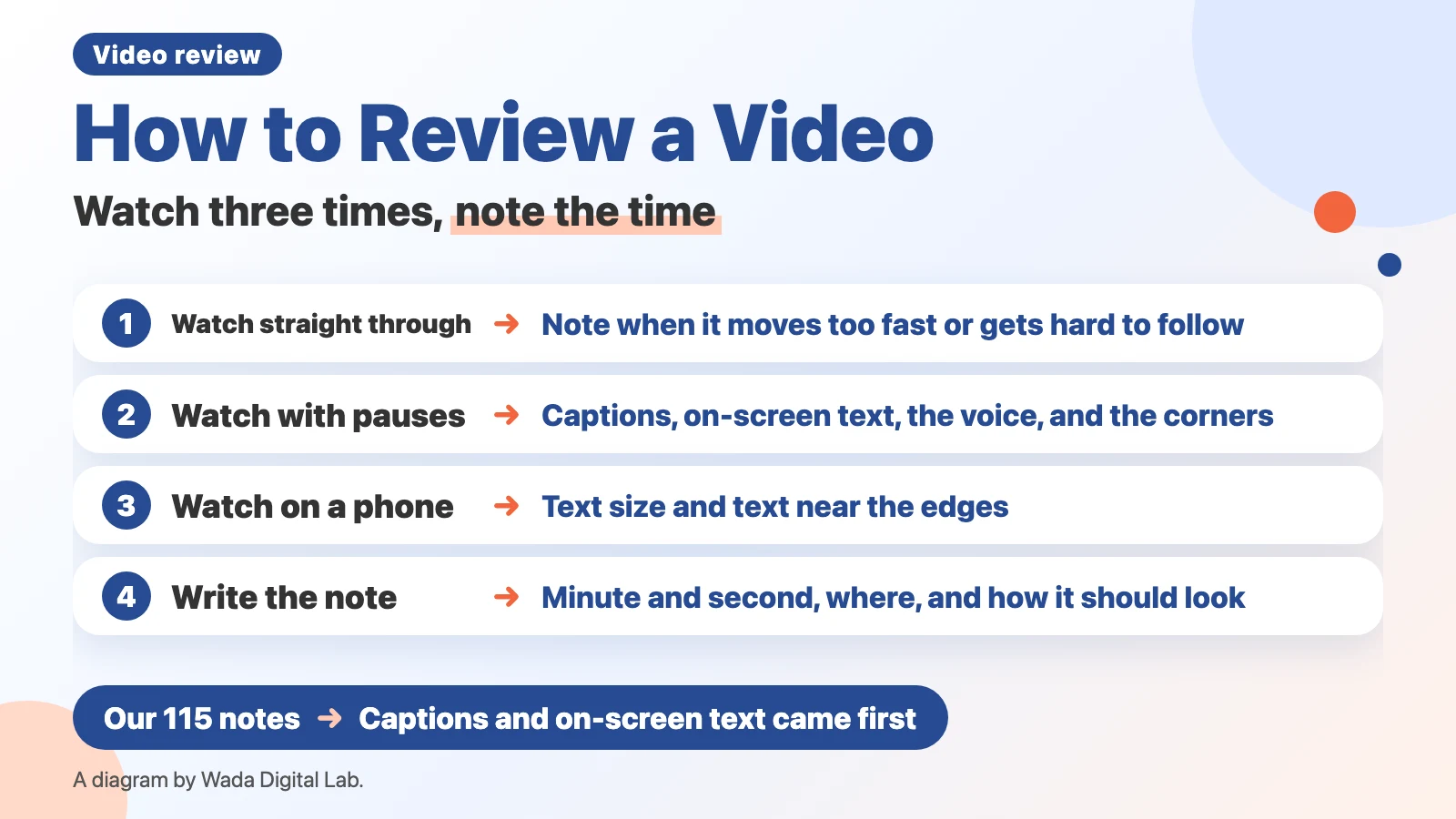
The diagram below shows the order for watching a video three times, and how to write a note.
What reviewing a video means: checking text, voice, picture, and pacing before you publish
Reviewing a video means watching it before you publish or deliver it, checking the text, voice, picture, and pacing for mistakes, and telling the person who makes it what to fix. Unlike proofreading a flyer or a book, a video changes over time: the picture and the sound keep moving. The same caption can be unreadable if it is on screen too briefly. If the voice and the picture are one second apart, viewers get lost. So a note on a video says when, as well as what is wrong.
Every time we make a long YouTube video or an app demo video, the person who runs this site pauses it on an iPad and writes notes on the screen with a red pen. The numbers in this article come from those notes.
Five things to check: text, sound, picture, pacing, and rights
Splitting what you check into five areas keeps one problem from distracting you from the others. The right column shows notes that actually came up in our videos (translated from Japanese).
| What to check | Look for | Notes we actually got |
|---|---|---|
| Text (captions and on-screen text) | Typos, text size, where captions break, how product names are spelled, the same word written the same way every time | “The caption breaks in a strange place.” “Aren’t the captions too small?” |
| Voice and sound | Mispronunciations, pauses in the wrong place, intonation, voice matching the mouth, loudness | “Suddenly, only here, it sounds like a non-native speaker.” “The intonation of 27.2 is off.” (both about our Japanese narration: an English product name or a version number suddenly read with odd pronunciation or intonation) |
| Picture | Things that shouldn’t be visible, unnatural drawings or characters, boxes and arrows in the wrong place | “The top of the desk is visible.” “The wrist bends in an unnatural way.” |
| Pacing and flow | How fast scenes change, how long a still screen stays, whether viewers can tell what is happening | “Don’t hold this still frame for 10 seconds. Isn’t three seconds enough?” “I can’t tell what is happening for about seven seconds here.” |
| Rights and labels | Permission for music, photos and logos, people’s faces and names, required notices | “We agreed not to show the Apple logo.” |
Check what music, photos, and logos you may use in the license terms from where you got them, or in the terms of the permission you were given.
The order: watch the same video three times, each for a different purpose
If you try to catch everything in one pass, you lose the sense of pace while you stop to read a caption. So change the purpose each time.
- First, watch it straight through without pausing. Watch as if you were a first-time viewer. Write down only the times where your eyes couldn’t keep up or you couldn’t tell what was happening. Don’t think about fixes yet.
- Second, pause as you go. Read every caption and every piece of on-screen text, and compare the voice with the script. Check the four corners of the screen for notifications or personal items.
- Third, watch it on a phone. Text you could read on a large computer screen may be unreadable on a phone. We got the note “It’s too small to see on a smartphone.”
The diagram below shows that watching without pausing and watching with pauses catch different problems.
Watch without pausing
As a first-time viewer Write down only the times where your eyes couldn’t keep up
You notice parts that move too fast or are hard to follow
Second pass
Watch with pauses
One word and one scene at a time Read the captions and on-screen text, and compare the voice with the script
You notice typos, mispronunciations, and things that shouldn’t be visible
When you watch without pausing, you notice parts that move too fast or are hard to follow. When you watch with pauses, you notice typos, mispronunciations, and things that shouldn’t be visible. Among our notes, pacing (18) and hard-to-follow parts (11) were about how a scene felt while it played. Some notes said where things started to speed up, such as “From here, the pictures suddenly change faster.”
What came up in 42 of our videos: on-screen text and captions came first
We counted the notes added to 42 of our videos from October 21 to November 12, 2026. We put each note in one category and left out test entries. The categories are our own judgment.
| Type of note | Notes | Examples |
|---|---|---|
| Captions and on-screen text | 27 | Size, where lines break, how a word is written, rewording |
| Unnatural pictures or characters | 22 | The mouth moving on the wrong character, a body showing through a chair |
| Pacing | 18 | Scenes changing too fast, a still screen held too long, a shaky screen |
| Voice and pronunciation | 16 | How English words are read, pauses, the intonation of numbers |
| Hard to follow | 11 | Can’t tell what is happening, no explanatory picture for a while |
| Framing (zoom, position, boxes) | 10 | A red box covering text, please zoom in a little more |
| Things that shouldn’t be visible | 7 | Personal items on a desk, a Mail notification, an unrelated web page |
| Content and planning | 4 | “Please think about whether people really need this.” |
Content and planning (4 notes) are about the topic and structure, separate from the five things to check.
The same kind of note came up again and again in different videos. Captions not following our size rule came up 3 times, English product names in our Japanese narration suddenly read with odd pronunciation 4 times, and scenes changing too fast 5 times or more. When a note comes up once, add it to the list of rules you read before making the next video. That cuts down on the same note next time.
How to write a note: minute and second, where on the screen, and what it should look like
Write each note with three things: the minute and second, where on the screen, and what it should look like after the fix. Among our notes, the one that couldn’t be fixed right away was “This looks wrong. Please fix it.” It didn’t say what was wrong where, or how to fix it. A note that made it clear right away how to fix it was this one, at 1:32:
“The red box appears a little too early. Please make it appear at the same time as the Siri text field.”
It says what is early (the red box) and what to match (when the Siri text field appears), so the person making the video knows exactly what to do. More examples, and services that let you attach notes to a time in a video, are in How to Give Video Feedback.
Check loudness and caption speed with numbers, not by eye
None of our 115 notes was about loudness. Yet when we measured three of our long YouTube videos, two were about 9 decibels quieter than the loudness YouTube aims for. Even after watching, listening, and writing notes, a difference in loudness can go unnoticed.
Things with numeric targets, such as loudness, how many characters a caption shows per second, and flashing, should be measured with software. Caption length is covered in Subtitle Characters per Line, and how to measure loudness is in How to Check YouTube Loudness.
How to show a video to an AI as a second reviewer, and where it went wrong in our test, is in How to Check a Video with AI.
Frequently asked questions
What is the difference between proofreading and fact-checking a video?
Proofreading checks that the text and the picture follow the rules. Fact-checking checks that what the video says is true. In a video, checking that the steps match the current screens, or that the numbers are right, is fact-checking. If you are the only reviewer, you can do both in the same pass.
Any tips for reviewing a video you made yourself?
Wait a while after you finish it. The person who made it remembers what comes next, so it’s hard to notice what is hard to follow. On the first, unpaused pass, keep only a notepad nearby and close the editing app.
Can I leave notes at a time in the video without a dedicated app?
Since August 2026, Google Drive lets you add comments tied to a time in a video. According to Google’s Google Workspace Updates post (August 3, 2026), you create them in Google Drive on the web, and in the iPhone and Android apps they show up as ordinary comments without the time. We haven’t tried it.
If you want an easier way: Proofcut, for marking up videos in red on iPad and iPhone
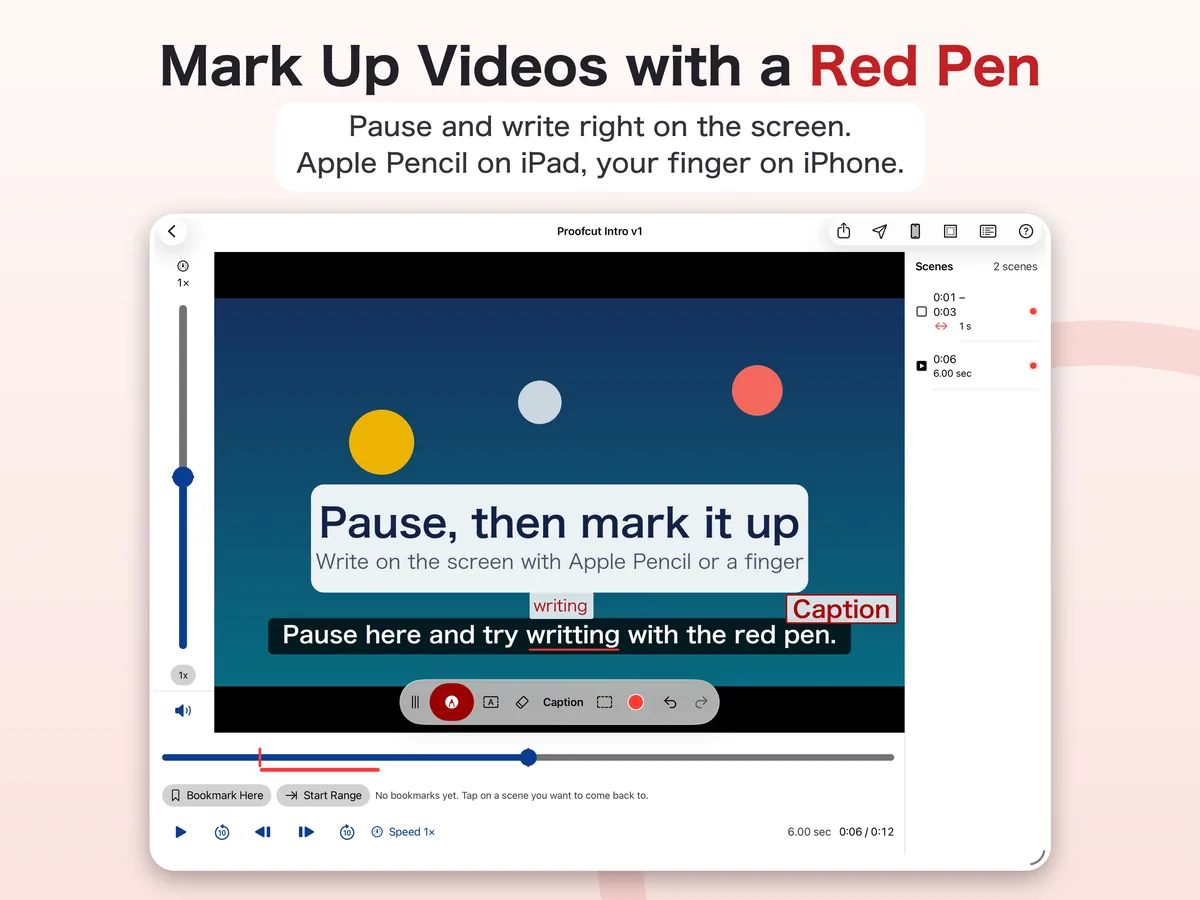
We (Wada Digital Lab) make and sell Proofcut (formerly QMark), a video review app. Pause a video and write right on the screen, with Apple Pencil on iPad or with your finger on iPhone. When you export, each marked scene becomes an image with the time on it, along with a list of what to fix at which minute and second.
Proofcut runs on iPad with iPadOS 26.0 or later and on iPhone with iOS 26.0 or later. It does not work on earlier versions. Opening videos and marking them up is free; exporting and sharing are in-app purchases. The next picture shows a caption mistake marked in red.
What we tested, and sources
- The number of notes comes from the notes added to 42 of our videos from October 21 to November 12, 2026. We left out test entries and our own working memos. The categories are our own judgment. Quoted notes were written in Japanese and translated for this article.
- The notes were made in QMark on an iPad (the exported list records “QMark 0.1.0”).
- Loudness was measured on our long videos on November 12, 2026, with ffmpeg 8.1.2 on a MacBook Air (M4) running macOS 27.0.1. How we measured is in How to Check YouTube Loudness.
- Timestamped comments in Google Drive are described from Google Workspace Updates (August 3, 2026). We haven’t tried them.