How to Check Video Captions for Typos with AI — What Claude and Gemini Found, and the One They Missed
Published November 13, 2026
Steps checked November 13, 2026 (MacBook Air (M4), macOS Golden Gate 27.0.1)
By Wada Digital Lab
You can catch most typos in a video’s captions by giving the caption file (SRT) to an AI as text. We changed 12 of the 71 Japanese captions from one of our videos on purpose and had Claude and Gemini read them twice each. One change later turned out not to be a mistake, so there were 11 mistakes. All four times, they found the same 10 and missed the same one: a number that didn’t match what was said. None of the four runs flagged anything that wasn’t a mistake as a fix.
Key points
- To check captions for typos with AI, give it the caption file (SRT), list the kinds of mistakes to look for, and set the format of the answer.
- In our test, both Claude (Sonnet 5) and Gemini (Antigravity, running Gemini 3.8 Flash) found 10 of the 11 mistakes, including extra characters, wrong kanji (Chinese characters used in Japanese) with the same reading, a katakana typo (katakana is the Japanese script used for words from other languages), a missing character, and numbers that differ between captions.
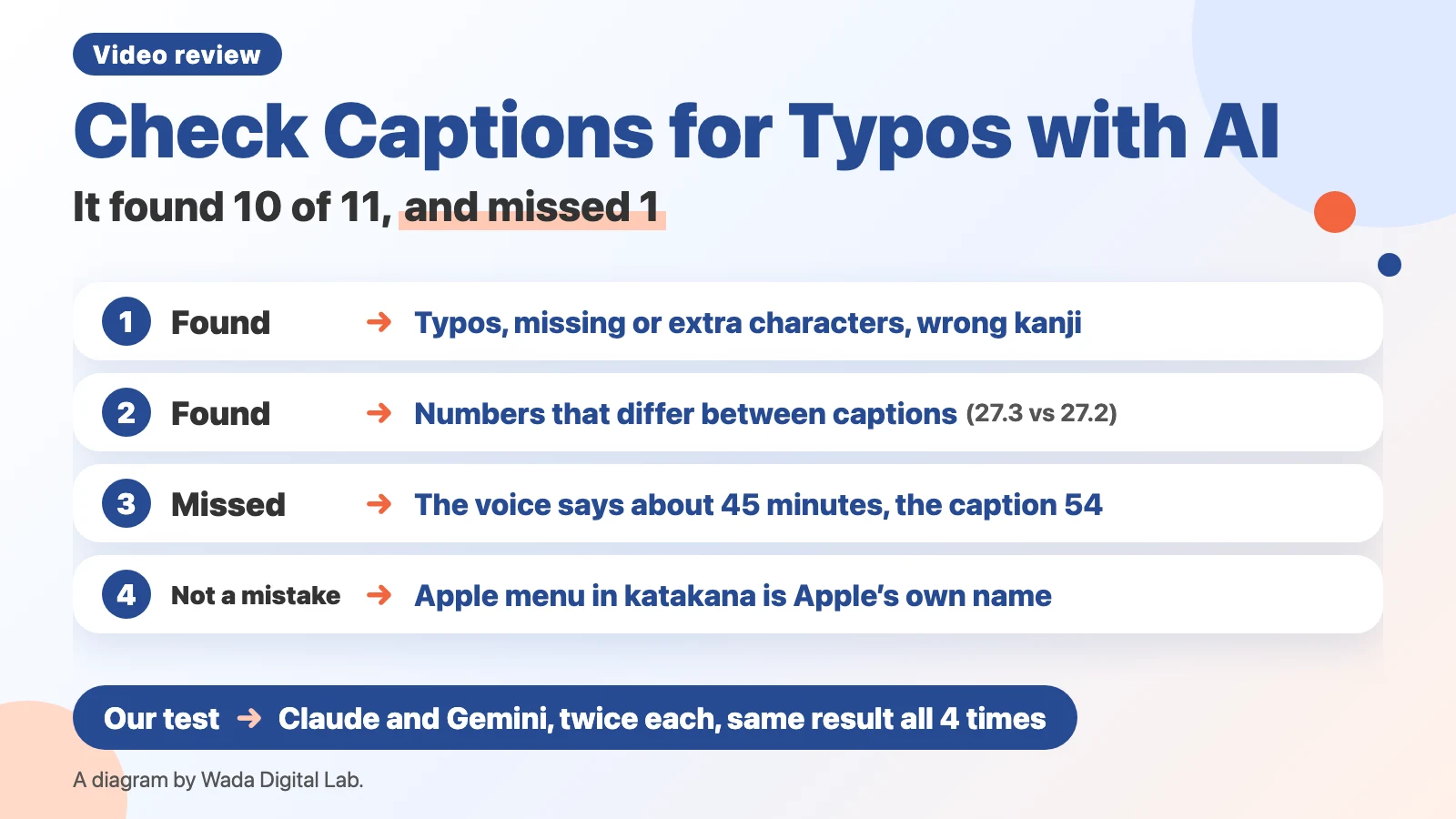
- All four runs missed one: a caption saying “about 54 minutes” where the voice says “about 45.” The captions alone can’t tell you the right number.
- One change we meant as a mistake, writing “Apple menu” in katakana, turned out to be Apple’s own Japanese name for it. None of the four runs changed it.
- An AI reading only the captions can’t catch a mismatch between what was said and what the caption says. That needs a comparison with the voice or the screen.
- The AI’s notes are possible fixes. Open that scene in the video by the caption’s number and time, and have a person check before fixing.
The diagram below shows the mistakes the AI found, the one it missed, and the change that was not a mistake.
What it means to check captions with AI: have it read the caption file and list possible fixes
Checking captions for typos with AI means giving the caption file (SRT) to an AI and having it list typos, missing or extra characters, inconsistent spellings, and wrong numbers, each with the caption’s number. An SRT file is plain text: each caption’s number, the time it appears, and its words. You can check the words without showing the video.
Our test: 12 changed captions, read twice each by Claude and Gemini
We took the 71 Japanese captions from one of our long YouTube videos (about a Mac update) and changed 12 of them on purpose. We had Claude (Sonnet 5) and Gemini (through Google’s Antigravity software, running Gemini 3.8 Flash) read them twice each, with the same request.
| Changed caption | Kind | Result (4 runs) |
|---|---|---|
| An extra character in “whether to install” | Extra character | Found all 4 times |
| “Japanese” written with a wrong kanji | Wrong kanji, same reading | Found all 4 times |
| “Update Now” with one wrong katakana character | Katakana typo | Found all 4 times |
| A wrong character in “we cover it” | Typo | Found all 4 times |
| “About 54 minutes” (the voice says about 45) | Swapped digits | Missed all 4 times |
| “Apple menu” in katakana (the original caption used English letters) | Not a mistake (Apple’s own Japanese name) | Left unchanged all 4 times |
| “14.19 MB” (should be GB) | Wrong unit | Found all 4 times, marked “not sure” |
| “What changes” with a wrong kanji | Wrong kanji, same reading | Found all 4 times |
| An extra character in “press and hold” | Extra character | Found all 4 times |
| A missing character in “the number appeared” | Missing character | Found all 4 times |
| “If it shows 27.3” (every other caption: 27.2) | Numbers that differ | Found all 4 times |
| “You can send it” with a wrong kanji (“give as a gift”) | Wrong kanji, same reading | Found all 4 times |
We counted “14.19 MB” as found: all four runs marked it “not sure,” but pointed to the right place and the right fix (probably GB). None of the four runs marked anything we hadn’t planted as a fix. Both Gemini runs also added three suggestions marked “not sure” about wording (such as when to say “update” and when to say “upgrade,” and a phrase about a ramen shop that said “shop” twice). Claude took 102 seconds the first time and 66 the second; Gemini took 74 and 118. We didn’t count Gemini’s wording suggestions as found or as wrong, because they weren’t at any of the changed captions.
The one it missed: a number that didn’t match what was said
It was a caption saying “about 54 minutes” where the voice says “about 45.” An AI reading only the captions has no way to know the right number. In its second run, Claude even used the wrong “54 minutes” as a fact, as a reason to question caption 23 (“14.19 MB”). A mismatch between what was said and the caption only shows up when you compare against a transcript of the voice or the video itself.
The change that wasn’t a mistake: “Apple menu” in katakana
We changed “Apple menu” in one caption from English letters to katakana, meaning it as an inconsistent spelling. But none of the other 70 captions has “Apple” in English letters, so there was nothing to be inconsistent with. And Apple’s own Japanese Mac User Guide uses the katakana name in the title of its page about the Apple menu. All four runs leaving it alone was the right answer.
So this test doesn’t show whether AI catches inconsistent spellings. If you want company and feature names written your way, give the AI a list of your rules, or search the text for them.
The diagram below splits the work between the AI and what a person or a text search checks.
AI reading only the captions
Looks for mistakes in the words Typos, missing or extra characters, wrong kanji, numbers that differ between captions
Found 10 of 11
Checks the rest
A person and a text search
Compares with the voice, the screen, and your rules Numbers that were said, and how company and feature names are written
Finds the one the AI missed
An AI reading only the captions looks for typos, missing or extra characters, wrong kanji, and numbers that differ between captions. In our test, it found 10 of 11. A person compares the rest against the voice and the screen. This test didn’t check how company and feature names are written, so a text search checks those too.
How to ask: list the kinds of mistakes and set the format of the answer
We used this request (translated from Japanese). Add the caption file after it, or attach it as a file.
The caption file (SRT) below has the Japanese captions for a video explaining a Mac update. Read all of it as a final check before publishing.
Look for typos, missing characters, extra characters, wrong kanji with the same reading, inconsistent spellings (the same word written different ways), wrong numbers or units, and places that contradict each other.
Put what you find in a table: caption number, original text, corrected text, and reason. Mark anything you're unsure of as "not sure." If you find nothing, write "none."- List the kinds of mistakes. It makes clearer what to look for than just “check for typos.”
- Have it answer by caption number. An SRT file has numbers and times, so you can open the scene in the video.
- Have it mark “not sure.” All four runs marked “14.19 MB” as not sure instead of deciding the right value.
- Say in one line what the video is about. Knowing the topic let it judge that “megabytes is too small.”
Text burned into the picture: check it with an AI that can watch video
Text you didn’t put in the SRT file, such as titles and notes placed on the video picture, can’t be checked from the caption file alone. To check it, show the video file to an AI that takes video (Gemini or Antigravity), or have a person pause and look. Our test of showing a video to an AI is in How to Check a Video with AI.
FAQ
Does this work with ChatGPT?
Pasting the SRT text with the same request should work. We haven’t tried giving ChatGPT the caption file. Our test of giving ChatGPT a video file is in How to Get ChatGPT to Read a Video.
Can I publish captions after an AI check alone?
We don’t. Even in this test, all four runs missed the mismatch between the spoken number and the caption. After fixing what the AI found, a person plays the video and checks that the voice and the captions match.
Can the AI count caption length too?
A script counts more reliably than an AI. A script that counts characters per line and per second is in Subtitle Characters per Line.
What we tested, and sources
- We ran the test on November 12 and 13, 2026, on a MacBook Air (M4) with macOS Golden Gate 27.0.1. Claude ran twice through the Claude Code command (claude -p) with Sonnet 5 selected; Gemini ran twice through the Antigravity CLI (Antigravity run by typing commands in Terminal, with Gemini 3.8 Flash as the model).
- The captions are the 71 Japanese captions from one of our long YouTube videos (M037), with 12 changed on purpose. One change (“Apple menu” in katakana) later turned out not to be a mistake.
- Before writing, we read the top results of a Japanese Google search for checking video typos with AI. We haven’t tried ChatGPT.