How to Get ChatGPT to Read a Video — We Gave the Same Video to Gemini and Claude Code, and Only Gemini Heard the Voice
Published November 13, 2026
Steps checked November 13, 2026 (MacBook Air (M4), macOS Golden Gate 27.0.1)
By Wada Digital Lab
To get ChatGPT to read a video, press the + button in the message box and attach the video file. When we tried it on an account without a paid plan, ChatGPT pulled frames from the video and looked at the picture, but both times it said it could not make out the voice. We gave the same 23-second video to the Gemini app and to Claude Code, and only Gemini caught a caption that differed from the voice. But Gemini also described speech in a stretch where nobody speaks.
Key points
- To get ChatGPT to read a video, press the + button on the left of the message box, choose to add photos and files, attach the video, and type what you want to know.
- OpenAI’s help says ChatGPT can take video attachments even without a paid plan, that “Availability varies by platform, upload method, and account,” and that “It may not analyze the entire video or accurately interpret its audio.”
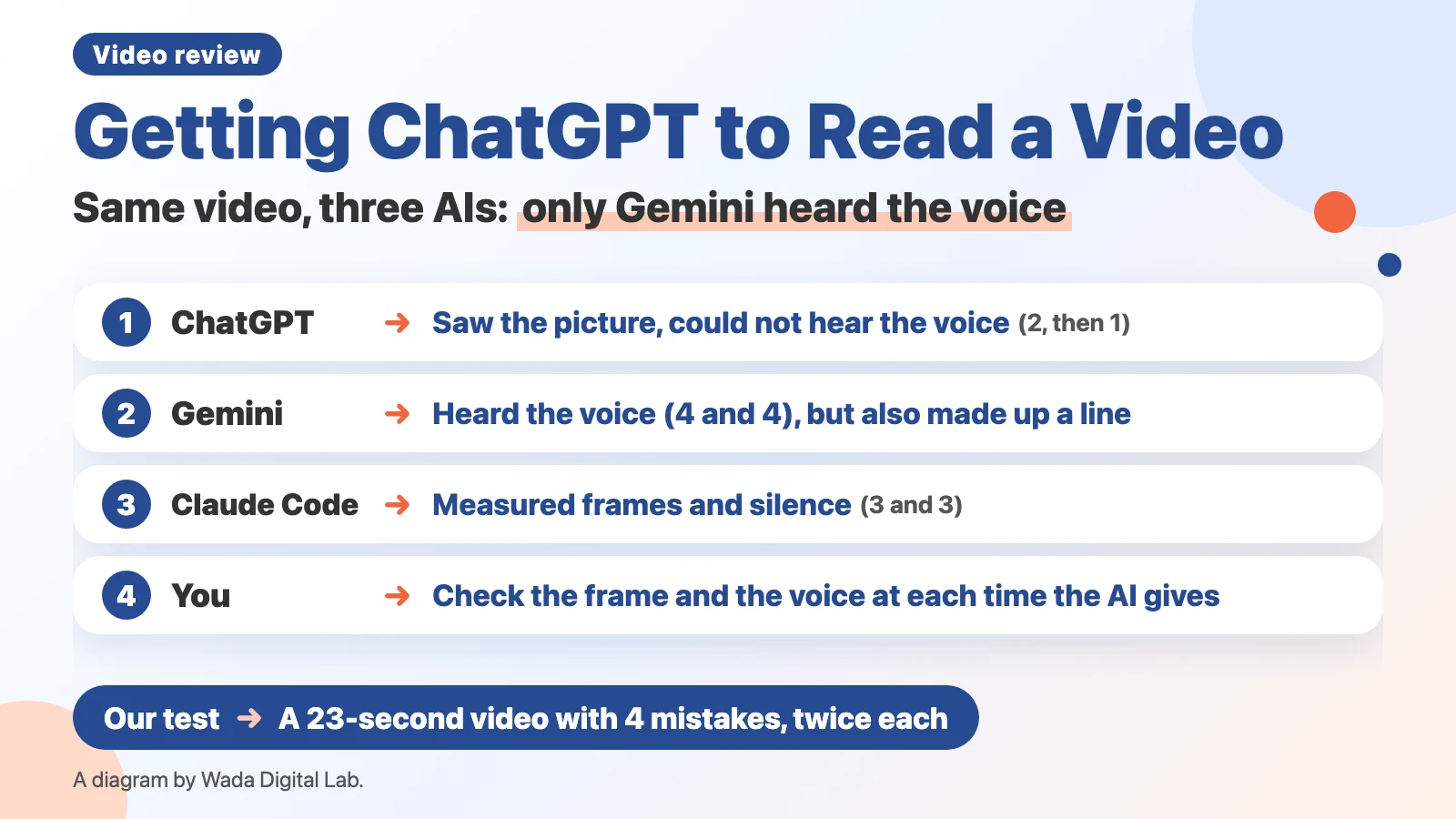
- In our test (a 23-second video with 4 planted mistakes, twice each), ChatGPT without a paid plan found 2, then 1; the Gemini app without a paid plan found all 4 both times; Claude Code (Sonnet 5) found 3 both times.
- Only Gemini caught the voice saying “save” while the caption said “delete.” ChatGPT and Claude Code said they could not make out the spoken words.
- Both times, Gemini described speech in the silent stretch around 12 seconds. Open the video at the time the AI gives and check before you fix anything.
- According to Anthropic, the Claude apps don’t take video files. Claude Code pulled frames from the video on the Mac.
The diagram below shows how many mistakes each AI found in the same video, and whether it could hear the voice.
What it means to have ChatGPT read a video: attach the file and ask about it
Having ChatGPT read a video means attaching a video file from your device (such as an MP4) to a chat and asking what’s in it or whether anything is wrong. OpenAI’s ChatGPT Image Inputs FAQ says video files can be attached even without a paid plan, and that “Availability varies by platform, upload method, and account.” The same page says, “ChatGPT may use tools to analyze uploaded videos, but its analysis can be incomplete or inaccurate. It may not analyze the entire video or accurately interpret its audio.”
Our 23-second, 157 KB MP4 attached without trouble on an account without a paid plan. ChatGPT ran its analysis several times, pulled frames (still images) from the video, and looked at the picture. Both times, it said it could not make out what the voice was saying. That is the “may not accurately interpret its audio” case from the help page, and it happened both times with our video.
How to put a video into ChatGPT, Gemini, and Claude
| AI | How to add a video | What happened in our test |
|---|---|---|
| ChatGPT (chatgpt.com) | The + button in the message box, then add photos and files, then pick the video | Attached on an account without a paid plan. It saw the picture but could not make out the voice |
| Gemini (gemini.google.com) | The + button in the message box, then upload files, then pick the video | Attached on an account without a paid plan. It answered about both the picture and the voice |
| Claude (apps) | Anthropic lists documents and images only | We didn’t try the apps |
| Claude Code | Tell it where the video file is and ask | It pulled frames with ffmpeg (software that works with video and audio) on the Mac. It could not make out the spoken words |
- ChatGPT: Open chatgpt.com, press the + button on the left of the message box, choose to add photos and files, and pick the video file. Type your request and send it. OpenAI’s help on uploading files says accounts without a paid plan can upload 3 files a day, and that “OpenAI may lower these limits during peak hours.”
- Gemini: Open gemini.google.com, press the + button on the left of the message box, choose to upload files, and pick the video file. Google’s Upload & analyze files in Gemini Apps says, “Total video length can be up to 5 minutes. Upgrade to Google AI Pro or Google AI Ultra to extend total upload length to 1 hour.”
- Claude: Anthropic’s Upload files to Claude lists documents (such as PDF) and images (JPEG, PNG, GIF, WebP) as the file types you can add. For a video, give frames as images instead. Claude Code can pull those frames from the video on your Mac for you (How to Ask Claude Code to Fix a Video).
Our test: a 23-second video with 4 planted mistakes, given to three AIs twice each
We made a 23-second sample video (a drawing of a settings screen with Japanese captions and a voice) and planted 4 mistakes in it. It’s the same video we showed to Antigravity (running Gemini 3.8 Flash) in How to Check a Video with AI. We gave it to ChatGPT, the Gemini app, and Claude Code twice each, with the same request. In the table, ✓ means found and ✗ means not found, for the first run and then the second.
| Planted mistake | ChatGPT (no paid plan) | Gemini (no paid plan) | Claude Code (our paid plan) |
|---|---|---|---|
| A caption typo in “choose the tab” (6–9 s) | ✗ / ✓ | ✓ / ✓ | ✓ / ✓ |
| A caption typo in “close settings” (12.3–12.7 s, only 0.4 s) | ✓ / ✗ | ✓ / ✓ | ✓ / ✓ |
| The voice says “save,” the caption says “delete” (15–18 s) | ✗ / ✗ | ✓ / ✓ | ✗ / ✗ |
| An email notification (20.3–20.8 s, only 0.5 s) | ✓ / ✗ | ✓ / ✓ | ✓ / ✓ |
| Found (out of 4) | 2 / 1 | 4 / 4 | 3 / 3 |
| Described speech where there was none | No | Both times | No |
| Time to answer | About 1 to 1.5 minutes | About 20 seconds | About 8 and 4 minutes |
The request was in Japanese, the same for all three (for Claude Code, we added the file name at the start). In English, it says:
Please check this video (23 seconds; a sample video that explains steps on a settings screen with Japanese captions and a voice) from start to finish, as proofreading before it goes public. Look for: typos in the captions, places where the voice and the captions differ, things that shouldn't be on screen (notifications, personal items), anything cut off at the edges, and anything else to fix before publishing. Put what you find in a table with the time, the kind (scene / voice / caption), and what to fix. Separate what you actually saw and heard from what you're guessing. If there's anything you couldn't see or hear, say so honestly.ChatGPT: it saw the picture, but couldn’t make out the voice either time
Both times, ChatGPT pulled frames from the video and looked at the picture. The first time, it said it checked frames every 0.5 seconds, and it found the 0.4-second typo and the 0.5-second notification. But it read the typo that stays on screen for 3 seconds as a correct word and called it fine. The second time, it found that typo, but the 0.4-second typo and the 0.5-second notification never came up. Even so, it said it had checked the whole 23 seconds of the picture.
Both times, it confirmed the file had sound, then said it could not make out the words. It marked “voice matches captions” as not checked. Saying plainly what it couldn’t hear is what you want from a proofreader.
Gemini: it heard the voice, but also described speech where there was none
The Gemini app found all 4 mistakes both times and answered in about 20 seconds. It quoted the voice as “save” and the caption as “delete,” and flagged the mismatch. It was the only one of the three that said anything about the spoken words.
But both times, it described speech in a silent stretch. Nobody speaks in this video from 8.4 to 15.0 seconds (we measured the silence with ffmpeg). Even so, the first time it said that around 12 seconds the voice says “close settings,” and the second time it said the voice says “finally, save.” The first time, it also misread the caption typo. And both times, it said it had checked all of the picture and all of the sound.
Claude Code: it measured frames and silence, but couldn’t make out the words
Claude Code used ffmpeg on the Mac to pull frames every 0.1 to 1 second and to measure the silent stretches. Both times, it checked frame by frame and found the 0.4-second typo and the 0.5-second notification. Its times were precise, such as “appears at 12.33 seconds and disappears at 12.73 seconds,” and for the two short flashes, its times were within 0.1 seconds of the real ones.
Both times, it said it had no way to transcribe the voice, so it could not check the words. That’s why it didn’t catch the voice saying “save” while the caption said “delete.” Instead, both times it pointed out that a caption flashes for 0.4 seconds in the middle of a 6.7-second silence. It was slow: about 8 minutes the first time and about 4 minutes the second.
Which to use: Gemini for voice against captions, and check short flashes frame by frame
Here is what our test shows.
| What you want to check | Which AI found it in our test | What a person still checks |
|---|---|---|
| Voice that differs from the captions | Only Gemini (both times) | Listen where Gemini says “the voice says.” It can describe speech that isn’t there |
| Caption typos | Gemini and Claude Code both times. ChatGPT missed one each time | AIs misread letters, so look at the frame |
| Something on screen for only 0.5 seconds (a notification, say) | Gemini and Claude Code both times. ChatGPT once | Open the frame at that time and see whether it’s a real notification |
The diagram below shows how to split the work after the AI answers.
The AI you gave the video to
Gives possible fixes with times ChatGPT saw the picture only, Gemini the picture and the voice, Claude Code frames and silent stretches
Found 1 to 4 of the 4
Open that time
You
Look at the frame and listen Check the caption and the voice at each time the AI gives
You catch wrong flags and made-up speech
No AI can be trusted to describe how much it actually checked. ChatGPT’s second run and Gemini both said they had checked everything, yet missed things or described speech that wasn’t there. Treat what an AI points out as a possible fix, open the video at that time, and check before you change anything. What the AI missed won’t appear in its answer, so opening those times won’t find it. To find misses, a person watches the whole video from start to finish. How we run a review is in How to Review a Video Before You Publish.
FAQ
Can ChatGPT hear the voice on a paid plan?
We only tried ChatGPT on an account without a paid plan. We haven’t checked whether a paid plan can make out the voice.
How long a video can I add?
For the Gemini app, Google’s help says total video length can be up to 5 minutes (up to 1 hour on Google AI Pro or Google AI Ultra). We didn’t find a length limit for video in ChatGPT’s help. We only tried a 23-second video.
Does a YouTube link work the same way?
We only tried attaching a video file from the device. Giving a link wasn’t part of this test.
What if I only want to check the captions?
You can also give the AI the caption file (SRT) as text. In our separate test with 71 captions, Claude and Gemini found 10 of the mistakes all four times and flagged nothing wrongly. The details are in How to Check Video Captions for Typos with AI.
What we tested, and sources
- We ran the test on November 13, 2026, on a MacBook Air (M4) with macOS Golden Gate 27.0.1. For ChatGPT and Gemini, we used our own accounts (neither on a paid plan) in Chrome. We didn’t pick a model in ChatGPT, and left Gemini on its automatic mode. For Claude Code, we used our account on a paid plan and ran the command (claude -p) twice with Sonnet 5 and let it use ffmpeg.
- The video is our own 23-second sample (1280×720, with a voice, 157 KB). The voice is at 2.0–4.4, 6.0–8.4, and 15.0–16.7 seconds; the rest is silent (measured with ffmpeg).
- We read OpenAI’s ChatGPT Image Inputs FAQ and help on uploading files, Google’s Upload & analyze files in Gemini Apps, and Anthropic’s Upload files to Claude on November 13, 2026.
- Before writing, we read the top search results for “chatgpt video upload” in Japanese. We didn’t try paid plans of ChatGPT or Gemini, or the Claude apps.