How to Give Video Feedback — Clear Notes with Timestamps, with Real Examples
Published November 12, 2026 (updated November 15, 2026)
Official documentation reviewed November 12, 2026 (some steps not tested)
By Wada Digital Lab
Video feedback works when each note covers one thing and says three things: the minute and second, where on the screen, and what it should look like after the fix. Then the editor can fix it without having to ask. For a note that keeps coming back, add the reason too. Below are real notes from our own videos, side by side: ones that couldn’t be fixed and ones that showed right away how to fix them.
Key points
- Video feedback is when someone who watched a video tells the person who makes it what to fix and what it should look like after the fix. It is also called revision notes or change requests.
- A clear note has (1) the minute and second (a start and an end for a range), (2) where on the screen, and (3) what it should look like after the fix. If the same fix keeps coming up, add (4) the reason.
- The note we couldn’t act on was “This looks wrong. Please fix it.” A second note at the same time, “Draw it without this white frame,” settled how to fix it.
- Three more habits cut down the back-and-forth: one fix per note, a range for timing problems, and a list of possible fixes.
- You can attach comments to a time in Google Drive (on the web), on a Vimeo review link, and in Frame.io.
The diagram below shows the four things a clear revision note contains.
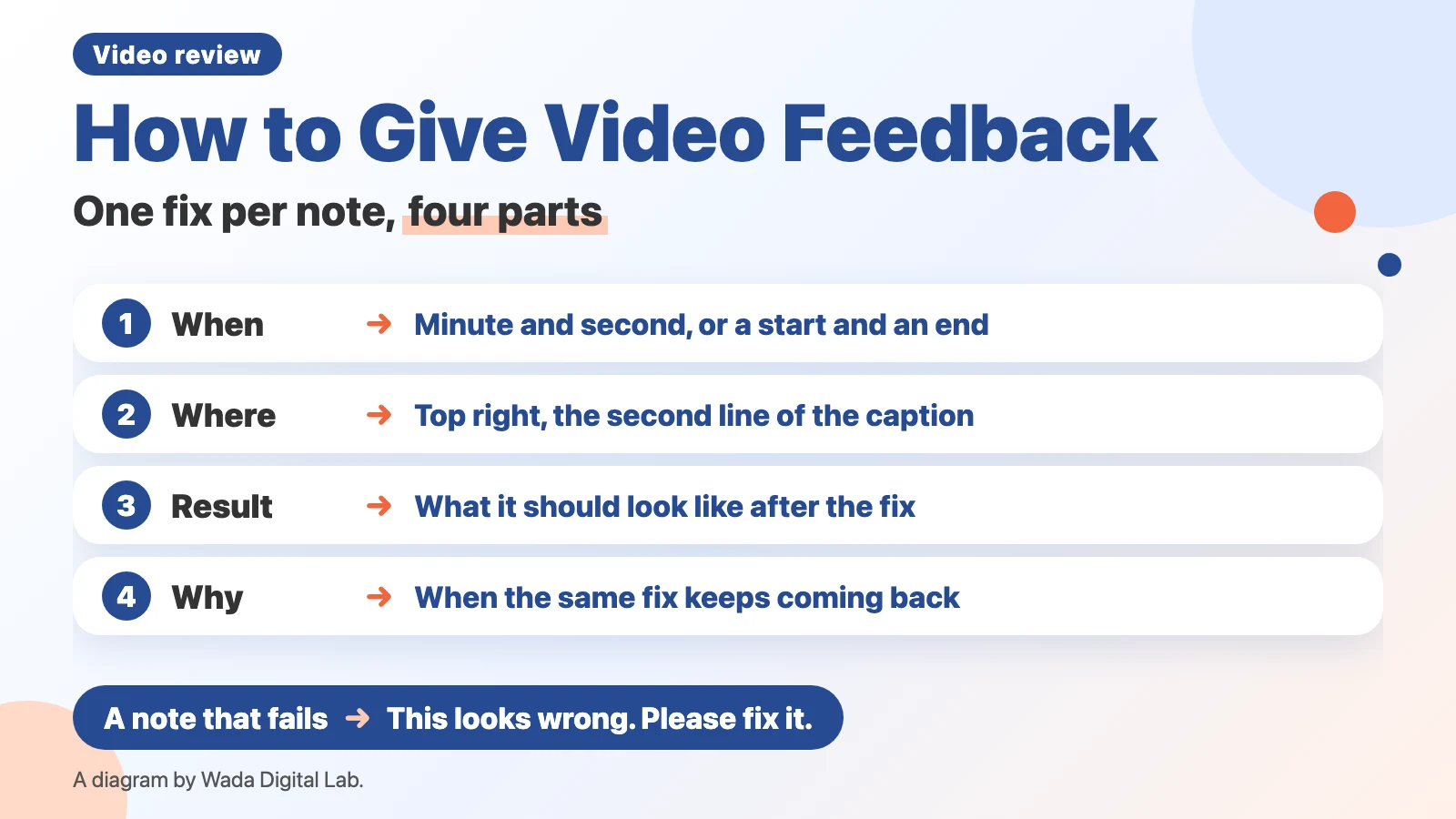
What video feedback is: telling the editor what to fix and how it should end up
Video feedback is when someone who watched a video tells the person who makes it what to fix and what it should look like after the fix. At work it is also called revision notes, change requests, or markups. Because the picture changes over time, “where” in a video also needs a time, unlike notes on a printed page.
At our studio, the person who runs this site pauses each video, writes notes on the screen on an iPad, and hands them over as images with the time on them, plus a list. From October 21 to November 12, 2026, 115 notes went into 42 videos. The examples here are taken from those notes and translated from Japanese.
What a clear note contains: minute and second, where on the screen, and the result
A clear note contains (1) the minute and second, (2) where on the screen, and (3) what it should look like after the fix. If any one is missing, the editor has to ask, or fix it by guessing. A guessed fix often has to be fixed again.
| Include | Example | If it’s missing |
|---|---|---|
| Minute and second | “1:32.” For a range, “from 1:18 to 1:24” | In a video where the same caption or picture appears often, the editor can’t tell which one you mean |
| Where on the screen | “the zoomed-in view at the top right,” “the second line of the caption,” “the red box” | The editor can’t tell what to change on the screen |
| What it should look like | “Make it appear at the same time as the Siri text field.” | The editor doesn’t know which way to fix it and guesses |
| The reason (for repeated fixes) | “Never let it cover the text,” plus one sentence on why (for example, a box over the text makes it unreadable) | The same kind of fix comes up in the next scene or the next video |
Real examples: notes we couldn’t act on, and notes that showed right away how to fix them
Here are notes from our records. The left column is what the reviewer wrote (translated).
| The note as written | What it had, or lacked |
|---|---|
| “This looks wrong. Please fix it.” | No place on the screen and no result. A second note at the same time, “Below the white line on the desk looks wrong. Draw it without this white frame,” settled how to fix it |
| “The red box appears a little too early. Please make it appear at the same time as the Siri text field.” | What (the red box), how it’s off (early), and what to match (when the Siri text field appears) are all there |
| “Move the red frame up a little. Never let it cover the text.” | A direction (up) and a condition to keep from now on (don’t cover the text) |
| “The screen shakes too much. Use a still image, slow the video down so the shaking isn’t noticeable, or adjust it some other way.” | Lists possible fixes and leaves the choice to the editor |
| “Shouldn’t it be read as ‘M two’ and ‘M four,’ not as numbers?” (the Japanese narration had read “M2” and “M4” with Japanese numbers, “M ni” and “M yon”) | Both the wrong reading and the right one |
Three habits that cut the back-and-forth: one fix per note, a range, and options
- Put only one fix in each note. One of our notes, on the scene at 0:53, held two: “make the drawing on the whiteboard relevant” and “the right hand has three fingers.” With two in one note, it’s easy to miss that one was fixed and the other wasn’t.
- Give timing and sound problems as a range. Write a start and an end, as in a note left on the scene at 1:18: “From this frame until 1:24, the scenes suddenly change very fast.” With only one time, the editor can’t tell how far the fix should go.
- When there are several ways to fix it, list them. As in the “screen shakes too much” example in the table, listing options and leaving the choice lets the editor pick what fits the footage and the time available.
The diagram below shows a note with two fixes split into one fix per note.
One note with two fixes
Drawing on the whiteboard, three fingers Two fixes in one note
It’s easy to miss that one is still left
Split it
One fix per note
0:53 (1) drawing (2) fingers Two notes at the same time
You can check each fix one by one
With two fixes in one note, it’s easy to miss that one is still left. Write two notes at the same time instead, and you can check each fix one by one.
When the same fix keeps coming back, add the reason and make it a rule
In our videos, the note about caption size came up in 3 different videos. One of them pointed to the rule itself: “Make the caption size follow the rules of our long-form video system” (our own rules for making long videos). When the same fix comes up twice, the thing to fix is the way the video is made, not the scene. Add it to a list of rules with the reason, and have it read before the next video.
The same goes when you hire an editor. A repeated fix is better handed over once as a rule than explained again in every video.
Services that let you comment at a time in the video
Writing “At 1:32…” in an email or chat works too. But it’s hard to describe a place on the screen in words, and notes end up scattered. A service that lets you attach comments to a time in the video keeps the time and the note together.
| Service | What it does | Things to know |
|---|---|---|
| Google Drive | Comments tied to a time in a video (since August 2026) | You can create them only on the web. In the phone apps they show as ordinary comments without the time |
| Vimeo review link | Time-coded comments. People without a Vimeo account can comment after entering a name and email address | The Free plan gets one review link per video |
| Frame.io | Comments at a time or over a range, and drawing on the frame | Comments go on videos you add to Frame.io |
The Google Drive details come from Google’s Google Workspace Updates post (August 3, 2026), Vimeo from Video review page, and Frame.io from Commenting on your media. We haven’t tried any of them. Check each company’s pages for plans and details.
Frequently asked questions
Should feedback come in one batch or several?
Send all notes on one video in one batch. If you split them, the editor has to export again each time. When several people review, have one person collect the notes and check for conflicting requests before passing them on.
Do I need to explain the reason every time?
No. For a one-time fix, what it should look like is enough. When the same fix comes up twice, add the reason and make it a rule.
How do I explain a fix that’s hard to put into words?
Draw a circle or an arrow right on the paused frame. Then you don’t need to describe the place in words. We hand over both the images with drawings and a list of times and notes.
The order for watching a video and the list of things to check are in How to Review a Video Before You Publish.
If you want an easier way: Proofcut, for writing on a paused frame with a red pen
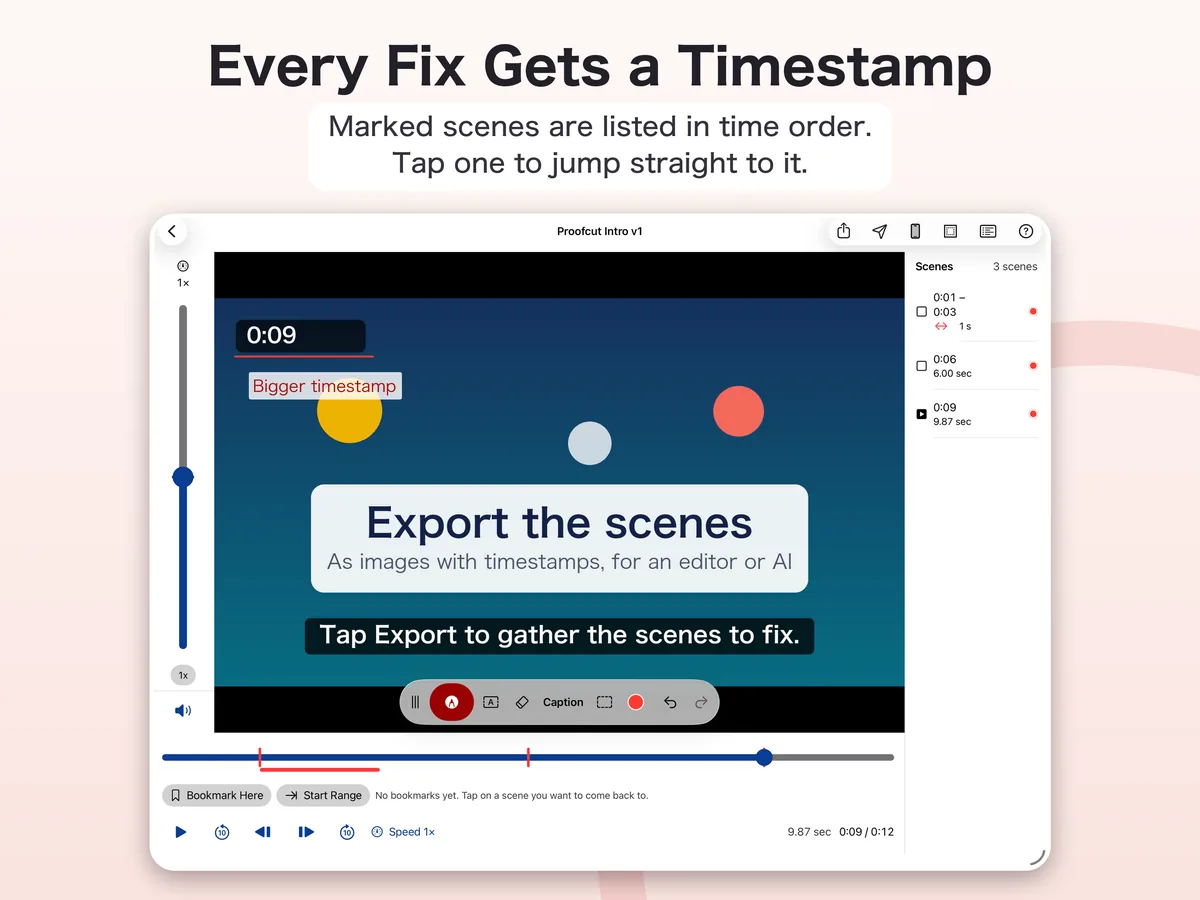
We (Wada Digital Lab) make and sell Proofcut (formerly QMark), a video review app. Pause a video and write right on the screen, with Apple Pencil on iPad or with your finger on iPhone. When you export, each marked scene becomes an image with the time on it, along with a list of what to fix at which minute and second.
Proofcut runs on iPad with iPadOS 26.0 or later and on iPhone with iOS 26.0 or later. It does not work on earlier versions. Opening videos and marking them up is free; exporting and sharing are in-app purchases. The next picture shows the list of marked scenes.
What we tested, and sources
- The example notes come from the notes added to our videos from October 21 to November 12, 2026, translated from Japanese. The notes were made in QMark on an iPad (the exported list records “QMark 0.1.0”); the iPad model and iPadOS version are not in the records.
- The services are described from Google Workspace Updates (August 3, 2026), Vimeo’s Video review page, and Frame.io’s Commenting on your media, read on November 12, 2026. We haven’t tried any of them.