When Your Mac Freezes — Force Quit, and What to Do When Even That Fails
Published November 12, 2026
Official documentation reviewed November 12, 2026 (some steps not tested)
By Wada Digital Lab
When your Mac freezes, start by quitting only the app that stopped. Press Option, Command, and Esc together to open the Force Quit window, select the unresponsive app, and click Force Quit. Force quitting can lose unsaved changes, so first try Command-Q to quit it normally. If the whole Mac won’t respond, restart it, and if it won’t restart, press and hold the power button for up to 10 seconds to turn it off. If it keeps freezing, look for the app using a lot of CPU in Activity Monitor.
Key points
- Quit it normally first: press Command-Q, or choose Quit from the app’s menu in the menu bar.
- If it doesn’t respond, force quit it: press Option-Command-Esc or choose Apple menu > Force Quit, select the app, and click Force Quit. You may lose unsaved changes.
- If you can’t force quit, choose Apple menu > Restart. If your Mac won’t restart, press and hold the power button (on laptops with Touch ID, the Touch ID button) for up to 10 seconds to turn it off.
- If it keeps freezing, sort the CPU tab of Activity Monitor by % CPU, largest first. An unresponsive app is marked (Not Responding) and appears red.
- If you want frozen apps found and reported to you, you can also use the Responsiveness check in our free app Memory Watch (we make it).
The diagram below sums up the order to try things when your Mac freezes.
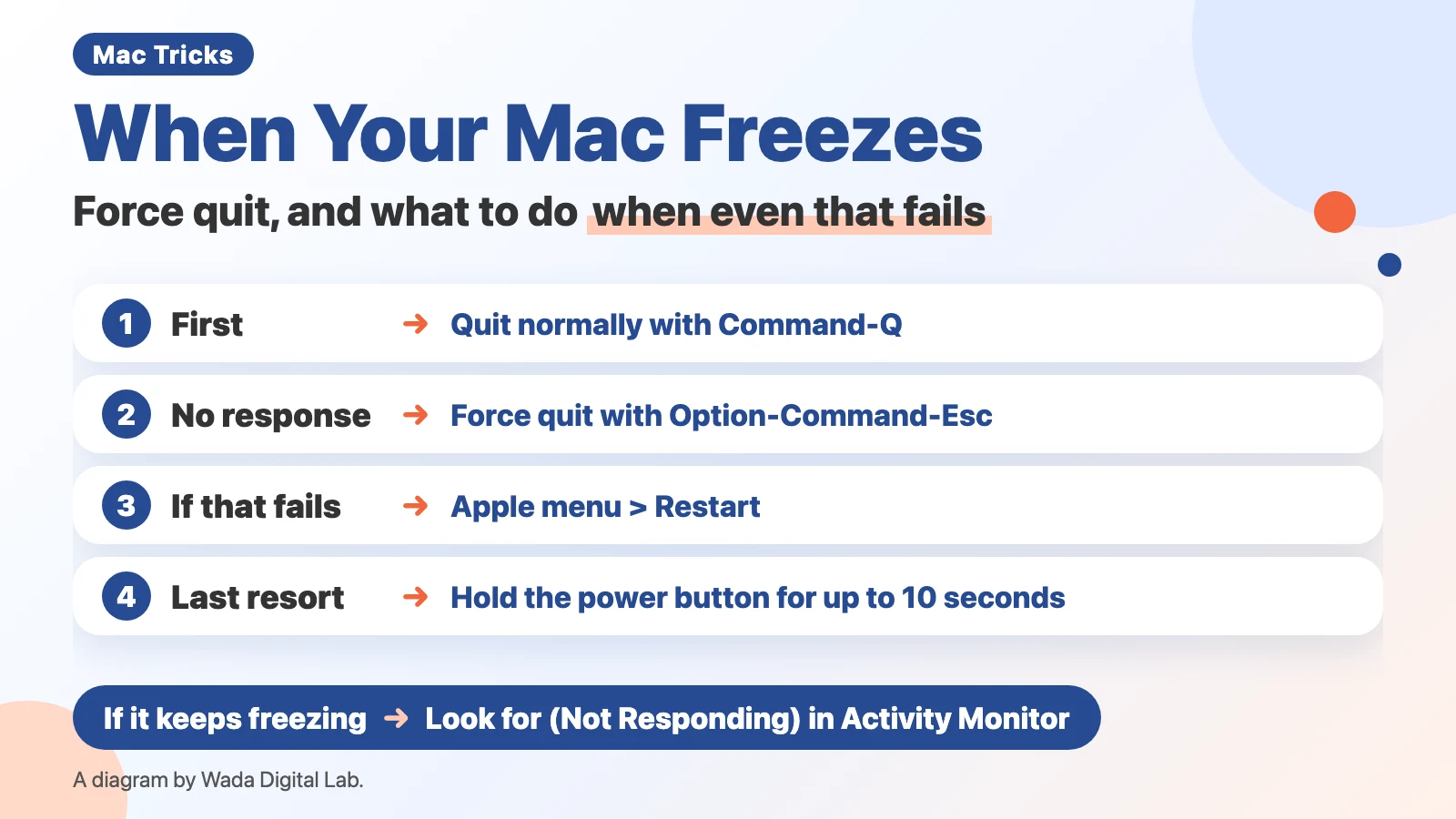
When your Mac freezes, first: quit the app normally (Command-Q)
Even if an app looks stuck, try to quit it normally first. Apple’s “How to force an app to quit on Mac” says:
“When an app quits normally, it can do what it needs to do before quitting, such as to save changes.”
To quit normally, press Command-Q, or choose Quit from the app’s menu in the menu bar. Sometimes an app starts responding again after a short wait, so don’t give up right away, and save your work first if you can.
If it doesn’t respond, force quit it from the window that Option-Command-Esc opens
If you can’t quit it normally, force quit it. There are 4 steps.
- Press Option, Command, and Esc together (or choose Apple menu > Force Quit at the top left of the screen)
- In the Force Quit Applications window, select the unresponsive app
- Click Force Quit at the bottom right
- If a confirmation appears, click Force Quit again
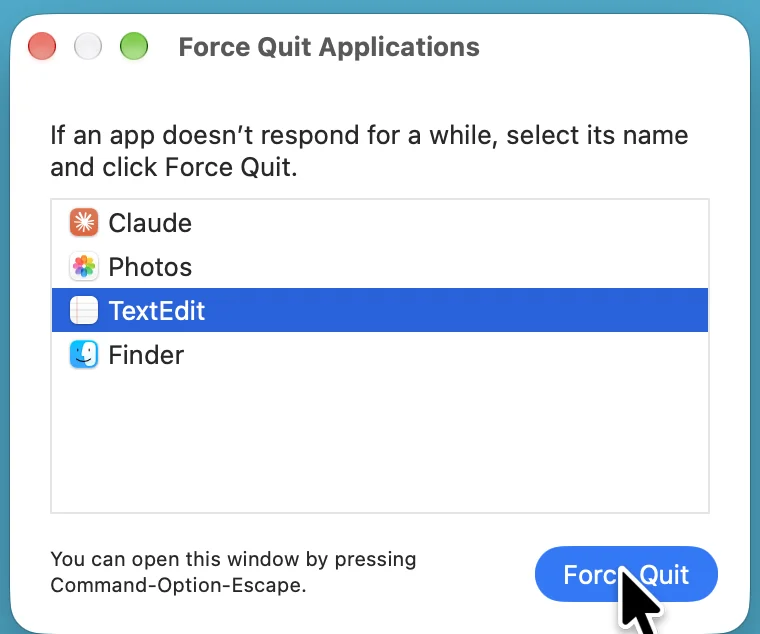
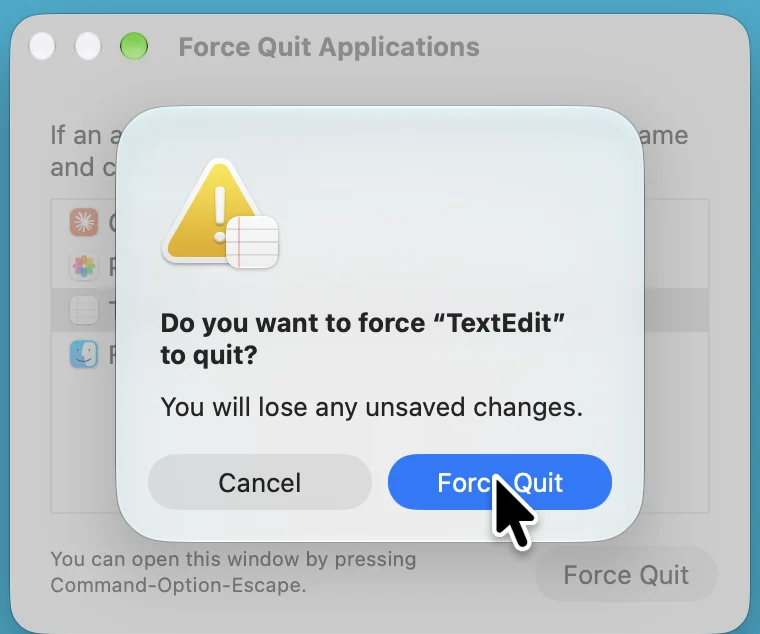
If the Finder stops responding, select Finder in the same window and click Relaunch. Apple says the Finder is always open, so you force it to quit and reopen it.
If you can’t force quit: restart, then hold the power button for up to 10 seconds
If the Force Quit window won’t even open, restart the whole Mac. Apple’s same page gives this order:
- Choose Apple menu > Restart
- If your Mac won’t restart, press and hold the power button for up to 10 seconds, until your Mac turns off (on laptops with Touch ID, press and hold the Touch ID button)
- Press and release the power button to turn your Mac back on
If you turn it off with the power button, unsaved changes in open documents may be lost. Use it as a last resort. We haven’t tried turning a Mac off with the power button (this is Apple’s description).
Here is the order, and what may happen to unsaved changes.
| Order | What to do | Unsaved changes |
|---|---|---|
| First | Quit it normally with Command-Q | The app can save before it quits (Apple) |
| If it doesn’t respond | Force quit with Option-Command-Esc | May be lost (Apple) |
| If that fails | Apple menu > Restart | Save first if you can |
| Last resort | Press and hold the power button for up to 10 seconds | May be lost |
If it keeps freezing: look for apps using the CPU and for (Not Responding)
If the same app keeps freezing, look for the cause. Open Activity Monitor (in Applications > Utilities in the Finder), choose CPU at the top (the CPU is the part of the Mac that does the calculating), and click the % CPU heading to sort from largest to smallest (if the largest numbers aren’t at the top, click the arrow in the heading to reverse the order). An unresponsive app has (Not Responding) after its name and appears red. Apple’s “Quit an app or process in Activity Monitor on Mac” says:
“An unresponsive process is marked with (Not Responding) and appears red.”
When our Mac has frozen up before, we have looked at CPU usage. If an app keeps a high % CPU, it may be what is slowing things down. For how to read the numbers, see How to check CPU usage on a Mac. A Mac also slows down when memory runs short. For memory, see Mac running slow? How to check Memory Pressure, and if you see “Your system has run out of application memory,” see what to do when that message appears.
Apple’s “If an app freezes or quits unexpectedly on Mac” also lists these:
- Make sure the app is compatible with your version of macOS
- Open another file in the app (there may be a problem with the original file)
- Check for software updates
- Disconnect any peripheral devices you just connected, such as a printer
- Uninstall app plug-ins or enhancements (add-ons that add features to an app or macOS) from other manufacturers
- Diagnose whether hardware you installed, such as additional memory, is incompatible, improperly installed, or defective
When the pointer moves but things are frozen: it depends on whether the Force Quit window opens
When the pointer moves but an app on screen won’t respond, we think it is usually that app, not the whole Mac, that has stopped. If the Force Quit window (Option-Command-Esc) opens, the Mac is still accepting your input. If it opens, select only the unresponsive app and quit it.
The diagram below splits what to do by whether the Force Quit window opens.
The Force Quit window opens
What to do Select the unresponsive app and force quit it
The rest of the Mac
Usually keeps working
If it doesn’t open
The Force Quit window doesn’t open
What to do Apple menu > Restart
If it won’t restart
Press and hold the power button for up to 10 seconds
An easier way: find frozen apps and get notified (Memory Watch)
You usually notice a frozen app only when you try to use it. If an app running in the background stops, it can take a while to notice. We wanted to know sooner too, because a freeze that goes on for a long time is a problem.
We (Wada Digital Lab) make a free Mac app that watches your Mac, called Memory Watch. With its optional Responsiveness check turned on, an app that does not answer for about 20 seconds in a row is reported in a notification as “May not be responding.” Newly launched apps are given 30 seconds. The menu bar icon also turns to Warning (orange). In the CPU by App table in the Mac Status window, you can see the apps using the CPU, busiest first.
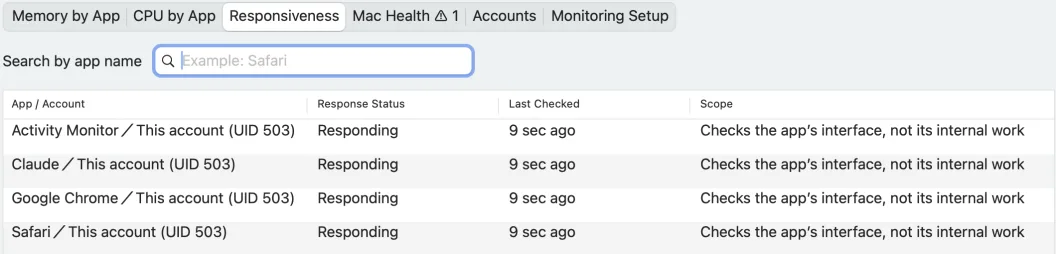
The Responsiveness check needs Accessibility permission in macOS. Memory Watch asks each app’s window whether it is responding, and that’s all. It doesn’t save what is on screen or what is in your documents. It doesn’t quit frozen apps either (you do that with the steps above). There is no sign-up, no ads, and no in-app purchase. It works on a Mac with a chip made by Apple (such as M1 or M4) and macOS 14 Sonoma or a newer macOS. It does not work on Intel-based Macs or on macOS 13 or older.
Frequently asked questions
Will force quitting delete my documents?
Unsaved changes may be lost. Apple says when you force quit, “you may lose unsaved changes.” Documents you already saved aren’t deleted.
How long should I wait when my Mac freezes?
Apple doesn’t give a time. When an app still doesn’t respond after a short wait, we try Command-Q, and if that doesn’t work, force quit. Memory Watch’s Responsiveness check reports an app after about 20 seconds in a row without an answer.
The frozen app isn’t in the Force Quit window
You can use Activity Monitor too. It also lists processes (programs running on your Mac) running in the background. Find the red (Not Responding) row, select it, click the Stop button (the X at the top left of the window), and choose Force Quit.
What we checked, and Apple’s pages
The screenshots of the Force Quit Applications window and its confirmation were taken in a separate user account we made for screenshots (MacBook Air (M2), macOS 27.2, English). They are the same screenshots as in our article on “Your system has run out of application memory” (we tried it with TextEdit). On November 12, 2026, on the same Mac, we opened Apple menu > Force Quit… and closed the window without force quitting anything, and took the Memory Watch Responsiveness screenshot (Memory Watch 1.2.1, build 63). The 20 and 30 seconds for Memory Watch’s Responsiveness check come from its Help; we haven’t timed them ourselves. We haven’t tried an app that actually froze, restarting, or turning the Mac off with the power button.
Before writing, we searched Google in the US for “mac frozen how to unfreeze” and read the top results (November 12, 2026): forum threads and articles from repair and support companies. Some listed resetting the SMC (System Management Controller, a part that handles things like power and temperature) as a step for every Mac. This article puts Apple’s order first: quit normally, then force quit, then restart, then turn it off with the power button.
Sources:
- How to force an app to quit on Mac
- If an app freezes or quits unexpectedly on Mac (Mac User Guide)
- Quit an app or process in Activity Monitor on Mac (Activity Monitor User Guide)