What Is kernel_task on a Mac — Why CPU Usage Is High and How to Lower It
Published November 12, 2026
Official documentation reviewed November 12, 2026 (some steps not tested)
By Wada Digital Lab
kernel_task is the name of macOS’s own core process. Apple says one of its jobs is managing the temperature of the CPU (the part of the Mac that does the calculating). It holds back processes that are using the CPU hard, so the CPU doesn’t get too hot. So when kernel_task shows high CPU usage, don’t try to stop kernel_task. Find the other apps that are using a lot of CPU and quit the ones you aren’t using. Using your Mac somewhere cooler also helps.
Key points
- kernel_task is the core of macOS. Apple says it helps manage CPU temperature and “does not itself cause” the conditions that make the CPU too hot.
- When the CPU is about to get too hot, kernel_task makes the CPU less available to other processes. While it does, its % CPU in Activity Monitor looks high.
- There are 3 steps: find the other apps using a lot of CPU, quit the ones you aren’t using (save first if you are using them), and use the Mac on a hard, flat desk somewhere cool. If the fans still run fast when the Mac isn’t busy and has good airflow, restart it (on an Intel-based Mac, reset the SMC).
- Don’t quit kernel_task. It is part of macOS, and Apple says it “automatically reduces its activity” when the CPU cools down.
- To see the apps using the CPU and the Mac’s thermal state on one screen, you can also use our free app Memory Watch (we make it).
The diagram below sums up what to look at when kernel_task’s CPU usage is high.
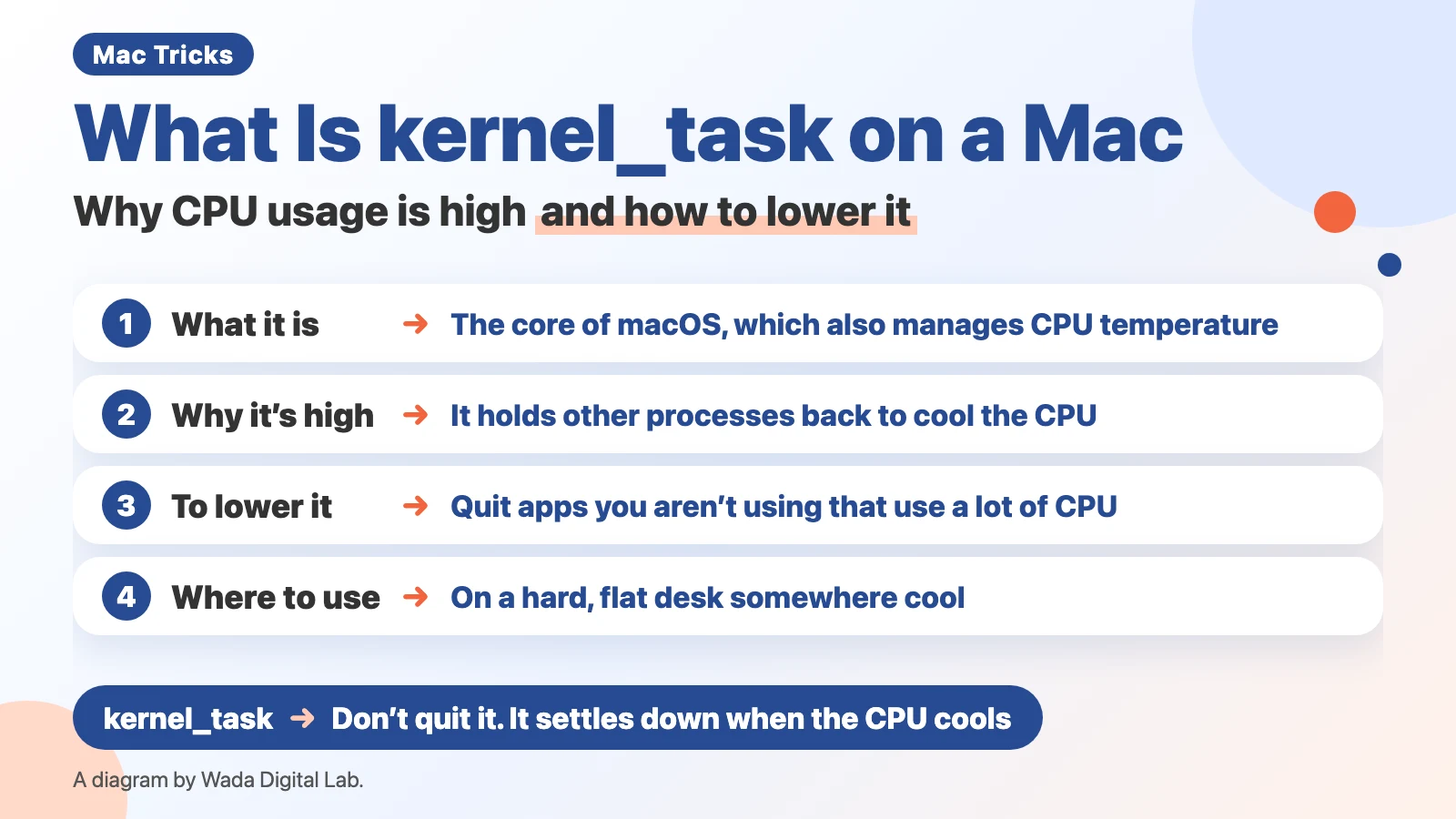
What kernel_task is: the core of macOS, which also manages CPU temperature
kernel_task is the name the core (kernel) of macOS gets in the Activity Monitor list. It is always in the list while your Mac is running. Apple’s “If kernel_task is using a large percentage of your Mac CPU” says:
“One of the functions of the kernel task process is to help manage the temperature of your CPU.”

Why kernel_task’s CPU usage is high: it holds other processes back to cool the CPU
kernel_task’s CPU usage is high because it is holding other processes back so the CPU doesn’t get too hot. The same Apple page says:
“One of the functions of kernel_task is to help manage CPU temperature by making the CPU less available to processes that are using it intensely.”
Apple goes on to say that kernel_task responds to conditions that cause the CPU to become too hot, “even if your Mac doesn’t feel hot to you,” and that “It does not itself cause those conditions.”
So when kernel_task’s number is high, the heat is coming from somewhere else. What Apple’s page points to is processes that are using the CPU intensely (programs running on your Mac). Apple’s “Keep your Mac laptop within acceptable operating temperatures” also mentions the ambient temperature, the temperature around the Mac. It says to use a Mac laptop where the ambient temperature is between 50° and 95° F (10° and 35° C).
The diagram below lines up, from Apple’s description, what kernel_task does when the CPU is about to get too hot and when it cools down.
When the CPU is about to get too hot
kernel_task Makes the CPU less available to other processes
In Activity Monitor
kernel_task’s % CPU looks high
The CPU cools down
When the CPU has cooled down
kernel_task Automatically reduces its activity
In Activity Monitor
kernel_task’s % CPU settles too
How to lower it when kernel_task’s CPU usage is high: 3 steps
Reduce what is causing the heat, not kernel_task itself. There are 3 steps.
- Open Activity Monitor (in Applications > Utilities in the Finder), click CPU at the top, click the % CPU heading to sort from largest to smallest, and look for apps near the top other than kernel_task
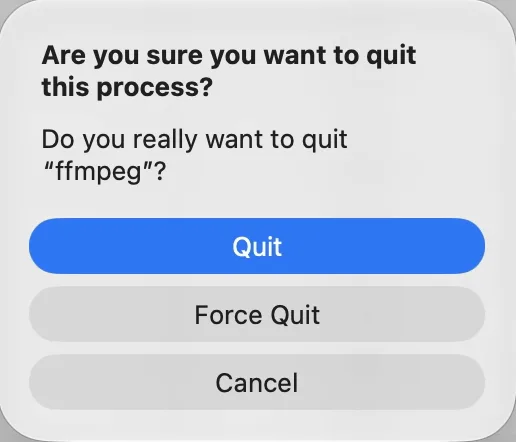
- If it is an app you aren’t using, select it, click the Stop button (the X at the top left of the window), and choose Quit (if you are using it, save your work first)
- Use your Mac on a hard, flat desk without blocking any vents (on models that have them). Don’t use it on a bed or a cushion
If the fans still run fast even when the Mac isn’t busy and it has good airflow, follow Apple’s “About fans and fan noise in your Apple product.” On a Mac with a chip made by Apple, close and open the lid on a laptop, or restart the computer. On an Intel-based Mac, reset the System Management Controller (SMC, a part that handles things like power and temperature). The steps are in Apple’s “Reset the SMC of your Mac.”
Some top search results tell you to reset the SMC or NVRAM (a small memory that keeps some settings) first. But in Apple’s description, resetting the SMC is a step for Intel-based Macs. On a Mac with a chip made by Apple (such as M1 or M4), you close and open the lid or restart.
Here is what to do, by what you see.
| What you see | Apple’s explanation | What to do |
|---|---|---|
| kernel_task’s % CPU is high | It holds other processes back to help manage CPU temperature | Quit other apps near the top that you aren’t using (save first if you are using them) |
| The fans run more | You might notice this while kernel_task is using a large percentage | Use the Mac on a hard, flat desk somewhere cool |
| The fans run fast even though the Mac isn’t busy and has good airflow | A chip made by Apple: close and open the lid, or restart. Intel: reset the SMC | Follow the steps for your Mac’s chip |
For how to read % CPU, see How to check CPU usage on a Mac.
Can you quit kernel_task? No. It settles down on its own when the CPU cools
Don’t quit kernel_task. It is the core of macOS, not an app you close. Apple says it settles down when the temperature drops.
“When the CPU temperature decreases, kernel_task automatically reduces its activity.”
Some articles describe deleting files inside macOS to “stop kernel_task.” We don’t recommend it. It isn’t in Apple’s instructions, and Apple says kernel_task is what helps manage CPU temperature.
When kernel_task uses a lot of memory: check the color of Memory Pressure
kernel_task can also show up near the top of the Memory tab in Activity Monitor. Apple’s pages don’t explain kernel_task’s memory amount. Apple’s Activity Monitor User Guide says you can check whether your Mac is using its memory efficiently with the Memory Pressure graph at the bottom of the Memory tab. For how to read it, see Mac running slow? How to check Memory Pressure.
An easier way: see the apps using the CPU next to the Mac’s thermal state (Memory Watch)
When kernel_task’s CPU usage is high, you want to know two things: which app is causing the heat, and whether the Mac is hot right now. Activity Monitor shows % CPU, but we didn’t find the Mac’s thermal state in it.
We (Wada Digital Lab) make a free Mac app that watches your Mac, called Memory Watch. Its Mac Status window shows CPU Use and Mac Thermal State side by side, and the CPU by App table below lists the apps using the CPU, busiest first. The thermal state is shown as one of the four levels macOS reports (Normal, Slightly elevated, High, Very high). The CPU numbers are a share of the whole Mac (100%).

The table only shows apps running in your own account. macOS processes such as kernel_task can’t be read by Memory Watch, so they don’t appear. Since Apple says kernel_task doesn’t cause the heat, the apps you want to see are your own apps near the top. Memory Watch doesn’t quit apps or run the fans. There is no sign-up, no ads, and no in-app purchase. It works on a Mac with a chip made by Apple (such as M1 or M4) and macOS 14 Sonoma or a newer macOS. It does not work on Intel-based Macs or on macOS 13 or older.
Frequently asked questions
kernel_task is at 300% or 900%. Is my Mac broken?
That alone doesn’t mean it is broken. % CPU in Activity Monitor counts one CPU core (a part inside the CPU that does the calculating) as 100%, so on a Mac with many cores it can show several hundred percent. Apple says kernel_task is holding other processes back to manage temperature. Find the apps using a lot of CPU, quit the ones you aren’t using, and use the Mac somewhere cool.
kernel_task goes up only while charging
We haven’t tested this. Apple’s “Keep your Mac laptop within acceptable operating temperatures” says “Use only Apple-authorized power adapters.” First, use the Mac somewhere cool, and check that your adapter is an Apple-authorized one.
Do I need an app or command to stop kernel_task?
No. kernel_task is part of macOS, and Apple says it settles down on its own when the CPU cools. What you want to stop is the source of the heat.
What we checked, and Apple’s pages
We took the screenshots on November 12, 2026, in a separate user account we made for screenshots (MacBook Air (M2), 8 cores, 16 GB of memory, macOS 27.2, Activity Monitor 10.14, English). We captured the kernel_task row, and the confirmation that appears when you select a process using a lot of CPU (a video encode we ran on purpose) and click the Stop button. We closed the confirmation with Cancel and didn’t click Quit. kernel_task’s % CPU didn’t get high while we were taking screenshots (it was 5.8 to 8.2). We didn’t try closing and opening the lid, restarting, resetting the SMC, or charging. The Memory Watch screenshot was taken on the same Mac with Memory Watch 1.2.1 (build 63).
Before writing, we searched Google in the US for “kernel_task high cpu mac” and read the top results (November 12, 2026): Apple’s own page, forum threads about kernel_task at 900%, and a personal blog that fixed it on an older Intel-based MacBook. This article puts Apple’s own words first, and separates the steps for Macs with a chip made by Apple and Intel-based Macs.
Sources: