Is a Hot MacBook Air OK? — Why a Mac With No Fan Gets Hot and What to Do
Published November 12, 2026
Official documentation reviewed November 12, 2026 (some steps not tested)
By Wada Digital Lab
A MacBook Air getting hot is something that happens even in normal use. Apple says a Mac laptop “can get warm during normal use.” A MacBook Air with a chip made by Apple has no fan. Instead, when it is about to get too hot, macOS holds back processes to keep the temperature down. When it feels hot, quit apps you aren’t using that are using a lot of CPU, and use it on a hard, flat desk somewhere cool. If it stays hot while you aren’t doing anything, check the CPU in Activity Monitor.
Key points
- Apple says a Mac laptop can get warm during normal use, and that Mac laptops comply with all temperature limits set in safety standards.
- Even a MacBook Air with no fan has sensors that watch the temperature inside. When it is about to get too hot, macOS (kernel_task) makes the CPU less available to other processes to keep the temperature down.
- Three things to do: quit apps you aren’t using that use a lot of CPU, use it where the ambient temperature is between 50° and 95° F (10° and 35° C), and put it on a hard, flat desk. Use an Apple-authorized power adapter.
- Third-party apps that show temperature don’t measure the outside of the case. Apple says never to use third-party apps to diagnose possible hardware issues.
- To see the Mac’s thermal state as macOS reports it next to the apps using the CPU, you can also use our free app Memory Watch (we make it).
The diagram below sums up what to look at when a MacBook Air is hot.
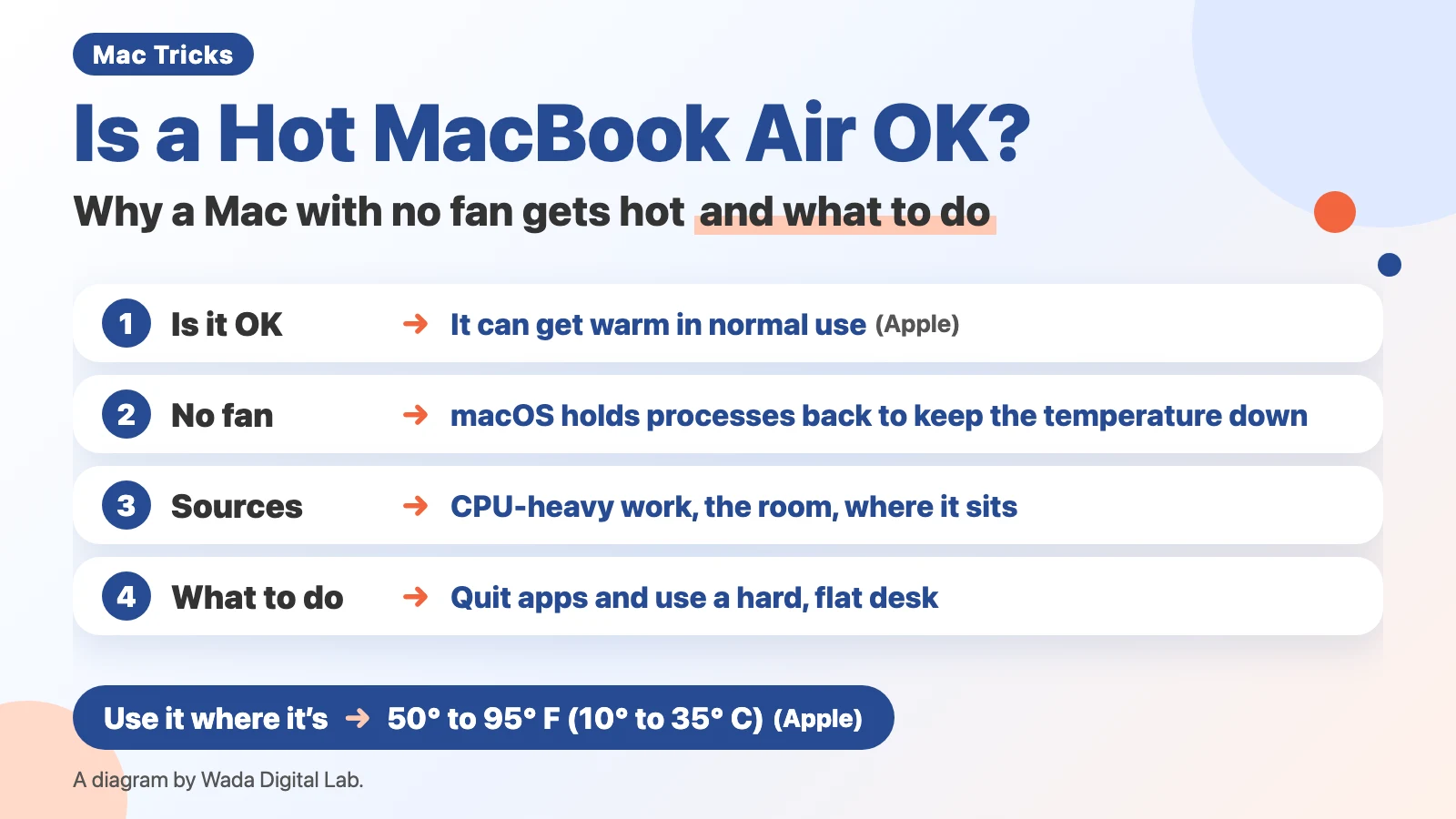
Is it OK for a MacBook Air to get hot? It can get warm in normal use
A MacBook Air getting warm is not, by itself, a sign that something is broken. Apple’s “Keep your Mac laptop within acceptable operating temperatures” says:
“Your Mac laptop computer can get warm during normal use.”
The same page also says “Mac laptops comply with all temperature limits that are set in national and international safety standards.”
Still, when our own MacBook Air gets hot, we notice and worry. With no fan, it is natural to wonder whether it might get too hot. The next section explains how it protects itself.
How a MacBook Air with no fan keeps its temperature down: macOS holds processes back
A MacBook Air with a chip made by Apple has no fan. Apple’s MacBook Air page describes the M5 MacBook Air as having “a silent, fanless design.”
Even without a fan, the temperature is watched. Apple says “Mac laptops have sensors that detect temperature changes inside your computer.” On a model with fans, the fans run to cool it. With or without fans, macOS manages temperature by holding processes back. Apple’s “If kernel_task is using a large percentage of your Mac CPU” says:
“One of the functions of kernel_task is to help manage CPU temperature by making the CPU less available to processes that are using it intensely.”
In other words, when it is about to get too hot, the Mac slows the work down a little to keep the temperature down. If a heavy export seems to get slower as it goes, heat may be holding it back. For more on kernel_task, see What is kernel_task on a Mac.
The diagram below compares how a Mac with fans and a MacBook Air with no fan keep their temperature down.
A Mac with fans
When it heats up The fans run to cool it
If it gets too hot
macOS holds processes back
With no fan
A MacBook Air with no fan
When it heats up No fan runs
If it gets too hot
macOS holds processes back to keep the temperature down
Why a MacBook Air gets hot: CPU-heavy work, the temperature around it, and where it sits
Putting together Apple’s pages, the sources of heat look like this.
| Source of heat | Apple’s description (page) | What to do |
|---|---|---|
| CPU-heavy work | If it gets warm even when it isn’t doing intensive tasks, check CPU activity in Activity Monitor (operating temperatures) | Quit apps near the top of % CPU that you aren’t using (macOS processes aren’t something you quit) |
| The temperature around it | Use it where the ambient temperature is between 50° and 95° F (10° and 35° C). Don’t leave it in your car (operating temperatures) | Use it in a cool room. Keep it out of direct sun |
| Where it sits | Use it on a stable work surface with good ventilation, not in bed or on a pillow (operating temperatures). A hard, flat surface like a table or desk is best for temperature control (fans) | Put it on a hard, flat desk |
“MacBook Air overheating and battery draining” and similar phrases also come up in searches. Apple’s page doesn’t list charging as a source of heat. What it says, as a note on use, is “Use only Apple-authorized power adapters.” We haven’t measured how much charging changes the temperature.
What to do when it’s hot: quit apps, and use it on a hard, flat desk somewhere cool
When it feels hot, try these 3 steps. The CPU is the part of the Mac that does the calculating, and the more it works, the more heat it makes. You check it in Activity Monitor, which comes with every Mac (in Applications > Utilities in the Finder).
- Open Activity Monitor, click CPU at the top, and click the % CPU heading to sort from largest to smallest
- Among the apps you opened yourself near the top, select one you aren’t using, then click the Stop button (the X at the top left of the window) and choose Quit (don’t quit macOS processes such as kernel_task)
- Put your MacBook Air on a hard, flat desk and use it somewhere cool, out of direct sun

If it stays hot while you aren’t doing anything heavy, Apple says to close and open the lid, or restart. For how to read % CPU, see How to check CPU usage on a Mac.
Can you trust temperature apps? They don’t measure the outside of the case
There are many apps that show the temperature of a Mac’s CPU. Apple says this about them:
“If you use third-party apps that measure the temperature of your laptop computer, it’s important to understand that they don’t measure the external case temperature.”
What those apps show is the temperature of parts inside. Apple says “The case temperature is much lower,” and also “Never use third-party apps to diagnose possible hardware issues.” A high temperature number alone doesn’t mean the Mac is broken.
An easier way: see the Mac’s thermal state next to the apps using the CPU (Memory Watch)
When it feels hot, you want to know two things: whether macOS thinks it is hot, and which app is causing the heat.
We (Wada Digital Lab) make a free Mac app that watches your Mac, called Memory Watch. Its Mac Status window shows CPU Use and Mac Thermal State side by side, and the CPU by App table below lists the apps using the CPU, busiest first. The thermal state uses the four levels macOS reports to apps, shown as Normal, Slightly elevated, High, and Very high. Apple’s developer documentation describes the top level as one that is “significantly impacting the performance of the system and the device needs to cool down.”
On our MacBook Air (M4), at 1:54 p.m. on November 12, 2026, while several AI apps were running, we read the thermal level macOS reports. It was the lowest level (Normal in Memory Watch).
On the MacBook Air (M2) we use for screenshots, we ran a heavy video export on purpose and captured Memory Watch’s window. In that first test (Japanese screen, Memory Watch 1.2.0), with CPU Use at 95.9%, the thermal state was one level up: Slightly elevated. With a lighter export and CPU Use at 26.1%, it was Normal. We took the English screenshot below later, with Memory Watch 1.2.1, right after another heavy export stopped. Even a MacBook Air with no fan raises its thermal level when you keep doing heavy work.

Memory Watch’s CPU Temp (ref.) is the temperature of a part inside, shown only on models where it can be read. As Apple says above, it isn’t the outside temperature, so don’t use it to diagnose a fault. Memory Watch doesn’t quit apps or cool your Mac. There is no sign-up, no ads, and no in-app purchase. It works on a Mac with a chip made by Apple (such as M1 or M4) and macOS 14 Sonoma or a newer macOS. It does not work on Intel-based Macs or on macOS 13 or older.
Frequently asked questions
Can a MacBook Air get so hot that it breaks?
Apple says Mac laptops have sensors that detect temperature changes, and macOS holds processes back when it is about to get too hot. If something seems wrong with the operating temperature, Apple says to contact Apple. We haven’t tested whether heat can break one.
Do I need a laptop cooler?
Apple’s pages don’t mention laptop coolers. What they say is to use it on a stable work surface with good ventilation. We haven’t measured how well a cooler works.
Does it get hotter on my lap?
Apple’s “About fans and fan noise in your Apple product” says that on a soft surface like a couch, pillow, bed, or your lap, the fans might run more (this is about models with fans). Apple says a hard, flat surface is best for temperature control.
What we checked, and Apple’s pages
We took the Activity Monitor and Memory Watch screenshots on November 12, 2026, in a separate user account we made for screenshots (MacBook Air (M2), 8 cores, 16 GB of memory, macOS 27.2, Activity Monitor 10.14, Memory Watch 1.2.1, English). Memory Watch’s thermal state was Slightly elevated during the heavy encode and right after it, and Normal with a lighter encode and about a minute after the heavy one stopped. We didn’t try clicking Quit, the outside temperature of the Mac, the difference with or without charging, or cooling pads.
We read the thermal level on our own Mac.
- Model: MacBook Air (M4, 16GB of memory)
- macOS: macOS 27.0.1
- Read on: November 12, 2026, 1:54 p.m. (the thermal level macOS reports to apps, read with a small test program)
Before writing, we searched Google in the US for “macbook air overheating” and read the top results (November 12, 2026): forum threads asking whether a hot MacBook Air is OK, and lists of tips that include laptop stands and coolers. Few explained, with Apple’s own pages, how a MacBook Air with no fan protects its temperature. This article puts Apple’s own words first.
Sources: