PDF to Text — Extract text from scanned PDFs (OCR)
This page in Japanese: 日本語
Turn the text in a scanned PDF, or a PDF where you can’t select the text, into text you can copy, right on this page. If the PDF already has text in it, that text is taken out as it is. English and Japanese. It’s completely free for as many PDFs as you like, as often as you like. No sign-up, no ads, and no app to install.
Extract text from PDFs
Some pages seem to have vertical Japanese text. This tool is made for horizontal text. Vertical text may come out in the wrong order, or not at all.
The first PDF takes a little longer, because the reader loads about 8 MB to get ready (about 10 MB if you also choose Japanese). Each scanned page takes a few seconds to a few tens of seconds.
It sometimes misreads a letter (for example, “l” as “1”). Use the result as a draft and check it.
How to use it
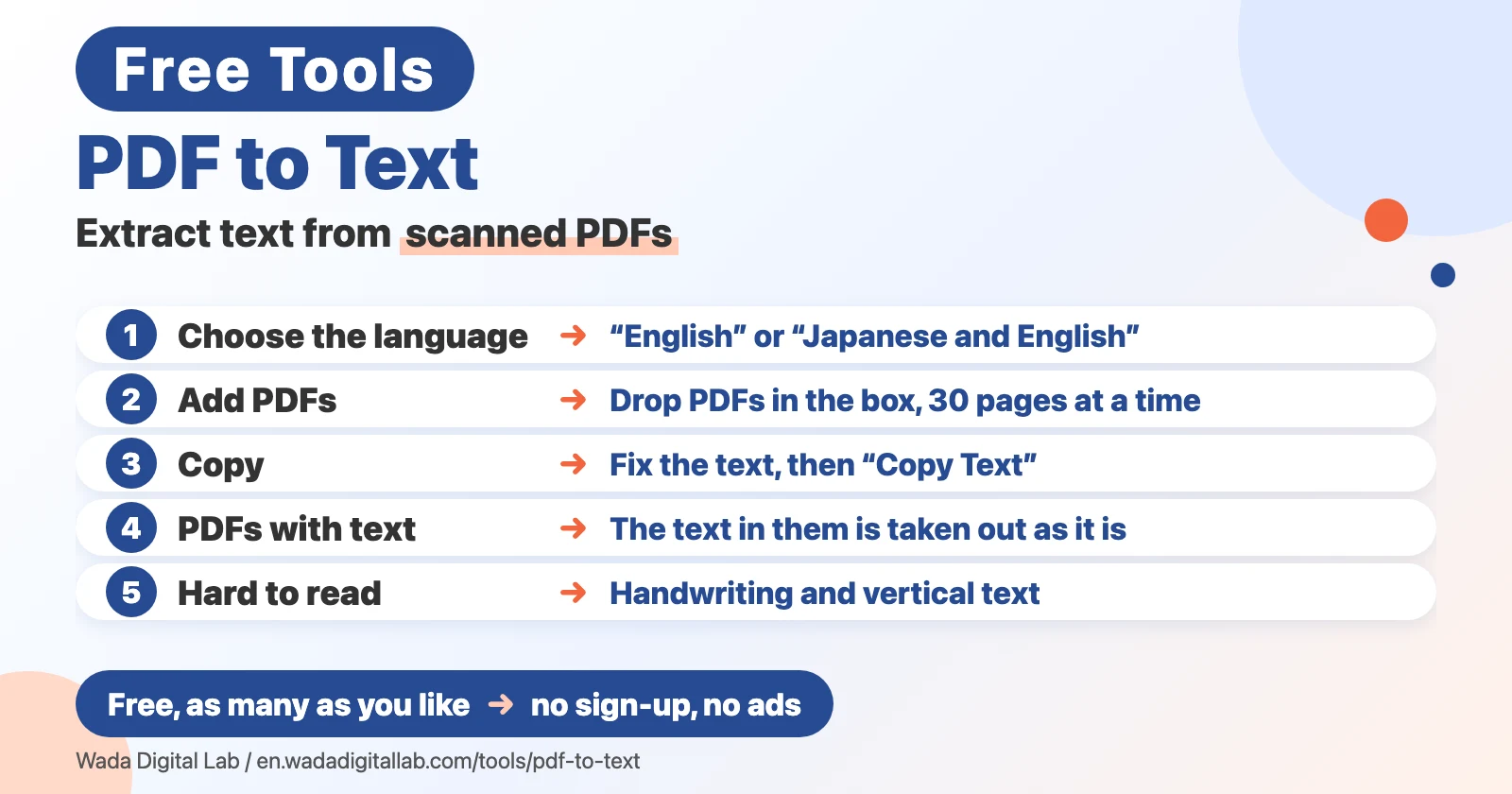
- Choose the language. For English PDFs, choose “English”. If the PDF has Japanese in it, choose “Japanese and English”. Choose it before you add the PDF.
- Click “Choose PDFs”, or drag PDFs into the box. You can add several at once.
- The text appears below, page by page. Fix it in the box if you need to, then click “Copy Text” or “Save as .txt”. For PDFs with more than 30 pages, click “Read the next … pages” to go on.
Pages that already have text in them are done right away, because that text is taken out as it is. Scanned pages take longer, because the text is read from the image. The text file gets the same name as the PDF, ending in “.txt”. Your original PDF doesn’t change.
Tips for a clean result
- Scan at about 300 dpi: low-resolution scans and faded text cause more mistakes.
- Scan pages straight: tilted pages make lines run together.
- English only? Choose “English”: it reads English PDFs more accurately.
- Made for horizontal text: vertical Japanese text, as in books and newspapers, may come out in the wrong order.
- Handwriting is hard: it’s made for printed text. Neat handwriting reads only partly.
Frequently asked questions
- How does it work?
- A program that opens PDFs (PDF.js) and a program that reads text (Tesseract) run inside your browser. With your first PDF, it gets these programs and the text data from this site (about 8 MB, or about 10 MB if you also choose Japanese). Pages that already have text are taken out as they are. Pages without text are turned into images, and the shapes of the letters are recognized and turned into text. All the work is done by your own computer or phone.
- Are my PDFs sent to a server?
- No. This tool runs only on your computer or phone. Your PDFs, the text it reads, and the file names are never sent to any server. We only count four things: how many times the page is opened, how many times the tool is used, how long the page is on screen, and how far down the page you scroll. None of these include file names or contents.
- Is it really free?
- Yes. It’s free for as many PDFs as you like, as often as you like. No sign-up and no ads.
- Which PDFs can it read?
- PDFs up to 100 MB each. It reads 30 pages at a time, and a button reads the rest. Scanned PDFs, PDFs made from photos and PDFs that already have text all work.
- Can it read a PDF with a password?
- No. If the PDF needs a password to open, remove the password first, then add it.
- What happens with a PDF that already has text?
- The text in it is taken out as it is. Text added by another app can be in the wrong order or have missing letters, though. If it looks wrong, click “Read every page again from the image” below the result to read it from the image instead.
- Does it read vertical Japanese text?
- It’s made for horizontal text. Vertical text, as in Japanese books and newspapers, may come out in the wrong order or not at all. When it finds pages that look vertical, it tells you above the result.
- Can it read handwriting?
- It’s made for printed text. Neat handwriting reads only partly, and cursive hardly at all.
- It’s slow
- The first PDF takes a little longer, because the reader loads about 8 MB to get ready (about 10 MB if you also choose Japanese). Each scanned page takes a few seconds to a few tens of seconds, and longer on a phone. To stop partway, click “Stop reading”.
- Can it make a searchable PDF?
- This page gives you the text as plain text only. It doesn’t add text into the PDF to make it searchable.
- Can it read text in photos and screenshots?
- Yes, with Image to Text, which reads PNG, JPG and other images.
More tools and “Mac Tricks”
- All browser tools: images, PDFs and audio, on one page.
- Image to Text: extract text from photos and screenshots.
- Merge PDF Files, Split PDF, Compress PDF: combine, split and shrink PDFs.
- All articles on “Mac Tricks”: everyday problems on the Mac, and how to fix them.
Software used in this tool
To open PDFs, this tool uses PDF.js 6.4.299 (Mozilla; Apache License 2.0). To read the text, it uses Tesseract.js 7.0.0 (Apache License 2.0) and its tessdata_fast language data for English (eng) and Japanese (jpn) (Apache License 2.0), all without any changes. The licenses and where to get the source code are in the PDF.js license list and the Tesseract license list (PDF.js, Tesseract.js, tessdata_fast).