ScanSnap on macOS 27 — If Scans Get Stuck on Image Processing, Update to ScanSnap Home 4.1.0
Published November 2, 2026
Official documentation reviewed November 2, 2026 (some steps not tested)
By Wada Digital Lab
To use a ScanSnap on macOS 27 (Golden Gate), you need ScanSnap Home 4.1.0 or later. ScanSnap Home is the Mac app that saves and organizes what your ScanSnap scans. With versions before 4.1.0, a scan could get stuck on the image processing screen and never produce an image. PFU, the company that makes ScanSnap, released ScanSnap Home 4.1.0 on September 29, 2026, and says it fixes this. This article shows how to check your version and how to update with ScanSnap Online Update. On PFU’s English macOS pages, the iX1500 and the S1100i are no longer supported from macOS 27, and the iX500 has not been supported since macOS Sequoia 15.
Key points
- macOS 27 needs ScanSnap Home 4.1.0 or later and ScanSnap Online Update V3.2L11 or later (PFU’s macOS page).
- The freeze on the image processing screen happens on macOS 27, Tahoe 26.7 and Sequoia 15.8. PFU says ScanSnap Home 4.1.0 fixes it.
- On Tahoe 26 and Sequoia 15, PFU’s English page still lists older minimum versions (3.1.1 and 2.23.0). If you are on Tahoe 26.7 or Sequoia 15.8, update to 4.1.0 anyway.
- To see your version, open ScanSnap Home and choose ScanSnap Home > About ScanSnap Home.
- To update, quit ScanSnap Home, then open ScanSnap Online Update from the Applications folder.
- The iX1500 and the S1100i are no longer supported from macOS 27. The iX500 has not been supported since macOS Sequoia 15.
- The S1300i has no note on PFU’s English page, but PFU’s Japanese table stops at ScanSnap Home 4.0.0 for it, which is older than macOS 27 needs.
The diagram below sums up what to check when you use ScanSnap on macOS 27.
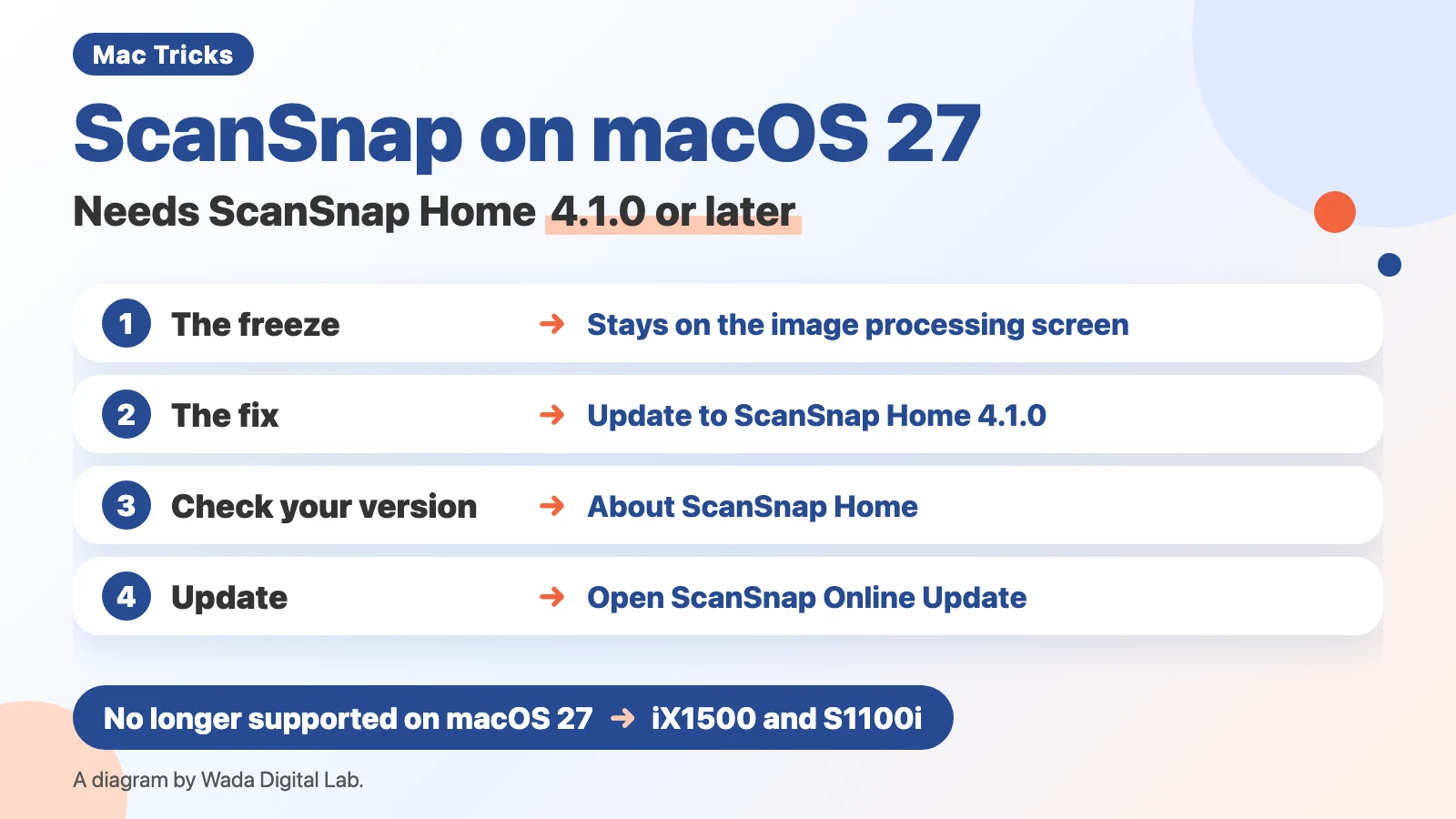
The macOS 27 problem: scans stay on the image processing screen
We use a ScanSnap iX1600. Before we updated our Mac to macOS 27, we did not check whether the ScanSnap would still work. Later we learned about this problem, and we were glad we had not updated right away. Today our iX1600 scans without trouble on a Mac with macOS 27 and ScanSnap Home 4.1.0.
PFU’s support page “ScanSnap Home stays on the "Image Processing" Screen or the Book Image Correction Screen does not open (macOS Golden Gate 27 / Tahoe 26.7 / Sequoia 15.8)” lists two problems:
- On macOS Golden Gate 27, Tahoe 26.7 and Sequoia 15.8: “After scanning, the image processing screen remains displayed and no scanned image is output.”
- On macOS Golden Gate 27 only: with the SV600, the screens for checking and correcting a scan do not open when you click Check/Correct.
The fix on that page is one line: “These issues have been resolved by ScanSnap Home 4.1.0.” In PFU’s update history for ScanSnap Home for Mac, 4.1.0 was released on September 29, 2026, and the first item under new features reads “macOS 27 Golden Gate is now supported.” As of November 2, 2026, it is the newest version on that page.
Before 4.1.0 came out, PFU offered a beta version as a stopgap. In the DEVONtechnologies Community forum, a user wrote on September 22, 2026 that the ScanSnap software got stuck processing scans on macOS 27, and others replied that the beta worked. PFU’s Japanese support page says the beta (4.0.1) is no longer supported now that 4.1.0 is out. If you installed it, update to 4.1.0.
Which ScanSnap Home version each macOS needs
This table is from PFU’s English page “macOS” in the ScanSnap FAQ. ScanSnap Online Update, the app that installs the updates, has its own minimum version too.
| macOS | ScanSnap Home | ScanSnap Online Update |
|---|---|---|
| macOS Golden Gate 27 | 4.1.0 or later | V3.2L11 or later |
| macOS Tahoe 26 | 3.1.1 or later | V3.1L40 or later |
| macOS Sequoia 15 | 2.23.0 or later | V3.1L39 or later |
| macOS Sonoma 14 | 2.20.0 or later | V3.1L39 or later |
The English table and PFU’s Japanese table do not agree on two rows. PFU’s Japanese compatibility page already lists 4.1.0 or later for Tahoe 26 and Sequoia 15. The freeze happens on Tahoe 26.7 and Sequoia 15.8 as well, so if your Mac runs either of those, update to 4.1.0 even though the English table lists an older version. PFU also says preview and beta versions of macOS are not supported.
Check your ScanSnap Home version: About ScanSnap Home
PFU’s page “How can I find the version of ScanSnap Home?” gives these steps for macOS. There are 3 steps.
- Open ScanSnap Home.
- In the menu bar, choose ScanSnap Home > About ScanSnap Home.
- Read the version in the window that opens.
The window is called Version Information. On our Mac it showed “ScanSnap Home 4.1.0 (6)”, and a second line showed the version of ScanSnap Online Update (3.2.11). Our Mac is set to Japanese, so we read the English names (About ScanSnap Home, Version Information) from the English text inside the app.
Update to 4.1.0 with ScanSnap Online Update
PFU’s Japanese support page for the freeze gives the update steps. We split them into one action per line. There are 6 steps.
- Quit ScanSnap Home, and close every ScanSnap Home window, such as the scanning window.
- Click an empty spot on the desktop, then choose Go > Applications in the menu bar.
- Open the ScanSnap Online Update folder, then open ScanSnap Online Update inside it.
- Select the update that appears, then click Install.
- Follow the onscreen instructions to finish the installation.
- Open ScanSnap Home and check that About ScanSnap Home shows 4.1.0.
The path in step 2 and step 3 (Go > Applications > ScanSnap Online Update) is the same one PFU’s English page “ScanSnap Online Update now does not notify any updates.” uses. Our Mac already had 4.1.0. When we opened ScanSnap Online Update, it said there were no updates (in English, the message inside the app is “There are no updates.”). We did not install anything.
ScanSnap Home’s Help menu also has an Online Update item (we found it in the app’s English text, and did not open it). In the DEVONtechnologies Community forum, one user also suggested checking for the update from the Help menu.
The iX1500, S1100i and iX500 are not supported on macOS 27
PFU lists its models on two English pages: “macOS” for the current models and “macOS (Discontinued Models)” for the rest. This table puts the notes from both pages together.
| Model | PFU’s English page | macOS 27 |
|---|---|---|
| iX2500, iX2400, iX1300, iX100, SV600 | Current models, ScanSnap Home supported | Supported (4.1.0 or later) |
| iX1600, iX1400 | Discontinued models, ScanSnap Home supported, no note | Supported (4.1.0 or later) |
| iX1500, S1100i | “This model is no longer supported from macOS Golden Gate 27.” | Not supported |
| iX500 | “This model is no longer supported from macOS Sequoia 15.” | Not supported |
| S1300i | Discontinued model, no note | Not on PFU’s Japanese table for 4.1.0 |
The S1300i is the one model where PFU’s English and Japanese tables differ. The English page has no note for it, but PFU’s Japanese table lists ScanSnap Home 4.0.0 as the last version for the S1300i, which is older than the 4.1.0 that macOS 27 needs. We have not tried any of these older models on macOS 27.
One owner of an older model reports better luck than the table. In the DEVONtechnologies Community forum, an iX500 owner wrote on October 27, 2026 that ScanSnap Home 4.1.0 worked with the iX500 on macOS 27. That is outside what PFU supports, and we have not tried it. PFU’s Japanese support page for the freeze says that applying the 4.1.0 update to its discontinued models (iX1500, S1300i, S1100 and iX500) is done at the customer’s own risk.
The older app, ScanSnap Manager, is marked N/A for macOS Golden Gate 27, Tahoe 26 and Sequoia 15 on PFU’s English page, which also says support of ScanSnap Manager terminated on November 7, 2024.
The diagram below shows the order to check things in. First, check the model. The models in the first box (iX1500, S1100i, iX500) are discontinued models, and they are not supported on macOS 27. If your model is in the first two rows of the table, check the ScanSnap Home version. If it is before 4.1.0, update it with ScanSnap Online Update. If it is 4.1.0 or later, you can keep using it.
First, check the model
iX1500, S1100i, iX500 Discontinued models
Not supported on macOS 27
If your model is in the first two rows of the table
Check the ScanSnap Home version
Before 4.1.0 Update it with ScanSnap Online Update
If it is 4.1.0 or later, you can keep using it
Frequently asked questions
How can I check whether my ScanSnap works before I update to macOS 27?
Look at PFU’s “macOS” page (or “macOS (Discontinued Models)” for older scanners) and find your model and the new macOS. We did not check before we updated. When a new macOS comes out, that page is the first place to look. Other things to check before the update are in How to Update to macOS 27.
How do I make my scans searchable?
Use text recognition (OCR) on the scanned PDF. Why a scanned PDF often has no text in it, and how to add it later, is in Can’t copy text from a scanned PDF.
What we tested on, and PFU’s pages
The symptoms, the fix, the version table and the model notes come from PFU’s English support pages and update history, which we read on November 2, 2026. Where the English and Japanese pages differ, we say so above; the Japanese pages were read on November 1, 2026. We did not see the freeze ourselves, because our Mac already had 4.1.0. On November 1, 2026, we opened the Version Information window and ScanSnap Online Update on our Mac and photographed them. That Mac is set to Japanese, so those photos are in the Japanese version of this article, and here we give the English names from the app’s own English text. We did not install an update. We did not try any of the older models.
- Our scanner: ScanSnap iX1600
- Mac: MacBook Air (M4)
- macOS: macOS Golden Gate 27.0.1
- ScanSnap Home: 4.1.0, ScanSnap Online Update: 3.2.11
- Checked: November 1 and 2, 2026
Before writing, we searched Google (US) for “scansnap macos 27” and looked at the top results on November 2, 2026. PFU’s support page and forum threads from September were at the top. We could not open the Reddit thread. We did not find a page that put the 4.1.0 update steps together with the model list.
- ScanSnap Home stays on the “Image Processing” Screen or the Book Image Correction Screen does not open (PFU)
- macOS (PFU ScanSnap FAQ)
- macOS (Discontinued Models) (PFU ScanSnap FAQ)
- How can I find the version of ScanSnap Home? (PFU ScanSnap FAQ)
- ScanSnap Online Update now does not notify any updates. (PFU ScanSnap FAQ)
- ScanSnap Home for Mac Update History (PFU)
- The freeze on macOS 27, and the update steps (PFU, in Japanese)
- Compatibility with each OS (PFU, in Japanese)
- ScanSnap and MacOS 27 (DEVONtechnologies Community)