How to Use Siri AI on a Mac — 3 Ways to Ask About What’s on Your Screen
Published October 31, 2026
Steps checked October 30, 2026 (MacBook Air (M2), macOS Golden Gate 27.2)
By Wada Digital Lab
This is how to use Siri AI on a Mac to ask about what’s on your screen. On macOS 27, you can show Siri part of the screen, a whole window, or a file in the Finder, and type a question about it. We tried all three ways on our test Mac with macOS 27.2, and this article shows the answers Siri actually gave.
Key points
- To show part of the screen, press Command-Shift-6 and drag to draw a box around it. Type your question in the Ask Siri field that appears, then press Return.
- To show a whole window, bring it to the front, then press Command-Shift-Space bar. On our Mac (macOS 27.2), no window picker appeared: the front window was chosen right away.
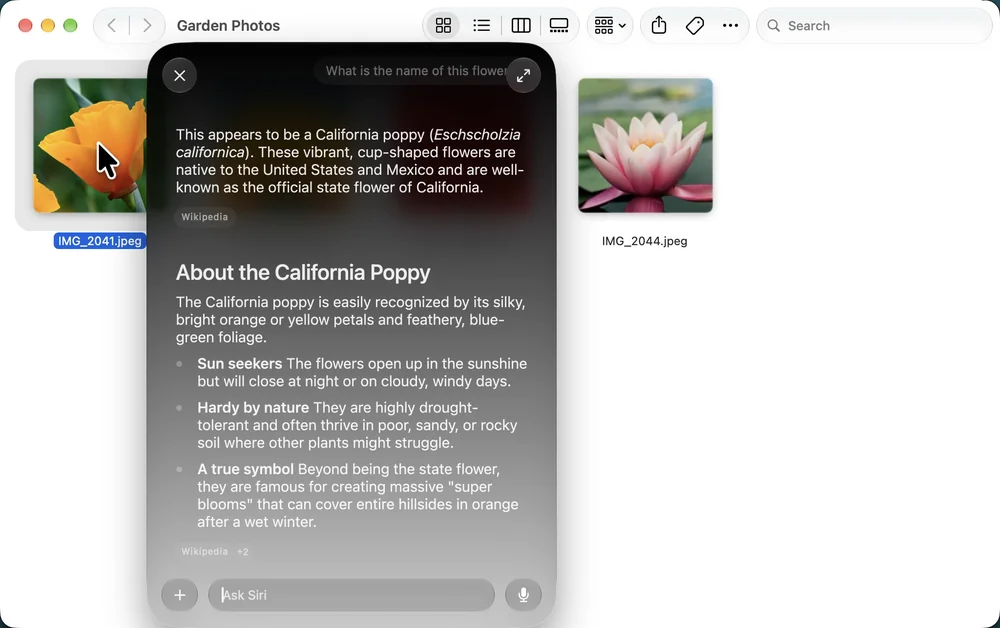
- For a file, hold down Control and click it in the Finder, then type in the Ask Siri field at the top of the menu. Without opening the photo, Siri named the flower in it: a California poppy.
- In our English test, we selected a paragraph in Spanish and typed “Explain this in English.” Siri showed a translation card with the Spanish text and the English translation. In our Japanese test, Siri gave a short summary instead, so the answer can change with the language.
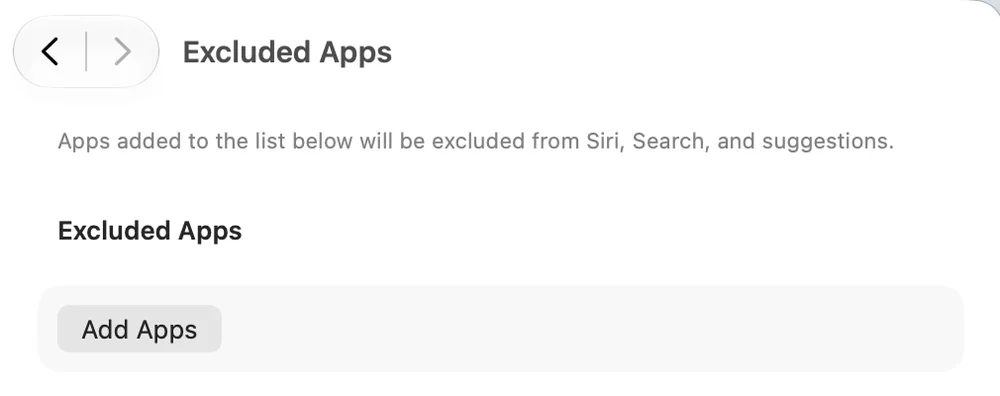
- To keep Siri away from an app, add it under System Settings > Siri > Excluded Apps. Siri AI needs a Mac with an M1 chip or newer (or a MacBook Neo), with Apple Intelligence turned on.
The diagram below lists the three ways to show Siri your screen (not a screenshot).
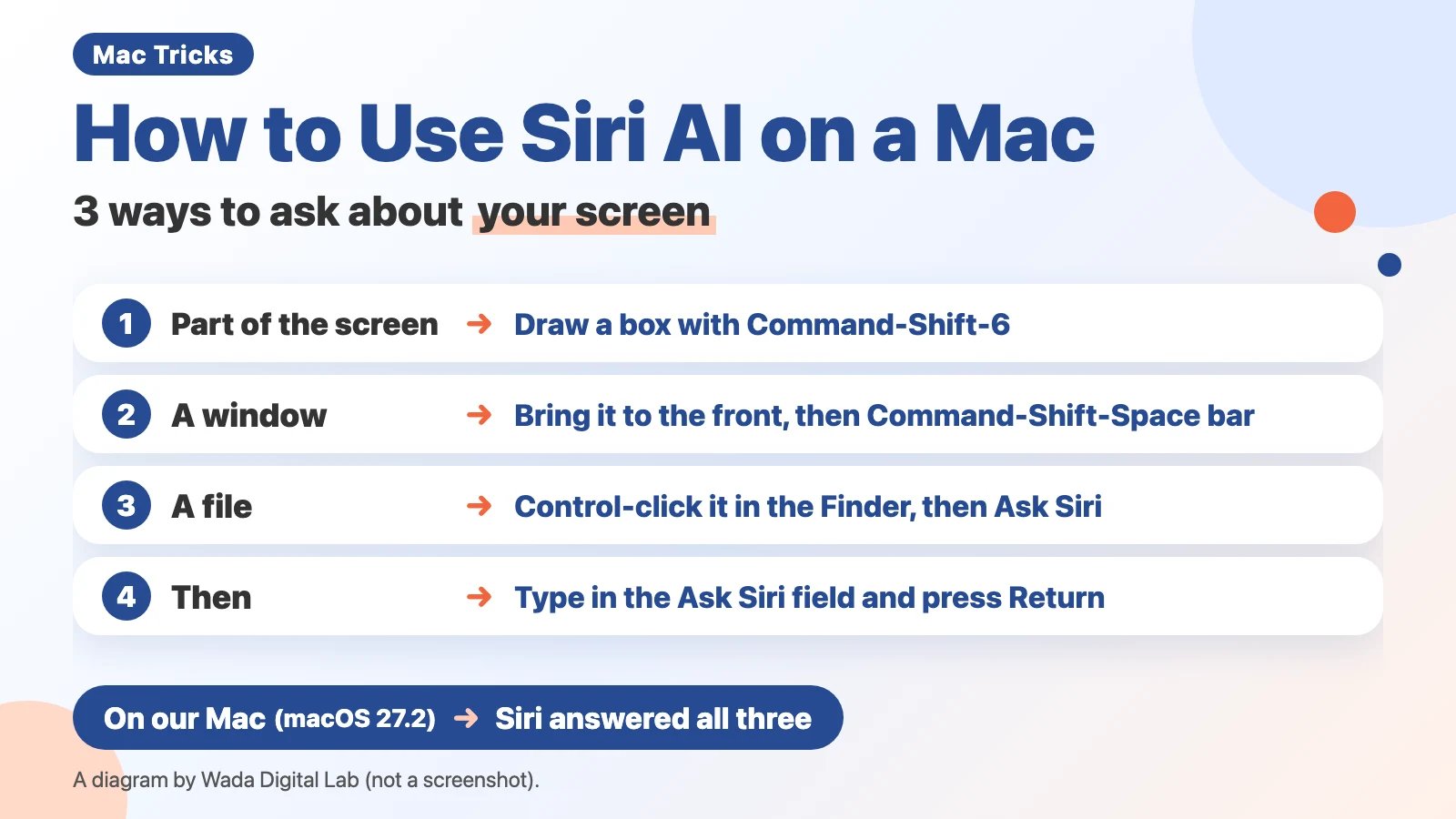
What “showing Siri your screen” means: you ask a typed question about what Siri can see
Showing Siri your screen means handing Siri part of what’s on your Mac’s display so you can ask about it. Siri AI is the new Siri built on Apple Intelligence. In Apple’s words (Siri AI: Learn about what’s on your Mac screen), Siri can tap into Visual Intelligence “to ask questions, take action, and search based on what’s on your Mac screen.” Visual Intelligence is the part that looks at what’s on the screen and answers questions about it.
There are three ways to do it: draw a box around part of the screen, show a whole window, or pick a file in the Finder. Each time, you type your question in the Ask Siri field.
Wada, who runs Wada Digital Lab, used to copy text in English into a translation website whenever it came up on screen. To learn the name of a flower, Wada sent the photo to another AI app. With these three ways, you ask right on the screen instead.
| What to show | Keys or action | Best for |
|---|---|---|
| Part of the screen | Press Command-Shift-6 and drag to draw a box | One paragraph or one picture you want to ask about |
| A whole window | Bring the window to the front, then press Command-Shift-Space bar | A settings window you want Siri to read as a whole |
| A file in the Finder | Control-click the file, then choose Ask Siri | A photo or document you don’t want to open |
Way 1: Select part of your screen with Command-Shift-6, then type in Ask Siri
- Press Command, Shift, and 6 at the same time.
- Drag to draw a box around what you want to show Siri.
- Type your question in the Ask Siri field that appears (for example, “Explain this in English”).
- Press Return.
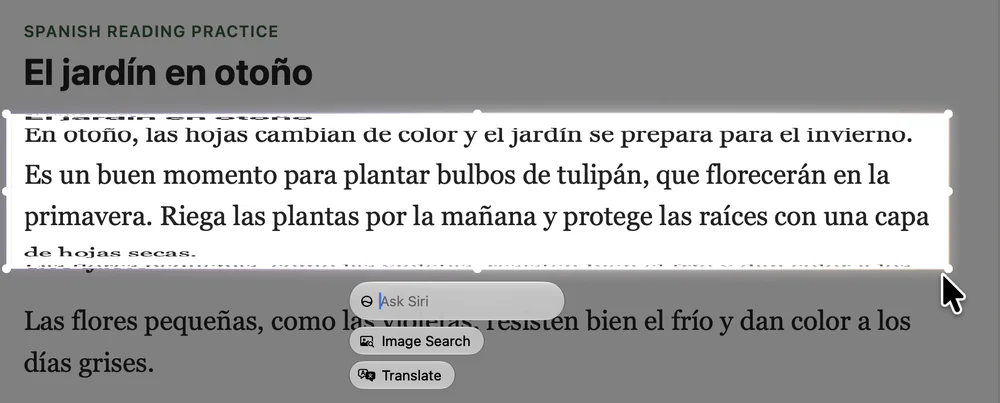
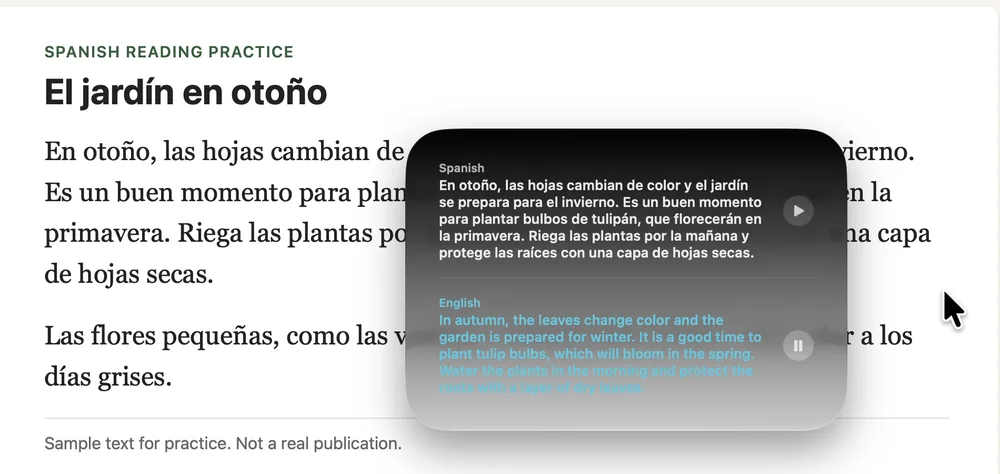
After a moment, Siri answered with a translation card. The top half showed the Spanish text, and the bottom half showed the English translation: “In autumn, the leaves change color and the garden is prepared for winter.” Each half had a play button to hear it read aloud.
The answer was different on a Japanese Mac
We also filmed the same steps in a Japanese user account on the same Mac, with an English paragraph and a request typed in Japanese that means “explain this in Japanese.” There, Siri didn’t show a translation card. It replied with a short summary in Japanese of what the paragraph said. So the form of the answer may depend on the language and the request. Below the selected area, you also get the Image Search and Translate buttons. In Apple’s description, Image Search looks for similar images on the internet. We only pointed at the two buttons and didn’t click them. The filming notes say a notice appears about sending the content to Apple when you click Translate, so we stopped there.
The diagram below compares the two answers we got (not a screenshot).
English screen
We typed Explain this in English
A Spanish paragraph
A translation card
Japanese screen
We typed explain this in Japanese
An English paragraph
A short summary in Japanese
Way 2: Show a whole window — bring it to the front, then press Command-Shift-Space bar
- Bring the window you want to show to the front.
- Press Command-Shift-Space bar.
- Type your question in the Ask Siri field, then press Return.
We showed Siri a settings window and typed “Which setting should I choose to get fewer notifications?” Siri read the choices on the screen and answered: “To get fewer notifications, you can choose either Mentions and replies only … or Batched digest … If you want to stop them entirely, you can select Off.”
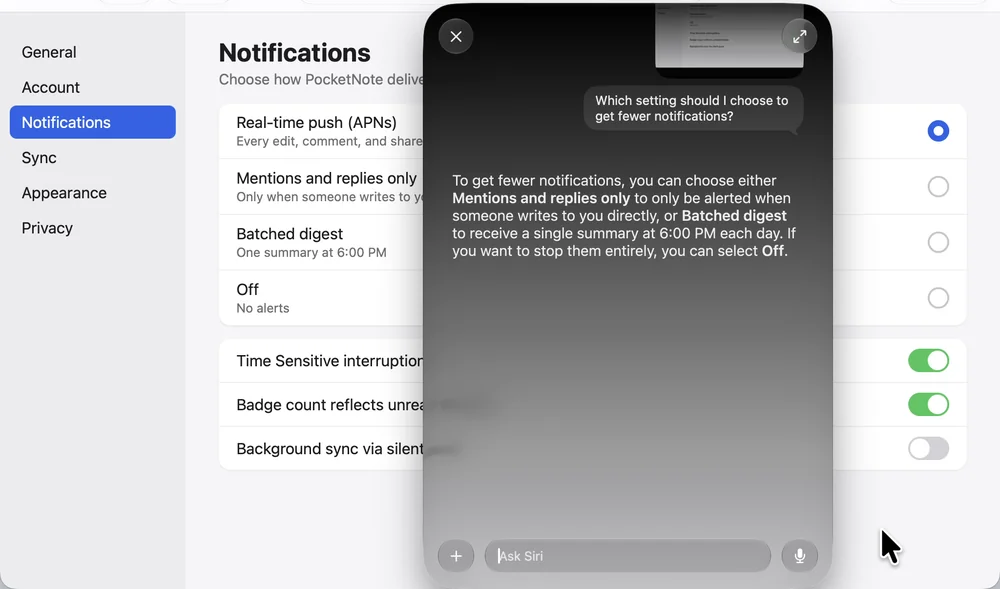
No window picker appeared: the front window was chosen right away
Apple’s guide (Siri AI: Learn about what’s on your Mac screen) says to “Press Command-Shift-Space bar to select a window.” On our Mac with macOS 27.2, no window picker appeared, in English or in Japanese. As soon as we pressed the keys, the front window was chosen. So bring the window you want to the front first.
Siri reads only what’s visible on the screen
Even when you show a whole window, Siri reads only what’s visible on the screen. Items you’d have to scroll to see aren’t part of the answer. When you know which part you want to ask about, use Way 1 and draw a box. When you want Siri to look at everything visible, use Way 2 and show the whole window.
Way 3: Ask about a file in the Finder — Control-click, then Ask Siri
- In the Finder, hold down Control and click the file.
- Type your question in the Ask Siri field at the top of the menu (for example, “What is the name of this flower?”).
- Press Return.
We asked about a photo file of a flower. Without opening it, Siri answered: “This appears to be a California poppy (Eschscholzia californica).” The answer also listed the source, Wikipedia.
Some flowers get an unclear answer
In the Japanese recording, we first tried a photo of a dahlia. We asked five times, and all five answers said it was “a dahlia or a gerbera.” With the California poppy, Siri gave one name. A photo can be hard for Siri too. If you need to be sure, check the name in a field guide or another source.
You can also ask out loud: say “Siri” or press and hold the microphone key
In Apple’s description, you can bring up Siri and ask about what’s on your screen by voice. The example in the Mac User Guide is “Explain this from my class notes,” said with a diagram open in the Notes app. To bring up Siri, say “Siri,” or press and hold the microphone key in the top row of the keyboard (Apple’s guide “Turn on and activate Siri on Mac”). Saying “Siri” works if the option is available and turned on in Siri settings. If your Mac doesn’t have the key, use the keyboard shortcut set in Siri settings. We didn’t ask by voice. Every answer in this article came from a typed question.
Keep Siri away from an app with Excluded Apps
With all three ways, you choose what to show. If you don’t want Siri to use an app at all, add it under System Settings > Siri > Excluded Apps. The screen on our Mac said: “Apps added to the list below will be excluded from Siri, Search, and suggestions.” We didn’t click Add Apps.
As for where requests are processed, Apple’s guide (Apple Intelligence and privacy on Mac) says many requests run on the Mac itself. For more complex requests, Apple Intelligence can use Private Cloud Compute on Apple’s servers. Apple says: “The data being processed in Private Cloud Compute is not stored or made accessible to Apple.”
If Ask Siri doesn’t appear: check the Mac model, the language, the internet connection, and that Siri AI is on
If the Ask Siri field doesn’t appear, check the requirements. According to Apple’s guide (Get started with Siri AI on Mac), Siri AI is a beta feature for a Mac with an M1 chip or newer, or a MacBook Neo (A18 Pro). It needs macOS 27, Apple Intelligence turned on, and Siri and the Mac set to a supported language (English, French, Japanese, Korean, Portuguese, and Spanish to start). Siri AI isn’t available for users under 13, or in China mainland. You also need to be connected to the internet to use Siri (Apple’s guide “Turn on and activate Siri on Mac”).
The steps to turn on Siri AI and what to check when it doesn’t work are in How to Turn On Siri AI on a Mac.
Frequently asked questions
What can Siri AI do on a Mac?
Apple says it can answer questions about what’s on your screen, find things in your photos and email, and help you write and summarize. We tried one part of that for this article: showing Siri the screen and asking about it.
Is there a keyboard shortcut for Siri AI?
To ask about your screen, press Command-Shift-6 for part of the screen, or Command-Shift-Space bar for a window. For a file, Control-click it in the Finder and choose Ask Siri.
Can Siri translate a web page in another language?
When we selected a Spanish paragraph and typed “Explain this in English,” Siri showed a translation card with the English translation. There’s also a Translate button below the selected area (we didn’t click it, so we didn’t see what it does).
Can I ask by voice?
Apple says yes. Say “Siri” (if it’s turned on in Siri settings), or press and hold the microphone key (or use the keyboard shortcut set in Siri settings), and ask with the screen still open. We didn’t try it by voice.
The Mac we tested on, and Apple’s pages
We tried the three ways and opened the Excluded Apps page on the following Mac (a separate user account made for filming, set to English (United States)). These are the same recordings we used for our YouTube video.
- Model: MacBook Air (M2) (15-inch, 2023)
- macOS: macOS Golden Gate 27.2
- Date checked: October 30, 2026
The web pages, the settings page, and the photos are made-up samples for the test. We typed every question to Siri and didn’t ask by voice. We didn’t click the Translate or Image Search buttons, or Add Apps in Excluded Apps. The Japanese answer and the dahlia photo come from the Japanese recording on the same Mac. The requirements and the privacy details come from Apple’s pages (read on October 31, 2026).
The steps and requirements come from these pages:
- Siri AI: Learn about what’s on your Mac screen (Mac User Guide)
- Get started with Siri AI on Mac (Mac User Guide)
- Turn on and activate Siri on Mac (Mac User Guide)
- Customize Siri on Mac (Mac User Guide, Excluded Apps)
- Apple Intelligence and privacy on Mac (Mac User Guide)