How to Turn Off Notifications on a Mac — For a While, for One App, or While Sharing Your Screen
Published October 31, 2026
Official documentation reviewed October 31, 2026 (some steps not tested)
By Wada Digital Lab
There are three ways to turn off notifications on a Mac. To silence everything for a while, click Control Center in the menu bar, click Focus, and turn on Do Not Disturb. To silence one app for good, open System Settings, click Notifications, click the app, and turn off Allow notifications. To silence notifications only while you are presenting or sharing your screen, use the three Show Notifications items (two switches and a pop-up menu) in Notifications settings. This article shows all three places on a real macOS 27.2 screen, with the order of clicks.
Key points
- For a while: Control Center, then Focus, then Do Not Disturb. You can pick a length such as “For 1 hour.” Click it again to turn it off.
- For one app: System Settings, then Notifications, then the app, then turn off Allow notifications. Apple says you won’t get its notifications until you turn the switch on again.
- Only while mirroring or sharing your screen (a presentation or a video call): under Show Notifications, set “when mirroring or sharing the display” to Notifications Off. On our Mac it was already set that way.
- Sound only: turn off Play sound for notification for that app. The notification still appears, silently.
- To silence the Mac but not your iPhone, use Allow notifications. Apple says a Focus can turn on and off on your other Apple devices too.
The diagram below sums up the three ways (not a screenshot).
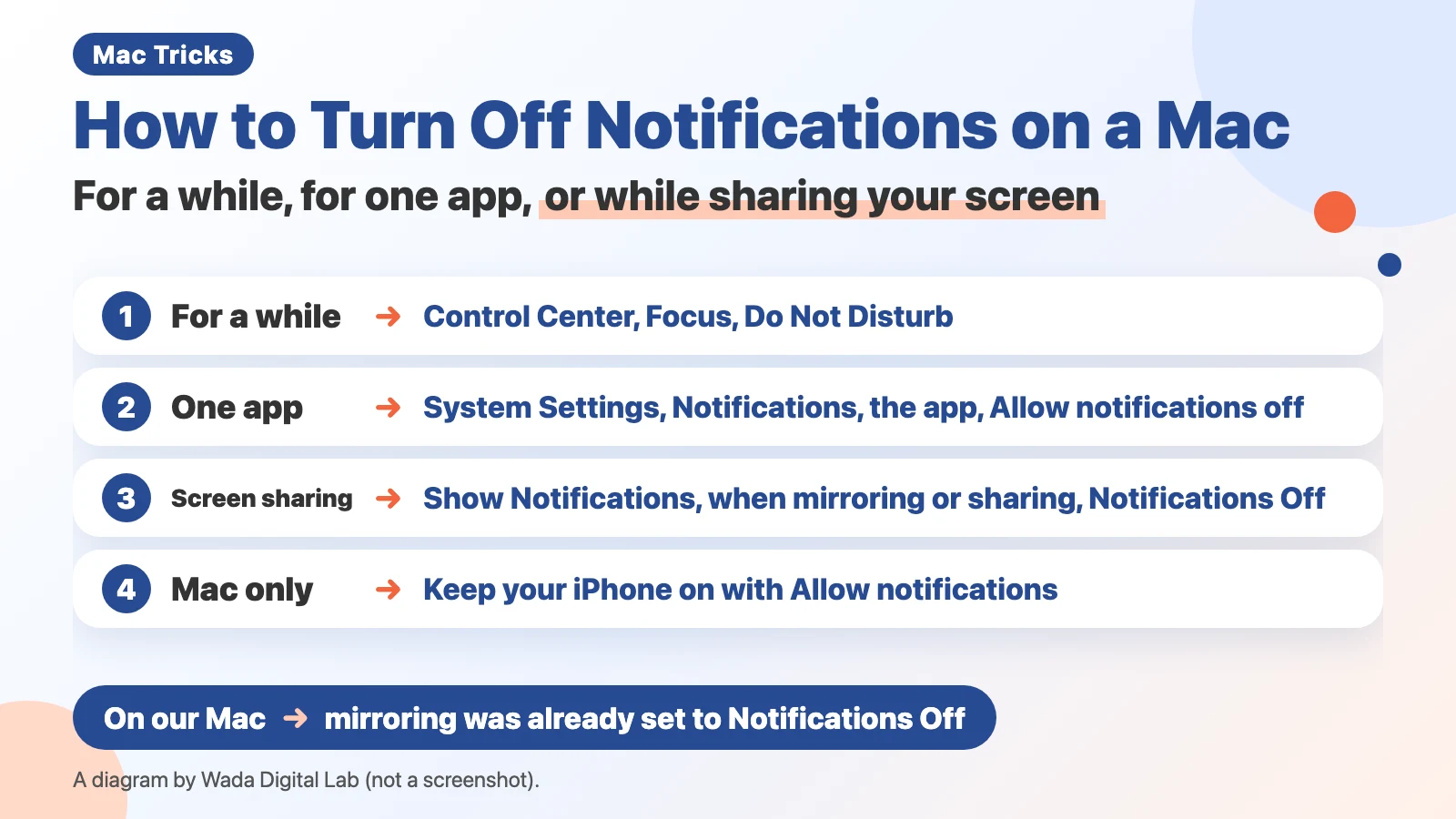
Three ways to stop notifications. Which one depends on how long, and what
A notification is the short banner in the top-right corner of the screen that tells you a message arrived or an event is due. Apple’s page “Get notifications on Mac” describes them as brief banners that appear in the top-right corner of your screen. With the Temporary alert style they disappear on their own after a moment; an app set to Persistent keeps its banner until you dismiss it. Anything you missed is in Notification Center, which opens when you click the date and time in the menu bar.
There are three ways to stop them. Pick by how long you want quiet, and what you want quiet.
| What you want | Where | What happens |
|---|---|---|
| Silence everything for a while | Control Center, then Focus, then Do Not Disturb | Notifications are silenced while it is on (except people and apps you allowed in Focus settings). You can pick a length |
| Silence one app | System Settings, then Notifications, then the app, then Allow notifications off | That app stays quiet until you turn the switch on again |
| Only while sharing your screen | Notifications settings, then Show Notifications, then “when mirroring or sharing the display” set to Notifications Off | Quiet only while your screen is mirrored or shared |
| Sound only | Notifications settings, then the app, then Play sound for notification off | The banner appears, with no sound |
Silence everything for a while: Do Not Disturb in Control Center
Do Not Disturb is one of the Focus modes built into every Mac. While it is on, notifications are silenced. We split Apple’s page “Turn a Focus on or off on Mac” into one action per line. There are 3 steps.
- Click the Control Center icon near the right end of the menu bar (two stacked switches)
- Click anywhere in the Focus section (the list of Focus modes opens)
- Click Do Not Disturb (you can also choose a length, such as “For 1 hour”)
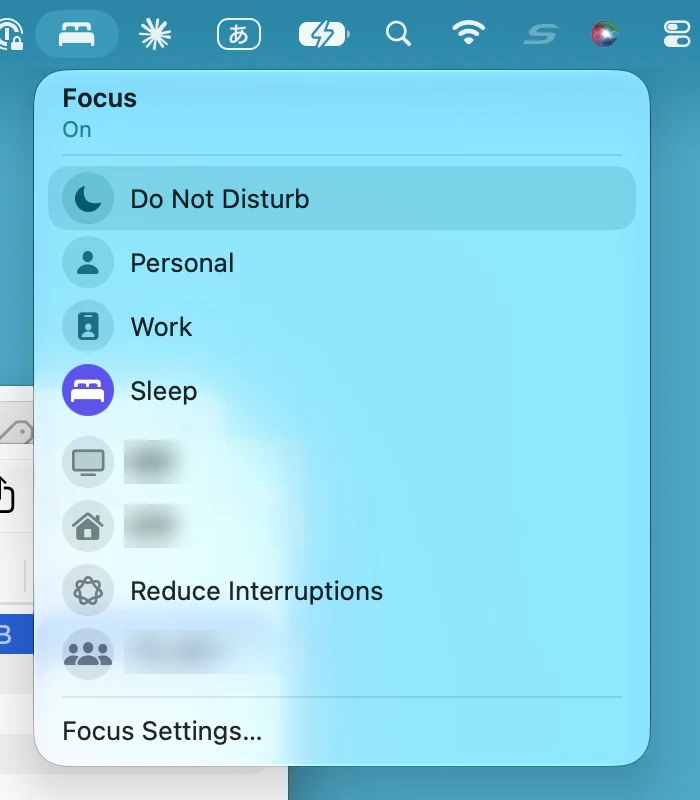
To turn it off, open the same list and click Do Not Disturb again. Apple says its icon is then no longer highlighted in the list, and a dimmed Do Not Disturb icon is briefly shown in the menu bar.
There is a faster way as well. Apple’s page says:
“You can also turn the Do Not Disturb Focus on or off by pressing and holding the Option key while you click the date and time in the menu bar, or by pressing (if available in the row of function keys on the keyboard).”
Apple, “Turn a Focus on or off on Mac” (Mac User Guide, macOS 27)
The gap in the quote is a key symbol on Apple’s page. The part to remember is: hold Option and click the date and time in the menu bar (we didn’t try the function key on our Mac).
Silence one app: Allow notifications in System Settings
When one app, such as Messages or Mail, is the problem, turn off its Allow notifications switch in System Settings. We split Apple’s page “Turn off notifications for an app or website on Mac” into one action per line. There are 4 steps.
- Choose Apple menu, then System Settings
- Click Notifications in the sidebar (you may need to scroll down)
- Below Application Notifications, click the app you want to silence
- Turn off the Allow notifications switch
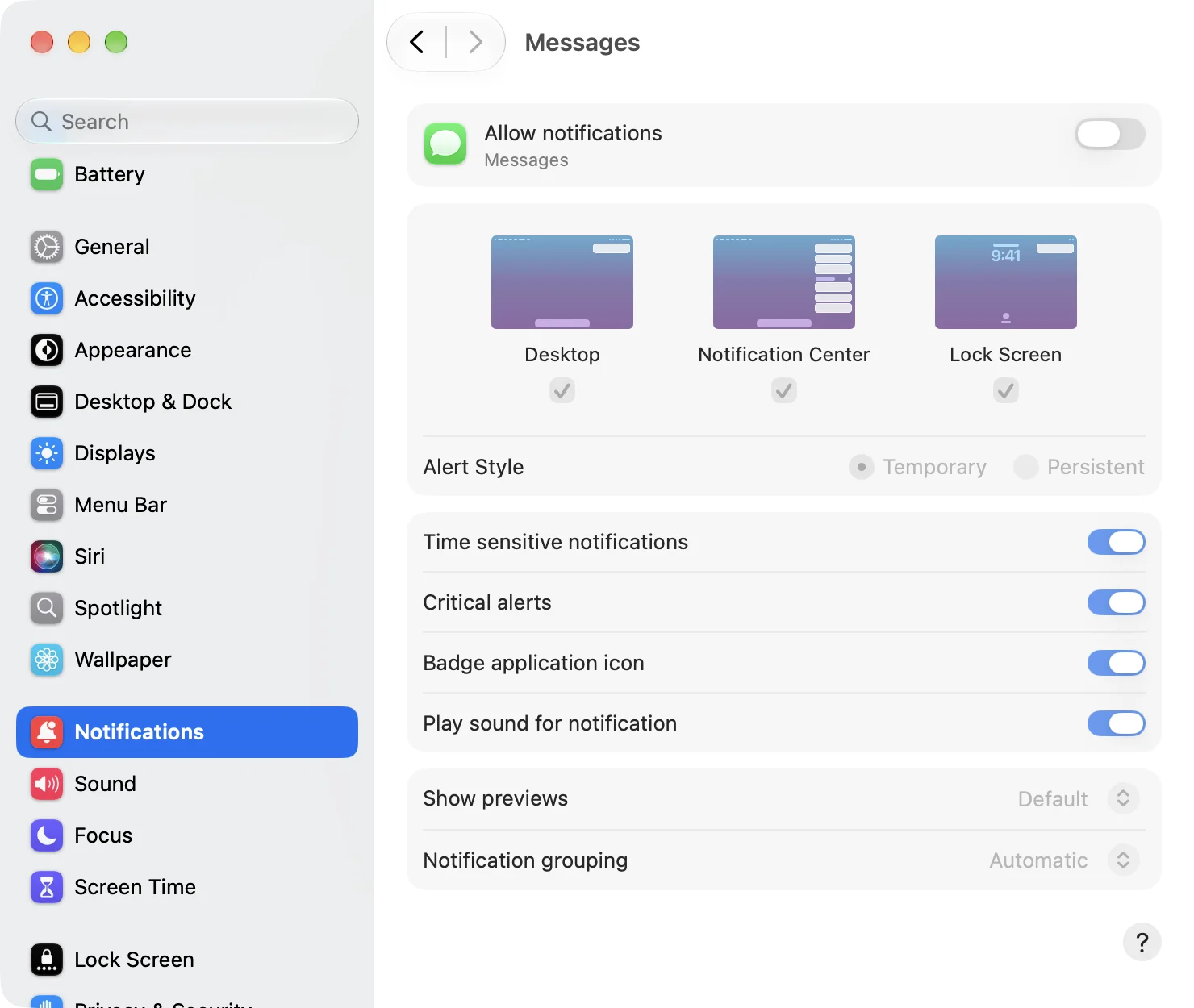
Apple’s page says:
“You won’t receive notifications for it until you turn on “Allow notifications” again.”
Apple, “Turn off notifications for an app or website on Mac” (Mac User Guide, macOS 27)
To undo it, turn the same switch back on. You can also keep Allow notifications on and change only how the app notifies you. Turn off Play sound for notification and the banner appears without a sound. Turn off Badge application icon and the number on the app’s Dock icon goes away.
Only while sharing your screen: the three Show Notifications items
Near the top of Notifications settings there are three items under Show Notifications: “when display is sleeping,” “when screen is locked,” and “when mirroring or sharing the display.” To stay quiet only while your screen is on a projector or shared in a video call, set the third one to Notifications Off.
- Choose Apple menu, then System Settings, then Notifications
- Under Show Notifications, click the pop-up menu next to “when mirroring or sharing the display”
- Choose Notifications Off
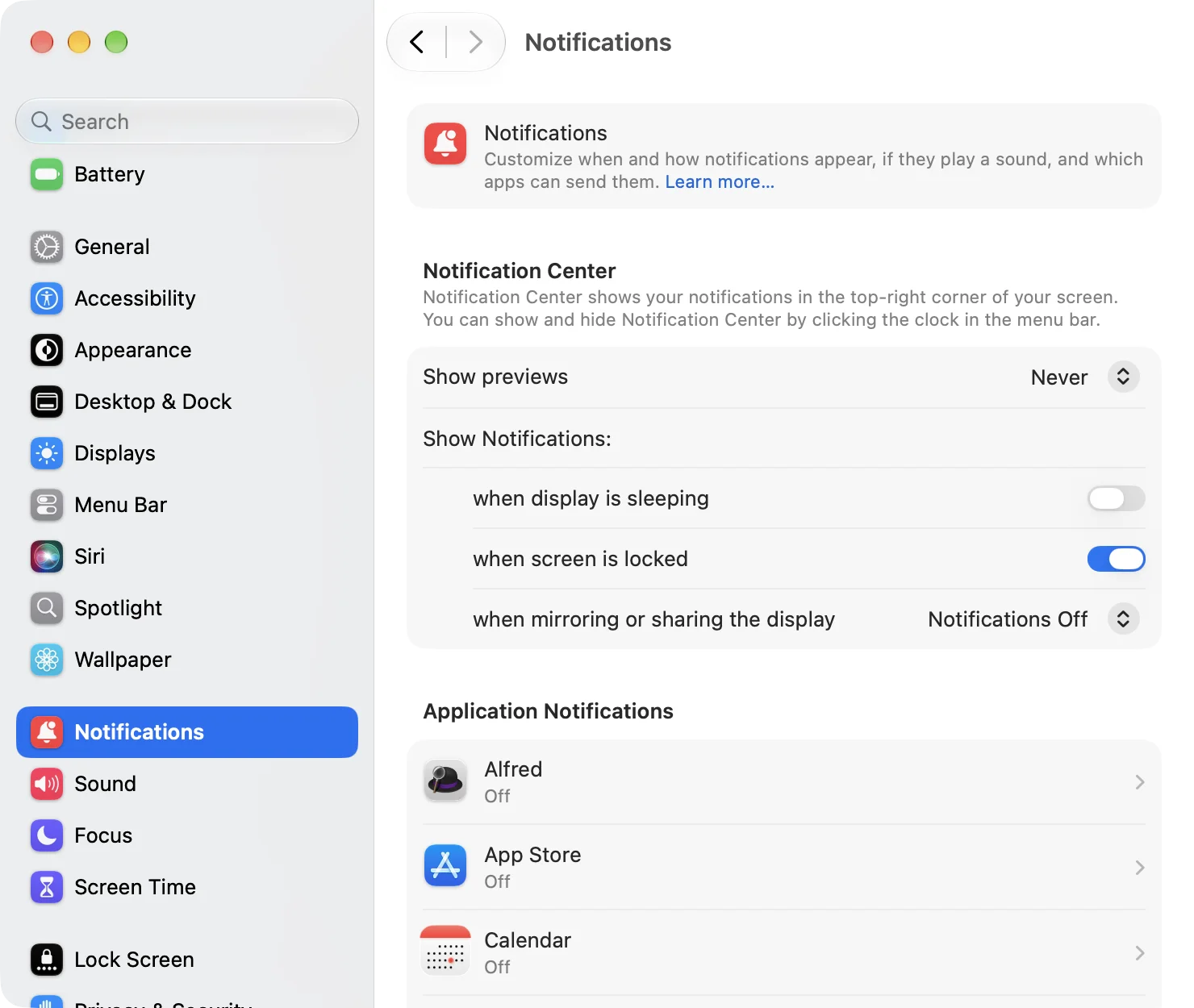
Apple’s page “Notifications settings on Mac” says this about the item:
“For example, you might want to pause notifications while you’re giving a presentation.”
Apple, “Notifications settings on Mac” (Mac User Guide, macOS 27)
On our recording Mac this item was already Notifications Off without anyone changing it. Open this page on your own Mac first and see how it is set. Turning off “when display is sleeping” keeps notifications quiet while the screen is dark.
Silence the Mac but not your iPhone
Many people want the Mac quiet while the iPhone still rings. Google’s own suggestions include “how to turn off notifications on mac but not iphone.” For that, use Allow notifications. The switches in System Settings, then Notifications, apply to that Mac only.
Do Not Disturb (a Focus) can, depending on a setting, turn on and off on your iPhone and iPad at the same time. Apple’s page says:
“If you keep Focus up to date across your Apple devices, turning a Focus on or off on your Mac turns it on or off on your other devices.”
Apple, “Turn a Focus on or off on Mac” (Mac User Guide, macOS 27)
The diagram below compares the two (not a screenshot). Do Not Disturb (a Focus) silences notifications for a while (except allowed people and apps), and you reach it from Control Center. Allow notifications (Notifications settings) silences one app for good, and you reach it from System Settings. Where it applies is different as well. A Focus switches on your iPhone and iPad on the same Apple Account too, if Share across devices is on. Allow notifications applies to this Mac only.
Do Not Disturb (a Focus)
Silences notifications for a while (except allowed people and apps) From Control Center
Where it applies
Your iPhone and iPad on the same Apple Account too, if Share across devices is on
For the Mac only
Allow notifications (Notifications settings)
Silences one app for good From System Settings
Where it applies
This Mac only
If turning on Do Not Disturb on the Mac also silenced your iPhone, that sharing setting is on. To turn it off, open System Settings, click Focus, and turn off Share across devices (we didn’t change this on our Mac; the item’s name is on Apple’s “Change Focus settings on Mac” page).
Silence one conversation in Messages
If you don’t want to silence all of Messages, just one busy group chat, do it inside Messages. Apple’s page “Mute and manage notifications from Messages on Mac” says to select the conversation, click the contact or group icon at the top, and turn on Hide Alerts. Senders receive a note indicating that you have notifications silenced. One exception: if “Notify me when my name is mentioned” is on in Messages settings, you are still notified when your name comes up (Apple’s page; we didn’t try this on our Mac).
To silence Messages entirely, use the steps above: System Settings, then Notifications, then Messages, then Allow notifications off. Apple’s Messages page lists the same steps.
To make the screen even quieter, hide the Dock
With notifications off, the top-right corner goes quiet. If the screen still feels crowded, try hiding the Dock so the whole screen is yours. See Mac Dock Settings — Hide the Dock with Three Keys.
Frequently asked questions
How do I turn Do Not Disturb off?
Open Control Center, click Focus, and click Do Not Disturb again. While it is on, its icon is highlighted and shown in the menu bar. If you chose “For 1 hour,” it turns itself off after an hour.
A Focus turns on by itself
Two causes are likely. One is a schedule set in System Settings, then Focus. The other is a Focus turned on on your iPhone or another Apple device, which is passed to the Mac (the sharing setting above). The schedule is under System Settings, then Focus: select the Focus and look under Set a Schedule (Apple’s page).
Can I silence apps that aren’t from Apple, such as Slack or Zoom?
If the app appears in the Application Notifications list in System Settings, then Notifications, the same steps apply: turn off Allow notifications. Which apps appear depends on what is installed on your Mac (we didn’t try Slack or Zoom on our Mac).
I only want the sound gone
In System Settings, then Notifications, click the app and turn off Play sound for notification. The banner still appears, silently. There is no single switch for the sound of every app in Notifications settings; you set it app by app.
What we checked, and Apple’s pages
The pictures in this article were taken in a user account made for screenshots. We opened the Focus list in Control Center, and in System Settings, then Notifications, we opened the Messages page and the three Show Notifications items. We changed nothing (Allow notifications for Messages was already off, and we didn’t turn on Do Not Disturb; the Sleep Focus was on by schedule when the picture was taken).
- Model: MacBook Air (M2)
- macOS: macOS 27.2 (English screen)
- Pictures taken on: October 31, 2026
We didn’t try what happens after turning on Do Not Disturb, the Option-click on the date and time, the Share across devices switch, Hide Alerts in Messages, or third-party apps. The same screens were photographed on the Japanese screen of the same Mac.
Before writing, we searched Google for “how to turn off notifications on mac” and read the titles of the top results (October 31, 2026). Apart from three Apple pages, they were forum threads and a page from a company that sells a Mac app bundle. This article sorts the methods by how long and what you want quiet, shows the real macOS 27.2 screens, and adds how to keep your iPhone ringing.
The steps come from these pages (Mac User Guide and Messages User Guide).