How to Use Multiple Desktops on Mac (Spaces) — Add, Switch, and Stop Them Rearranging
Published October 27, 2026
Official documentation reviewed October 27, 2026 (some steps not tested)
By Wada Digital Lab
To add more desktops on your Mac, use Spaces, a feature built into macOS. Spaces are what Windows calls virtual desktops. Open Mission Control and click the plus button at the right end of the row at the top of the screen. That adds one desktop. Even on a single MacBook screen, you can add up to 16. If your desktops keep changing order, there is one setting in Desktop & Dock to turn off.
Key points
- To add a desktop, swipe up with three fingers on the trackpad, or press Control-Up Arrow, to open Mission Control. Then click the plus button in the row at the top. You can add up to 16.
- To switch between desktops, swipe left or right on the trackpad with three or four fingers, or press Control-Left Arrow or Control-Right Arrow. The number of fingers depends on your Trackpad settings.
- Your desktops change order on their own when “Automatically rearrange Spaces based on most recent use” is on. Turn it off in System Settings > Desktop & Dock, under Mission Control.
- An app you make full screen with the green button moves to a desktop of its own. If a window seems to have disappeared, look in the row at the top of Mission Control.
- We checked the steps against Apple’s macOS 27 User Guide, and the setting names against the English recording made for our video on a MacBook Air running macOS 27.0.1 (October 27, 2026).
The diagram below sums up how to add and switch desktops, and the setting that keeps them from changing order (not a screenshot).
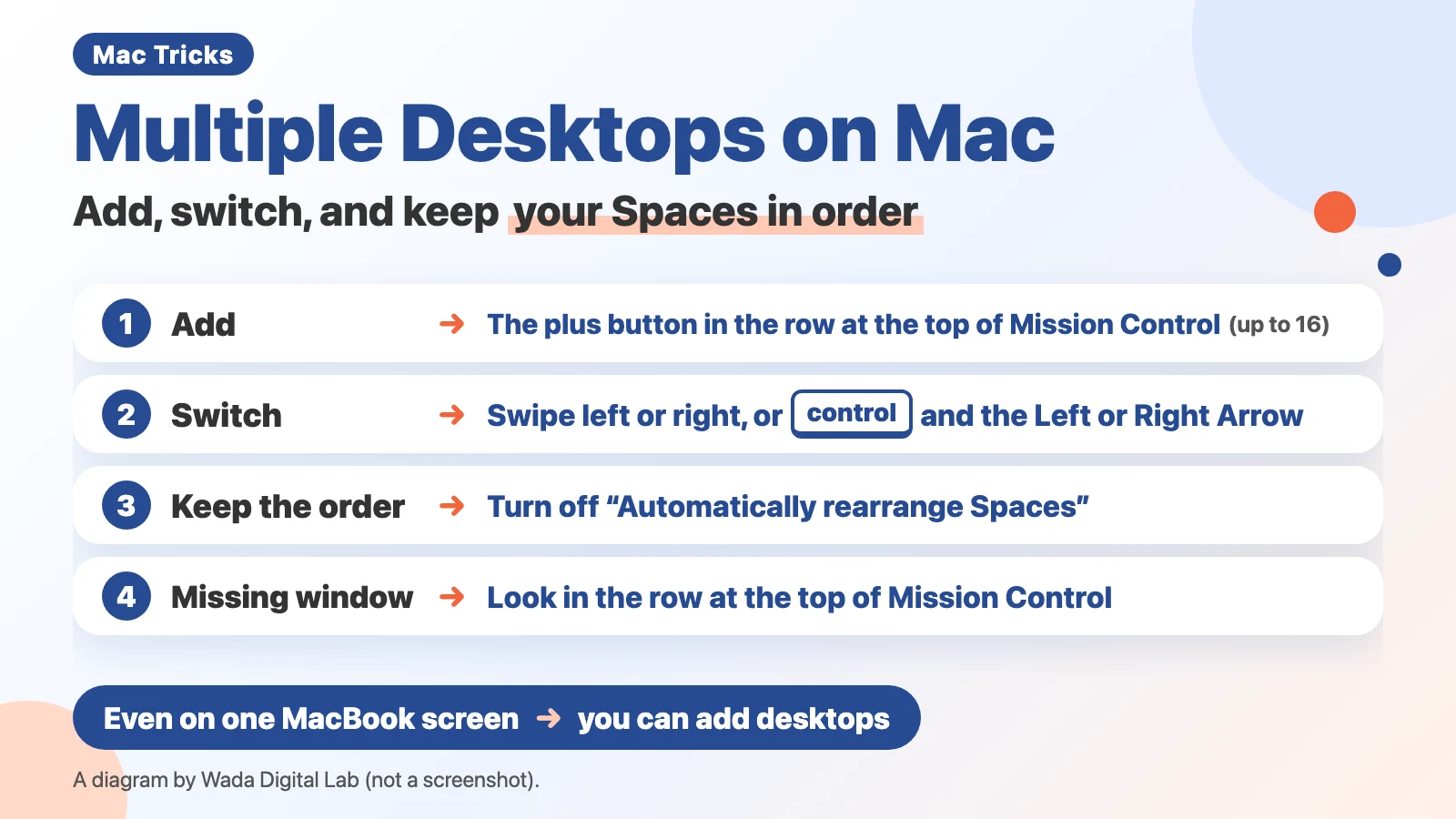
Multiple desktops on a Mac are called Spaces
Spaces is a built-in Mac feature that lets you add more desktops and keep your windows on separate ones. On a Mac, the extra desktops you add are called spaces. Apple’s User Guide says you can “use Mission Control to create additional desktops, called spaces, to organize the windows.”
When you work in one space, you only see the windows in that space. You could keep your work windows on the first desktop and your notes on the second. You don’t need an external display. Even on one MacBook screen, you can add desktops.
If your desktop is cluttered with files, you can also tidy it up with Stacks. For more room on the screen, see how to hide the Dock.
Add a desktop: click the plus button in Mission Control
- Swipe up on the trackpad with three fingers (or four, depending on your settings). On a keyboard, press Control-Up Arrow.
- The windows open on your desktop are spread out on the screen. This is Mission Control.
- Move the pointer to the top edge of the screen. A row of small desktop pictures appears. Apple’s User Guide calls this row the Spaces bar.
- Click the plus button at the right end of the row. One desktop is added.
- Click the new picture to open the new desktop. It has no windows, except apps you assigned to All Desktops, which show up there too.
You can add up to 16 desktops. Apple’s User Guide says: “You can create up to 16 spaces.” In the row at the top, they are numbered Desktop 1, Desktop 2, and so on.
Switch desktops: swipe, or press Control and the Left or Right Arrow
- Trackpad: swipe left or right with three or four fingers. Apple’s User Guide says “three or four fingers.” You choose the number in System Settings > Trackpad. It’s a separate setting from the gesture that opens Mission Control.
- Keyboard: press Control-Right Arrow or Control-Left Arrow.
- From Mission Control: enter Mission Control, then click the desktop you want in the row at the top.
- Magic Mouse: swipe with two fingers (from Apple’s User Guide).
The person who runs Wada Digital Lab mostly switches with a four-finger swipe. With three displays on the desk, they don’t add many desktops.
Jump to a desktop with Control and a number key
You can also press Control and a number key to jump straight to a desktop. For example, Control-1 takes you to the first desktop.
If that doesn’t work, open System Settings > Keyboard and click Keyboard Shortcuts…. Choose Mission Control on the left, then turn on Switch to Desktop 1.
Move a window to another desktop: drag it to the right edge and wait
- Drag the window to the right edge of the screen and wait a moment. Apple’s User Guide says: “After a moment, the window moves to the next space.”
- Or enter Mission Control and drag the window onto a desktop picture in the row at the top.
Did a window disappear after the green button? Full-screen apps get their own desktop
Click the green button at the top left of a window, and the app goes full screen. At that moment, the app moves to a desktop of its own. When you go back to your original desktop, the window seems to have disappeared.
Apple’s User Guide page “View open windows and spaces in Mission Control on Mac” says apps in full screen or Split View, and the desktop spaces you created, are “shown as thumbnails in the Spaces bar along the top edge of the screen.”
- Find it: enter Mission Control and look in the row at the top. Full-screen apps are lined up there too. Click the app’s picture to go right back to it.
- Return it to its original size: move the pointer to the top edge of the screen. Hold the pointer over the green button that appears, then choose Exit Full Screen.
The person who runs Wada Digital Lab often lost track of a window after clicking the green button. These days, they’re used to it and rarely get lost.
Stop desktops from changing order: turn off “Automatically rearrange Spaces”
Sometimes your desktops swap places on their own. The desktop that was second a moment ago is now first. This happens because your Mac rearranges them in the order you used them most recently.
- Choose Apple menu > System Settings.
- Click Desktop & Dock in the sidebar.
- Scroll down to Mission Control. Turn off “Automatically rearrange Spaces based on most recent use.”
The picture below shows the Mission Control section of these settings.
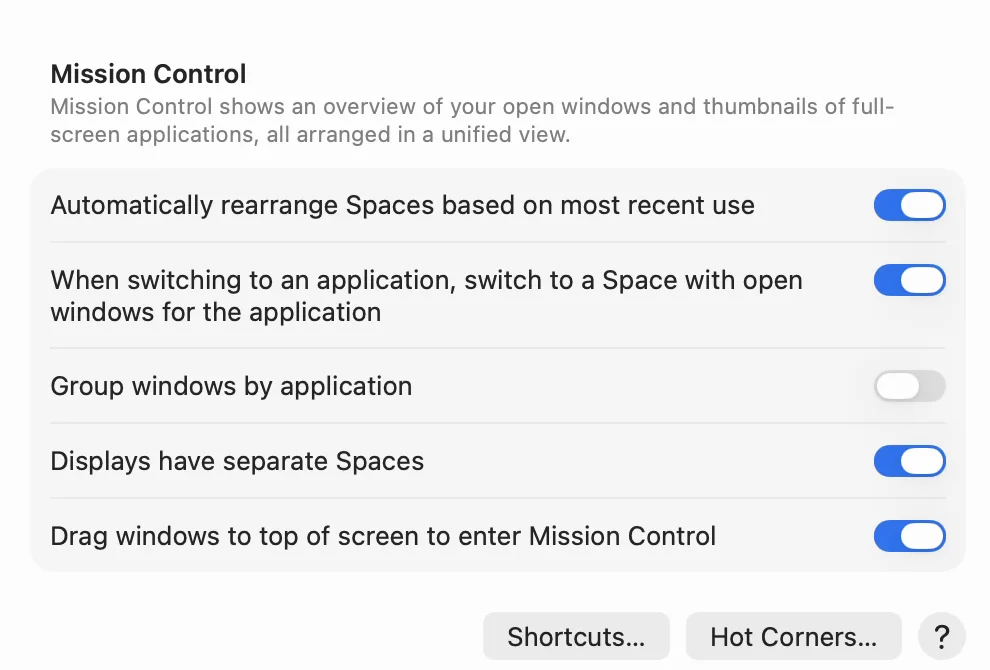
This setting doesn’t appear on the first three Apple User Guide pages in our sources. We checked its name on screen in the recording for our video.
Now your desktops stay in the order you put them. The person who runs Wada Digital Lab tried this setting, found it annoying that the order kept changing, and turned it off.
When your Mac switches desktops on its own
Sometimes the order stays the same, but your Mac jumps to a different desktop. Apple’s User Guide says: “By default, when switching to an app, the desktop automatically switches to a space that has open windows for the app.”
The setting that changes this is in the same Mission Control section: “When switching to an application, switch to a Space with open windows for the application.” We didn’t turn this setting on and off to compare.
Always open an app on the same desktop: Assign To
- Control-click the app’s icon in the Dock.
- Choose Options, then choose an option below Assign To.
Apple’s User Guide says: “When you’re using two or more spaces, you can assign an app (or System Settings) to a specific space so it always opens in that space.” There are four choices. The right column is from Apple’s User Guide.
| Choice | Where the app opens |
|---|---|
| All Desktops | In every space |
| This Desktop | Only in the current space (if you use the app full screen, it appears in its own space) |
| Desktop on Display [number] | In the current space on a specific display (when you have more than one display) |
| None | In whichever space you’re using at the time |
The person who runs Wada Digital Lab used to assign apps to specific desktops. But keeping track of which app went where got hard, and things got messy. Now they set the apps they use most to All Desktops, so those apps show up on every desktop.
If you connect an external display, see our article on MacBook dual monitor setup for the settings for each screen.
Remove a desktop you no longer use: the X button in Mission Control
- Enter Mission Control and move the pointer to the top edge of the screen.
- Hold the pointer over the desktop you want to remove. Click the X button that appears.
The windows on it aren’t lost. Apple’s User Guide says: “If the space contains open windows, they are moved to another space.”
All the Spaces actions at a glance
| What you want to do | Trackpad or click | Keyboard |
|---|---|---|
| Open Mission Control | Swipe up with three fingers (or four, depending on your settings) | Control-Up Arrow |
| Add a desktop | The plus button in the row at the top of Mission Control | — |
| Switch desktops | Swipe left or right with three or four fingers | Control-Left Arrow or Control-Right Arrow |
| Jump to a specific desktop | Click its picture in the row at the top of Mission Control | Control and a number key (turn on Switch to Desktop 1) |
| Move a window to another desktop | Drag it to the right edge of the screen and wait | — |
| Remove a desktop | In Mission Control, hold the pointer over it and click the X button | — |
Frequently asked questions
How many desktops can I have on a Mac?
Up to 16. Apple’s User Guide says: “You can create up to 16 spaces.”
Can I rename a desktop?
Apple’s User Guide doesn’t describe a way to rename them. In the row at the top, they are numbered Desktop 1, Desktop 2, and so on. To tell them apart, you can give each desktop its own wallpaper. A tip in Apple’s User Guide says: “Make your spaces unique by assigning a different desktop picture to each one.” We didn’t try setting a different wallpaper for each desktop.
My desktops keep changing order. How do I stop it?
In System Settings > Desktop & Dock, under Mission Control, turn off “Automatically rearrange Spaces based on most recent use.”
A window disappeared. Where did it go?
If you made it full screen with the green button, the app moved to a desktop of its own. Enter Mission Control and look in the row at the top.
Control and a number key doesn’t switch desktops.
Open System Settings > Keyboard, click Keyboard Shortcuts…, choose Mission Control, and turn on Switch to Desktop 1.
What we checked, and what we didn’t test
- Steps and explanations: checked against four pages of Apple’s macOS 27 User Guide (read on October 27, 2026). “Automatically rearrange Spaces based on most recent use” and Control with a number key (Switch to Desktop 1) aren’t described on those pages. For those two, we checked the names in the text built into macOS and in the recording for our video.
- Setting names: we looked at the English recording made for our video on the same topic, on a MacBook Air running macOS 27.0.1. It shows the Mission Control section of Desktop & Dock settings. We also looked at a still image from the English recording, taken after clicking the plus button in Mission Control: the row at the top shows Desktop 1, Desktop 2 and Desktop 3 (October 27, 2026).
- Other English names (Assign To, This Desktop, All Desktops, None, Options, Switch to Desktop 1, Keyboard Shortcuts…): taken from the text built into macOS, not from English screenshots.
- Personal experience: switching with four fingers, turning off “Automatically rearrange Spaces,” changing assignments to All Desktops, and getting lost after the green button.
We didn’t test:
- Turning “When switching to an application, switch to a Space with open windows for the application” on and off to compare.
- Jumping to a desktop with Control and a number key.
- Adding all 16 desktops.
- Using a Magic Mouse, or Spaces with an external display connected.
- Setting a different wallpaper for each desktop.
Sources
- Apple Support: Work in multiple spaces on Mac (macOS 27 User Guide) https://support.apple.com/guide/mac-help/mh14112/27/mac/27
- Apple Support: View open windows and spaces in Mission Control on Mac (macOS 27 User Guide) https://support.apple.com/guide/mac-help/mh35798/27/mac/27
- Apple Support: Use apps in full screen on Mac (macOS 27 User Guide) https://support.apple.com/guide/mac-help/mchl9c21d2be/27/mac/27
- Apple Support: Change Trackpad settings on Mac (macOS 27 User Guide) https://support.apple.com/guide/mac-help/mchlp1226/27/mac/27
This site is not affiliated with Apple Inc. Mac, MacBook, macOS, and Mission Control are trademarks of Apple Inc.