How to Convert a Voice Memo to MP3 on iPhone and Mac — Use Music or a Free Browser Tool
Published October 28, 2026
Official documentation reviewed October 28, 2026 (some steps not tested)
By Wada Digital Lab
When you export an iPhone Voice Memos recording as a file with the default settings, it becomes an “.m4a” file. If someone asks you to send it “as an MP3,” you need to convert it. On a Mac, set Import Settings to MP3 Encoder in the Music app, then choose Create MP3 Version. To convert many at once without an app, add them to our free browser page Convert to MP3. No sign-up needed.
Key points
- When you export a Voice Memos recording with Save to Files on iPhone using the default settings, it becomes an .m4a file (Apple). In Voice Memos on a Mac, drag the recording to a Finder window.
- In Music on a Mac, choose Music > Settings > Files > Import Settings and pick MP3 Encoder, then choose File > Convert > Create MP3 Version. Going by Apple’s steps, Create MP3 Version doesn’t appear in the menu without this setting (we haven’t tried Music on screen).
- Convert to MP3 in your browser takes as many files as you like, and you choose a quality from 64 kbps to 320 kbps. A 1-minute .m4a (473 KB) came to 469 KB at 64 kbps and 939 KB at 128 kbps. An Apple Lossless .m4a (a format that shrinks audio without losing quality) converted too.
- Converting to MP3 doesn’t necessarily make a file smaller. Our sample (an AAC .m4a at about 62 kbps) went from 473 KB to 469 KB at 64 kbps, barely changing, and grew to 939 KB at 128 kbps. Convert to MP3 when someone asks for an MP3.
- In the screen-text files for Shortcuts on a Mac (the files inside macOS that hold the names shown on screen), Encode Media offers only M4A and AIFF for audio, with no MP3. We haven’t checked this on an iPhone screen.
The diagram below sums up the ways to convert a voice memo to MP3 (not a screenshot).
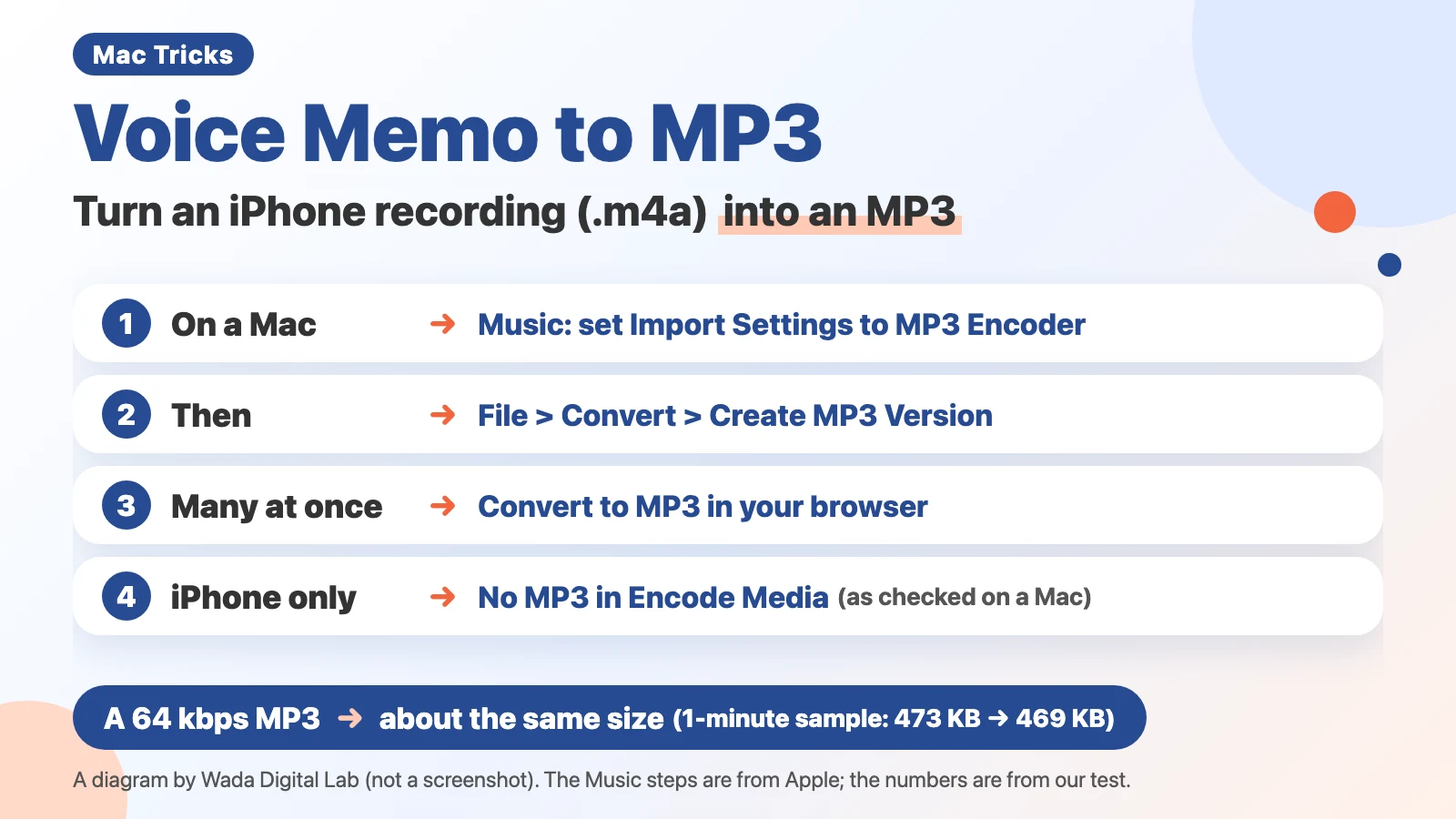
Ways to convert a voice memo to MP3, by the device you use
Converting a voice memo to MP3 means making a new file from the .m4a recording in a different audio format called MP3. MP3 is an older format that plays on many devices and apps. Your original .m4a recording stays as it is.
| Device | How | Where |
|---|---|---|
| Mac | Set Import Settings to MP3 Encoder, then choose Create MP3 Version | Music on a Mac |
| A browser on a Mac or another computer | Choose a quality, then add the recordings (many at once) | Your browser (our Convert to MP3) |
| iPhone only | Encode Media in Shortcuts had no MP3 (as checked on a Mac). Use the browser page (we haven’t tried this) | A browser on iPhone |
Why convert to MP3: someone may ask for an MP3
An .m4a file plays fine on an iPhone or a Mac. People still convert to MP3 because the person or app they send it to sometimes asks for “MP3.”
We have also been asked to “send it as an MP3” and converted a recording to send it. Back then, we downloaded free converter software. Finding one that worked was hard, though. Some became paid partway through, some couldn’t read certain file types, and some could read a file but not export it.
First, make the recording a file: Save to Files on iPhone, drag on a Mac
Before you convert, turn the Voice Memos recording into a file. On iPhone, export it as in Apple’s “Export a Voice Memos recording to Files on iPhone”:
- In Voice Memos, tap the recording you want to export
- Tap the More button, then tap the Share button (when iPhone Duo is open in landscape, tap the Share button on the outer edge instead)
- Scroll down and tap Save to Files
- Go to the place where you want to save it, then tap Save
Apple says, “By default, recordings are exported in .m4a format”.
On a Mac, select the recording in Voice Memos and drag it to a Finder window to save it to that folder (Apple’s “Share a recording on Mac”). If Voice Memos is turned on in your iCloud settings, recordings you make on iPhone also appear in Voice Memos on your Mac. Apple’s “Make a recording in Voice Memos on iPhone” says your recordings “appear and update automatically on your iPhone, iPad, and Mac where you’re signed in to the same Apple Account.” We haven’t tried this syncing or dragging on screen.
Convert to MP3 in Music on a Mac: set Import Settings to MP3 Encoder first
The Music app that comes with your Mac can turn an .m4a into an MP3. We split the steps from Apple’s “Convert an M4A file to MP3 on Mac” into one action per line. There are 7 steps:
- In the menu bar of Music, choose Music > Settings
- Click the Files tab, then click Import Settings
- Choose MP3 Encoder from the Import Using pop-up menu, then click OK
- If the .m4a file isn’t in your library, drag it from the Finder into Music
- Select the file you want to convert (if you can’t find it, click Recently Added in the sidebar)
- Choose File > Convert > Create MP3 Version
- Select the new file, then choose File > Show in Finder
Apple says, “The new MP3 file appears in your library next to the original M4A file.” Your recording goes into the Music library (the list of songs you’ve imported) just like a song.
Among the top results on Google were questions about Create MP3 Version being dimmed or missing from the menu. In the screen-text files inside macOS on our Mac (macOS 27.0.1), this menu item is written as “Create %S Version,” with a part that changes. Create MP3 Version depends on step 3: without this setting, it doesn’t appear in the menu. If it doesn’t appear, first check that Import Using in step 3 is set to MP3 Encoder. We haven’t tried converting in Music on screen.
The same Apple page also explains another way: choose MP3 in Export Song to Disk in GarageBand.
Convert many at once in your browser: choose a quality in Convert to MP3
When you don’t want recordings in your library, or you want to convert many at once, our browser page Convert to MP3 is the quick way. It takes audio (.m4a, .wav, .aac, .flac, .ogg) and the audio of videos (.mp4, .mov, .webm). It’s free for as many files as you like, as often as you like, with no sign-up. It also takes Apple Lossless .m4a files (see the FAQ below).
- Under Quality, choose 64 kbps, 128 kbps, 192 kbps or 320 kbps (the tool page suggests 64 kbps for voice)
- If you don’t need separate left and right sound, choose “Make it mono” under Channels
- Click Choose Files, or drag recordings into the box on the page (you can add many at once)
- When “Converting to MP3…” finishes, click Save next to the file
kbps is the amount of sound data per second. A bigger number means better sound and a bigger file. “Mono” means mixing the left and right sound into one. We didn’t compare the sound by listening.
Choose the quality before you add files. The MP3 has the same name as the original file, ending in “.mp3.” Your original files don’t change. Each file can be up to 2 hours long (1 hour on iPhone and iPad).
We added a 1-minute .m4a (473 KB, 484,500 bytes) to this page. Here are the results:
- 64 kbps: “1:00, 64 kbps, 469 KB (mono)” (the saved file was 480,653 bytes)
- 128 kbps: “1:00, 128 kbps, 939 KB (mono)” (961,306 bytes)
- 192 kbps: “1:00, 192 kbps, 1.4 MB (mono)” (1,441,959 bytes)
The text in quotes is what the page showed. Each file took less than 3 seconds. Our sample .m4a was a 1-minute speech sample made with the Mac’s text-to-speech and saved as AAC at about 62 kbps (one of the formats an .m4a can hold). It was not recorded in Voice Memos.
Converting on iPhone only: Encode Media had no MP3, as checked on a Mac
One of the top articles said you can make an MP3 with the Shortcuts app on iPhone. In the screen-text files for Shortcuts on our Mac (macOS 27.0.1), the files that hold the names shown on screen, Encode Media, the action that changes the format of audio or video, offers only M4A and AIFF for audio, with no MP3. We haven’t checked on an iPhone screen whether Shortcuts on iPhone is the same.
We have never made an MP3 on an iPhone alone either, because we didn’t know how. If you want to do it on iPhone, one way is to open Convert to MP3 in the iPhone browser and choose the .m4a you saved to Files. We haven’t tried this in an iPhone browser.
Summary: Music on a Mac, your browser for many files, and no MP3 in Encode Media
To convert with just your Mac, set Import Settings to MP3 Encoder in Music, then choose Create MP3 Version. The MP3 goes into your library.
To convert many at once, choose a quality in Convert to MP3 in your browser, then add the files. You can choose a quality from 64 kbps to 320 kbps. You can save MP3s without putting recordings in your library.
As for Encode Media in Shortcuts, as far as we checked on a Mac, it offers only M4A and AIFF for audio. MP3 wasn’t an option (we haven’t checked on an iPhone screen). If you want to convert on iPhone only, one way is to open Convert to MP3 in the iPhone browser.
The diagram below sums up this flow.
To convert with just your Mac
Set Import Settings to MP3 Encoder in Music, then choose Create MP3 Version Without this setting, it doesn’t appear in the menu
The MP3 goes into your library
Many at once
To convert many at once
Choose a quality in Convert to MP3 in your browser, then add the files You can choose a quality from 64 kbps to 320 kbps
You can save MP3s without putting recordings in your library
iPhone only
If you want to convert on iPhone only
Encode Media in Shortcuts As far as we checked on a Mac, it offers only M4A and AIFF for audio
MP3 wasn’t an option (we haven’t checked on an iPhone screen)
Frequently asked questions
Will converting to MP3 make the file smaller?
Not necessarily. In our sample, a 1-minute .m4a (473 KB) came to 469 KB as a 64 kbps MP3 and 939 KB as a 128 kbps MP3. At 64 kbps, the size barely changed. Convert to MP3 when the person or app asks for MP3.
My recording is too big to email.
We have also had recordings too big to email, and it was a real problem. Mail on a Mac has Mail Drop, which puts large attachments in iCloud to send them. See the Mail Drop section of How to Reduce Photo Size on a Mac. We haven’t sent a recording with Mail Drop.
Create MP3 Version is dimmed.
In Music, choose Settings > Files > Import Settings and check that Import Using is set to MP3 Encoder. Apple’s steps also set this before converting.
Can I convert a recording made with Lossless quality?
Voice Memos settings on a Mac have Audio Quality. Apple says, “Choose either Compressed (for lower-quality, smaller files) or Lossless (for high-quality, larger files).” In the screen text inside macOS on our Mac (macOS 27.0.1), the two names were Lossy and Lossless. When we made a 1-minute Apple Lossless .m4a (2.4 MB) and added it to Convert to MP3, it became an MP3 both in the in-app browser (Chromium 152) and in a test window that runs on the same engine as Safari (938 KB at 128 kbps). We haven’t tried the Safari app itself, or a recording made in Voice Memos. If a file can’t be read, convert it in Music on a Mac.
I only want the audio from a video as an MP3.
Add an iPhone .mov or an .mp4 video to Convert to MP3, and it turns only the audio into an MP3. To record sound along with a Mac screen recording, see How to record audio with a Mac screen recording.
Does it work on a Windows PC?
Convert to MP3 is a page you open in a browser. We haven’t tried it on a Windows PC, though.
I’m also having trouble with iPhone photo formats.
iPhone photos are sometimes saved in a format called HEIC. To turn them into JPG, see How to Convert iPhone Photos to JPG. If photos are too big to email, see How to Reduce Photo Size on a Mac.
What we tested on, and Apple’s pages
We wrote the steps in this article from Apple’s pages (read on October 28, 2026). We tested our browser page Convert to MP3 on this Mac:
- Model: MacBook Air (M4)
- macOS: macOS 27.0.1
- Date tested: October 28, 2026
Our sample recordings were speech made with the Mac’s text-to-speech (say), cut to 1 minute and saved with the Mac’s afconvert as an AAC .m4a (mono, 48 kHz) and an Apple Lossless .m4a. They were not recorded in Voice Memos. We opened Convert to MP3 locally in the in-app browser (Chromium 152) and measured the bytes of the saved files. We also converted the Apple Lossless .m4a in a test window that runs on the same engine as Safari (WebKit). We didn’t try on screen: exporting from Voice Memos on iPhone, dragging and syncing in Voice Memos on a Mac, converting in Music or GarageBand, a browser on iPhone or Windows, or Safari. The names Import Settings, MP3 Encoder and Create MP3 Version come from Apple’s US page and the screen-text files inside macOS on the same Mac. Lossy and Encode Media come only from those screen-text files (the English strings in them). We didn’t open the windows to see them.
Before writing, we searched Google for “how to convert voice memo to mp3” and read top results (October 28, 2026). One Apple Community thread said Create MP3 Version only appeared after changing a setting. We didn’t find any that gave numbers for how the file size changes after converting to MP3.
The steps come from these pages:
- Convert an M4A file to MP3 on Mac (Apple Support)
- Export a Voice Memos recording to Files on iPhone (iPhone User Guide)
- Make a recording in Voice Memos on iPhone (iPhone User Guide)
- Share a recording on Mac (Voice Memos User Guide, for macOS Tahoe 26)
- Change settings in Voice Memos on Mac (Voice Memos User Guide, for macOS Tahoe 26)