Hidden Bar Review (Mac) — On macOS 27, Get the Latest from GitHub. Hiding Works, Even on a Full Menu Bar
Published November 23, 2026
Official documentation reviewed November 23, 2026 (some steps not tested)
By Wada Digital Lab
Hidden Bar is a Mac app that hides menu bar icons behind an arrow. To use it on macOS 27, install the newest version from GitHub (1.13.4 as of November 23, 2026). The Mac App Store also has a copy, 1.13.1, but its developer says it can’t hide icons on macOS 27. We tried 1.13.3 and 1.13.4 on our recording Mac (macOS 27.2.1) on November 23, 2026. With both, hiding and showing icons worked, even with a menu bar full of icons. This article covers how to install it, how to use it, and what happened when we tried each setting.
Key points
- On macOS 27, get the newest version from the Releases page on GitHub. The developer’s README says: “The App Store build is sandboxed and cannot hide icons on macOS 27.” We did not test the App Store copy.
- In 1.13.3 and 1.13.4, these worked: hiding and showing with the arrow, Command-dragging icons, the keyboard shortcut, “Hide icons again” (hides them again after a set time), and “Find a hidden icon.”
- On the same Mac on November 19, version 1.13.1 hid nothing at all. The developer says 1.13.2 fixed this. If Hidden Bar hides nothing, update it first.
- Of the “Also show hidden icons when you” options we could try, only “Shake the pointer at the top of the screen” worked for us (we could not test “Scroll down on the menu bar”).
- Hidden Bar costs nothing, and its source code is on GitHub. The README lists macOS 13 Ventura and newer.
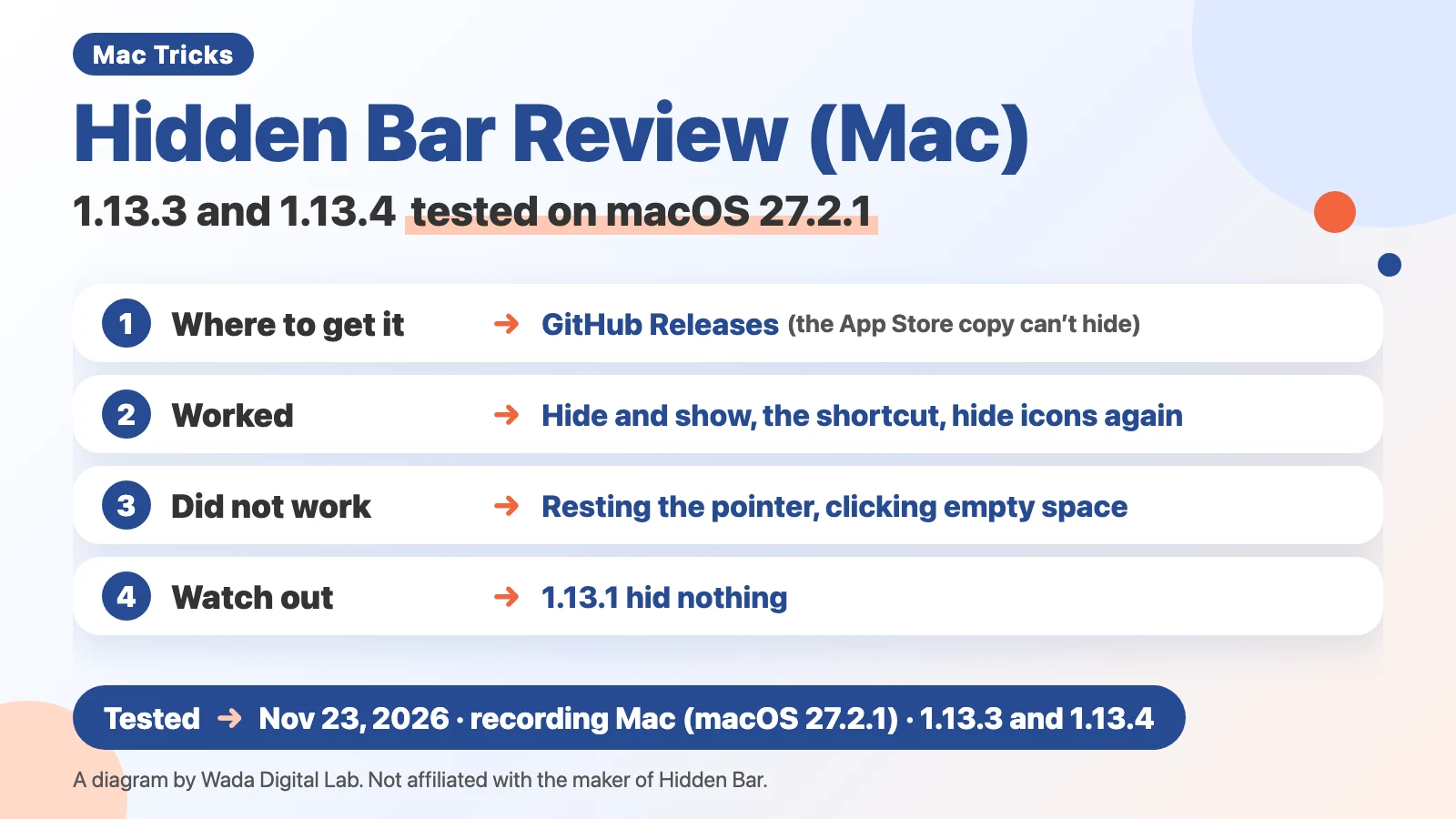
The diagram below sums up what we found in four lines.
Who Hidden Bar is for
Hidden Bar is a Mac app that puts one arrow (‹ and ›) in the menu bar and hides the icons to its left. Click the arrow, and the hidden icons come back into the menu bar. It is now made by Console Labs (it used to be made by Dwarves Foundation), and its source code is on GitHub.
| Good fit | Not a good fit |
|---|---|
| You want fewer menu bar icons without paying | You want to install from the App Store (that copy can’t hide icons on macOS 27) |
| You like a simple setup: one arrow to hide and show | You want hidden icons laid out outside the menu bar |
| You don’t want to give an app the Screen Recording permission | You want icons to appear just by resting the pointer on the menu bar (that option did not work on our Mac) |
How to install it: the newest version from GitHub. The App Store copy can’t hide on macOS 27
The developer’s README says Hidden Bar is only published in three places: the GitHub Releases page, the Homebrew cask, and the Mac App Store. But for the App Store copy it says: “The App Store build is sandboxed and cannot hide icons on macOS 27.” App Store apps run in a sandbox that limits what they can touch, so that copy can’t hide icons on macOS 27.
On November 23, 2026, the App Store had 1.13.1 (updated November 21), and GitHub had 1.13.4 (released November 22, US time). We did not test the App Store copy. On macOS 27, install from GitHub, as the developer says.
- Open the Hidden Bar Releases page on GitHub and download the zip at the top (the newest). On November 23, 2026, it was “Hidden-Bar-v1.13.4-macos.zip.”
- Open the zip and move Hidden Bar into the Applications folder. (The 1.13.0 release notes say Hidden Bar hides nothing until you move it to the Applications folder. When we opened 1.13.4 from another folder, it asked, “Move Hidden Bar to the Applications folder?”)
- Open Hidden Bar. Its settings window opens, and the arrow appears in the menu bar.
If you use Homebrew, the README also gives “brew install --cask hiddenbar” (we did not test Homebrew). If you have the App Store copy, the developer says to quit it and move it to the Trash first. The new copy offers to bring your settings over the first time you open it.
When you search for Hidden Bar, a site called hiddenbar.app shows up near the top. The README says: “Any other site offering Hidden Bar (for example hiddenbar.app) is not run by Console Labs.”
The developer says hiding on macOS 27 needs the Accessibility permission. It is a switch under System Settings > Privacy & Security. Our Mac still had the permission from an earlier test, so no permission prompt appeared, and the settings window said “Accessibility Allowed.” Hidden Bar did not ask for the Screen Recording permission.
How to use it: click the arrow to hide and show, and Command-drag icons you want hidden
Icons to the left of the arrow are the ones that get hidden. When the arrow shows “‹”, icons are hidden. Click it, and it turns into “›” and the hidden icons come out. Click it again to hide them. To hide another icon, hold Command and drag it to the left of the arrow. The developer’s manual says hiding is per app: an app with several icons hides or shows them together.
The screenshot below shows the right side of the menu bar. The top strip is with icons hidden, and the bottom strip is after clicking the arrow to show them.

In our test, we held Command and dragged the Siri icon from the right of the arrow to its left. The next time we hid icons, Siri was hidden with the rest. While icons were hidden, Battery and Wi-Fi stayed in view. In the 1.11.1 release notes, the developer says the clock, Wi-Fi, Sound and Control Center never hide.
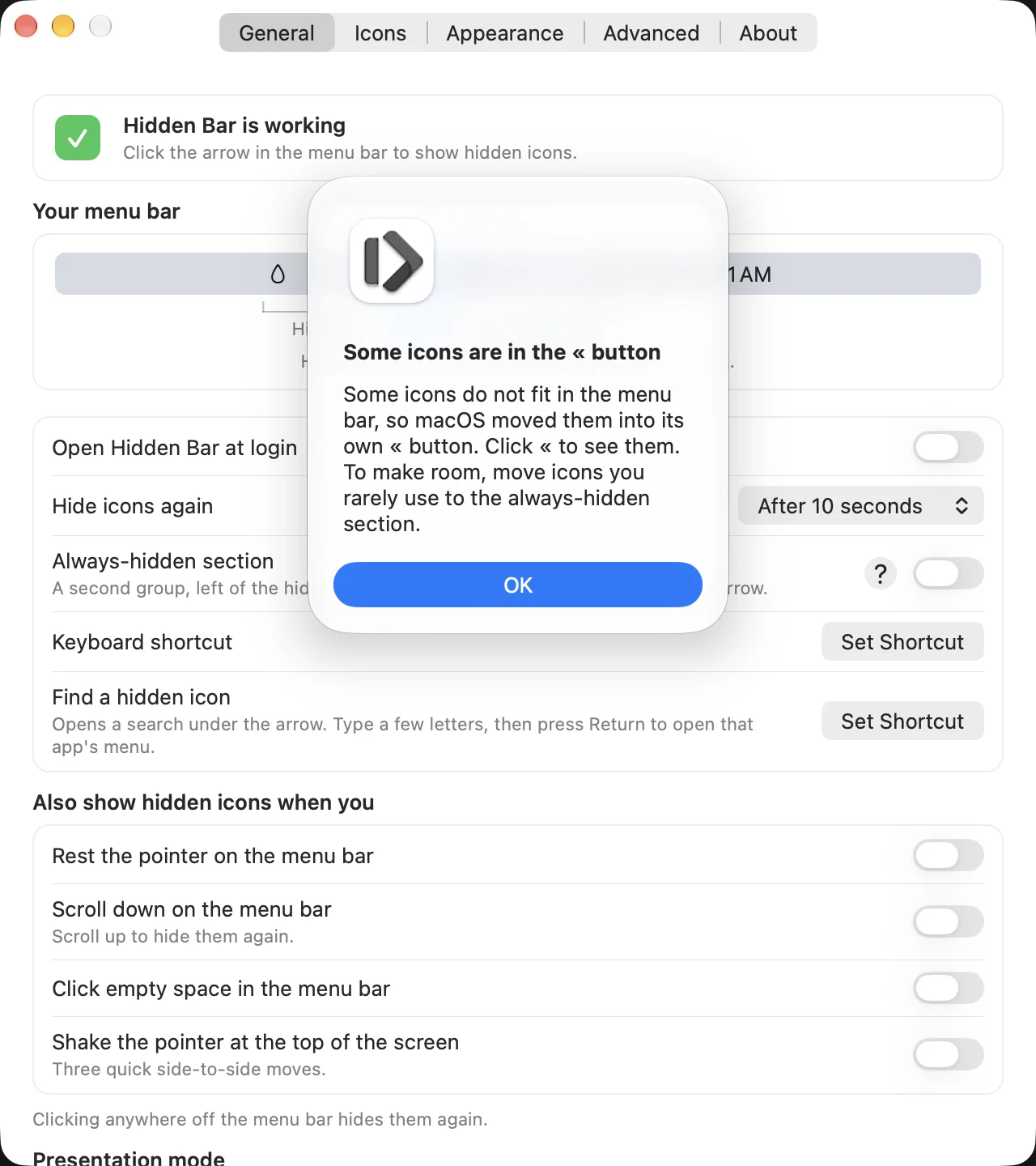
Our recording Mac is a MacBook Air with a notch (the cutout at the top center of the screen), and its menu bar was full of icons. When we showed the hidden icons, the ones that did not fit went into macOS’s own « button. Click « to see them. The first time this happened, Hidden Bar showed a one-time notice, shown below.
Right-click the arrow to get a menu: Preferences…, Disable Auto Collapse, Start Presentation Mode, Check for Updates…, and Quit. Once you set a shortcut for “Find a hidden icon,” it is added at the top of this menu.
The settings: what happened when we tried them
The settings window has five tabs: General, Icons, Appearance, Advanced and About. The screenshot below is the General tab. “Your menu bar” at the top draws which icons are on the hidden side.
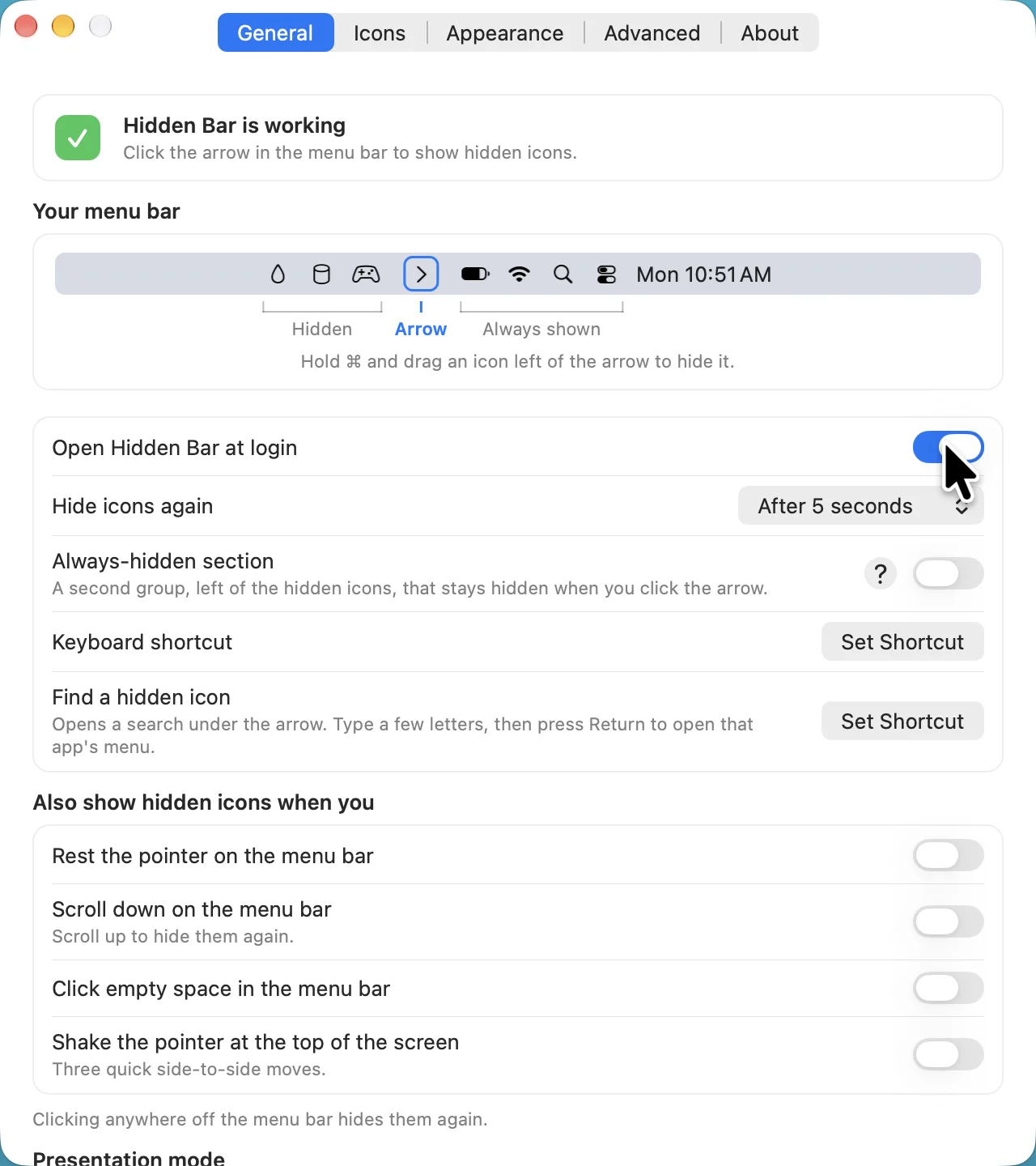
In short, almost every setting for hiding and showing worked. The ones that did not were showing icons by resting the pointer and by clicking empty space. The table below shows each setting.
| Option | What it does | What happened |
|---|---|---|
| Open Hidden Bar at login | Starts Hidden Bar when you log in | Turning it on showed a macOS Login Items notification (we did not log out and back in to test it) |
| Hide icons again | Hides the icons again after a set time (5, 10, 15 or 30 seconds, or 1 minute; or Never) | Worked (set to 5 seconds, the icons hid again about 7 seconds after we showed them). The default is 10 seconds |
| Keyboard shortcut | Hides and shows icons with keys | Worked (we set Control-Option-H, and pressing it showed the icons) |
| Find a hidden icon | Opens a search under the arrow to find a hidden icon by app name | Worked (Control-Option-F opened a list of hidden apps; typing “pas” narrowed it to Paste and 1Password) |
| Always-hidden section | Adds a second group, left of the hidden icons, that stays hidden when you click the arrow | Option-clicking the arrow showed icons, but we did not see the translucent bar, and we did not get as far as moving an icon into this group |
| Shake the pointer at the top of the screen | Shows icons when you move the pointer quickly side to side three times at the top | Worked |
| Rest the pointer on the menu bar | Shows icons when the pointer rests on the menu bar | Nothing happened (we rested it on empty space for 3 and 6 seconds) |
| Click empty space in the menu bar | Shows icons when you click an empty spot | Nothing happened |
| Scroll down on the menu bar | Shows icons when you scroll down over the menu bar | Not tested (the input method we use for recording could not scroll over the menu bar) |
The Icons tab lists the apps that have menu bar icons, and you can set each one to Visible or Hidden. We did not test Presentation mode (it changes what is hidden while you show your screen to others) or “Pinned sections (beta)” in the Advanced tab.
Version 1.13.4 added “App language” at the very bottom of the General tab. It lets you show Hidden Bar in another language without changing your Mac’s language. When we chose another language, Hidden Bar asked to restart, and “Restart Now” reopened it in that language in about 2 seconds.

The second time we opened Hidden Bar, it asked whether to check for updates automatically. New versions come out every few days, so letting it check is a good idea.
Watch out: an older version hid nothing
We tried four versions of Hidden Bar on the same recording Mac. The results changed a lot from version to version.
| Date | Version | Hiding and showing |
|---|---|---|
| November 16, 2026 | 1.11.2 | Worked, but showing the icons pushed the arrow itself behind the « |
| November 19, 2026 | 1.13.1 | Nothing hid. The settings window still said “Hidden Bar is working,” with no error |
| November 23, 2026 | 1.13.3 | Worked. The arrow stayed in view while the icons were shown |
| November 23, 2026 | 1.13.4 | Worked, the same as 1.13.3 |
The diagram below puts the results of 1.13.1 and of 1.13.3 and 1.13.4 side by side, on the same menu bar.
1.13.1
Menu bar Full from the start
Arrow
Nothing hid
After updating
1.13.3 and 1.13.4
Menu bar Full from the start
Arrow
Hiding and showing worked
Both times, the menu bar was full from the start. With 1.13.1, nothing hid. After updating to 1.13.3 and 1.13.4, hiding and showing worked.
The developer’s notes for 1.13.2 say: “icons can hide even when Hidden Bar starts with an already overflowing menu bar.” Our menu bar was already overflowing, so 1.13.1 most likely hit this case.
The notes for 1.13.3 add that when clicking the arrow hides nothing, a short note under the arrow now says why and what to do (for example, it is running outside Applications, or Accessibility is missing). Every click hid icons on our Mac, so we did not see this note. If nothing hides for you, update to the newest version and read that note.
Pros and cons
Pros: costs nothing, and works on a full menu bar
- It costs nothing, and its source code is on GitHub.
- It hid and showed icons without asking for the Screen Recording permission.
- One arrow hid and showed icons even on a full menu bar on a MacBook with a notch.
- “Find a hidden icon” lets you search for a hidden icon by app name.
Cons: results change between versions, and some options did not work
- New versions come out every few days, and 1.13.1 hid nothing. You need to keep it up to date.
- “Rest the pointer on the menu bar” and “Click empty space in the menu bar” did not work on our Mac.
- The App Store copy can’t hide icons on macOS 27, so you have to install from GitHub.
Compared with other menu bar managers
We tried seven apps, including Hidden Bar, on the same Mac and wrote them up in our comparison of menu bar managers on macOS 27 (that article tested Hidden Bar 1.11.1). Some apps, like Hidden Bar, bring hidden icons back into the menu bar. Others lay them out just below the menu bar.
If hidden icons appear below the menu bar, they never end up behind the « button. We (Wada Digital Lab) make an app that works that way, Katazuke. It is made for macOS 27 and does not work on macOS 26 or older or on Intel-based Macs. See the Katazuke for Mac page.
FAQ
Does Hidden Bar work on macOS 27?
In our tests (macOS 27.2.1, Hidden Bar 1.13.3 and 1.13.4), hiding and showing icons worked. Install the newest version from the GitHub Releases page. The developer says the App Store copy can’t hide icons on macOS 27.
Is the App Store Hidden Bar different from the GitHub one?
The developer says the App Store copy runs in a sandbox, so it can’t hide icons on macOS 27. On November 23, 2026, the App Store had 1.13.1 and GitHub had 1.13.4. If you have the App Store copy, quit it and move it to the Trash before installing the GitHub one.
Hidden Bar is not hiding anything. What should I check?
First, update to the newest version (on our Mac, 1.13.1 hid nothing, and 1.13.3 and 1.13.4 worked). The developer says hiding also fails without the Accessibility permission, or when the app runs from outside the Applications folder. From 1.13.3, a note under the arrow tells you why nothing hid.
Does Hidden Bar cost anything?
No. The developer publishes the source code on GitHub under the MIT license.
Where we tested, and sources
We ran these tests and took the screenshots on November 23, 2026, on a separate user account set up for recording (MacBook Air (M2) with a notch, macOS 27.2.1, English screen). We installed the Hidden Bar 1.13.3 (24) zip from the GitHub Releases page and started from empty settings. Later the same day, we tested 1.13.4 (25) from empty settings too: hiding and showing, Command-dragging, the keyboard shortcut, Hide icons again, Find a hidden icon and App language. The other settings in the table were tested in 1.13.3. The screenshots are cropped to the menu bar and the windows. After the test, we set the changed settings back and moved Hidden Bar to the Trash. We did not test the App Store copy, the Homebrew install, or other Macs.
- Mac: MacBook Air (M2)
- macOS: macOS 27.2.1 (26B131, English)
- Hidden Bar: 1.13.3 (24) and 1.13.4 (25). For comparison, we also tried 1.11.2 (November 16) and 1.13.1 (November 19) on the same Mac
- Tested on: November 23, 2026
Before writing, we searched US Google for “hidden bar mac” (November 16, 2026). The top results were the App Store page, the GitHub page, a Reddit thread comparing it with Ice, and download sites. We read the App Store page, the GitHub page and hiddenbar.app. We could not open the Reddit thread or two blog posts in the results. None of the pages we read showed a test on macOS 27. This article adds what we found with the newest version on macOS 27 and where to get it.
We checked the App Store version number and update date on November 23, 2026, using the App Store’s own listing data. We read the developer’s pages below on the same day.
- Hidden Bar (GitHub, README)
- Hidden Bar Releases page (release notes for 1.13.4, 1.13.3 and earlier)
- Hidden Bar manual (GitHub)
- Hidden Bar (Mac App Store)
Apple’s page on menu bar settings is below.
- Change Menu Bar settings on Mac (Mac User Guide)
We have no ties to Console Labs, the maker of Hidden Bar, and received nothing from them.