Mac Menu Bar Icons Not Showing or Disappeared? What to Check — When the Bar Is Full, and Allow in the Menu Bar
Published November 11, 2026 (updated November 13, 2026)
Official documentation reviewed November 11, 2026 (some steps not tested)
By Wada Digital Lab
When a Mac menu bar icon is not showing or has disappeared, check four places. First, is it tucked behind a “«” mark because the menu bar is full? If so, click the “«” to show it. Second, is the app turned off under Allow in the Menu Bar in System Settings > Menu Bar? Third, for macOS icons such as Wi-Fi and Battery, is the checkbox on the same Menu Bar screen selected? Fourth, is the app actually running? This article covers the order to check things in, and how to fix each one, with the real macOS 27 screens.
Key points
- Menu bar is full: in macOS 27, icons that don’t fit are tucked behind a “«” mark and can’t be seen (we confirmed this on a MacBook Air). Click the “«” and they appear on the left. With fewer icons, they line up again.
- Turned off: if the app’s switch is off under Allow in the Menu Bar in System Settings > Menu Bar, its icon never appears. We once switched one off ourselves and forgot.
- macOS icons: Wi-Fi, Bluetooth, Battery, and the rest come back when you select their checkbox under Menu Bar Controls on the same screen. Items set to Show When Active appear only while in use; choose Always Show to keep them.
- App not running: opening the app again may bring the icon back.
- If an app’s own menus (on the left) are hidden by the camera area, use “Scale to fit below built-in camera,” as Apple describes.
The diagram below shows the order to check things in.
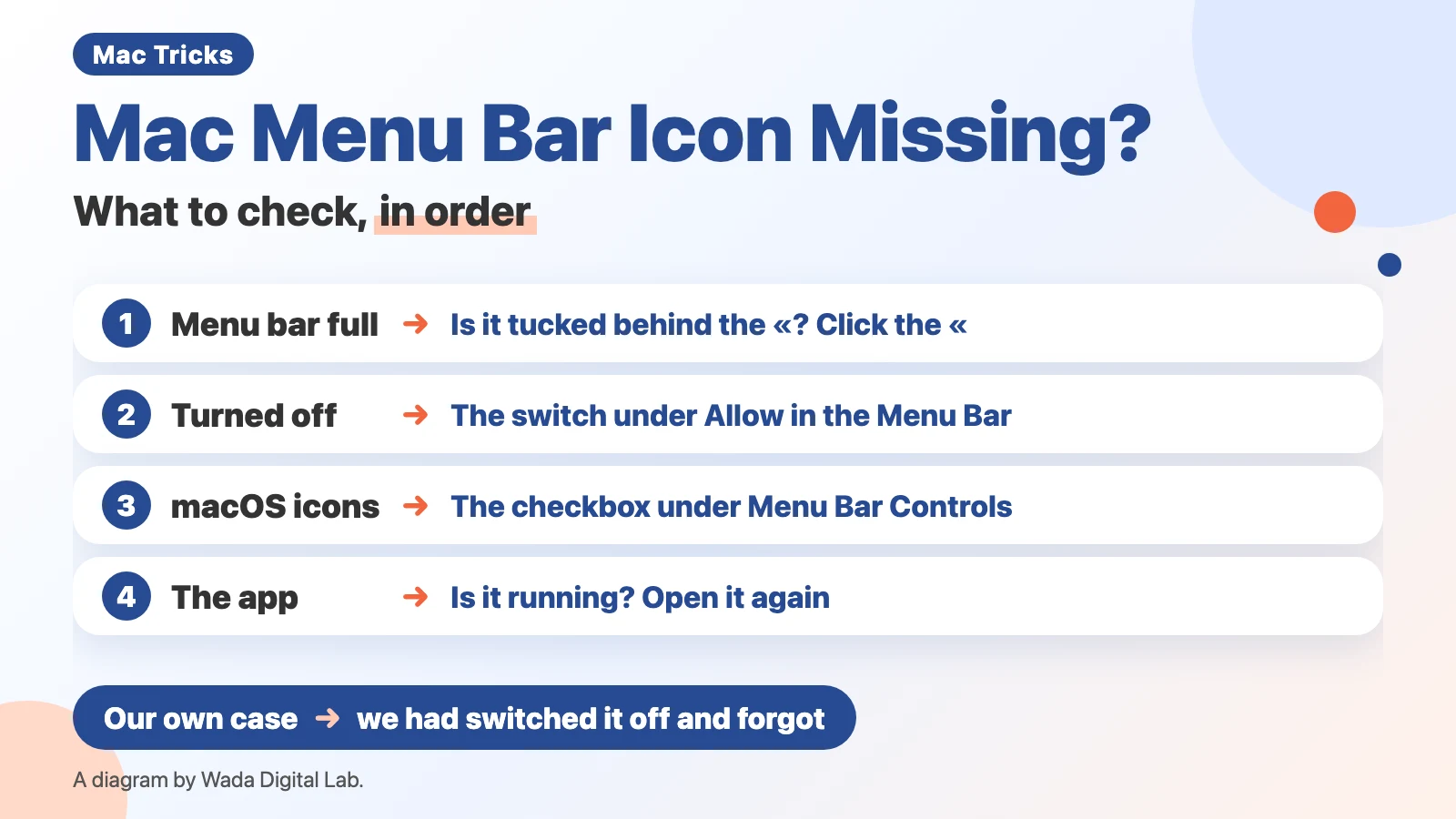
Four common causes. Start by noticing how the icon is missing
Menu bar icons are the small symbols along the right side of the bar at the top of the screen. Apple calls them status menus. When one is missing, the cause is usually one of these four.
| What you see | Cause | Fix |
|---|---|---|
| Lots of icons, and a “«” to the left of the icons on the right | They didn’t fit and went behind the “«” | Click the “«”. To see them all the time, remove icons you don’t use |
| One app’s icon never shows up | The app is off under Allow in the Menu Bar | Turn the app’s switch on |
| Wi-Fi, Battery, or another macOS icon is gone | Its checkbox under Menu Bar Controls is cleared | Select the checkbox (if it says Show When Active, choose Always Show) |
| You installed the app, but no icon | The app isn’t running | Open the app again |
Menu bar is full: look for icons behind the “«”
With many icons, they don’t all fit in the menu bar. We confirmed how macOS 27 handles this while building our own menu bar app. On the built-in screen of a MacBook Air, icons that didn’t fit to the right of the notch (the black camera area at the top center of the screen) were tucked behind a “«” mark that appears just to the left of the icons on the right, and could no longer be seen. No icons went behind the notch. When we quit apps we weren’t using, space opened up, the “«” went away, and the tucked-away icons lined up again.
Click the “«” and the tucked-away icons appear on the left side of the menu bar, where the current app’s menus (File, Edit, and so on) usually are. Those menus are pushed out of view from the right to make room. On our recording Mac (MacBook Air (M2), macOS 27.2) with the display resolution set to show larger text (1280 × 828), Finder’s Window and Help menus disappeared and six icons took their place. The “«” turned into “»”, and clicking “»” put everything back. With the display set to show even larger text (1024 × 663), nine icons were tucked away, and clicking the “«” hid every menu except Finder. At both settings, no icon disappeared behind the notch. We did not check whether clicking an icon that appeared this way opens its menu.
The owner of this site doesn’t run into this on a large external display. On a MacBook Air at a café, though, the screen was too narrow and the icons we wanted could not be seen. About 20 icons were lined up at the time.
The diagram below shows how to tell them apart: the two main causes. Menu bar full (behind the “«”) happens when there are many icons and the menu bar is too narrow. With fewer icons, they line up again. Turned off (System Settings) means the icon never shows, however many icons you have. Turn the switch on and it appears.
Menu bar full (behind the “«”)
Many icons and the menu bar is too narrow Common on the built-in screen of a MacBook Air
Fix
With fewer icons, they line up again
How to tell them apart
Turned off (System Settings)
The icon never shows, however many icons you have The switch under Allow in the Menu Bar
Fix
Turn the switch on and it appears
To see every icon all the time without clicking the “«”, remove icons you don’t use. How to remove them, and bring them back later, is in How to Hide, Remove, and Rearrange Menu Bar Icons on Mac.
Turned off: check the switch under Allow in the Menu Bar
If one app’s icon never appears, check this setting.
- Choose Apple menu > System Settings
- Click Menu Bar in the sidebar
- Scroll down to the Allow in the Menu Bar list
- Find the app; if its switch is off, turn it on
The picture below shows the list from step 3.
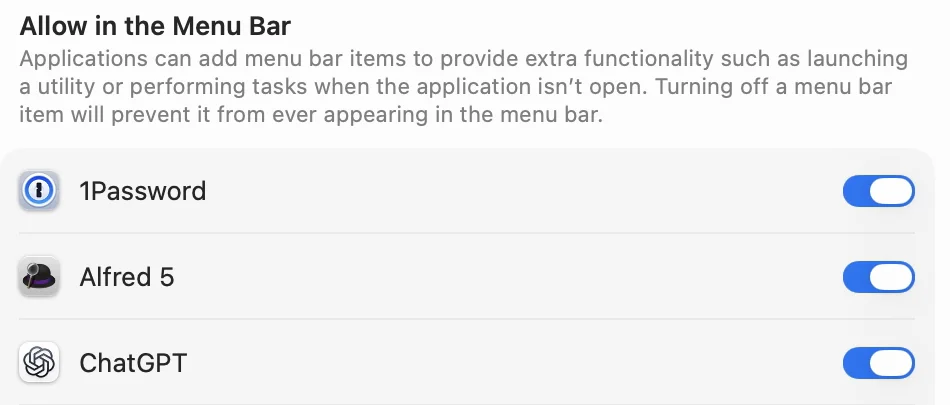
The description on that screen reads:
“Turning off a menu bar item will prevent it from ever appearing in the menu bar.”
The description in System Settings > Menu Bar, macOS 27
This caught us out too. In November 2026, the icon for a security app (Microsoft Defender) would not appear on our Mac. We suspected a bug in our own menu bar app and went looking. The real cause was that the site owner had switched it off here some time earlier. Turning it on made the icon appear right away. You usually don’t remember switching something off, so check here first when an icon is missing.
macOS icons: select the checkbox under Menu Bar Controls
If Wi-Fi, Bluetooth, Battery, Sound, or another macOS icon has gone, look near the top of the same Menu Bar screen. Apple’s “Get to know your desktop, menu bar, and Dock” says to go to System Settings, “click Menu Bar in the sidebar, then select the checkbox next to the controls you want to appear.”
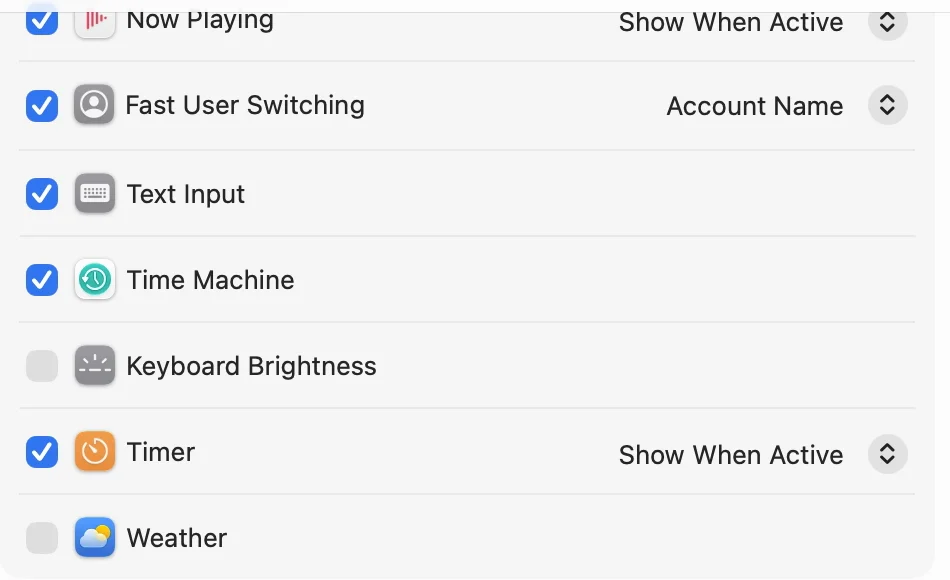
If the pop-up menu on the right (click it and a list of choices appears) says Show When Active, the icon shows only while that feature is in use. Apple’s “Change Menu Bar settings on Mac” puts it as “Only show the status icon in the menu bar when the item is active.” Choose Always Show to keep it in the menu bar. The clock, Apple says, is always shown. Holding down Command and dragging an icon off the menu bar removes it (Apple’s “Quickly change settings with Control Center on Mac” says: “To remove a menu bar icon, hold Command and drag it off the bar.”). If you removed one by accident, select its checkbox here to bring it back.
App not running: open it again
Most menu bar icons appear only while their app is running. While building our menu bar app, we also confirmed that quitting an app removes its icon. If an icon is missing, open the app again from the Applications folder. To have it there every time, look in the app’s settings for an option such as “Open at login” (the name differs from app to app).
If you use an app that hides menu bar icons (ours, or a similar app from another company), it may simply have tucked the icon away. Click that app’s icon, or try quitting it. When you quit Katazuke, all the icons it tucked away come back to the menu bar.
When an app’s menus are hidden by the camera area
Sometimes an app’s own menus on the left side of the menu bar, such as File and Edit, are hidden by the camera area. For this case Apple provides a setting called “Scale to fit below built-in camera.” Apple says it applies to a MacBook Air with Liquid Retina display and a MacBook Pro with Liquid Retina XDR display (the Macs with a camera area at the top of the screen). We split Apple’s steps into one action per line. There are 4 steps.
- Quit the app
- Click the Finder icon in the Dock, then click Applications in the Finder sidebar
- Select the app, then choose File > Get Info (or press Command-I)
- In the Info window that opens, select “Scale to fit below built-in camera”
Apple’s page says:
“This ensures the menu bar and app windows appear below the built-in camera on your Mac and are always visible.”
Apple’s “How to adjust an app’s settings to appear below the camera area on your MacBook Air or MacBook Pro”
The same page also says that if you turn the setting on for an app that has menu bar items or windows that would appear behind the camera housing, all open apps or apps that share the same space (the same desktop, in Mission Control) appear below the camera until you quit that app. It also says that once an app has been updated to work with this area of the screen, the setting no longer appears. We have not tested this setting on screen, and we have not checked whether it brings back other apps’ icons on the right. If icons on the right are missing, check the “«” and the Allow in the Menu Bar switch first.
An easier way: our free app Katazuke
If you have so many icons that some always end up behind the “«”, another option is an app that tidies up the menu bar. We (Wada Digital Lab) make a free one called Katazuke. There is no account, no ads, and no in-app purchases.
The comic below shows Misaki, whose icons seem to have vanished on her MacBook Air, tucking away the icons she doesn’t use with Katazuke.
Swipe sideways to see the next panel.




- It tucks the icons you don’t use into the broom-shaped icon. Click the broom to show them. To sort an icon, hold Command and drag it: drop it to the right of the broom to keep it always visible (“Shown”), or to the left to tuck it away (“Hidden”).
- Turn on “Show in a Second Row” under “Showing Icons” in the General tab of Settings, and the tucked-away icons appear in a row just below the menu bar. This helps when the menu bar is so full that the icons still wouldn’t fit.
- Turn on “Show overflow icons in a second row”, and apps you keep always visible (“Shown”) that don’t fit and end up behind the “«” can also be used from the second row. It works only when “Show in a Second Row” is on.
- When you quit Katazuke, all the icons it tucked away come back to the menu bar.
The picture below is what you see after turning on “Show in a Second Row” and clicking the broom.

Both settings are under Showing Icons in the General tab of Katazuke Settings.
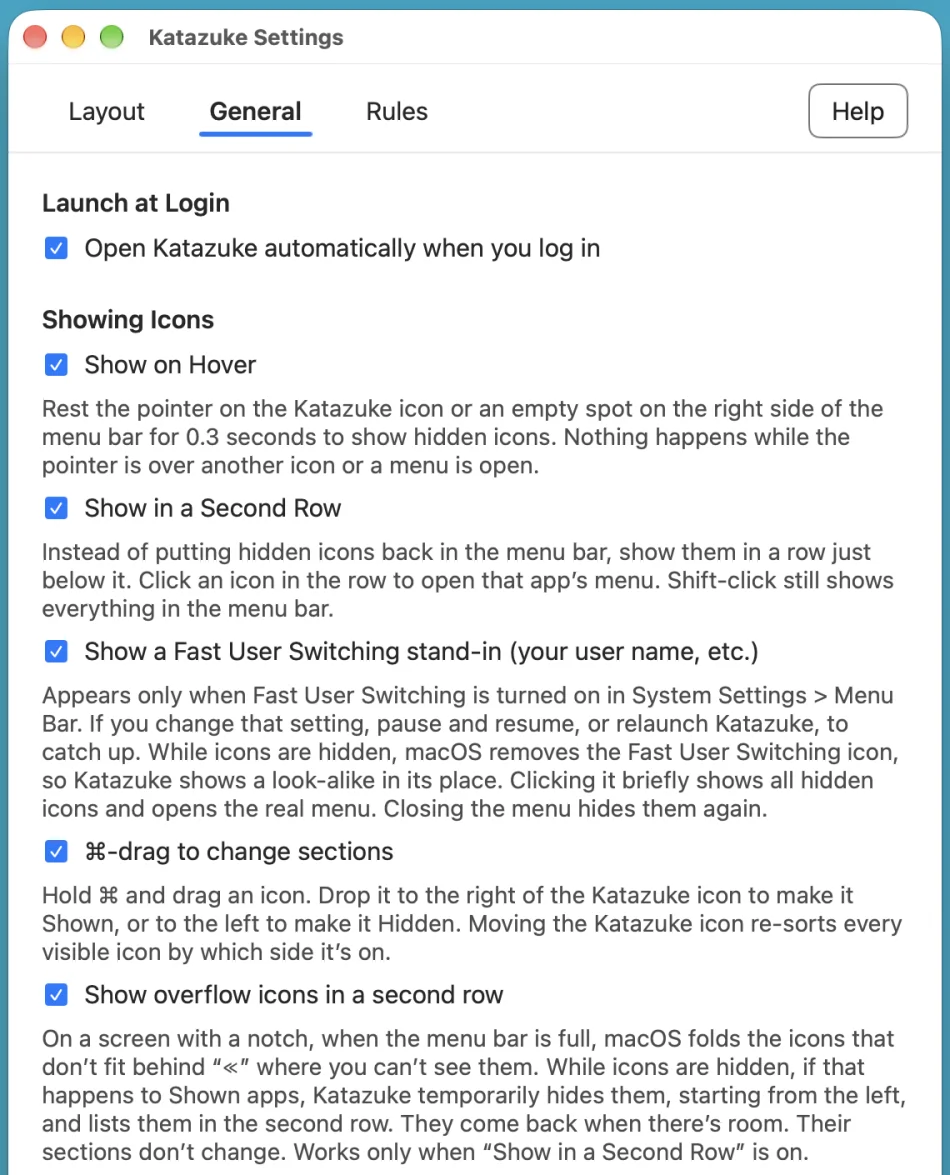
Katazuke can’t show icons from apps that are switched off under Allow in the Menu Bar. Turn the switch on first. It works on a Mac with a chip made by Apple (such as M1 or M4) and macOS 27 or a newer macOS. It does not work on Intel-based Macs or on macOS 26 or older. From version 1.1.0, its menus, settings, and help are in English unless your Mac’s language is Japanese.
See the Katazuke (for Mac) page
We also tested Katazuke side by side with Ice, Thaw, Hidden Bar, Bartender, and other menu bar managers on macOS 27. See Menu Bar Manager for macOS 27 for the results.
FAQ
The whole menu bar has disappeared
If the entire menu bar is gone, this isn’t about icons. Check Automatically hide and show the menu bar in System Settings > Menu Bar. Apple lists Always, On Desktop Only, In Full Screen Only, and Never; choose Never to keep the menu bar showing. Even while it is hidden, moving the pointer to the top of the screen shows it (we have not tested this setting on screen).
Are my icons hidden behind the notch?
On our MacBook Air with macOS 27, icons did not go behind the notch. They went behind a “«” mark instead. If icons are missing, first see whether a “«” is showing, and click it if so.
Will restarting fix it?
If the cause is a switch or a checkbox, restarting won’t help. Check System Settings > Menu Bar first.
What we tested, and Apple’s pages
That clicking the “«” brings the icons out on the left side was confirmed on a recording Mac (MacBook Air (M2), macOS 27.2, Japanese screen) on November 11, 2026. We changed the display resolution to make the “«” appear, and set it back afterward. While building our menu bar app, we confirmed three more things on a MacBook Air (M4, macOS 27.0.1) and a MacBook Air (M2, macOS 27.2): icons that don’t fit go behind the “«”; quitting an app removes its icon; and an app that is switched off shows no icon. The Microsoft Defender case happened on our MacBook Air (M4) on November 1, 2026.
- Mac: MacBook Air (M2)
- macOS: macOS 27.2
- Date checked: November 11, 2026
The Allow in the Menu Bar picture was taken on November 11, 2026, on the same recording Mac with an English (US) screen. We have not tested “Scale to fit below built-in camera” or Automatically hide and show the menu bar on screen.
The two Katazuke pictures were taken on November 13, 2026, on the same recording Mac with an English (US) screen and Katazuke 1.1.0 (Show in a Second Row was on before, turned off for another picture, and turned back on). The Katazuke names Shown, Showing Icons, Show in a Second Row, and Show overflow icons in a second row were checked the same day against the English screen text of Katazuke 1.1.0.
The steps come from these Apple pages.