Menu Bar Manager for macOS 27 — Ice, Thaw, Hidden Bar, Bartender, Brow, Tuck and Katazuke on a Real Mac
Published November 15, 2026
Official documentation reviewed November 15, 2026 (some steps not tested)
By Wada Digital Lab
We installed seven menu bar managers on macOS 27 to see which ones still work. The test ran on November 15, 2026, on a MacBook Air (M2) with macOS 27.2.1 in English. Five of them could hide icons and show them again: Thaw, Hidden Bar, Katazuke, Brow, and Tuck. Ice could not hide icons, even with the Screen Recording permission. We could not test Bartender 7, because its test period on our Mac had already ended. One thing first: Katazuke is our own app (we are Wada Digital Lab). We tested it the same way as the other six, and we list its weak points too.
Key points
- On macOS 27.2.1, five apps could hide icons and show them again: Thaw, Hidden Bar, and Katazuke without Screen Recording, and Brow and Tuck with Screen Recording.
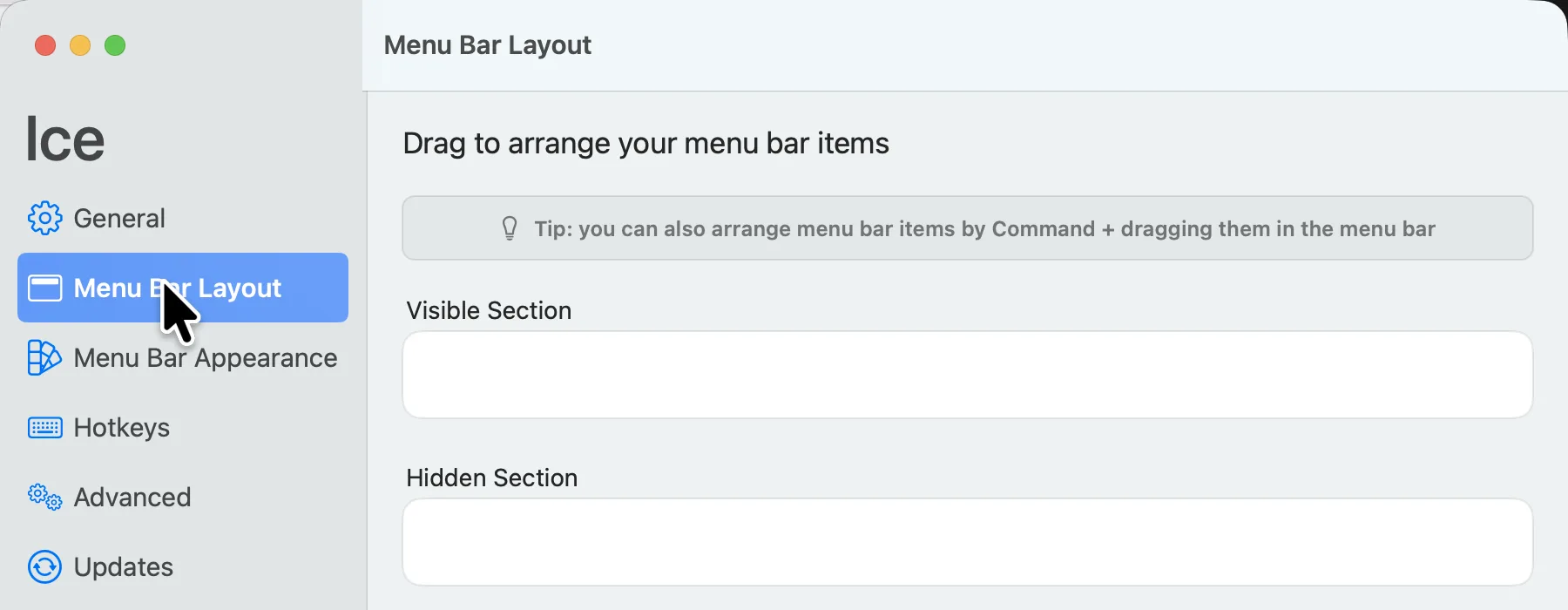
- Ice 0.11.12 could not hide icons, even after we gave it Screen Recording. Its Menu Bar Layout page stayed empty.
- Bartender 7 showed “Your Bartender 7 trial has ended” because it had been tried on this Mac before. We did not buy it or sign in, so we could not test it.
- The « button built into macOS 27 only gathers the icons that don’t fit. You can’t choose which ones it hides. When you open it, the last menus of the app in front are pushed off the menu bar (in Xcode, Integrate, Window, and Help disappeared).
- Ice and Tuck started with their own icon tucked behind the «. Holding down Command and dragging moved it out (Tuck then worked, but Ice still could not hide icons).
The diagram below sums up the results for all seven apps.
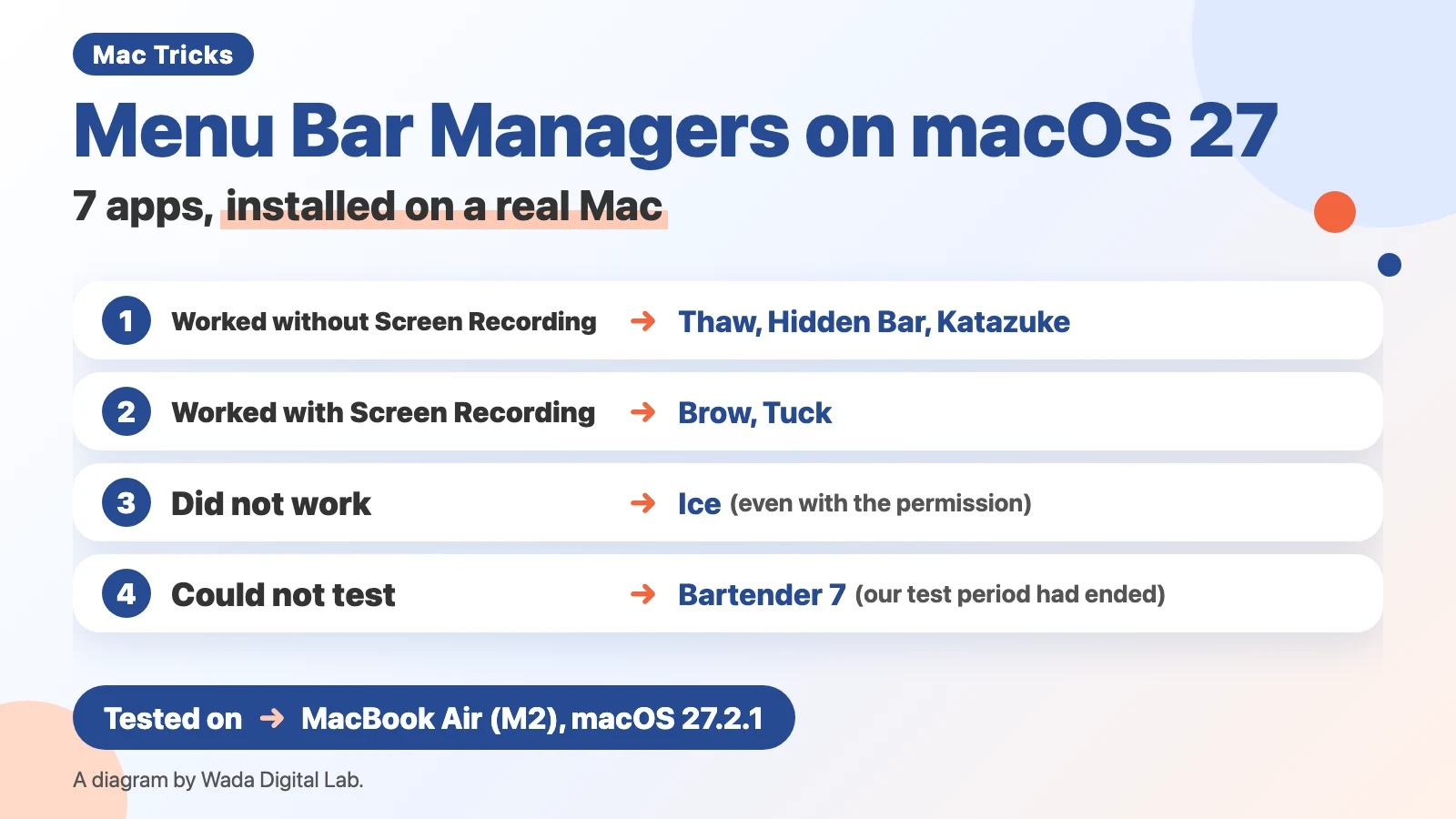
The short answer: five worked on macOS 27. Choose by permission and by where hidden icons appear
A menu bar manager is an app that hides the menu bar icons you rarely use and shows them only when you need them. On macOS 27, some apps that people have used for years no longer work. Here is what we found on November 15, 2026.
- You don’t want to give Screen Recording: Thaw, Hidden Bar, or Katazuke. All three could hide and show icons without Screen Recording. The permission they used was Accessibility, which lets an app read and click the controls of other apps. Thaw also asked for “Menu Bar Layout Access.”
- You also want to change the area around the notch (the camera cutout at the top of the screen): Brow. It needs Screen Recording.
- You want one icon that you click to hide and show: Tuck. It worked once we gave it Screen Recording.
- You used Ice: in our test, it could not hide icons on macOS 27.2.1. Thaw works in a similar way, has been rebuilt for macOS 27, and worked in our test.
We don’t name a single winner. The apps need different permissions and show hidden icons in different places, so pick the one that fits how you work.
Is the built-in « enough? You can’t choose what it hides, and it pushes app menus away
macOS 27 has its own way to deal with a full menu bar. When there are too many icons, a « appears to the left of the icons on the right, and the icons that don’t fit are tucked behind it. On our test Mac, five icons were behind the «.
The built-in « had two weak points in our test.
- You can’t choose which icons it hides. macOS decides which ones don’t fit. An icon you use every day can end up behind the «.
- When you open the «, the last menus of the app in front are pushed off the menu bar. We clicked the « with Xcode in front, which has 12 menus. Five icons appeared to the right of Debug, and the Integrate, Window, and Help menus disappeared. The icons did not sit on top of the menus. When we clicked » to close it, the menus came back.
Apple’s pages listed below don’t describe how the « behaves. This is what we saw on our recording Mac. The picture below shows the « closed and open, with Xcode in front.

If you have only a few icons and opening the « now and then is fine, you don’t need an app. To remove an icon, hold down Command and drag it off the menu bar (the clock can’t be removed; see How to Hide, Remove, and Rearrange Menu Bar Icons on Mac). If an icon seems to be missing, Mac Menu Bar Icons Not Showing or Disappeared? lists what to check, in order.
The diagram below compares the built-in « with a menu bar manager.
The built-in « in macOS 27
What gets hidden Whatever doesn’t fit (you can’t choose)
When you open it
The last app menus can be pushed off
To choose
A menu bar manager
What gets hidden The icons you choose
How to pick one
The permission it needs and where hidden icons appear
In short, with the built-in « in macOS 27, what gets hidden is whatever doesn’t fit (you can’t choose), and when you open it, the last app menus can be pushed off. To choose which icons to hide, use a menu bar manager, where what gets hidden is the icons you choose. How to pick one comes down to the permission it needs and where hidden icons appear.
How to choose: decide three things first
- Are you OK with giving Screen Recording? Without Screen Recording, we could not tell whether Ice, Brow, or Tuck hid anything (we tried Tuck in its recommended Shelf Mode). Thaw, Hidden Bar, and Katazuke could hide and show icons without Screen Recording.
- Where do you want hidden icons to appear? Some apps put them back in the menu bar (Hidden Bar, Brow). Others show them in a row just below the menu bar (Thaw, Tuck, Katazuke). When the app puts icons back in a full menu bar, its own button sometimes ended up behind the « (Hidden Bar, Brow).
- Cost and who keeps it updated. Bartender is a paid app. Ice, Thaw, and Hidden Bar are open source on GitHub. Brow and Tuck are made by companies; we tested only the parts you don’t pay for.
How we tested
- Mac: the MacBook Air (M2) we use for recordings. It has a notch. The screen language was English (US).
- macOS: macOS 27.2.1 (26B131). It had updated from 27.2 the night before.
- Date: November 15, 2026.
- Where we got the apps: each developer’s official site or GitHub page. We paid nothing and made no accounts.
- What we did: opened each app, gave the permissions needed to manage the menu bar (Accessibility, plus Screen Recording in the second round), then hid icons and showed them, watching the screen. We did not give permissions unrelated to the menu bar, such as receiving keystrokes. We copied any messages exactly as they appeared.
- Permissions: in the first round, we gave no app Screen Recording. Without Screen Recording, we could not tell whether Ice, Brow, or Tuck hid anything, so we tested them again the same day with Screen Recording turned on. The results in this article are from that second round.
- Afterwards: we quit each app, turned Screen Recording off again, and moved the apps to the Trash.
These results come from one Mac. Ice, Brow, and Tuck were tried twice (without and with Screen Recording), the others once. For Bartender 7, we only saw its opening message. Other Macs or other versions may behave differently.
Results at a glance (November 15, 2026, macOS 27.2.1)
| App | Version tested | Hide and show | Screen Recording | Where hidden icons appear | What to watch for |
|---|---|---|---|---|---|
| Thaw | 3.0.0-beta.6 | Worked | Worked without it | In a row just below the menu bar | Beta. You pick a macOS file yourself at setup |
| Hidden Bar | 1.11.1 | Worked | Worked without it | Back in the menu bar | Its own arrow got pushed behind the « |
| Katazuke (ours) | 1.1.0 | Worked | Worked without it | In a row just below the menu bar, with names | Pauses after a macOS update; choose Resume |
| Brow | 1.0.79-beta | Worked | Worked with it | Back in the menu bar | A second screen access prompt |
| Tuck | 1.5.0 | Worked | Worked with it | In a row just below the menu bar | Its own icon started behind the « |
| Ice | 0.11.12 | Did not work | Did not work even with it | — | Menu Bar Layout stayed empty |
| Bartender 7 | 7.2.0 | Could not test | — | — | Our test period had ended |
App by app
For people who don’t want to give Screen Recording: Thaw (3.0.0-beta.6)
Thaw is an open source app on GitHub. When we opened it, it said “Thaw 3 is rebuilt for macOS 27.” It was a beta (a test version before the official release) at the time of our test.
It asked for two permissions: Accessibility and “Menu Bar Layout Access.” For the second one, a file picker opened, and we had to choose the macOS menu bar settings file (com.apple.MenuBar.plist) ourselves. None of the other apps had a step like this, so it may confuse first-time users.
Thaw hid the other icons and kept its own icon. Clicking Thaw’s icon showed the hidden icons in a row just below the menu bar (the Thaw Bar). The picture below shows the menu bar at that moment.

- Good: it hid and showed icons without Screen Recording. Hidden icons appear below the menu bar, so the app menus are not pushed away.
- Not so good: it is a beta. While Ice was running, Thaw showed “Conflicting Menu Bar Manager Detected” and suggested quitting Ice. Without Screen Recording, part of its settings (Simple Mode) showed “Couldn't load menu bar items.”
For people who want something simple: Hidden Bar (1.11.1)
Hidden Bar is an open source app on GitHub. It puts an arrow (‹) in the menu bar and hides the icons to its left. Click the arrow, and the hidden icons come back into the menu bar.
- Good: it hid and showed icons without Screen Recording.
- Not so good: our menu bar was full, so when the icons came back, Hidden Bar’s own arrow was pushed behind the «. To hide them again, we had to open the « first and click the arrow there. The setting “Automatically hide icon after: 10 seconds” did not work in our test.
For people on macOS 27 only: Katazuke (1.1.0, our app)
Katazuke is the app we make at Wada Digital Lab. There is no account, no ads, and no in-app purchases. It is made for macOS 27. It does not work on macOS 26 or earlier, or on Intel-based Macs. It puts one broom-shaped icon in the menu bar.
Clicking the broom showed the hidden icons in a row just below the menu bar, each with the app’s name. The picture below shows the menu bar at that moment.

- Good: it hid and showed icons without Screen Recording (the only permission it uses is Accessibility). Hidden icons appear below the menu bar, so the app menus are not pushed away.
- Not so good: after macOS updated from 27.2 to 27.2.1, Katazuke had paused itself to be safe. Its right-click menu said “Paused because macOS was updated, just to be safe.” Choosing Resume brought it back. Katazuke does not hide macOS icons such as the clock, Wi-Fi, and Control Center.
For details, see the Katazuke (for Mac) page.
For people who also want to change the notch area: Brow (1.0.79-beta)
Brow opens with “Your MacBook notch, reimagined.” It is an app for the area around the notch, and managing the menu bar is one of its features. Without Screen Recording, the icons in its layout settings showed up as white squares, and we could not tell whether anything was hidden.
With Screen Recording, its Layout settings showed real pictures of the icons. Icons we dragged to Hidden disappeared from the menu bar, and clicking the “<” button brought them back. When we gave the permission, macOS asked: “"Brow" is requesting to bypass the system private window picker and directly access your screen and audio.”
- Good: with Screen Recording, it hid and showed icons. Brow’s settings explain that it takes a small picture of each icon, which macOS counts as screen access, and that nothing is recorded, kept, or sent.
- Not so good: you have to allow both Screen Recording and the prompt above. After showing the icons, Brow’s own button ended up behind the «. During our test, it had updated itself from 1.0.78-beta to 1.0.79-beta.
For people who want one icon to switch: Tuck (1.5.0)
Tuck’s setup says “Accessibility is required. Screen Recording is optional.” We chose Shelf Mode, which setup marked as recommended (we did not try Push Mode). Without Screen Recording, neither its icon nor a window appeared, and we could not tell whether anything was hidden.
With Screen Recording, each click on Tuck’s icon (a tray) switched between three states: the seven icons to its left were hidden, then shown on a shelf just below the menu bar, then the shelf closed. The picture below shows the open shelf.

- Good: with Screen Recording, one click on one icon switched between hiding and showing.
- Not so good: when it started, Tuck’s own icon was behind the «, and we had to hold down Command and drag it out. It showed the same prompt as Brow. In the first round, it also asked: “"Tuck" would like to receive keystrokes from any application.” We did not allow that.
Wait for now on macOS 27: Ice (0.11.12)
Ice is an open source app on GitHub, and many articles still recommend it. In our test, though, it could not hide icons on macOS 27.2.1.
Before we gave it Screen Recording, its Menu Bar Layout page said “Menu bar layout requires screen recording permissions.” After we gave it the permission, the page showed the headings Visible Section and Hidden Section, but both stayed empty, even after waiting and reopening. Clicking Ice’s icon (a dot) only switched the dot between filled and hollow. The picture below shows its settings after we gave the permission.
- Good: many people have used it for years, and there are many guides for it.
- Not so good: when it started, Ice’s icon was behind the «. When we looked at Ice’s GitHub page on November 14, 2026, we did not find any note that it supports macOS 27.
Could not test: Bartender 7 (7.2.0)
Bartender is a paid app. On our recording Mac, Bartender had been tried before, so when we opened it, it said “Your Bartender 7 trial has ended” and stayed paused. We did not buy Bartender 7 or sign in, so we have not checked whether it works on macOS 27.
What this test can and can’t tell you
- What it can: the results for the versions in the table, on a MacBook Air (M2) with macOS 27.2.1, on November 15, 2026. For the six apps other than Bartender 7, we checked hiding and showing on screen.
- What it can’t: we did not test other Macs (Macs without a notch, or external displays), other versions, or how stable the apps are over weeks of use. We did not check whether Bartender 7 works. We did not test the paid features of Brow and Tuck.
- These apps update often, and Thaw and Brow were betas. Check the date and versions above, and expect newer versions to behave differently.
FAQ
Does Ice work on macOS 27?
In our test (macOS 27.2.1, Ice 0.11.12), Ice could not hide icons, even with Screen Recording. If you want the same kind of hiding and showing, Thaw (rebuilt for macOS 27) worked without Screen Recording.
Which ones can I use without paying?
In our test, Thaw, Hidden Bar, and Katazuke could hide and show icons without paying anything. Brow and Tuck could too, within the parts you don’t pay for. Bartender is a paid app.
Is it OK to give Screen Recording?
Screen Recording lets an app read what is on your screen. Read the developer’s explanation and decide for yourself. If you’d rather not, choose from the apps that worked without it: Thaw, Hidden Bar, and Katazuke. You can turn the permission off later in System Settings > Privacy & Security > Screen & System Audio Recording by turning off the switch for that app.
I can’t find the app’s icon. Where is it?
When the menu bar is full, the menu bar manager’s own icon can end up behind the « (in our test, Ice and Tuck). Click the « to find it, then hold down Command and drag it to the right to bring it out.
Test setup and sources
We ran the tests and took the pictures on November 15, 2026, in a separate user account on our recording Mac (MacBook Air (M2), macOS 27.2.1, English screen). The pictures are cropped to the menu bar and the app windows, and other windows behind them are blurred.
- Mac: MacBook Air (M2)
- macOS: macOS 27.2.1 (26B131, English)
- Test date: November 15, 2026
Before writing, we searched Google (US) for “menu bar manager macos 27” and read the top results (November 14, 2026). Most were compatibility lists from app makers or forum threads. We did not find anyone who had tested the apps themselves. This article adds what we saw when we installed all seven on the same Mac, with pictures (we could not test Bartender 7).
Where we got the apps, and the developers’ pages (checked on November 14 and 15, 2026):
Apple’s pages about menu bar icons:
- Get to know your desktop, menu bar, and Dock (Mac User Guide)
- Change Menu Bar settings on Mac (Mac User Guide)