How to Convert WebP to JPG on a Mac — Convert Image in the Finder, Preview, or a Free Browser Tool
Published October 31, 2026
Official documentation reviewed October 31, 2026 (some steps not tested)
By Wada Digital Lab
To convert WebP to JPG on a Mac, select the image in the Finder, Control-click it (hold the Control key and click), choose Quick Actions > Convert Image, and set Format to JPEG. No app to install. Several files should work the same way (we tried one at a time). For one image at a time, open it in Preview and choose File > Export.
Key points
- WebP is an image format made by Google and widely used on websites. A Mac opens it in Preview, but older apps and some upload forms don’t accept it.
- With the Finder alone: select the image in the Finder, choose Quick Actions > Convert Image, set Format to JPEG, and click Convert to JPEG. The JPG appears in the same folder. Several images should convert the same way (we didn’t try more than one).
- You can also open the image in Preview and choose File > Export. The Format list on our recording Mac (macOS 27.2) had seven entries: HEIC, JPEG, JPEG-2000, OpenEXR, PDF, PNG, and TIFF.
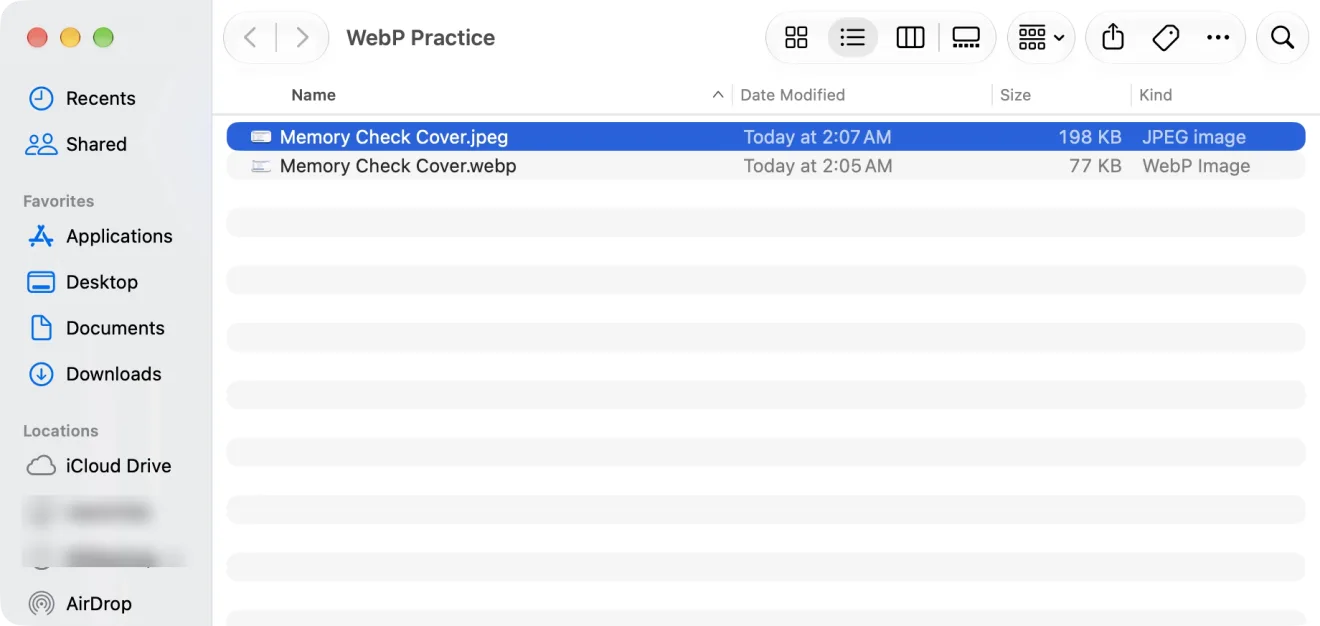
- On our recording Mac, a 77 KB WebP became a 198 KB JPEG with Convert Image at Actual Size. A JPG can be bigger than the WebP it came from.
- With no Mac at hand, or if you’d rather stay in the browser, our free WebP to JPG Converter page does the same job.
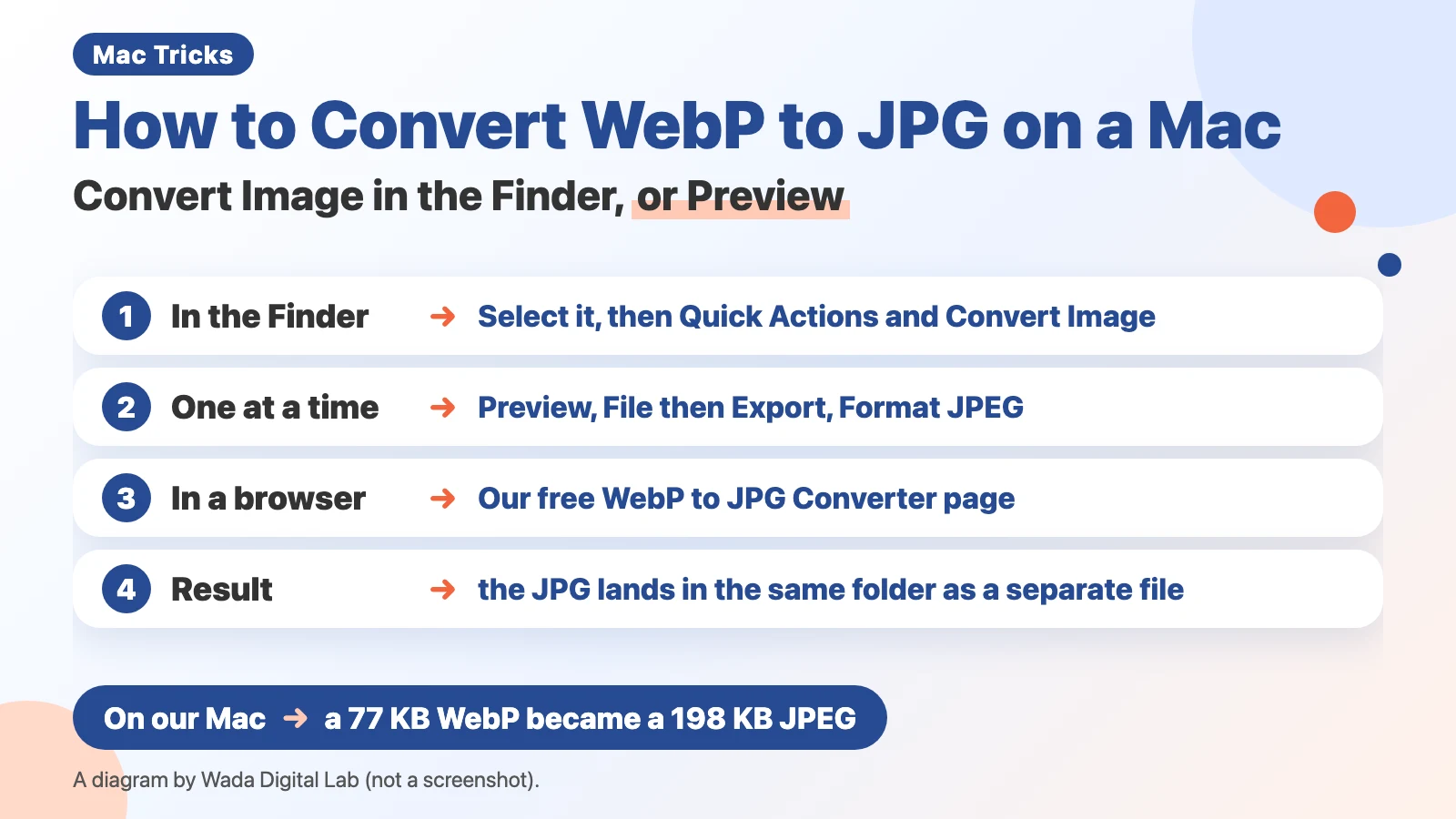
The diagram below sums up three ways to turn a WebP into a JPG (not a screenshot).
What WebP is, and why a Mac can open it but you still need JPG
WebP is an image file format made by Google. Google says it makes files smaller than PNG and JPEG at similar quality, so websites use it a lot. When you save a picture from a web page, the file often ends in “.webp”.
A Mac opens WebP files in Preview without any help. The trouble starts when you hand the file to something else: an older app, a form that asks for a photo, or software on Windows may refuse it. That is when you convert it to JPG.
| What you want | How | Good for |
|---|---|---|
| Convert in the Finder alone (several at once should work; untested) | Select them in the Finder, then Quick Actions > Convert Image | WebP files sitting in a folder |
| Convert one file and choose the quality | Open it in Preview, then File > Export | Trading quality for file size with the slider |
| No Mac, or browser only | Our WebP to JPG Converter page | The same steps on Windows or an iPad |
Convert in the Finder: Quick Actions > Convert Image in the Finder
Convert Image is one of the Finder’s Quick Actions. It changes an image’s format or size without opening an app. We split Apple’s page into one action per line. There are 5 steps.
- In the Finder, select the WebP image (several should work too; we tried one at a time)
- Control-click the selection, then choose Quick Actions > Convert Image
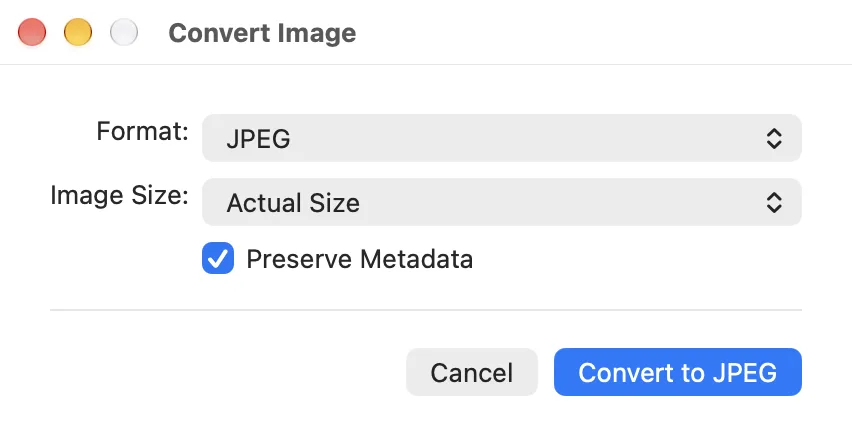
- Set Format to JPEG
- Leave Image Size at Actual Size to keep the same dimensions
- Click Convert to JPEG (a “.jpeg” file appears in the same folder, and the WebP stays as it was)
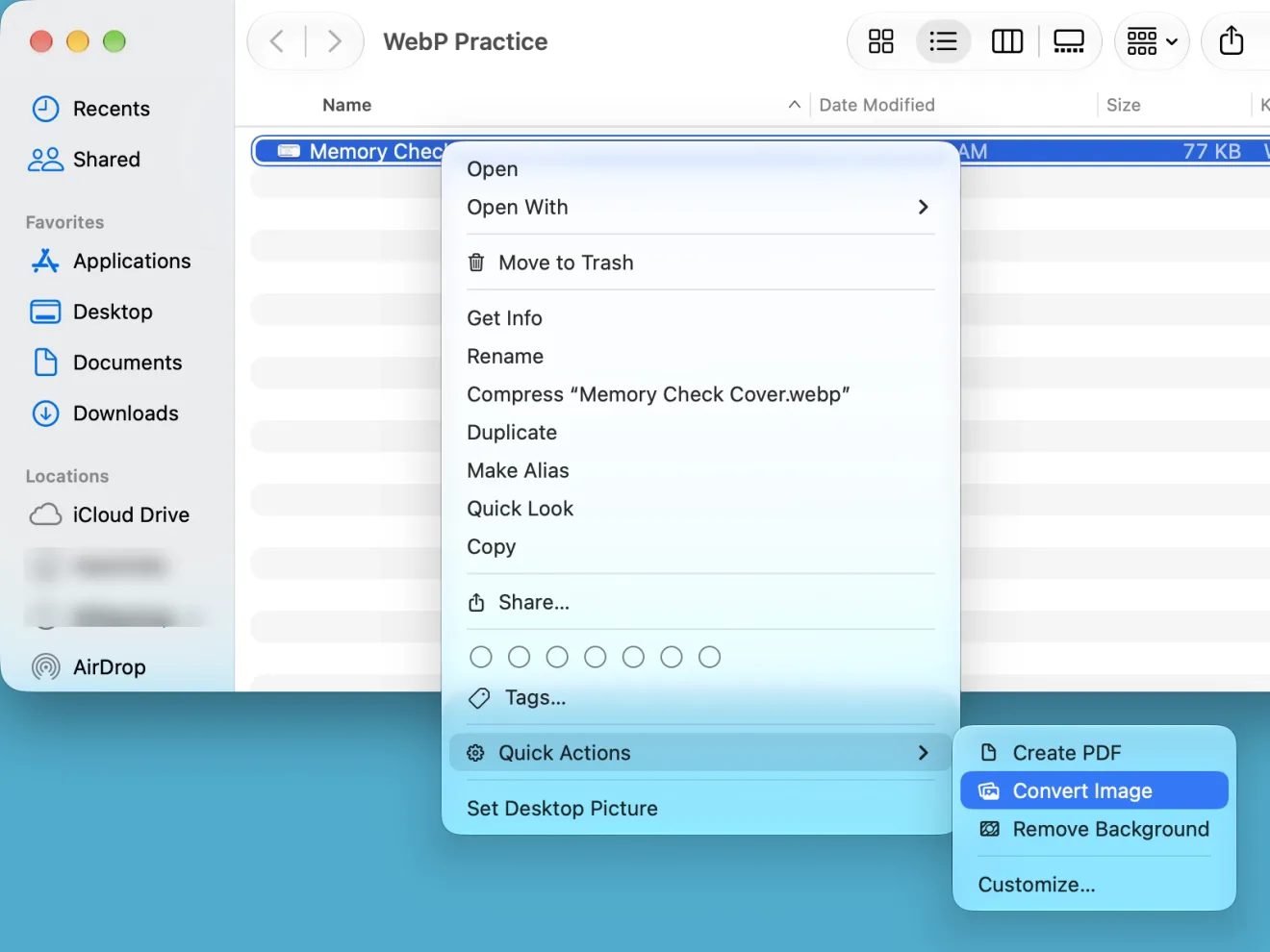
Apple’s page says to click More and then choose Convert Image. On our recording Mac (macOS 27.2), choosing Quick Actions showed Create PDF, Convert Image, and Remove Background right away, with no More item. Selecting several images and doing the same thing should convert them all (we didn’t try it). The steps are the same for HEIC photos from an iPhone, which we cover in how to convert iPhone photos to JPG.
Convert one at a time: File > Export in Preview
When you want to choose the quality yourself, export from Preview. We split Apple’s page “Convert image file types using Preview on Mac” into one action per line. There are 4 steps.
- Open the WebP image in Preview (double-click it)
- Choose File > Export
- In the Format menu, choose JPEG (a Quality slider lets you trade quality for file size)
- Choose a name and a location, then click Save
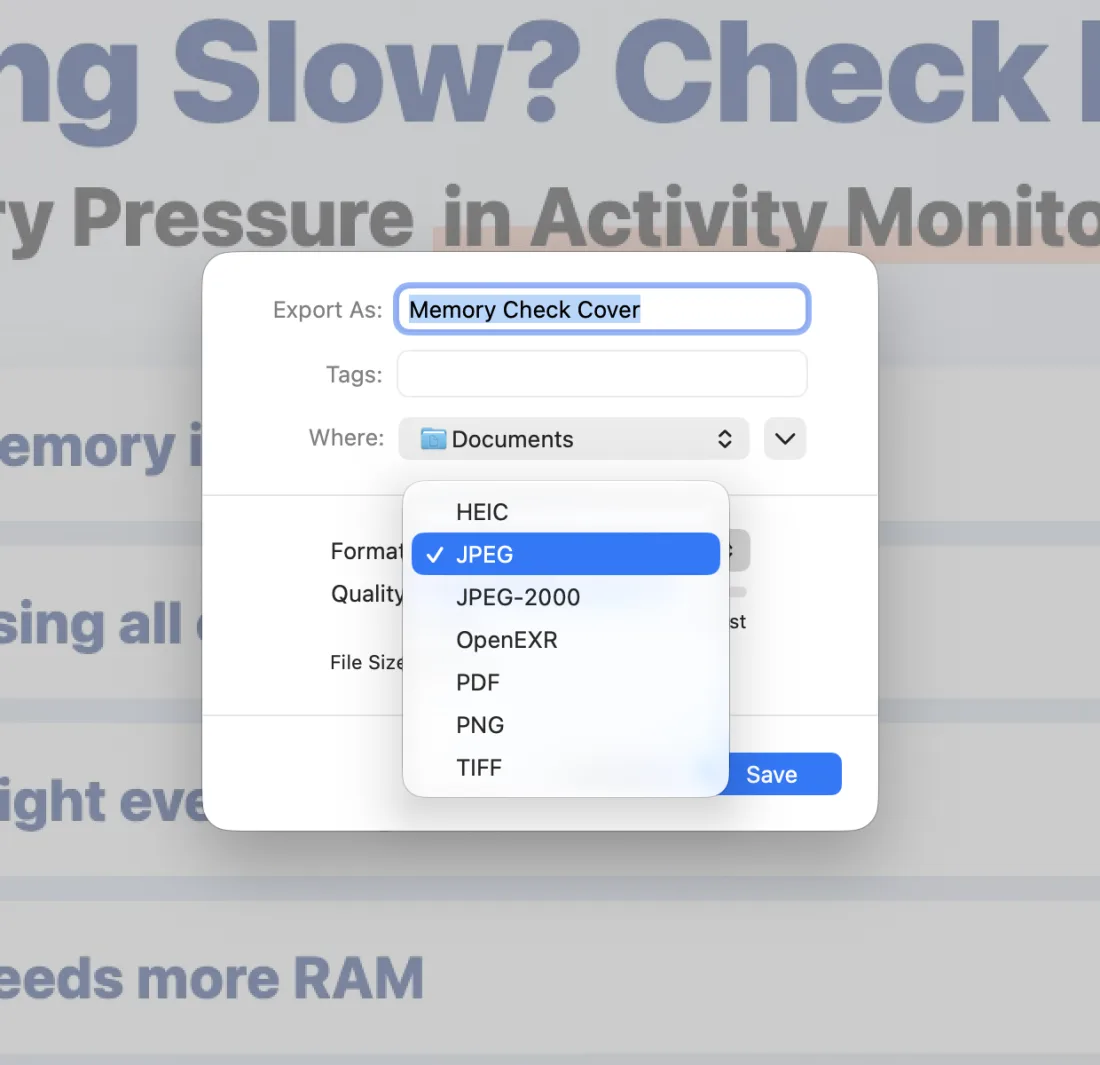
Apple adds: “If you don’t see the file type you want, press and hold the Option key and click the Format pop-up menu to see specialized or older formats.” We haven’t tested whether WebP appears when you hold the Option key.
A JPG can be bigger than the WebP: 77 KB became 198 KB
WebP packs the same picture into fewer bytes. On our recording Mac, a 77 KB WebP (a diagram from our blog, 1600×900 pixels) came out as a 198 KB JPEG with the same dimensions when we used Convert Image with Image Size left at Actual Size. On the Japanese screen of the same Mac, a plain 1200×630-pixel test image of 6 KB became a 27 KB JPEG.
That growth is normal, because WebP is the more compact format. If file size matters, lower the Quality slider in Preview’s Export, or use our Compress Images page to set a limit such as 2 MB. For more ways to shrink photos, see how to reduce photo size on a Mac.
The diagram below shows that the original WebP stays and a JPG is created beside it, and that the file size went up from 77 KB to 198 KB (our recording Mac).
The original WebP
Memory Check Cover.webp 77 KB, 1600×900 pixels
After converting
The WebP stays as it was
Convert Image to JPEG
The new JPEG
Memory Check Cover.jpeg 198 KB JPEG with the same dimensions
File size
Went up from 77 KB to 198 KB (our recording Mac)
In a browser: our WebP to JPG Converter page
When you don’t have a Mac at hand, or you want to give someone on Windows the same steps, a converter that runs in the browser is the easier answer. We (Wada Digital Lab) keep a free WebP to JPG Converter page. Drop in as many WebP files as you like and save them as JPG or PNG. There is no sign-up and there are no ads.
Frequently asked questions
Convert Image doesn’t appear under Quick Actions.
It appears only when the selected file is an image. Check that the file name ends in “.webp” under Name & Extension in Get Info. If it still doesn’t appear, choose Customize… under Quick Actions. Apple says Extensions settings opens there, where you can add Finder extensions.
What happens to transparent areas?
JPEG has no way to keep transparency. To keep transparent areas, choose PNG as the Format instead. We haven’t tested this with a transparent WebP.
Can I go the other way and save a JPG as WebP?
WebP wasn’t in the Format list of Preview’s Export on our recording Mac. Apple says more formats appear when you hold the Option key while opening the list, but we haven’t tried it.
What we checked, and Apple’s pages
The pictures in this article were taken in a user account made for screenshots. The WebP we used is a diagram from our blog (1600×900 pixels, 77 KB).
- Model: MacBook Air (M2)
- macOS: macOS 27.2 (English screen)
- Pictures taken on: October 31, 2026
We converted the file to JPEG with Quick Actions > Convert Image and read the resulting size (198 KB) in the Finder. For Preview’s Export, we opened the Format list and didn’t save. The Quality slider, the Option-key list, transparent images, and converting several files at once were not tried on screen. The screen names come from the English screen and Apple’s US pages.
Before writing, we searched Google for “webp to jpg mac” and read the titles of the top results (October 31, 2026). They were a thread in Apple’s community, a Reddit thread, and pages from companies that offer converter sites or apps. This article adds the resulting file size and what the Export list actually contains, from the real screen.
The steps come from these pages (Mac User Guide and Preview User Guide).
- Perform quick actions in the Finder on Mac
- Convert image file types using Preview on Mac
- WebP, described by Google (how size and quality are compared)