How to start using Obsidian on a Mac — install it, create a vault, and write your first note
Published October 18, 2026
Official documentation reviewed October 17, 2026 (some steps not tested)
By Wada Digital Lab
To start using Obsidian on a Mac, download the “Universal” file under “Mac” on the official download page, then create one “vault.” A vault is simply a folder on your Mac that holds your notes. If you plan to use the same notes on your iPhone, decide how you’ll sync first. To sync through iCloud Drive at no cost, create the vault inside iCloud Drive from the start. This article walks through installing Obsidian, creating a vault, and writing your first note, following the steps in Obsidian’s official help.
Key points
- Download the “Universal” file under “Mac” on the official download page, then drag Obsidian into your Applications folder.
- The only things to decide at the start are the vault’s name and where it lives.
- To use your notes on an iPhone too, sync with iCloud Drive or Obsidian Sync (paid). For iCloud Drive, create the vault inside the “Obsidian” folder in iCloud Drive.
- Each note is an ordinary text file (.md) on your Mac. You can open it in Finder and read it.
- Obsidian has an official “sandbox vault” for trying features without touching your own notes.
The diagram below shows how what you see in Obsidian matches what you see in Finder (it is not a screenshot).
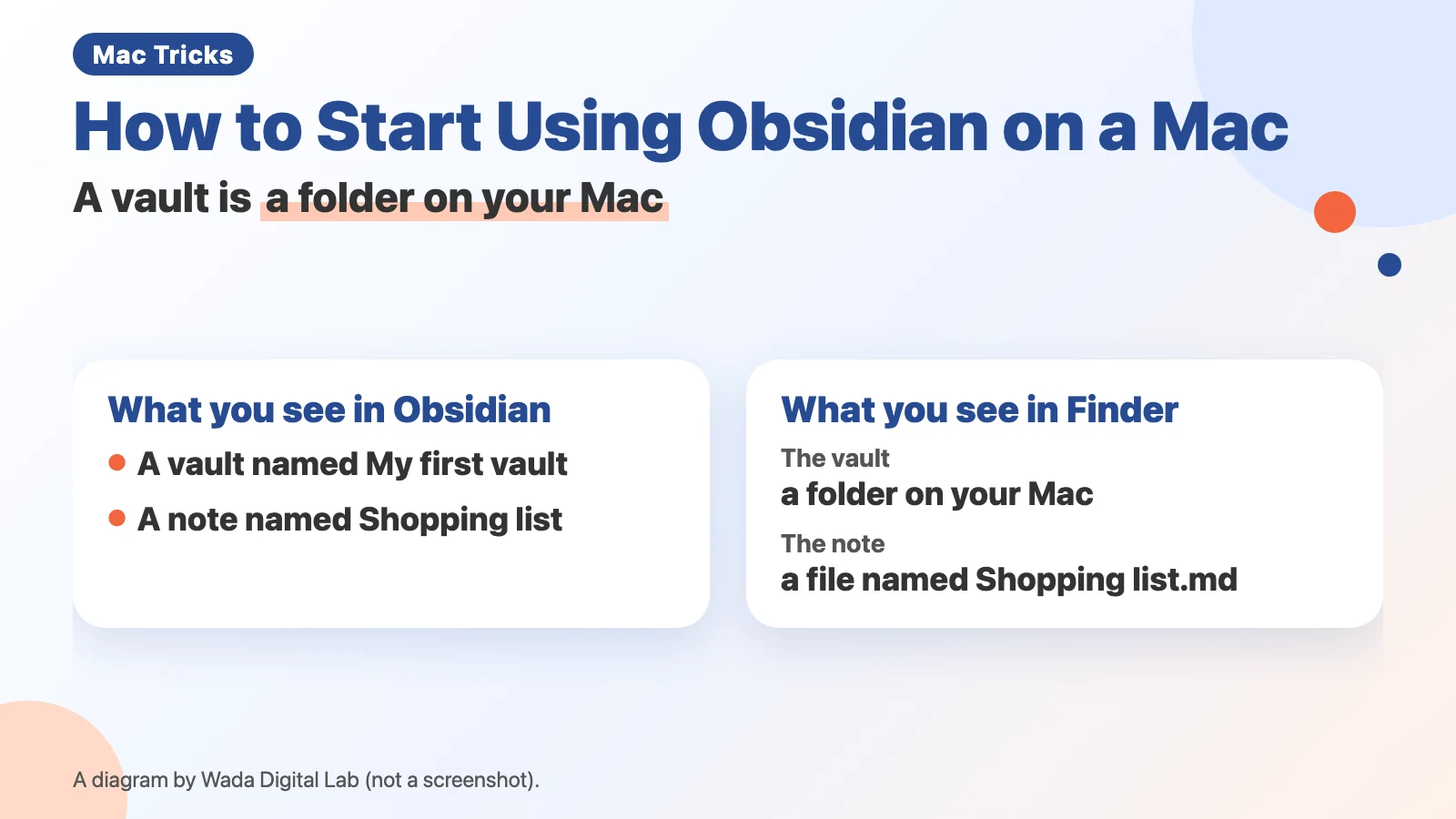
Here is the same idea as a text diagram (not a screenshot).
What you see in Obsidian
Vault “My first vault”
Inside it
A note called “Shopping list”
Seen in Finder
What you see in Finder
Vault A folder on your Mac
Note
A file called “Shopping list.md”
What Obsidian is: your notes are text files on your Mac
Obsidian is an app for writing notes. Its defining feature is that your notes are saved as ordinary text files on your Mac. The official help says: “Notes in Obsidian are stored as plain text files.” Each file name ends in “.md” (a text file written in a format called Markdown).
So even if you stop using Obsidian one day, your notes stay on your Mac and open in other apps. In Obsidian, the folder that holds your notes is called a vault. The official help puts it this way: “A vault is a folder on your local file system where Obsidian stores your notes.”
At Wada Digital Lab, we moved to Obsidian after we could not find a replacement for Evernote, which we had used for years. We were looking for an app that suits jotting down notes freely.
Install it: the “Universal” file under “Mac”
The official help lists five steps. The button names below are the ones we saw on the download page on October 18, 2026 (the help itself says “Universal” under “macOS”).
- In your browser, open Obsidian’s download page
- Under “Mac,” click “Universal” to download the installer
- Open the file you downloaded
- In the window that opens, drag Obsidian into your Applications folder
- Open Obsidian the same way you open any other app
“Universal” is a single download that runs on both Macs with Apple’s own chips (such as M1 or M4) and Macs with Intel chips. Choose “Universal” whichever Mac you have.
Obsidian itself costs nothing to use. The official pricing page says “Free without limits.” and “No sign-up required.” There are two paid add-on services: “Obsidian Sync,” which syncs your notes, and “Obsidian Publish,” which puts notes on the web. There are also optional licenses you can buy to support development (“Catalyst” and “Commercial”).
Create a vault: pick a name and a place
The first time you open Obsidian, it asks you to add a vault. To create an empty one, follow the official steps:
- To the right of “Create new vault,” click “Create”
- In “Vault name,” type a name for the vault (for example, “My first vault”)
- Click “Browse” and choose where to create it
- Click “Create”
If you already have a folder of notes, you can use it instead: to the right of “Open folder as vault,” click “Open” and choose that folder. You can keep everything in one vault, or make separate vaults, for example one for work and one for home.
Where to put the vault (if you’ll use an iPhone too)
The official help says: “You can create a vault anywhere your operating system allows.” If you’re not sure, use this table.
| How you’ll use it | Where to create the vault | What to watch for |
|---|---|---|
| On this Mac only | Any folder on your Mac, such as Documents | You can move it later (see the questions below) |
| On a Mac and an iPhone | Inside the “Obsidian” folder in iCloud Drive (or Obsidian Sync) | On macOS 15 or a newer macOS, choose “Keep Downloaded” (next paragraph) |
| On two Macs | iCloud Drive, or Obsidian Sync (paid) | Don’t run two sync services on the same vault |
For a Mac and an iPhone, the help recommends two ways to sync: Obsidian Sync and iCloud. For iCloud Drive, choose “Create new vault,” and when you pick the location, open iCloud Drive, open the “Obsidian” folder inside it, and create the vault folder there. On an iPhone, use the “Obsidian” folder that shows the Obsidian icon; the help says: “Do not use the plain folder without the app icon.”
The help also strongly recommends keeping the vault downloaded on your Mac so it loads faster. On macOS 15 or a newer macOS, right-click the “Obsidian” folder under iCloud Drive in Finder and choose “Keep Downloaded.” On macOS 14 or an older macOS, turn off “Optimize Mac Storage” in your iCloud settings. That setting affects everything in iCloud on that Mac, not just Obsidian.
Don’t sync one vault with two services at once. To prevent conflicts and corrupted files, the help says to avoid syncing the same vault with more than one service, for example Obsidian Sync and iCloud at the same time.
To use the same notes on two Macs, see how to sync Obsidian between two Macs.
Don’t put one vault inside another. The official help says: “we recommend that you don’t create vaults within vaults. Links may not be updated correctly.”
Change the interface language
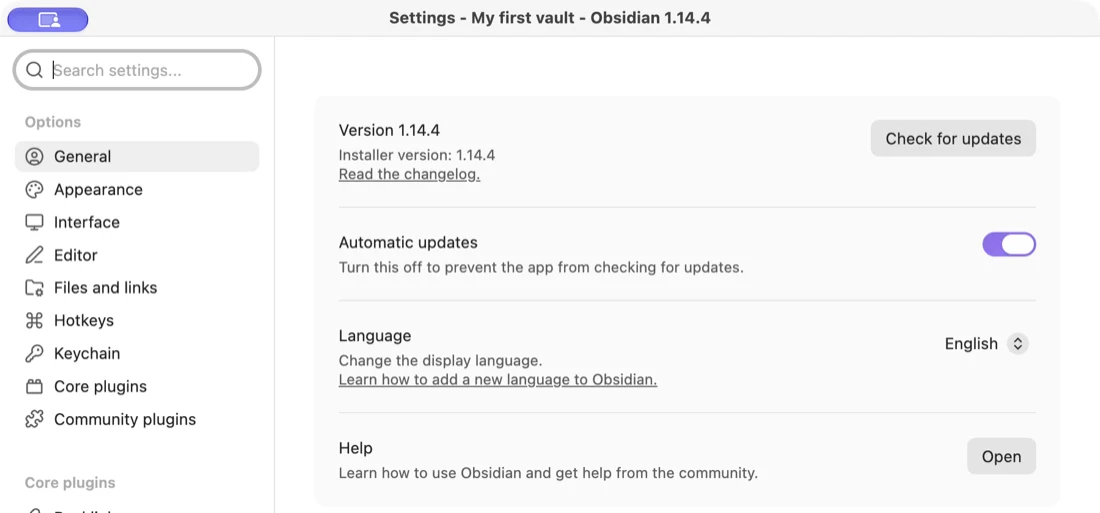
You can change the language Obsidian uses for its menus and settings. The official help says you can do it by opening Settings and choosing General, or when you create a new vault. The screenshot below shows the Language setting in General, set to English, in a practice vault called “My first vault.”
Write your first note
Once the vault is open, press Command-N to make a new note (from the official help). Type a name for the note, press Return, and start writing.
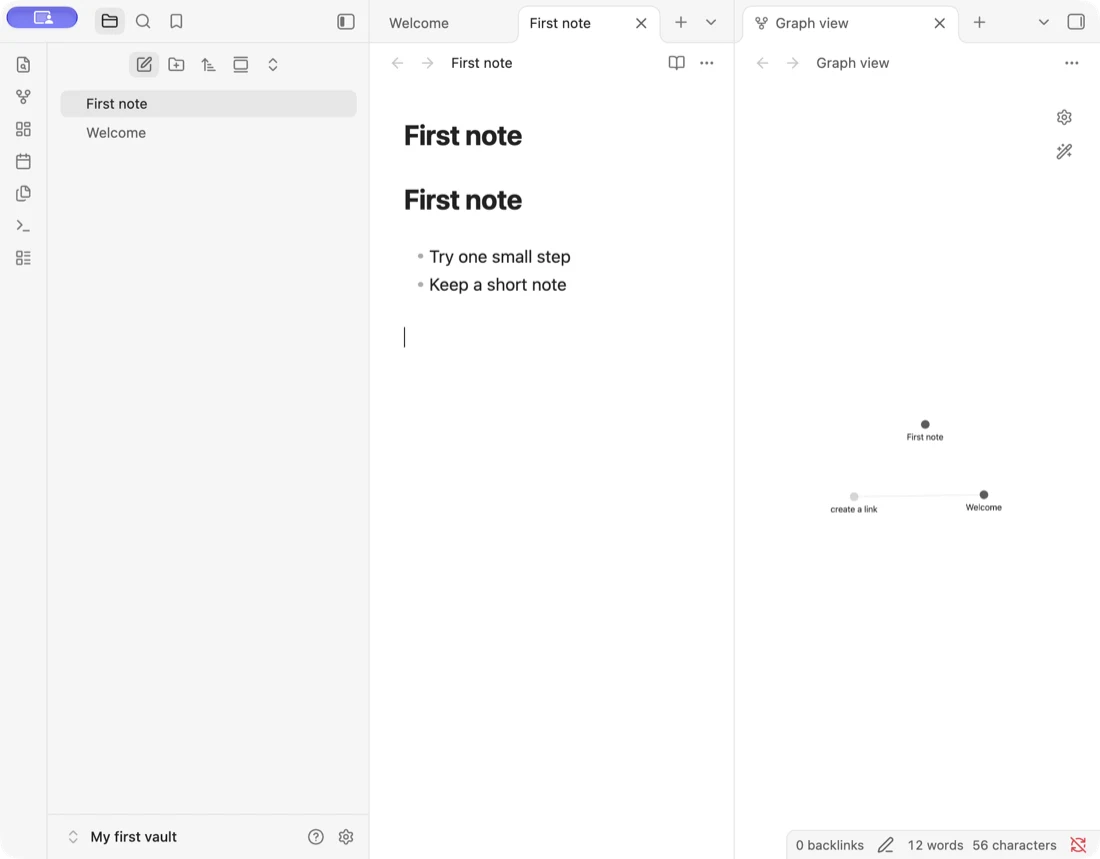
Headings and bullet lists come from a symbol at the start of a line. Type “#” and a space to start a heading, or “-” and a space to start a bullet list. In the screenshot below, a note called “First note” has a heading and two bullet points.
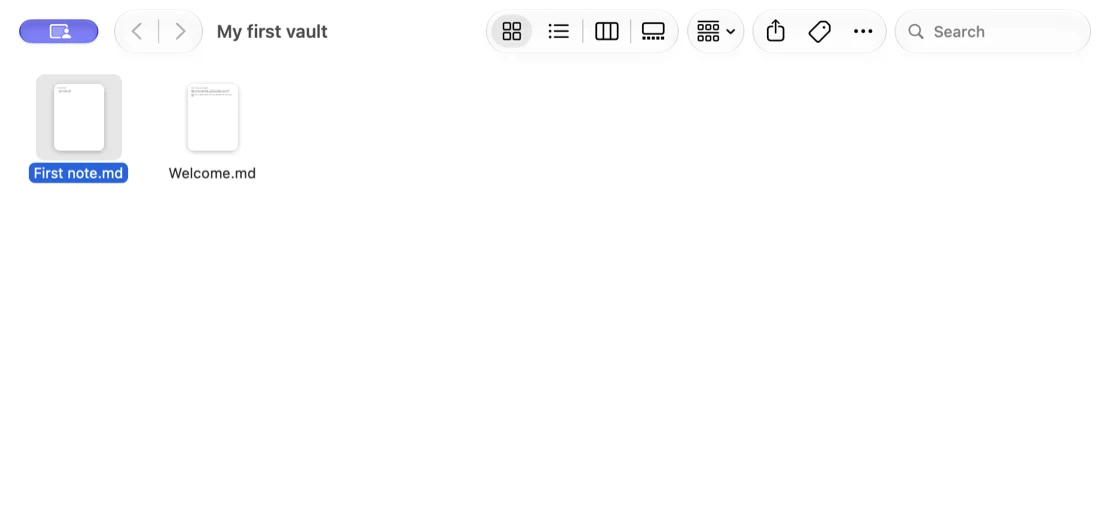
Because each note is a “.md” file, opening the vault folder in Finder shows one file per note. For example, if you create a note called “Shopping list” in the vault “My first vault” and then open the vault folder in Finder, you’ll find a file called “Shopping list.md” inside it. Obsidian also creates a folder called “.obsidian” in the vault for its settings. Because the name starts with a period, Finder normally hides it. The screenshot below shows the practice vault’s folder in Finder, with “First note.md” and “Welcome.md.”
A safe place to practice: the “sandbox vault”
If you want to try features without cluttering your own notes, open Obsidian’s official sandbox vault. The help describes it as “a feature that lets you explore various functionalities without affecting your existing data.”
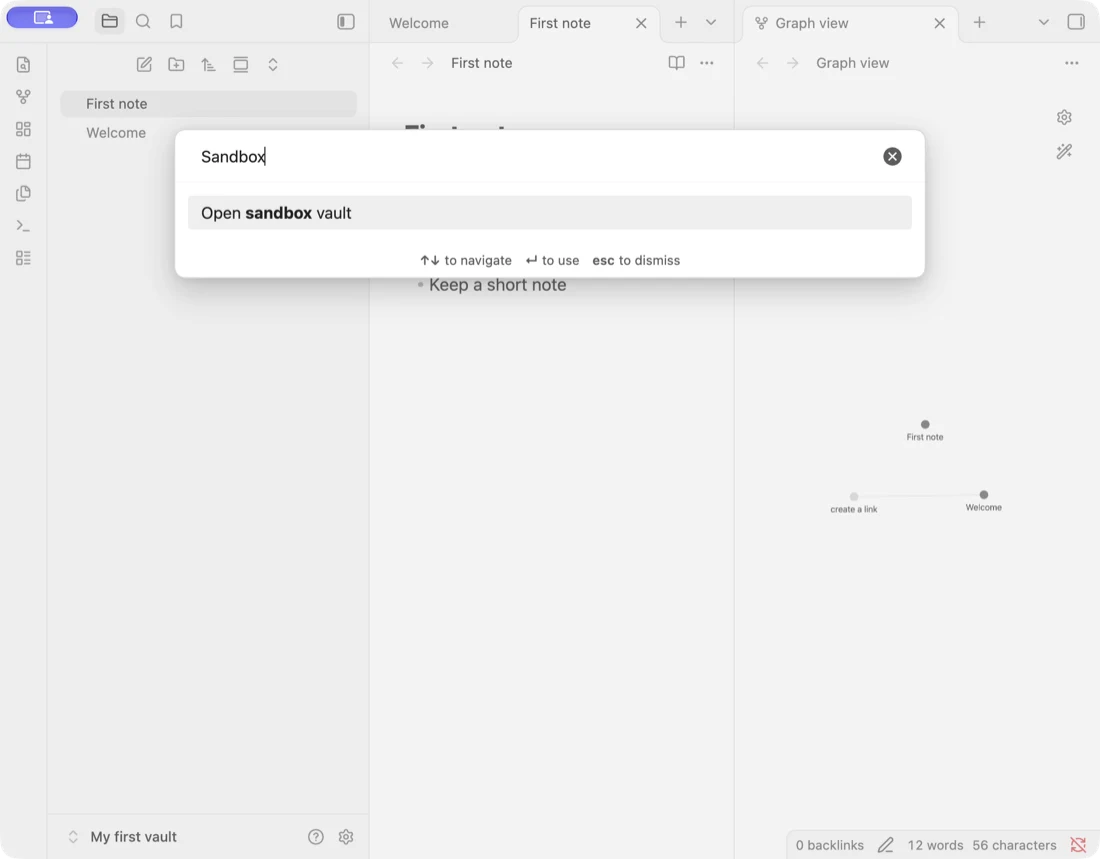
There are two ways to open it. One is to open the left sidebar and press the “Help” icon next to the vault switcher (the vault’s name at the bottom left), then choose to open the sandbox vault. The other uses the command palette, a window where you type the name of any Obsidian action to run it. Press Command-P to open it, type “Open sandbox vault,” select it, and press Return. To close the sandbox vault, close its window.
Frequently asked questions
Does Obsidian cost money?
The app itself costs nothing and needs no account. The paid services are “Obsidian Sync” for syncing and “Obsidian Publish” for publishing. There is also a “Commercial” license for people who use it at work. The official pricing page says you are not required to buy one, but encourages organizations that use Obsidian for work to buy it.
Can I move the vault later?
Yes. In the official steps, you select the Vault profile at the bottom left, choose Manage Vaults..., close the current vault window while leaving the Manage Vaults window open, select More options next to the vault, choose Move vault, and pick the new location.
What should I read next?
To have AI write notes for you, see using Obsidian with Claude Code. If you can’t find a PDF in your vault, see when you can’t find a PDF in Obsidian.
What we checked, and Obsidian’s pages
We wrote these steps from Obsidian’s official help (English) and its pricing page. We did not install Obsidian or create a vault on screen for this article. The four screenshots (the Language setting, a first note, the vault folder in Finder, and the command palette) were taken in a practice vault on a MacBook Air with an M2 chip, running macOS 27.0.1 and Obsidian 1.14.4, with made-up notes. We did not try iCloud, the sandbox vault itself, or moving a vault on screen. The button names on the download page are as we saw them on October 18, 2026, and the move from Evernote comes from the site owner. The names of buttons and settings follow the official help. We checked the quotes from the help against the help’s source documents (obsidianmd/obsidian-help) on October 17, 2026, and the pricing quotes against the pricing page the same day.
- Download and install Obsidian (Obsidian Help)
- Create a vault (Obsidian Help)
- How Obsidian stores data (Obsidian Help)
- Sync your notes across devices (Obsidian Help)
- Create your first note (Obsidian Help)
- Language settings (Obsidian Help)
- Sandbox vault (Obsidian Help)
- Manage vaults (Obsidian Help)
- Pricing (Obsidian)