Using Obsidian with Claude Code — three rules from two and a half months of letting AI write our notes
Published October 18, 2026
Official documentation reviewed October 17, 2026 (some steps not tested)
By Wada Digital Lab
When you use Obsidian together with Claude Code, you can have an AI write your notes and find them for you. Obsidian notes are ordinary text files on your Mac, so Claude Code can read and write them directly, with no special connection needed. (A vault is the folder where Obsidian keeps your notes.) Since August 4, 2026, two AIs, Claude Code and Codex, have used the same vault every day at Wada Digital Lab. This article shares the three rules we settled on to keep it working.
Key points
- Obsidian notes are text files, so Claude Code can read and write them as they are. Notes the AI writes show up in Obsidian right away.
- You can have an AI write a note just by telling it out loud, showing it a document, or showing it a photo. When you’re looking for something, asking the AI often finds it.
- Rule 1: Give the AI one folder it may write in, and keep it out of folders you don’t want it to read.
- Rule 2: Each time you start, hand the AI an entry note that says where things stand.
- Rule 3: Don’t rely on written rules alone; enforce them with a mechanism. Claude Code’s own docs say its instruction files are not enforced configuration.
The diagram below shows how we split folders inside the vault (it is not a screenshot).
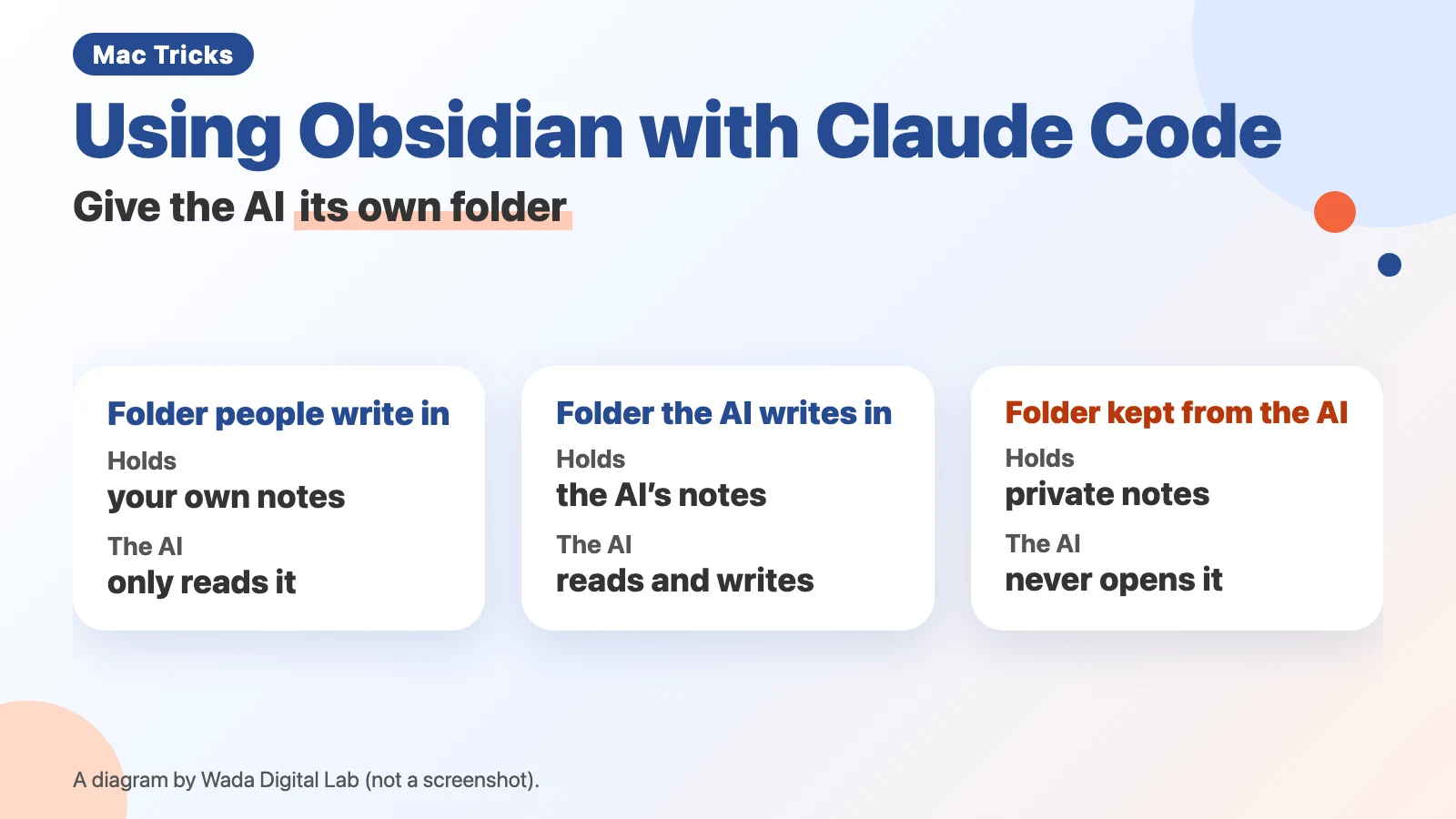
Here is the same idea as a text diagram (not a screenshot).
Folder people write in
Inside Your own notes
The AI
Only reads
Folder the AI writes in
Inside The AI’s notes
The AI
Reads and writes
Folder kept from the AI
Inside Private notes
The AI
Never opens it
Why Obsidian and AI work well together
Obsidian saves notes as ordinary text files on your Mac. Its official help says: “Because notes are plain text files, you can use other text editors and file managers to edit and manage notes. Obsidian automatically refreshes your vault to keep up with any external changes.”
Claude Code is an AI made by Anthropic that can read and write files on your Mac. Run it in your vault’s folder, and the notes it writes appear in Obsidian as they are. At Wada Digital Lab, we don’t use any special plugin (an add-on feature for Obsidian) or connection to let it read and write notes.
What got easier when the AI started writing notes
The person who runs Wada Digital Lab has never been good at keeping notes. After years with Evernote, they couldn’t find a replacement, and were looking for an app that suits jotting things down freely. They started using Obsidian because they had heard it works well with AI.
Now they can just tell the AI out loud, show it a document, or show it a photo taken on their phone, and the AI turns it into a well-organized note. Other note apps sometimes failed to find a note that was surely in there, but asking the AI finds it most of the time.
We counted on the night of October 17, 2026: the folder the AI writes in held 2,982 recorded changes (each one a saved checkpoint noting what changed), 170 knowledge notes, and 99 notes of decisions, built up since August 4, 2026 (about two and a half months).
Rule 1: Give the AI one folder it may write in
Split the vault into three folders, as in the diagram: a folder people write in, a folder the AI writes in, and a folder kept from the AI. Inside each one is a different kind of note. In the folder people write in, the AI only reads your own notes. The folder the AI writes in is where it reads and writes its own notes. Private notes you don’t want the AI to read, such as family matters, go in the folder kept from the AI, and the rule is that the AI never opens it.
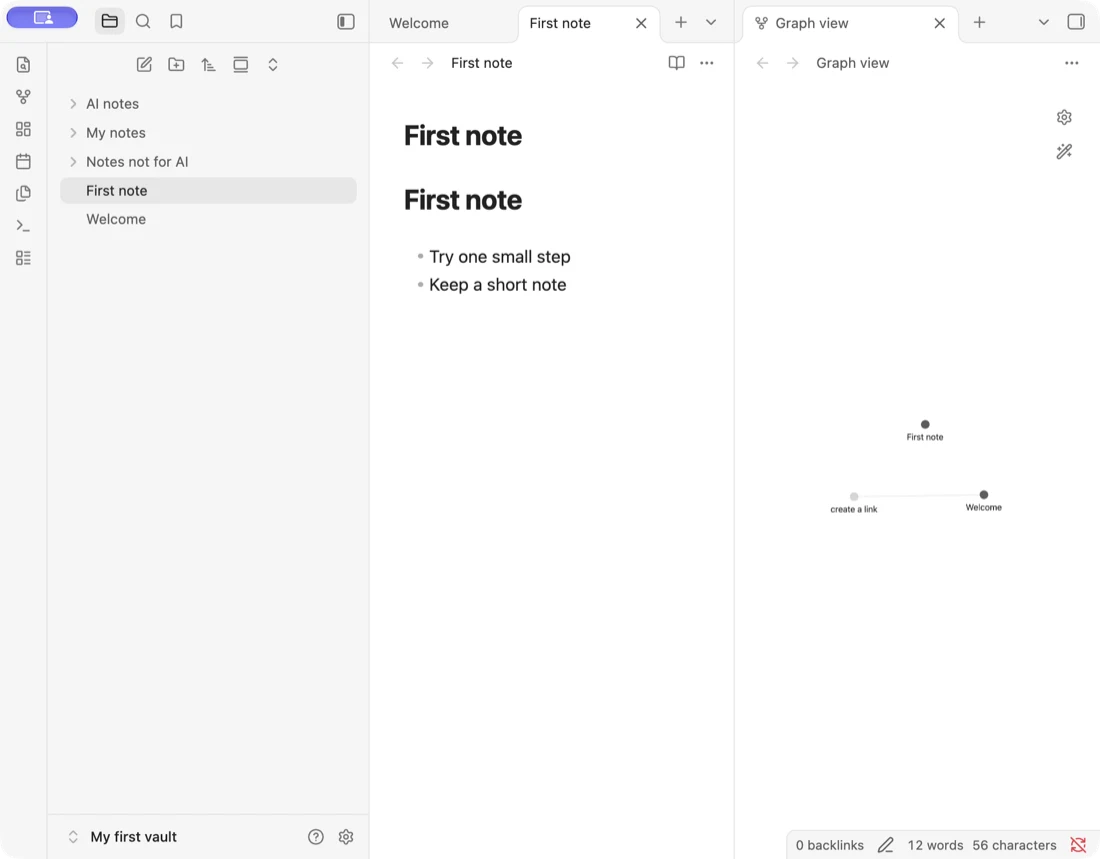
There are two reasons to split them. First, if your notes and the AI’s notes mix, you lose track of which ideas were yours. Second, the contents of any note the AI reads are sent to the AI service. Keep anything you don’t want it to read out of reach from the start.
Rule 2: Hand the AI an entry note each time you start
An AI may not remember what happened in an earlier conversation. So for each area of work, we keep one short entry note that says where things stand and what to do next, and we have the AI read it first every time it starts. At Wada Digital Lab, this note is handed to the AI automatically at the start.
The entry note is not a log; it’s the door into the next conversation. If it fills up with history, it gets long and the “next step” is less likely to be read. We keep long history in separate notes.
In the practice vault above, a note written by an AI goes in the “AI notes” folder, like the entry note in the screenshot below.
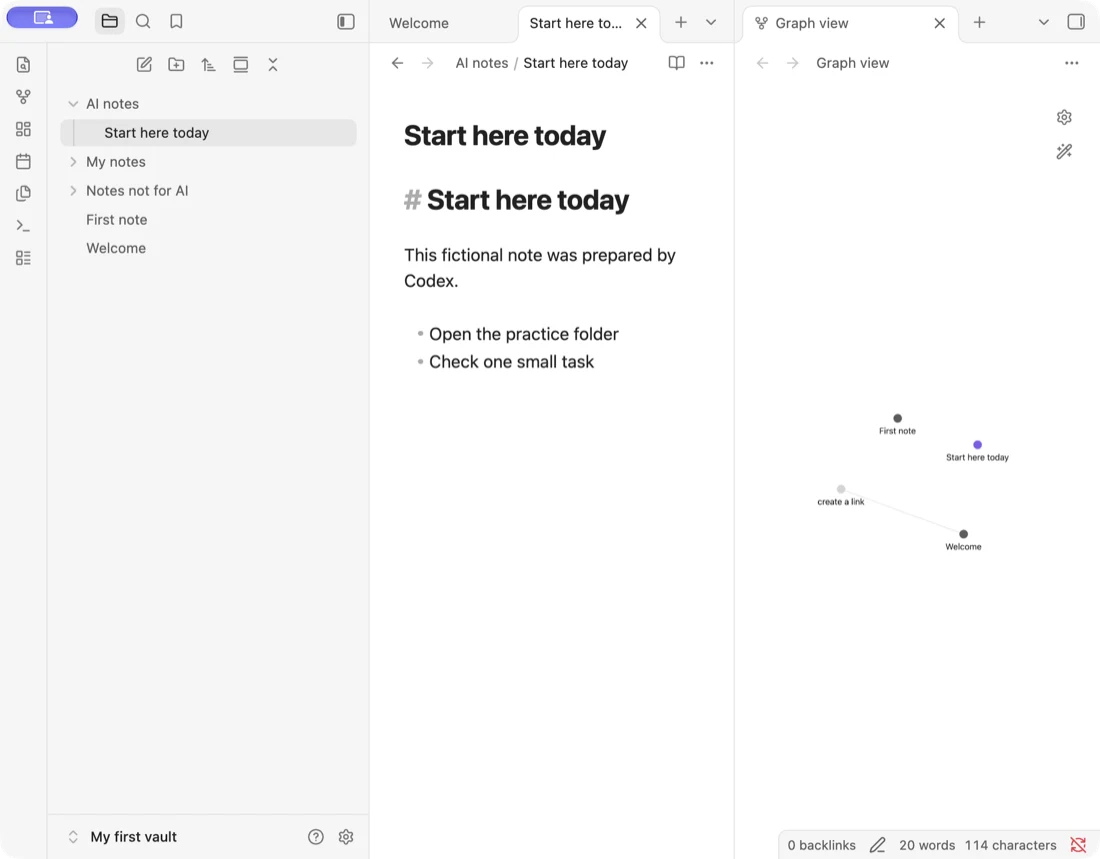
Rule 3: Enforce rules with a mechanism, not just words
Claude Code has a file (CLAUDE.md) for instructions it reads every time. But Claude Code’s documentation says: “Claude treats CLAUDE.md files as context, not enforced configuration, so how you write instructions affects how reliably Claude follows them.” Context here means background information the AI takes into account. Writing “don’t write here” doesn’t guarantee the AI will follow it.
So at Wada Digital Lab, if the AI tries to write outside the allowed folder, or to open the folder kept from it, a mechanism stops the action. It uses a Claude Code feature called hooks, which automatically runs a check you set up just before the AI takes an action. On the day we wrote this article, the AI tried to record changes with a command that covered the whole vault, and the mechanism stopped it. The AI rewrote the command so it pointed only inside its own folder, then saved again.
Sharing the same vault with a second AI (Codex)
Besides Claude Code, an AI called Codex from OpenAI also reads and writes the same vault at Wada Digital Lab. At Wada Digital Lab, we don’t rely on Codex remembering things between conversations; anything we want carried to the next one goes in the vault. We keep the rules in a single note and have both AIs read it.
| Rule | What to do | What happens if you don’t |
|---|---|---|
| One folder to write in | Pick the folder the AI writes in, and keep it out of the folder it can’t read | Your notes and the AI’s notes get mixed up |
| An entry note | Hand over where things stand and the next step every time you start | The AI starts without knowing where you left off |
| Enforce with a mechanism | Stop the action if the AI tries to write outside the rules | The AI may not follow rules that are only written down |
Frequently asked questions
Do I need MCP or another kind of connection?
MCP is a standard for connecting an AI to other apps. We don’t use one. Run Claude Code in your vault’s folder and it can read and write the note files directly.
Is it OK to let the AI read every note in my vault?
The contents of any note the AI reads are sent to the AI service. Put notes you don’t want it to read in a separate folder, and make it a rule that the AI never opens that folder.
I’m new to Obsidian. Where should I start?
Installing Obsidian and creating a vault are covered in how to start using Obsidian on a Mac. If you can’t find a PDF in your vault, see when you can’t find a PDF in Obsidian.
What we checked, and our sources
The three rules and the numbers come from how Wada Digital Lab runs its own setup (a MacBook Air with M4, from August 4 to October 17, 2026; during that time the Mac was updated from macOS 26 to macOS 27). The numbers are counts of the recorded changes and notes in the folder the AI writes in, taken on the night of October 17, 2026. How it feels to have an AI read and write notes comes from the site owner. We did not photograph our own vault. The two screenshots are from a practice vault with made-up notes, taken on a MacBook Air with an M2 chip running macOS 27.0.1 and Obsidian 1.14.4.
We checked the quotes against the source documents of these pages on October 17, 2026.