How to sync Obsidian between two Macs — Obsidian Sync or iCloud, and keeping a folder on one Mac
Published October 18, 2026
Official documentation reviewed October 17, 2026 (some steps not tested)
By Wada Digital Lab
To sync Obsidian between two Macs, you can use iCloud Drive or the paid “Obsidian Sync” service. If both computers are Macs and you also use an iPhone, either one works. If there’s a folder you want on only one of the Macs, Obsidian Sync is the better fit, because it lets you leave folders out of syncing. (A vault is the folder on your Mac where Obsidian keeps your notes.) Wada Digital Lab connected two Macs with Obsidian Sync in October 2026. This article covers how to choose, the steps on the second Mac, and what we decided along the way.
Key points
- The two main ways to use one vault on two Macs are iCloud Drive and Obsidian Sync. Never run two sync services on the same vault.
- With Obsidian Sync, open Obsidian on the second Mac and choose “Setup” under “Open vault from Obsidian Sync” to connect to the same vault, then review the settings before you start syncing.
- Obsidian Sync can leave folders out of syncing, using Excluded folders in the Sync section of Settings.
- Obsidian Sync carries the file types and settings you choose. Folders whose names start with a period are not synced.
- Files sync only while Obsidian is running.
- Syncing is not a backup. Keep a separate backup.
The diagram below shows what Obsidian Sync carries between two Macs and what it leaves behind (it is not a screenshot).
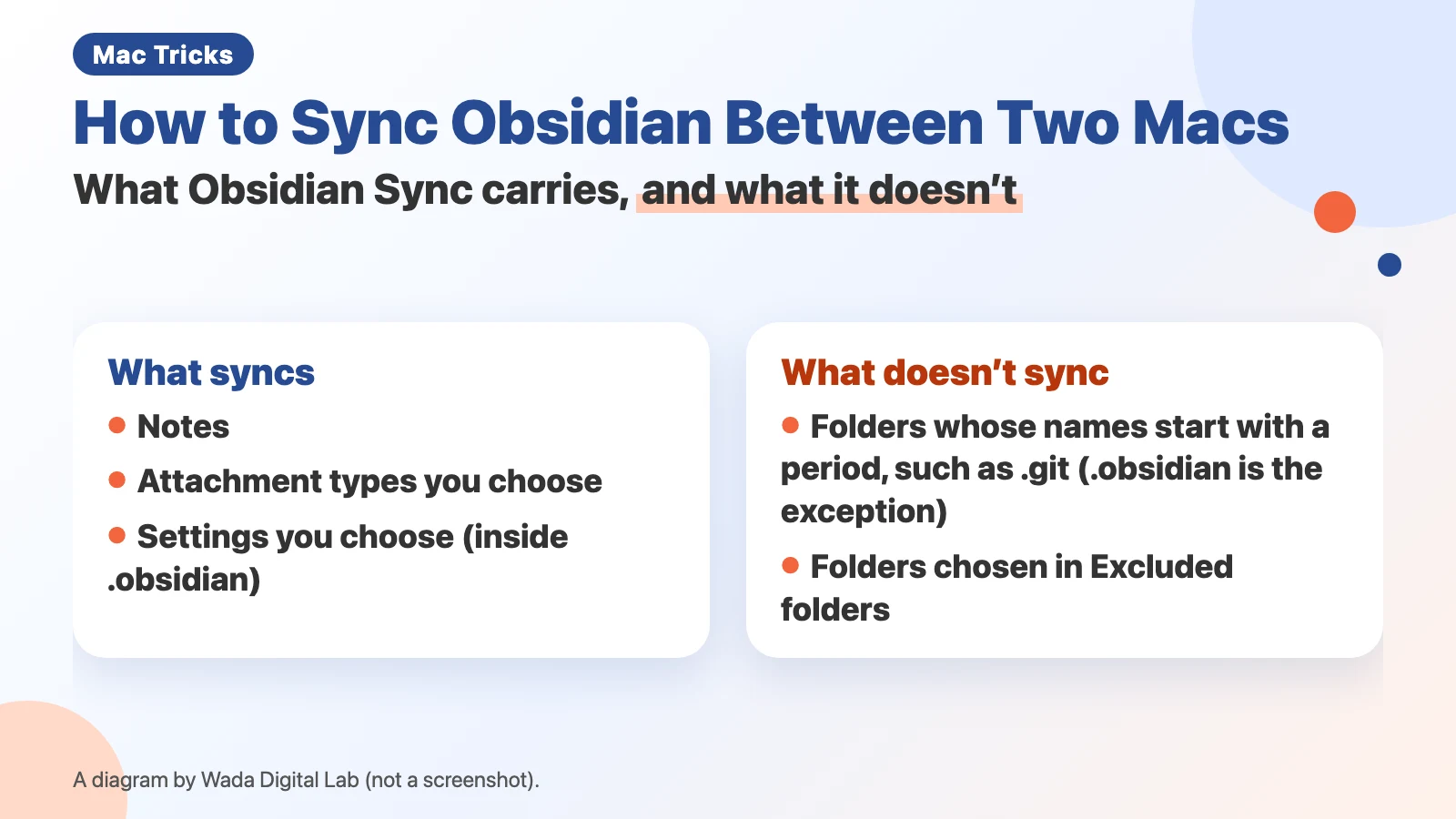
Here is the same idea as a text diagram (not a screenshot).
What syncs
Content Notes and the attachment types you choose
Settings
The settings you choose (inside “.obsidian”)
What doesn’t sync
Hidden folders Folders whose names start with a period (such as “.git”)
Left out by you
Folders chosen in Excluded folders
Two ways to sync between two Macs
| Method | Good for | What to watch for |
|---|---|---|
| iCloud Drive | People who use only Macs and an iPhone and don’t want to pay | Keep the vault in the “Obsidian” folder in iCloud Drive (Mac settings in the questions below) |
| Obsidian Sync (paid) | People with a folder that should live on only one Mac, or who want to see sync status inside Obsidian | The Standard plan syncs one vault, with files up to 5 MB each |
Whichever you pick, don’t put two sync services on one vault. The official help says: “We do not recommend using a third-party sync service alongside Obsidian Sync.” It explains that doing so can cause duplicate or corrupted files.
At Wada Digital Lab, the only thing we hesitated over was which sync method to use. We had an AI walk us through connecting, so the steps themselves were easy. What decided it was that we had a folder we wanted on only one Mac. Since switching to Obsidian Sync, we haven’t had any errors.
Obsidian Sync plans
Obsidian Sync has two plans, Standard and Plus. In the official help’s table, Standard syncs 1 vault and Plus syncs 10. Total storage is 1 GB on Standard and 10 GB to 100 GB on Plus. Both allow an unlimited number of devices. Check the current price on Obsidian’s own pages before you sign up.
Because Standard syncs only one vault, we moved our scanned-document notes, which had been in a separate vault, into a folder inside the main vault.
Connecting the second Mac to the same vault (Obsidian Sync)
These steps assume you have already created an Obsidian Sync vault (the help calls it a “remote vault”) on the first Mac. On a second Mac where Obsidian is freshly installed, the official help says:
- Open Obsidian on the second Mac
- In the section that says “Open vault from Obsidian Sync,” choose “Setup”
- Log in with your Obsidian account
- Choose the remote vault to sync to this Mac and select “Connect”
- Enter a name for the vault that will be created on this Mac, then select “Create”
- Close the window that appears and review your sync settings (such as Excluded folders, below). If you change settings, restart Obsidian
- In the Sync section of Settings, select “Resume” to begin syncing (or “Start Syncing” if you didn’t change anything)
The help strongly recommends reviewing your sync settings before syncing starts. In particular, decide on “Excluded folders” (below) first. When syncing finishes, a circle with a green check mark appears at the bottom right. At Wada Digital Lab, we installed Obsidian on the second Mac (a MacBook Air with M2) on October 11, 2026, and created its vault with the same name in the same place as on the first Mac.
Leaving a folder off one Mac
In the official steps, you open Settings, choose Sync, select “Manage” next to “Excluded folders,” and choose the folders to leave out. Sync settings are set on each Mac separately: “Sync settings do not sync across devices.”
At Wada Digital Lab, we left our private notes folder out of syncing on the second Mac, so that folder doesn’t live there.
About the Excluded files list, the help notes that adding a file “does not remove it from the remote vault if it has already been synced.” The help doesn’t say that excluding a folder later removes it from the Obsidian Sync vault either, so decide before syncing starts.
You choose what gets carried
You can choose what Obsidian Sync carries. By default, besides notes, it syncs images, audio, video, and PDFs; other file types are chosen under Selective sync. Each file also has a size limit: the help says the Standard plan syncs files up to 5 MB and the Plus plan up to 200 MB. Watch out if you have many large PDFs.
Obsidian’s own settings (inside “.obsidian”) are carried only for the items you turn on under “Vault configuration sync.” In the diagram, the rows are named Content, Settings, Hidden folders, and Left out by you. What syncs is “Notes and the attachment types you choose” and “The settings you choose (inside “.obsidian”).” What doesn’t sync is hidden folders and anything left out by you, meaning “Folders chosen in Excluded folders.”
Folders starting with a period don’t sync (so keep the change history on one Mac)
The official help says: “Files and folders beginning with a . are treated as hidden and excluded from sync.” The “.obsidian” folder, which holds Obsidian’s settings, is the exception: the settings you choose in it are synced. Other hidden folders are not carried over.
At Wada Digital Lab, we keep a history of changes to the vault with a tool called “git,” and that history lives in a folder called “.git.” Obsidian Sync doesn’t carry that folder, so we decided to record history on the first Mac only. Notes written on the second Mac arrive on the first one through syncing and are recorded there.
Syncing is not a backup
The official help recommends a backup separate from syncing: “A syncing service is not a backup.” When you sync, a note you delete on one Mac is deleted on the other too. On a Mac, keep a Time Machine backup.
Frequently asked questions
Can I use iCloud Drive and Obsidian Sync together?
Not on the same vault. The official help explains that using both can cause duplicate or corrupted files.
Can I use the same vault on an iPhone?
Yes. With iCloud Drive, keep the vault in the “Obsidian” folder in iCloud Drive. On a Mac with macOS 15 or a newer macOS, right-click the “Obsidian” folder under iCloud Drive in Finder and choose “Keep Downloaded.” On macOS 14 or an older macOS, turn off “Optimize Mac Storage” in your iCloud settings (it affects everything in iCloud on that Mac). For where to create a vault, see how to start using Obsidian on a Mac.
Do notes written by an AI sync too?
Yes. A note written by an AI is just another file in the vault. But files sync only while Obsidian is running; the help says: “No, files are only synced when Obsidian is running.” To pass along a note an AI wrote, keep Obsidian open on both Macs. At Wada Digital Lab, notes an AI writes on the second Mac show up on the first. For the rules we use with AI, see using Obsidian with Claude Code.
What we checked, and Obsidian’s pages
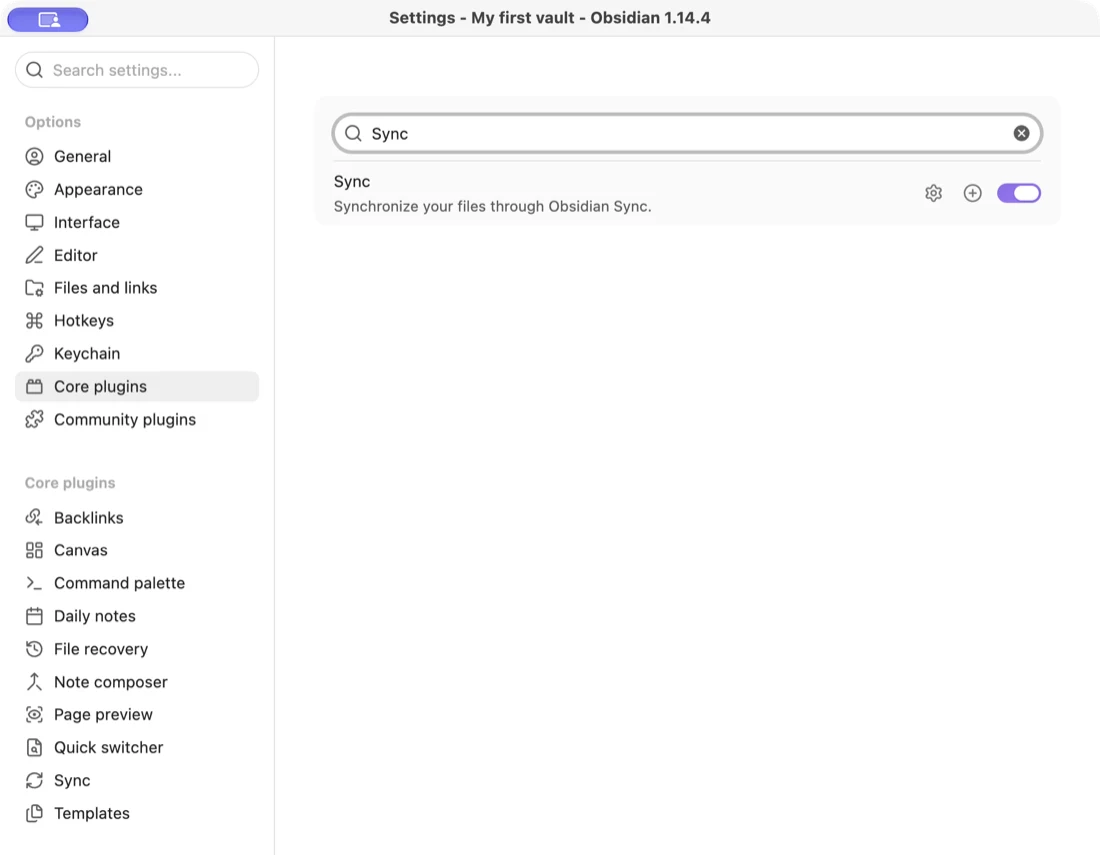
The date we connected the second Mac and what we decided (a vault with the same name and place, excluding the private folder, recording history on the first Mac only) come from how Wada Digital Lab runs its own setup (a MacBook Air with M4, which ran macOS 26.6.2 per our October 10 notes, and a MacBook Air with M2, with Obsidian 1.14.4). We have no record of the second Mac’s macOS version on the day we connected it (our October 17 screenshot record shows macOS 27.0.1). What we hesitated over comes from the site owner. The steps and setting names come from Obsidian’s official help (English). The Sync core plugin screenshot was taken in a practice vault on the MacBook Air with M2 (macOS 27.0.1, Obsidian 1.14.4). We did not photograph the Sync settings screen or a working connection. We checked the quotes against the help’s source documents on October 17, 2026.