← KoeShot for Mac product page
KoeShot for Mac
Press kit / Last updated: October 30, 2026
You are under no obligation to write about KoeShot. Whether you cover it, what you say and when are entirely up to you. The screenshots, the videos and the icon on this page are free to use in your coverage, with no need to ask. Crop and resize them as you like.
1024×1024
A screenshot app for the Mac that you drive with your voice.
Press Option + S and say “Take a screenshot of Safari.”
Because you never touch the mouse, a menu you have opened stays open.
Say “Take a screenshot of the whole screen” and the open menu is still in the picture.
| Name | KoeShot for Mac |
|---|---|
| What it is | A screenshot and screen recording app for macOS. It sits in the menu bar. You say what you want, and it takes the screenshot or the screen recording on your Mac. |
| Price | ¥3,980 including tax, paid once (launch price). There is no monthly fee and no recurring charge. The price is in Japanese yen. |
| Free trial | For 14 days after you install it you can use the app on its own, with no license key. Every feature works. Nothing is charged before you buy. |
| Requirements | System requirements: a Mac with Apple silicon (M1 or later) / macOS 26 or later. Intel-based Macs and macOS 15 (Sequoia) or earlier are not supported. macOS running inside a virtual machine (Parallels Desktop, UTM and the like) is not supported. KoeShot needs permission to use the microphone and to record the screen. After you allow screen recording, quit KoeShot and start it again. |
| Language | English or Japanese. KoeShot follows your Mac's language, and you speak to it in that language. |
| Macs per license | One license covers up to three Macs. |
| Where it is sold | KoeShot is sold to people living in Japan, the United States, Canada, Australia, New Zealand, Singapore or Hong Kong, and to companies based in those places. |
| How it is distributed | A download (DMG) from our website, outside the Mac App Store. The download is free. |
| Current version | 1.8.0, released October 22, 2026 (What’s new) |
| What you can say | Press Option + S, then say, for example:
“Take a screenshot of this app.” / “Take a screenshot of Safari.” / “Take a screenshot of the whole screen.” /
“Let me select an area.” / “Scroll and capture this window.” / “Blur personal information and take a screenshot.” /
“Take a screenshot and name it.” (the words it adds to the file name are in Japanese) /
“Record part of the screen.” The full list is on the product page. Can’t speak out loud? Type the same command instead (Silent Mode). |
| Your data | Listening to your voice and working out what you asked for both happen entirely on your Mac. Your voice, your screenshots and the text on your screen are never sent anywhere. |
| Contact with our servers | The app talks to our servers only when you press “Activate”, “Unregister This Mac…” or “Check for Updates”.
From 2 November 2026, the app also sends one short notice the first time you open it on a Mac, and one more the first time you use it after 14 days without activating a license.
All it contains is which app it is and which of the two moments it is (Privacy Policy). To turn speech into text, macOS downloads the speech model from Apple. Nothing is sent to us. Normally this happens only the first time you start the app. |
| Sold by | Wada Digital Lab (Seller Information) |
About Wada Digital Lab
Wada Digital Lab writes about everyday problems on the Mac, and how to fix them. We also make apps for the Mac, iPhone and iPad. We post videos on YouTube in a series called Mac Tricks. (About us)
Screenshots
Both are real screens. Click an image (or right-click and save the link) to download the full-size file. Crop and resize them as you like. They are free to use in your coverage, with no need to ask.
Both were taken in light mode. There is no dark mode version. The text becomes hard to read if you shrink them a lot, so a wide placement in your article helps.
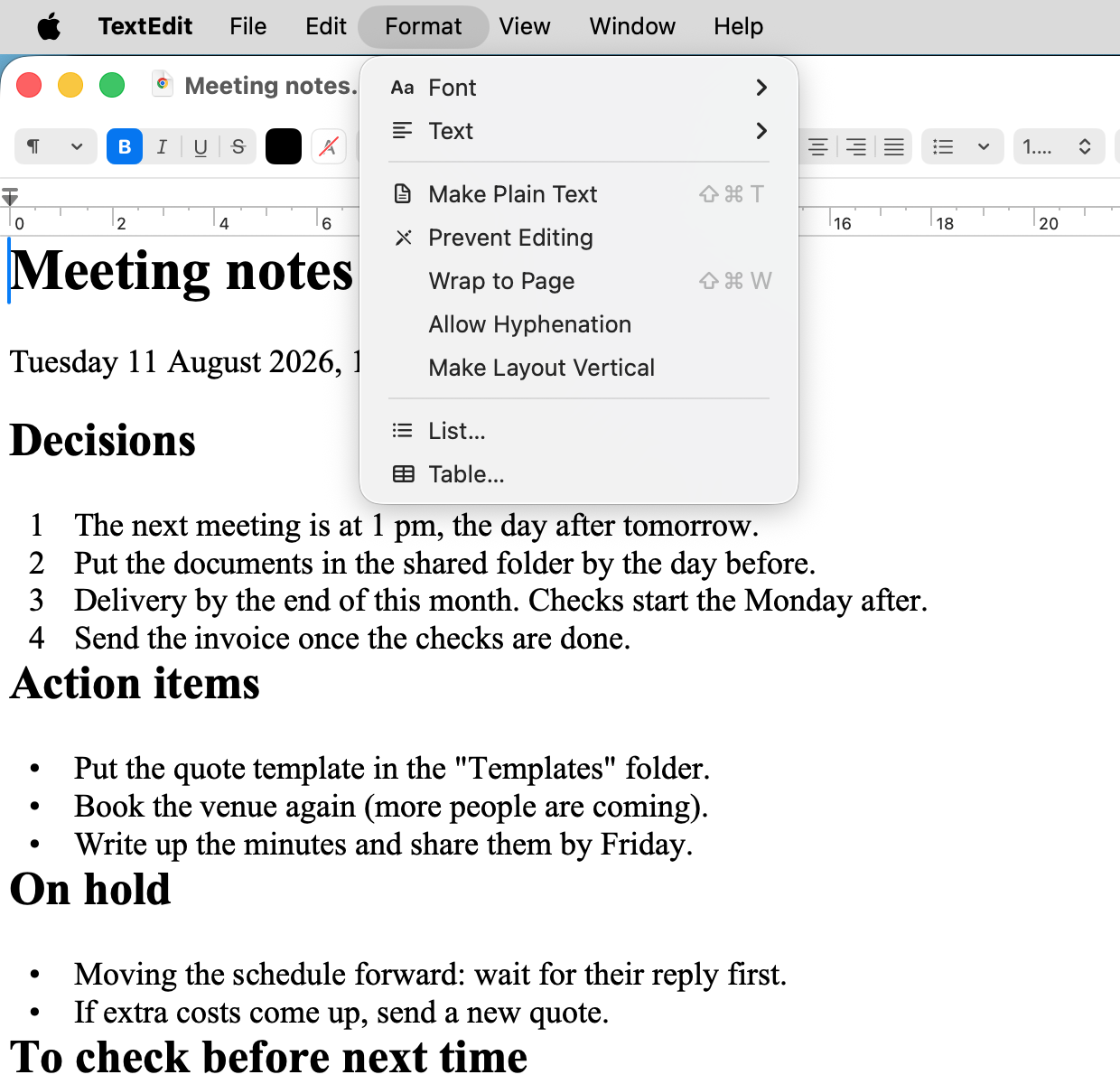
1. A menu left open: we captured the whole screen with the menu still open, then cropped it to the sample document and the menu.
You don’t move your hand back to the mouse.
Full-size PNG (1240×1200)
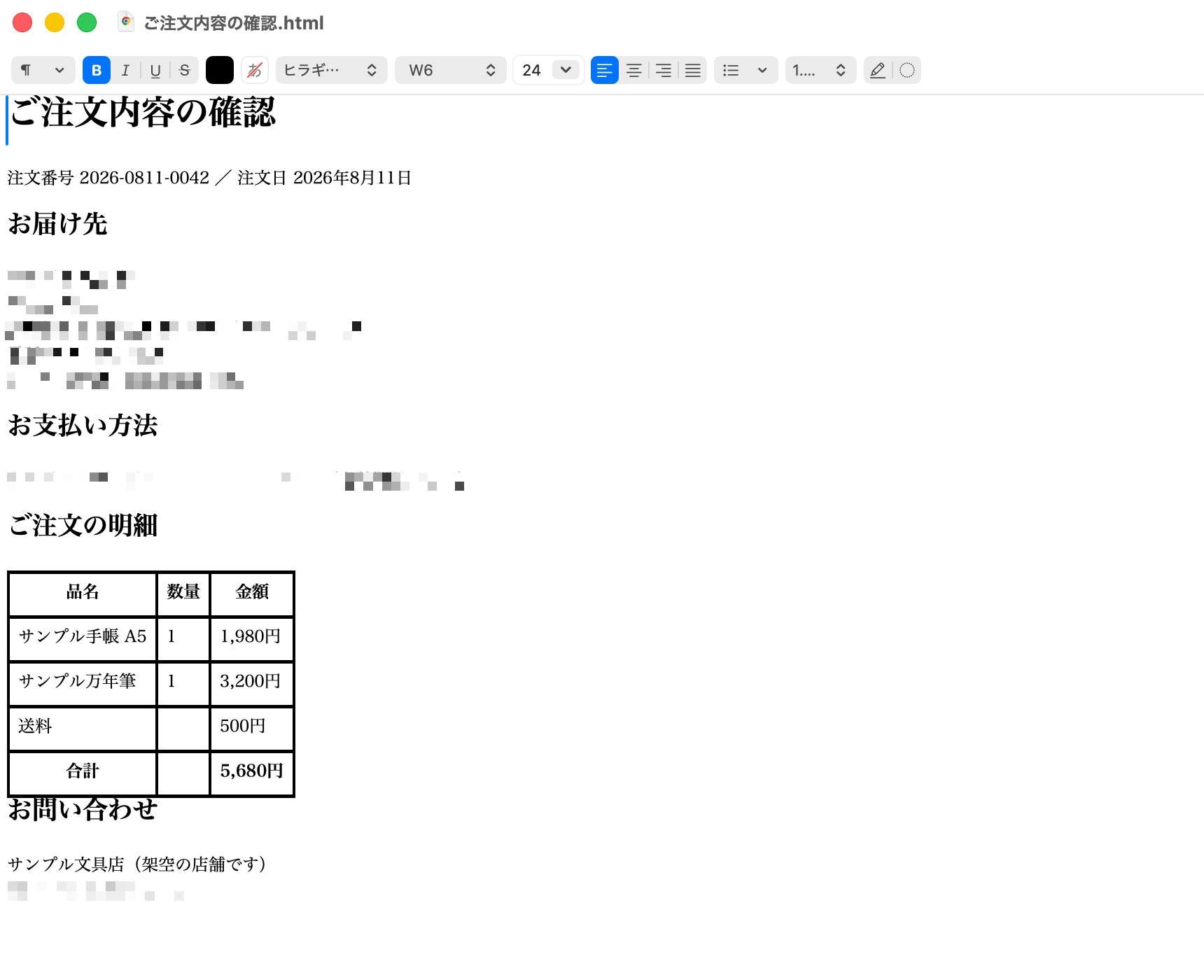
2. Blurring personal information (Japanese version shown): taken by saying the Japanese for “Blur personal information and take a screenshot.”
The sample document and the app are in Japanese. On a Mac set to English, you say the English phrase.
Full-size PNG (1720×1400)
How these were taken.
- The documents are samples. They contain no real person’s name, address, phone number, email address or card number.
- Screenshot 1 was cropped from a capture of the whole screen, so that unrelated windows are not in it. Nothing inside it was changed.
- KoeShot finds personal details automatically, so it is not perfect. It can miss things, and it can cover things that did not need covering.
Demo videos
Both videos have sound. They are free to use in your coverage, with no need to ask, and you may trim or re-export them.
1. Capturing by voice, with a menu left open: Option + S, then “Take a screenshot of Safari.”
KoeShot captures the Safari window and answers “Took a screenshot of Safari.”
Next, with the View menu open, Option + S and “Take a screenshot of the whole screen.”
The open menu is in the screenshot. A small copy of each shot appears in the bottom right corner of the screen.
MP4 file (1440×932, 16 seconds, about 0.3 MB)
How this was recorded.
- The spoken commands are a synthesized voice, played through the Mac’s speaker. KoeShot heard them through the Mac’s built-in microphone, the way it hears you.
- The sound is what the Mac played: the commands, KoeShot’s sounds and its spoken answers.
- The timing was not edited. The time from the end of each command to the finished shot is as long as it really took. Only the waiting before and after was cut.
- The mouse was used once, to open the View menu. The shots themselves were taken by voice.
- The page in Safari is a simple sample page, and the background is plain.
- It is a single take. It does not mean KoeShot never mishears.
2. Blurring personal information (Japanese version shown): the command is said in Japanese, in front of a sample document.
When you speak, the menu bar icon changes while KoeShot listens. When the shot is done,
a small copy of it appears in the bottom right corner of the screen. That copy is the blurred image.
MP4 file (1440×932, 15 seconds, about 0.4 MB)
How video 2 was recorded.
- The document is a sample. It contains no real person’s details.
- The timing was not edited. The time from the end of the command to the finished shot is as long as it really took. Only the waiting before and after was cut.
- The sample document’s window filled the display, and we recorded that display, so that unrelated windows are not in it.
- Only the volume was raised, to make the voice easier to hear. Nothing was sped up or shortened.
- It is a single take. It does not mean KoeShot never mishears.
Contact
For interviews or a review license, email wadadigitallab@gmail.com. We reply in English or Japanese, normally within 24 hours.